Barcode Labels
Purpose
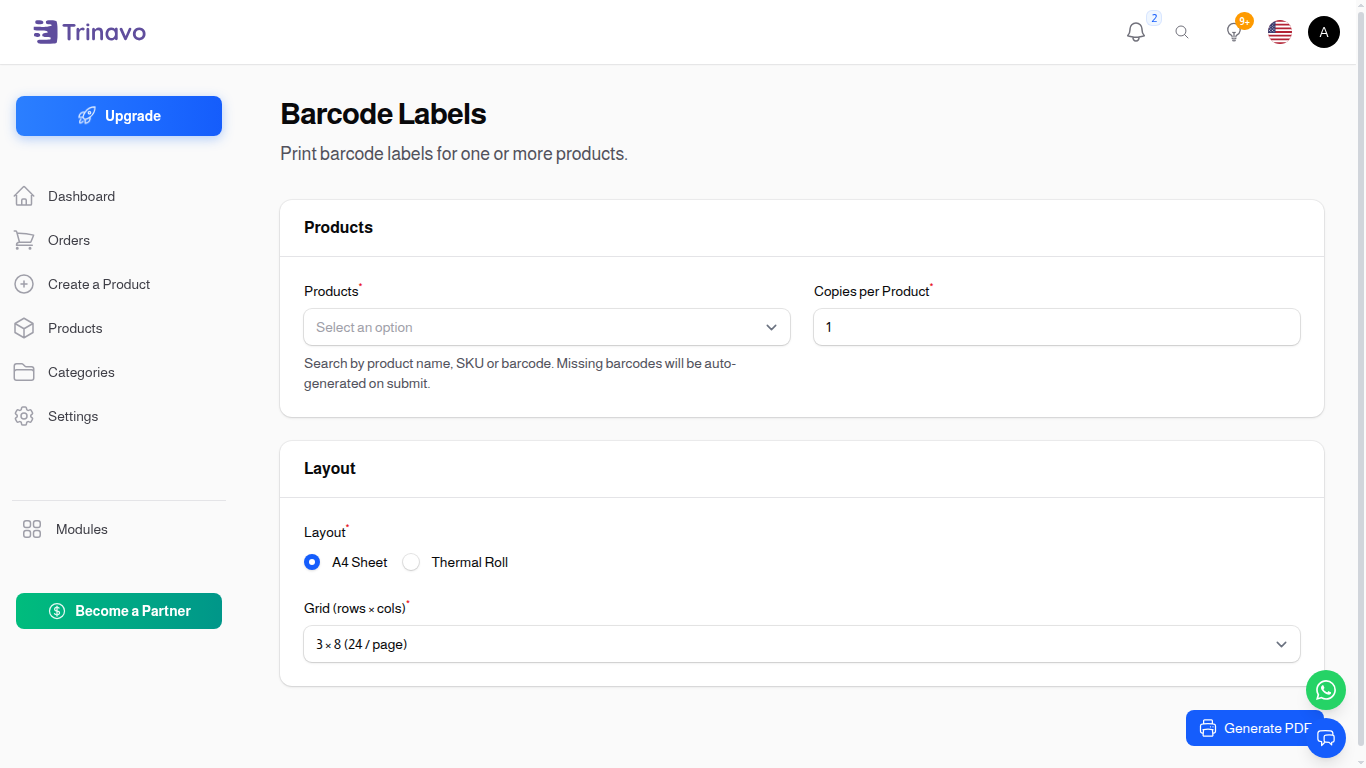
The Barcode Labels page is a built-in label printer for your products. Pick one or more items, choose a label sheet layout (A4 grid or thermal label roll), and the page renders a print-ready PDF with each item's barcode, name, and price laid out for cutting or peel-and-stick.
Accessing Barcode Labels
Sidebar → Inventory → Barcode Labels.
A Premium badge appears on the menu entry on free plans. The page is available on free plans for browsing, but actual label generation requires a subscription — the Print Labels action prompts to upgrade if your plan doesn't include it.
Form
The page is a single form with three sections:
Products
- Products — multi-select. Search by product name, SKU, or barcode. Missing barcodes are auto-generated when you submit the form.
- Copies per Product — how many label copies to print per selected product. Defaults to 1.
Layout
Pick how the labels are arranged on the page using the Layout radio (A4 Sheet or Thermal Roll):
A4 Sheet
A standard A4 page with a configurable grid of labels — pick one of the bundled grids from the Grid (rows × cols) dropdown:
- 2 × 4 — large labels (8 per page)
- 2 × 7 — tall labels (14 per page)
- 3 × 8 — default (24 per page)
- 4 × 10 — small labels (40 per page)
- 5 × 13 — extra-small labels (65 per page)
Use the grid that matches your label sheets so the printout aligns with the perforations.
Thermal Roll
For thermal label printers (Zebra, TSC, etc.), pick the physical label size from the Thermal Size dropdown — for example 50 × 30 mm for compact product tags. Each label prints on its own page so the printer can advance the paper between cuts.
Generating Labels
- Select one or more products.
- Set the number of copies per product.
- Pick the layout (A4 Sheet + grid size, or Thermal Roll + label size).
- Click Generate PDF.
- The page assembles a PDF and prompts you to download it.
The PDF can be sent straight to a printer — no additional driver-side configuration is needed beyond the paper/label size you set on the printer itself.
Tips
- For best results on A4 sheets, set your printer's scaling to 100% / Actual Size — fit-to-page scales the barcode and may make it unscannable.
- For thermal printers, match the Thermal Size to the label roll exactly. A 5 mm mismatch will offset every label down the roll.
- If a barcode won't scan, check the product's Barcode Format under Product → Specifications — the wrong format silently produces unscannable graphics.
Related Sections
- Products — set the Barcode and Barcode Format values that this page prints.
- Inventory Management — adjust stock levels after physically tagging items.