Google Analytics
Sends your store's visits and shopping steps to your Google Analytics account, so you can see where visitors come from, what they look at and what they buy. It can also connect your store's own mobile app.
Where to find it
Open Modules → System Settings → Plugins, go to the Analytics tab and click Configure on the Google Analytics card.
The plugin needs your own domain connected to the store before it can be switched on.
Connect your website
- In Google Analytics, open Admin, then Data Streams, and choose your website's stream (create a property and a web stream first if you have none).
- Copy the Measurement ID; it starts with
G-. - In the plugin's settings, switch on Enabled.
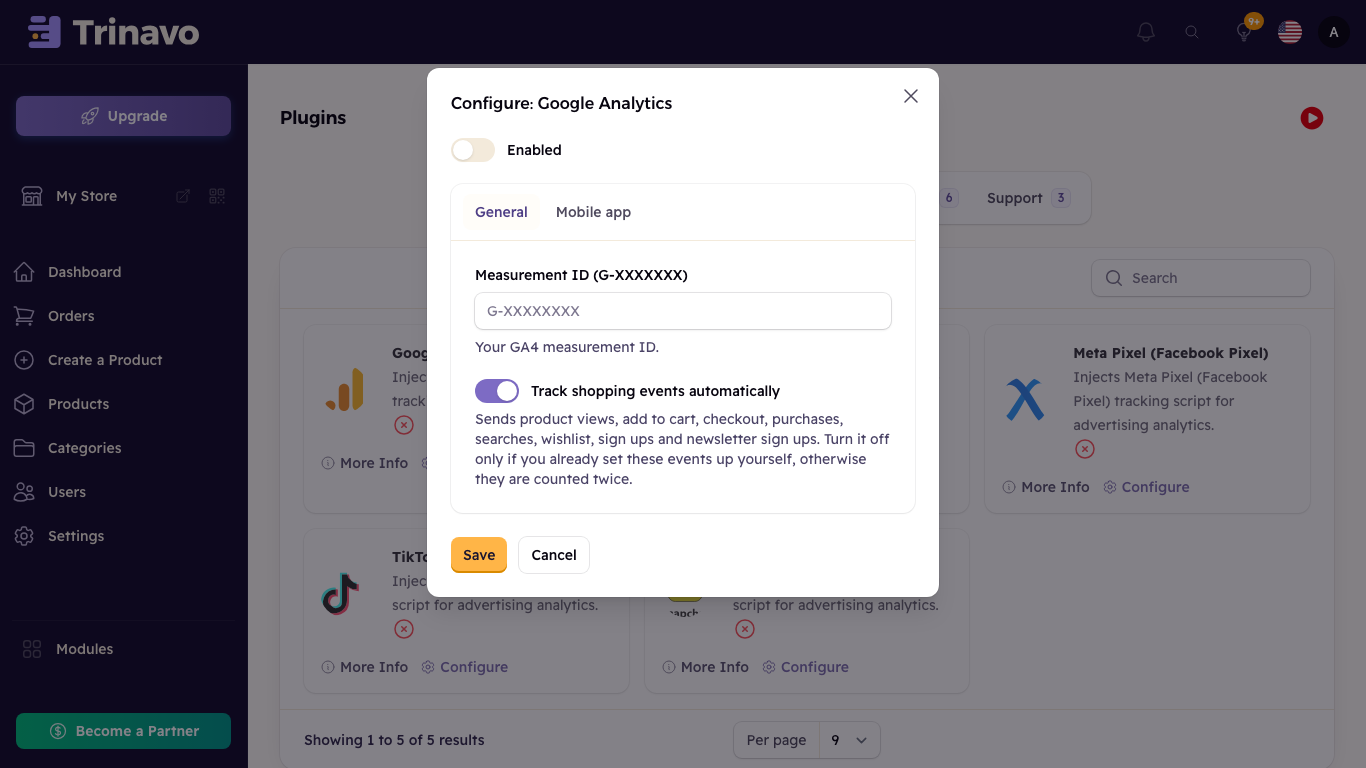
- Paste the ID in Measurement ID (G-XXXXXXX).
- Leave Track shopping events automatically on, and click Save.
| Field | What it does |
|---|---|
| Measurement ID (G-XXXXXXX) | Your Google Analytics 4 ID. Visits are recorded from the moment it is saved. |
| Track shopping events automatically | Also sends product views, add to cart, wishlist, searches, checkout, payment, purchases, sign ups and newsletter sign ups, with the product, quantity and price. Turn it off only if you already send these events yourself, otherwise each one is counted twice. |
To check it works, open Reports → Realtime in Google Analytics and visit your store.
Connect your mobile app
Skip this part if your store has no mobile app of its own.
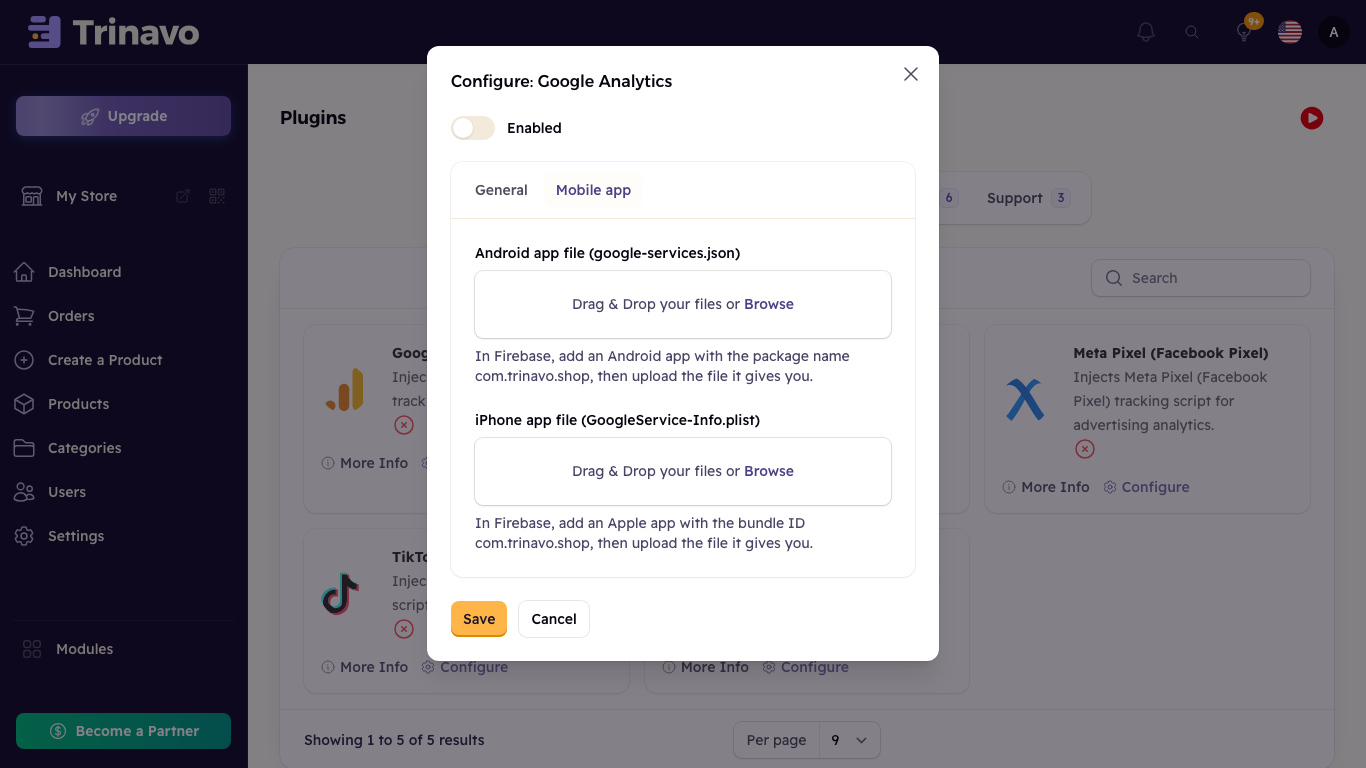
The Mobile app tab of the same dialog connects your app through Firebase, Google's analytics for apps.
- In Firebase, sign in with the Google account you use for Google Analytics, create a project for your store and keep Google Analytics on for it.
- Add an Android app with the package name shown under Android app file (google-services.json), and download the
google-services.jsonfile it gives you. - Add an Apple app with the bundle ID shown under iPhone app file (GoogleService-Info.plist), and download the
GoogleService-Info.plistfile. - Upload each file in its field, make sure Enabled is on, and click Save. Under each field the store then shows which app the saved file is for; a file that is not a valid Firebase file is refused.
To count app sales in Google Ads, link Google Ads to the Firebase project in Firebase's project settings, then import the purchase event as a conversion in Google Ads.