Add Products from Supplier
Browse what a supplier sells and add only the products you want, in the categories you choose, instead of importing the supplier's whole catalogue. A product added here stays linked to the supplier, so its price and stock keep updating on their own.
Where to find it
Open Modules → Dropshipping → Add Products, or choose Add Products from a supplier's Actions on Dropshipping Plugins.
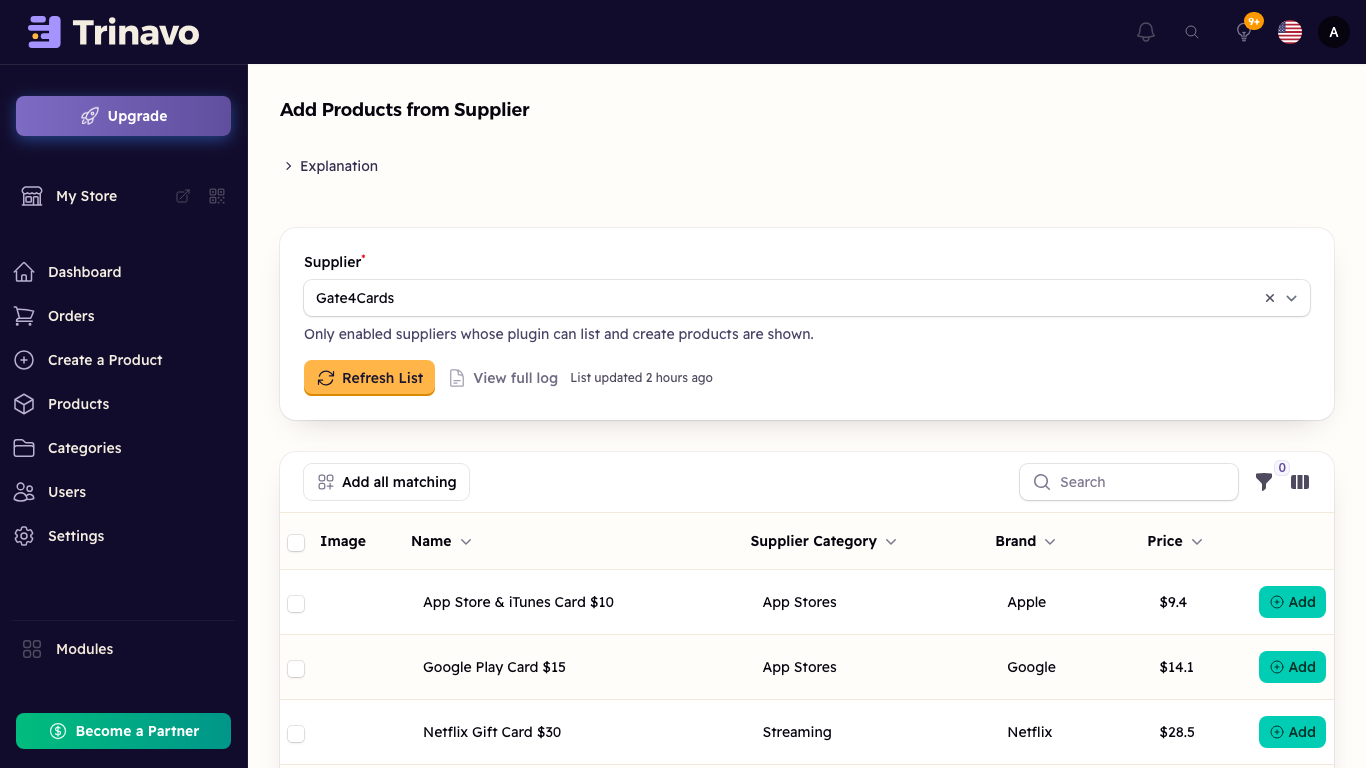
Supplier lists your enabled suppliers that can provide a product list. The table shows only the products you have not added yet: once a product is in your store, it leaves this list.
Image, Name, Supplier Category, Brand and Price are shown; Stock and Supplier Reference (the supplier's number for the product) can be added from the columns button. Search by name, supplier category or brand, or filter by one Supplier Category or Brand.
Get the latest list
The list is what the supplier sold the last time it was downloaded; the time shows next to the button (List updated ...). Click Refresh List to download it again. A large catalogue can take a few minutes; you can stay on the page while it works, and View full log shows each step.
Add one product
- Click Add on the product's row.
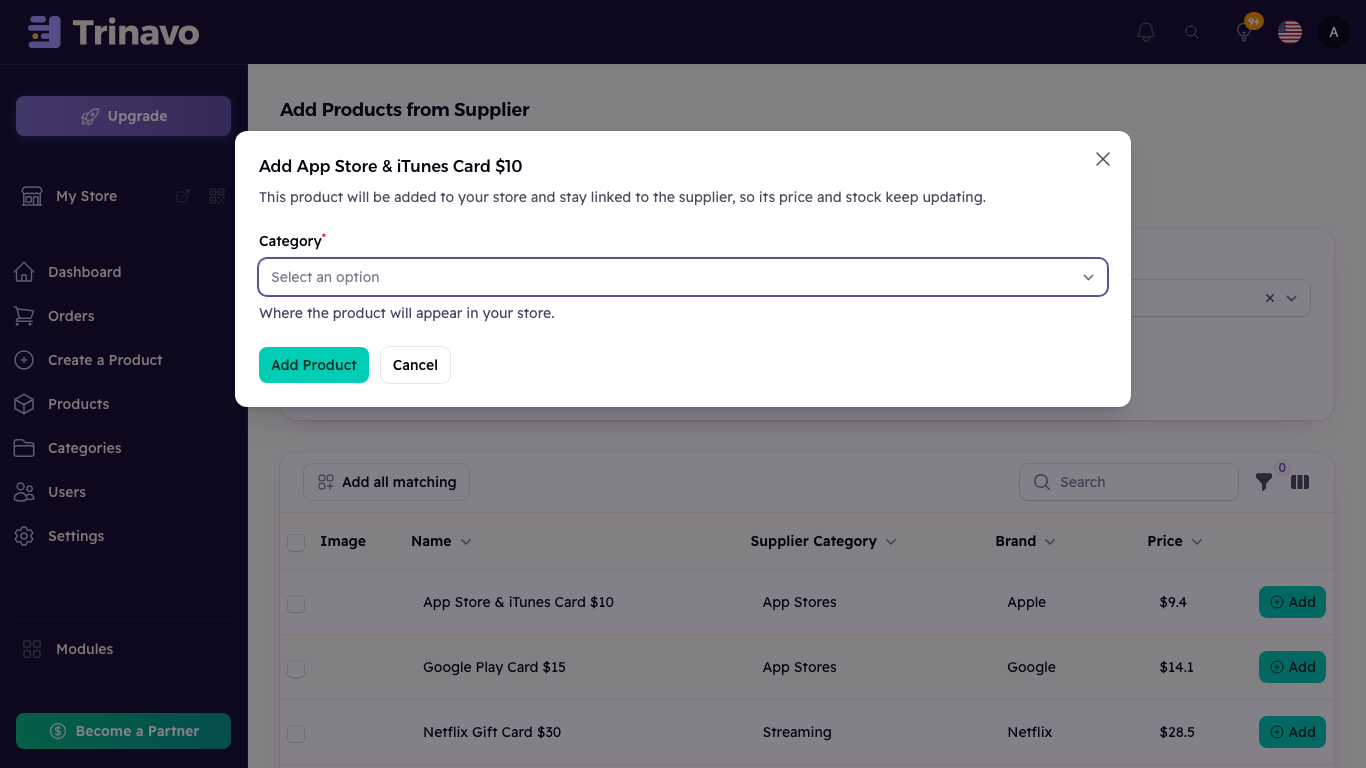
- Pick the Category it goes in. When the supplier's category has the same name as one of yours, it is already picked.
- Click Add Product.
A message confirms it, with Edit product to open it straight away.
Add many products
- Add Selected: tick up to 100 products, click Add Selected, pick one Category for all of them and click Add Products.
- Add all matching: search or filter first (one brand, one supplier category), then click Add all matching. The dialog says how many will be added; up to 1,000 go in at a time, so run it again for the rest.
Many products are added in the background, with their pictures, and you get a notification when it is done. You can move them to other categories afterwards from Products.