Newsletter Subscribers
The email addresses of visitors who signed up to your newsletter on your store. Export the list into the email tool you send your newsletters with, and mark people unsubscribed when they ask to leave it.
Where to find it
Open Modules → Marketing & Content → Newsletter Subscribers.
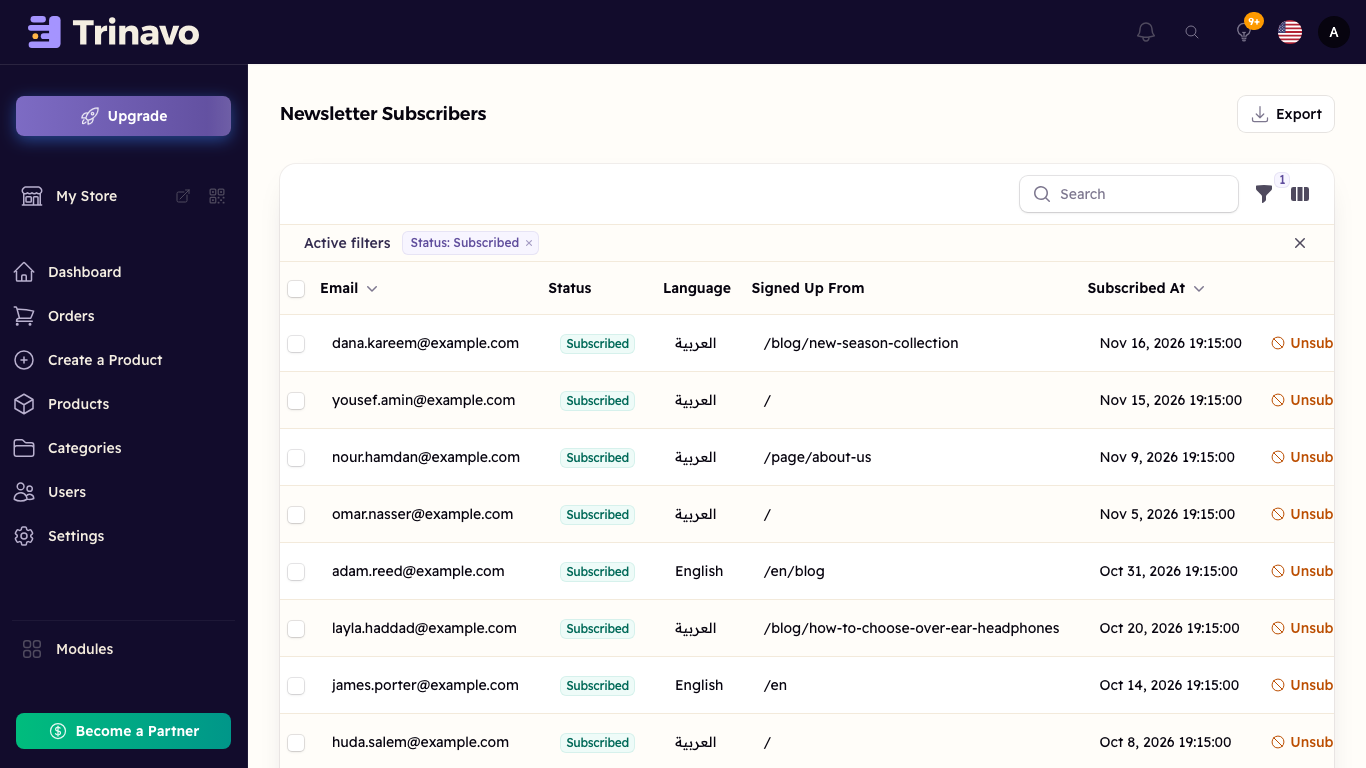
Each row shows the Email, its Status, the Language the visitor was browsing in, the page they Signed Up From and when they Subscribed At. Click an email to copy it. The Customer column, hidden until you switch it on, names the customer account when the visitor was logged in, and Unsubscribed At shows when someone left.
The list opens on the Status filter set to Subscribed, so people who left the list are not in it and not in the export. Change the filter to see them. Language filters by the language people signed up in.
How people sign up
Subscribers come only from your store: you cannot add one here. Your design needs a Newsletter Signup block, which you place with the page builder. The block's settings choose its text, its look, the message shown after signing up, and whether the visitor must tick a box to accept your terms (Ask to accept the terms).
An address appears once in the list however many times it is entered. Someone who unsubscribed and signs up again is subscribed again.
Export the list
- Set the filters to the people you want, for example Language for a newsletter in one language.
- Click Export at the top.
- Choose the columns and click Export. You are told when the file is ready to download.
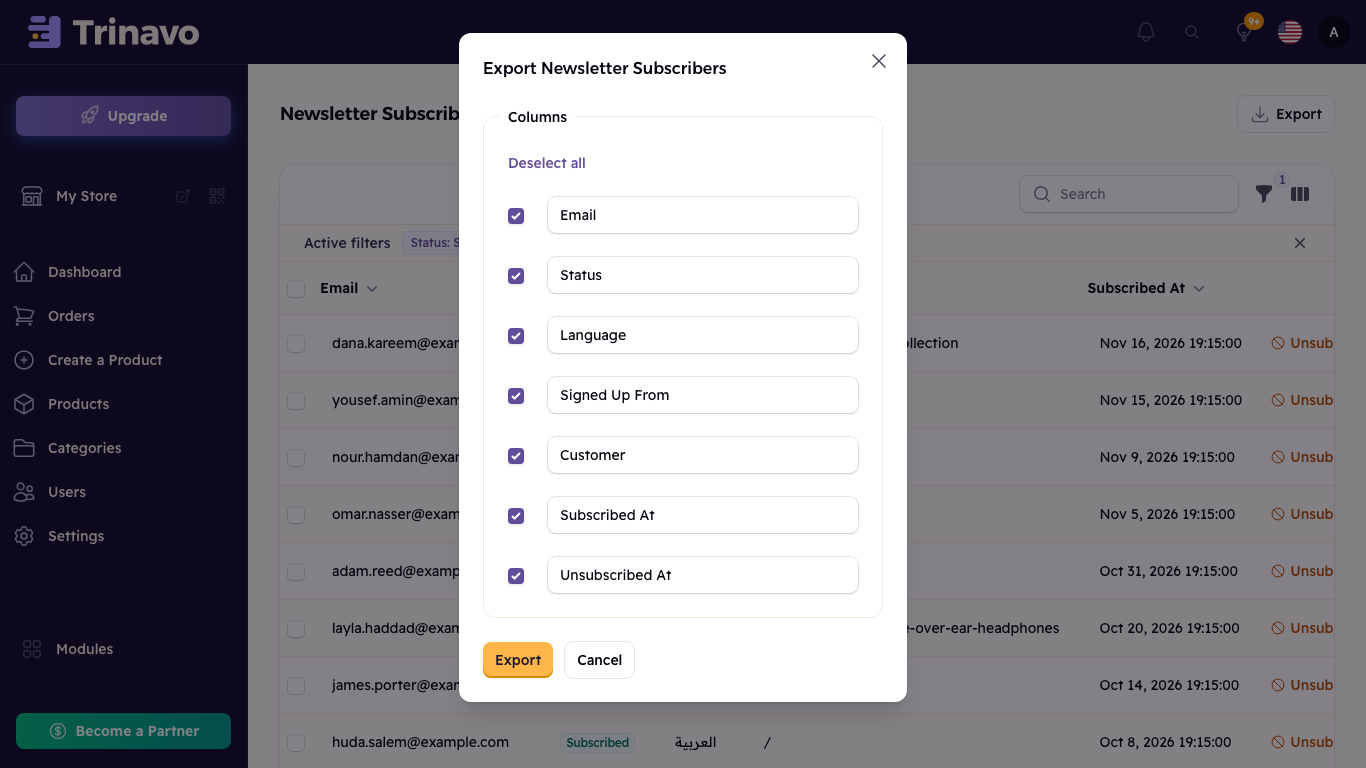
To export only some people, tick their rows and use Export from the bulk actions.
Take someone off the list
When someone asks to stop receiving your newsletter, click Unsubscribe on their row and confirm. The address is kept, marked Unsubscribed, and leaves the list and its export. Resubscribe on the row puts it back; use it only if the person asked to receive your newsletter again.
Delete on the row removes the address completely. Tick several rows to delete them together.