Wallet Transactions
Purpose
View complete transaction history for all customer wallets. Track wallet credits and debits with details about amounts, balances, and transaction reasons.
Accessing Wallet Transactions
Click Modules → Wallet Management → Wallet Transactions
List View
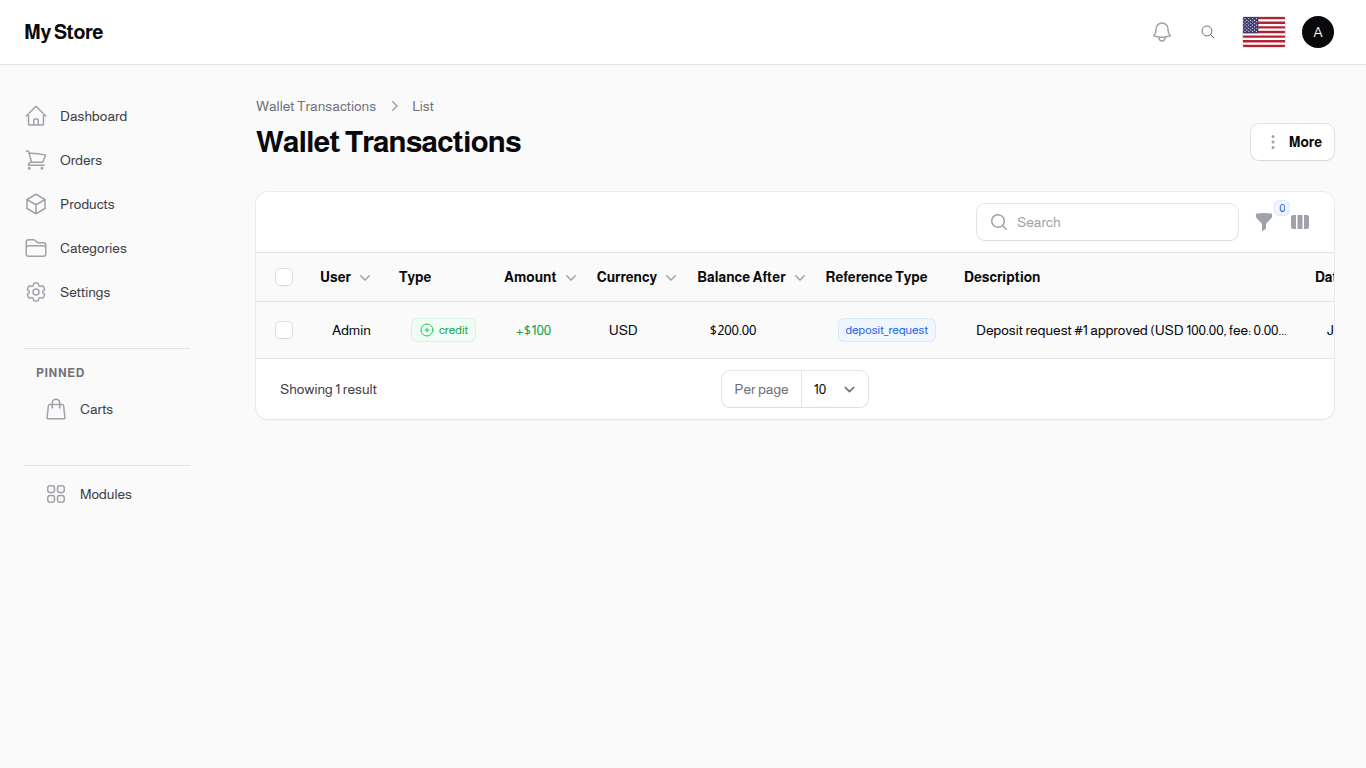
The list displays all wallet transactions with transaction type, amount, and current balance information.
Table Columns
ID
- Format: Number
- Purpose: The transaction's own number, useful when you need to point support at one specific entry
User Name
- Format: Text
- Purpose: Customer who owns this wallet transaction
User Email
- Format: Email address (hidden by default)
- Purpose: Customer email address
Type
- Format: Badge (Credit: green with +, Debit: red with −)
- Purpose: Transaction direction (Credit = money added, Debit = money removed)
Amount
- Format: Money value (color-coded: green for credit, red for debit, includes +/− sign)
- Purpose: Transaction amount
Currency
- Format: Text (3-letter code)
- Purpose: The currency of the wallet this transaction belongs to
Balance Before
- Format: Money value (hidden by default)
- Purpose: Wallet balance before this transaction
Balance After
- Format: Money value
- Purpose: Wallet balance after this transaction
Reference Type
- Format: Badge with label
- Purpose: Transaction category (wallet_topup, order_payment, admin_adjustment, refund)
Reference ID
- Format: Number (hidden by default)
- Purpose: ID of related transaction (order ID, topup ID, etc.)
Description
- Format: Text (truncated to 50 characters with tooltip)
- Purpose: Reason for transaction
Created By
- Format: Text (hidden by default)
- Purpose: Who was behind this transaction. It shows you or a colleague when a wallet was adjusted by hand or a deposit or withdrawal was approved, and the customer when they topped up or sent a transfer. It is usually empty when the transaction happened on its own, such as paying for an order at checkout.
Date
- Format: Timestamp
- Purpose: When this transaction occurred
Row Actions
- Edit: Change a transaction. Only offered on adjustments you made by hand; see the note below.
- Delete: Remove a single transaction. You are asked to confirm first, and you are warned that the customer's wallet balance will be recalculated once it is gone.
- Restore: Bring back a deleted transaction. Only on deleted rows.
- Force delete: Remove a deleted transaction for good. Only on deleted rows.
Bulk Actions
- Delete selected: Remove several transactions at once. You are asked to confirm first, and you are warned that the wallet balances of every affected customer will be recalculated.
- Restore selected: Bring back several deleted transactions at once.
- Force delete selected: Remove several deleted transactions for good.
- Export: Export transaction data to Excel/CSV
Viewing Transaction Details
There is no separate detail page for a transaction. Everything is on the list itself:
- Use the Column manager button to switch on the hidden columns: the customer's email, the balance before the transaction, the Reference ID and who was behind it
- Hover a shortened description to read it in full
- The customer, the currency, the balance after and the date are always shown
Transaction Types
Transactions are categorized by type:
Credit Transactions
- Customer purchases refunded
- Promotional credits
- Manual admin adjustments
- Wallet topups
Debit Transactions
- Customer store purchases
- Payment processing fees
- Manual deductions
- Chargebacks
Reference Types
Each transaction is tagged with its source:
Wallet Topup
- Customer deposited money into wallet
- Usually initial funding or prepayment
Order Payment
- Payment for a store order
- Related to specific order transaction
Admin Adjustment
- Manual adjustment by administrator
- Reason recorded in description
Refund
- Order refund or return credit
- Related to order transaction
Wallet Transaction Filters
Use filters to find specific transactions:
- Type: Show only credits or only debits
- Reference Type: Show one category of transaction
- User: Pick one customer wallet by the customer's name and see only that wallet's transactions. A customer who holds wallets in more than one currency is listed once per wallet
- Created At: Set a Created From date, a Created Until date, or both
- Deleted records: Include transactions that have been deleted, or show only those
Important Notes
Manual Edits
- Only transactions marked as
admin_adjustmentcan be edited - Automatic transactions (order_payment, wallet_topup, refund) are immutable for audit trail integrity
Manual Creation
- Manual transaction creation is disabled through the admin interface
- Transactions are created automatically by system actions (orders, refunds) or through wallet management actions (Add/Deduct Funds)
Audit Trail
- All transaction records are preserved for accounting and dispute resolution
- Deletion should be done carefully as it removes audit history
Key Information
- Read-Only Mostly: Transaction records are immutable audit logs
- Automatic Recording: Most transactions created automatically by system actions
- Manual Adjustments: Admins can create adjustment records with descriptions
- Balance Tracking: Always shows balance before/after for reconciliation
- Complete History: Transactions are kept for auditing, but they can be deleted if you really need to. When one is deleted, the customer's balance is recalculated from what is left.
- Multi-Currency: Transactions store currency per wallet
- Delete and Restore: A deleted transaction leaves the list but can be brought back with Restore. Only Force delete removes it for good (use carefully)
Related Configuration
Configure wallet visibility in System Settings:
- Hide Wallet from Customers - Control whether customers can see and use wallet features
Related Sections
- User Wallets - Manage wallet balances and funds
- Payment Methods - Enable wallet as a payment option
- Orders - Order payment details
- Users - Customer account management