Order Cancellation Settings
Overview
Order Cancellation Settings controls whether customers can cancel their orders from the storefront. When enabled, a cancel button appears on the order details page for the customer.
Accessing Order Cancellation Settings
Navigate to: Settings Hub → Order Cancellation
Or go directly to: Modules → Settings → Order Cancellation
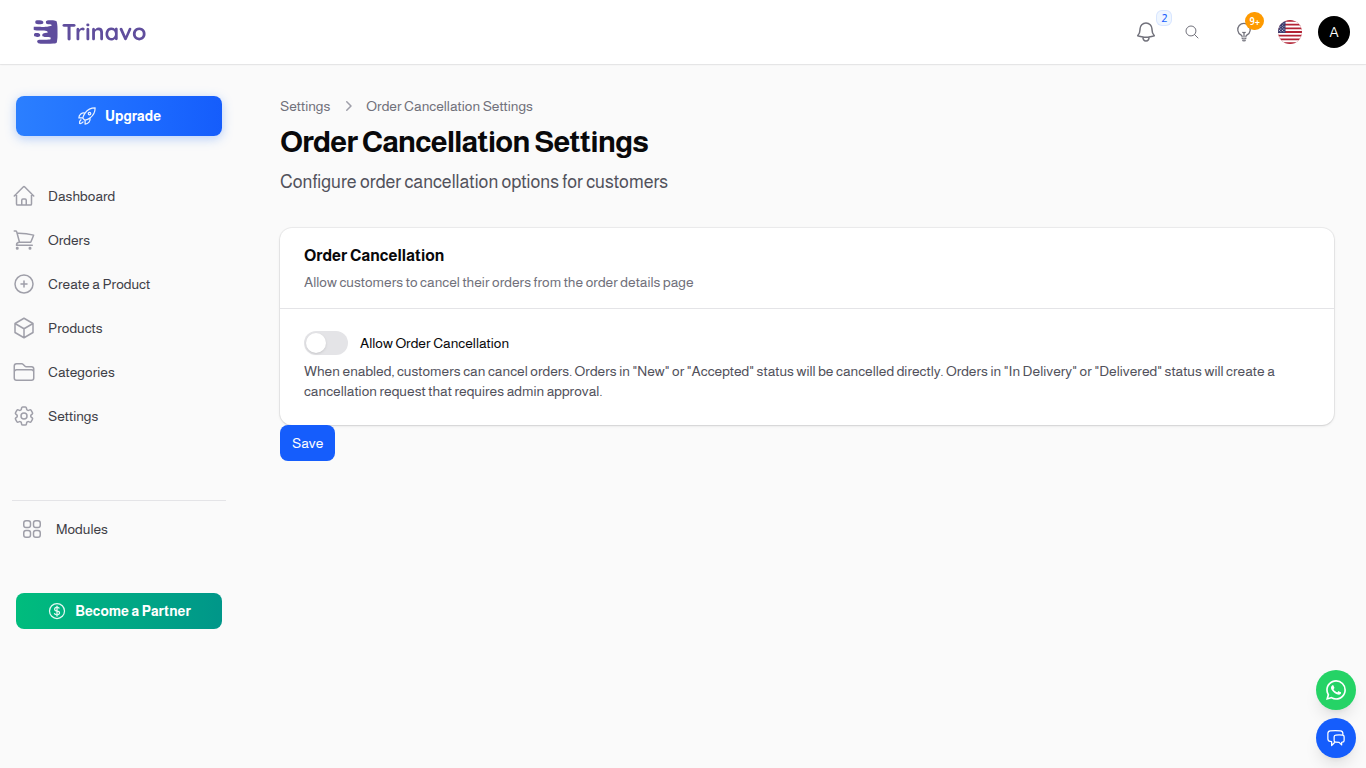
Settings
Allow Order Cancellation
- Type: Toggle switch (On/Off)
- Default: Off (disabled)
- Purpose: Allow customers to cancel or request cancellation of their orders
When Enabled:
Customers will see a cancel button on their order details page. The behavior depends on the order status:
| Order Status | What Happens |
|---|---|
| New | Order is cancelled immediately — no admin approval needed |
| Accepted | Order is cancelled immediately — no admin approval needed |
| In Delivery | A cancellation request is created — admin must review and approve or reject |
| Delivered | A cancellation request is created — admin must review and approve or reject |
When Disabled:
- No cancel button is shown to customers
- Only admins can change an order's status to cancelled
How It Works for Customers
Direct Cancellation (New / Accepted Orders)
- Customer opens their order details page
- Clicks the Cancel Order button
- A confirmation dialog appears
- After confirming, the order is cancelled immediately
- Admins receive a notification about the cancellation
Cancellation Request (In Delivery / Delivered Orders)
- Customer opens their order details page
- Clicks the Request Cancellation button
- A dialog appears asking for a reason
- Customer enters their reason and confirms
- The request is submitted and the customer sees a "Cancellation Requested" status
- Admins receive a notification and can review the request in Orders & Sales → Cancel Requests
- When the admin accepts or rejects, the customer receives a notification
Related Sections
- Orders - Managing orders and cancellation requests
- Cart Settings - Cart behavior configuration
- Checkout Settings - Checkout form configuration