Checkout Settings
Overview
Checkout Settings controls which delivery form fields are displayed during the checkout process and configures payment behavior. Enable or disable specific fields to streamline checkout and collect only the information you need.
Accessing Checkout Settings
Navigate to: Modules → Settings → Checkout
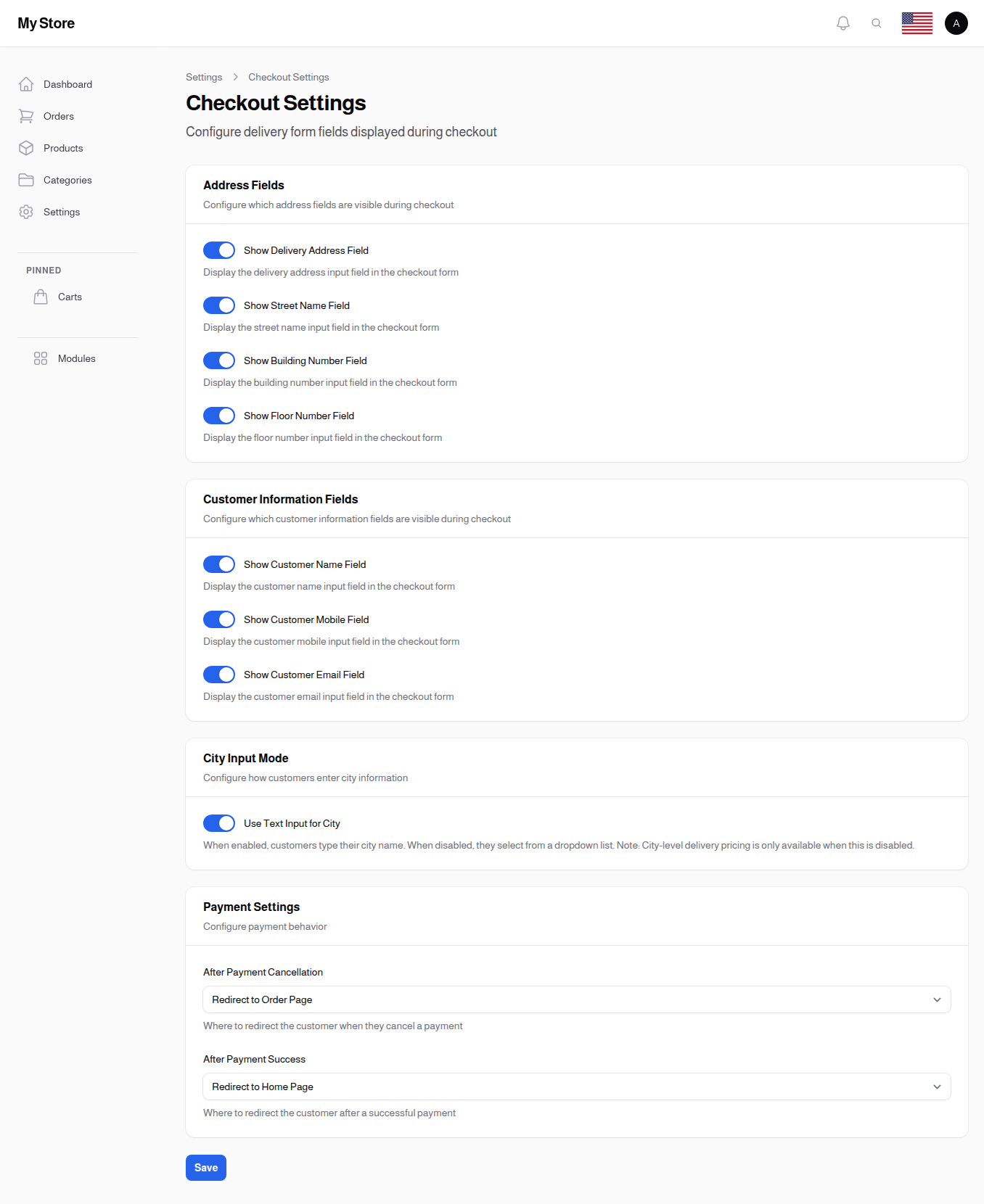
Address Fields
Configure which address fields are visible during checkout.
Show Delivery Address Field
- Type: Toggle switch (On/Off)
- Default: On (visible)
- Purpose: Display the main delivery address input field
When Enabled: Customers enter their full delivery address
When Disabled: Address field hidden (useful if using locations/branches only, or for digital products)
Show Street Name Field
- Type: Toggle switch (On/Off)
- Default: On (visible)
- Purpose: Display a separate street name input field
When Enabled: Customers specify their street name separately
When Disabled: Simpler address collection
Show Building Number Field
- Type: Toggle switch (On/Off)
- Default: On (visible)
- Purpose: Display building/house number input field
When Enabled: Customers enter building or house number
When Disabled: Less detailed address collection
Show Floor Number Field
- Type: Toggle switch (On/Off)
- Default: On (visible)
- Purpose: Display floor number input field
When Enabled: Customers specify which floor for delivery
When Disabled: Useful for single-floor deliveries or pickup-only stores
Customer Information Fields
Configure which customer information fields are visible during checkout.
Show Customer Name Field
- Type: Toggle switch (On/Off)
- Default: On (visible)
- Purpose: Display customer name input field
When Enabled: Collect name for delivery (may differ from account name)
When Disabled: Use registered account name automatically
Show Customer Mobile Field
- Type: Toggle switch (On/Off)
- Default: On (visible)
- Purpose: Display customer mobile phone input field
When Enabled: Collect mobile number for delivery coordination
When Disabled: Use registered phone number from user account
Show Customer Email Field
- Type: Toggle switch (On/Off)
- Default: On (visible)
- Purpose: Display customer email input field
When Enabled: Collect email for order confirmation (may differ from account email)
When Disabled: Use registered account email automatically
City Input Mode
Configure how customers enter city information during checkout.
Use Text Input for City
- Type: Toggle switch (On/Off)
- Default: On (text input)
- Purpose: Control how customers specify their city
When Enabled:
- Customers type their city name in a text field
- More flexible for international addresses
- Works for any location
When Disabled:
- Customers select city from a dropdown list
- Based on your configured cities in the system
- Enables city-level delivery pricing
Note: City-level delivery pricing is only available when this setting is disabled. If you need to set different delivery fees per city, disable text input and configure cities in the system.
Payment Settings
Configure payment behavior and redirects after payment.
After Payment Cancellation
- Type: Dropdown selection
- Options: Select an option, Redirect to Home Page, Redirect to Order Page
- Purpose: Where to redirect customers when they cancel a payment
Options:
| Option | Description |
|---|---|
| Redirect to Home Page | Send customer back to the store homepage |
| Redirect to Order Page | Send customer to their order details page |
Recommendation: Redirect to Order Page allows customers to easily retry payment.
After Payment Success
- Type: Dropdown selection
- Options: Select an option, Redirect to Home Page, Redirect to Order Page
- Purpose: Where to redirect customers after successful payment
Options:
| Option | Description |
|---|---|
| Redirect to Home Page | Send customer to homepage to continue shopping |
| Redirect to Order Page | Show order confirmation with details |
Recommendation: Redirect to Order Page provides clear confirmation of the purchase.
Send Order to WhatsApp
Show a button after checkout that lets the customer send their order details straight to your store's WhatsApp number. It works for every order — including orders placed when you have no online payment method — and it never changes where customers are redirected after payment.
When a customer taps the button, WhatsApp opens with the order already written out (order number, items, chosen options, any custom fields, quantities and total). The customer only has to press send. The message arrives on your store WhatsApp number so you can confirm and process the order in the conversation.
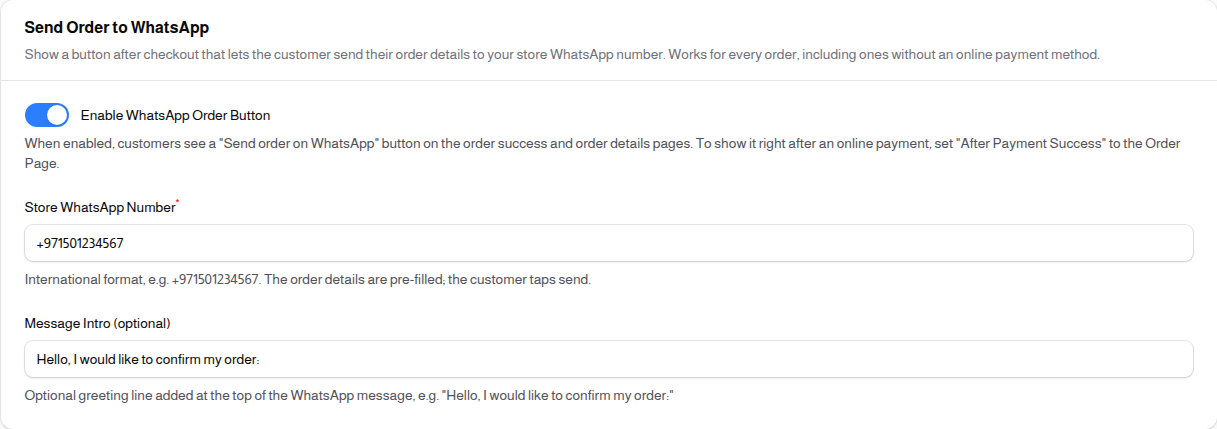
Enable WhatsApp Order Button
- Type: Toggle switch (On/Off)
- Default: Off
- Purpose: Turn the "Send order on WhatsApp" button on or off
When Enabled: Customers see a green Send order on WhatsApp button on the order success page and the order details page
When Disabled: No button is shown and the other WhatsApp fields are hidden
Store WhatsApp Number
- Type: Text input
- Required: Yes, when the button is enabled
- Purpose: The number that receives the order messages
Enter the number in international format, for example +971501234567. Spaces and symbols are ignored automatically. This is your store's number — the place you want customer orders to land.
Message Intro
- Type: Text input (optional)
- Purpose: A greeting line added to the top of the WhatsApp message
For example: "Hello, I would like to confirm my order:". Leave it empty to send only the order details.
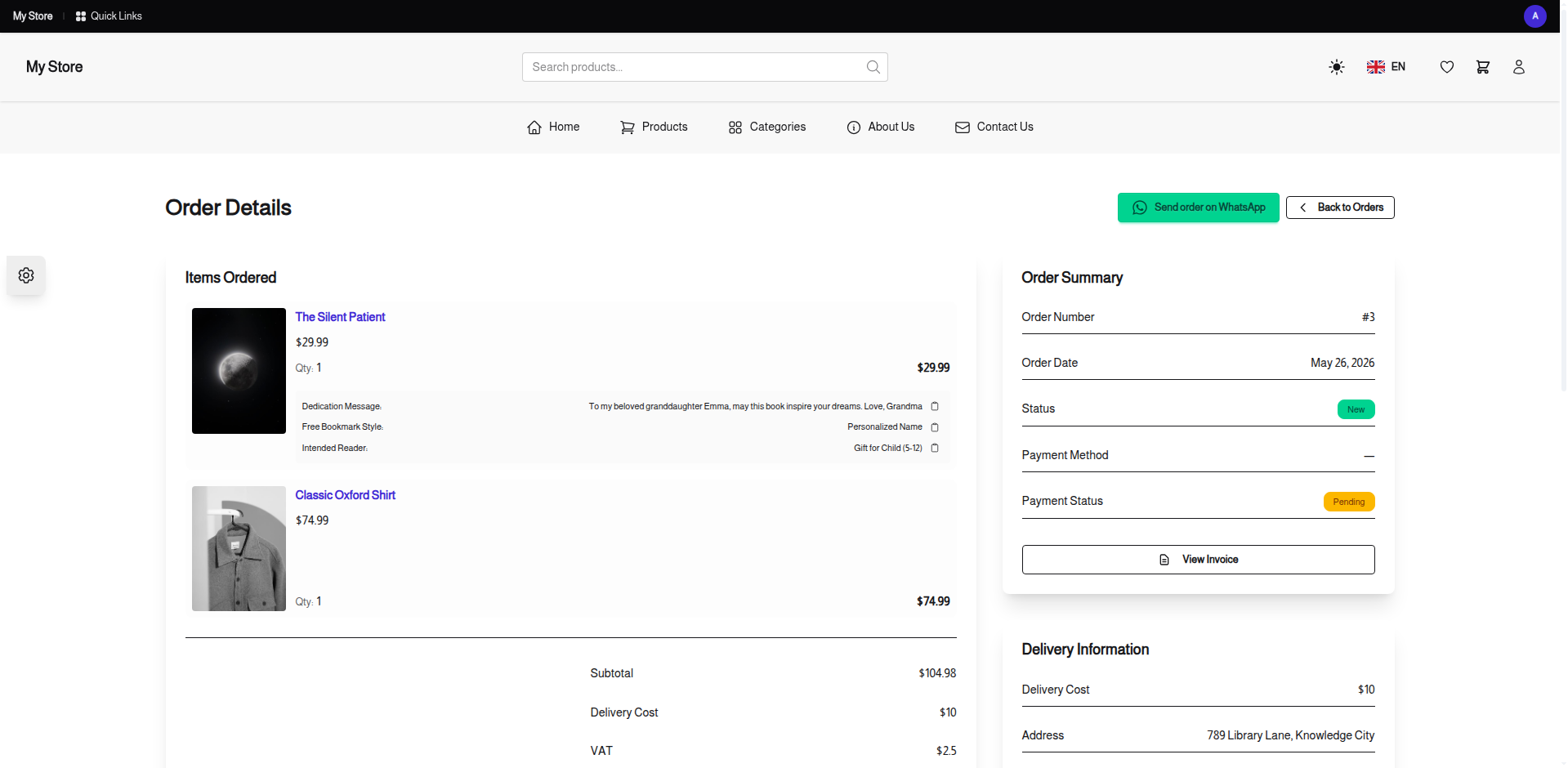
Tip: For online (gateway) payments the button appears right away only when After Payment Success is set to Redirect to Order Page. With Redirect to Home Page the customer still finds the button when they open their order. Orders without an online payment method always land on the order page, so the button shows immediately.
Field Configuration Examples
Full Address Collection (Physical Products)
Enable all fields for detailed delivery information:
- Show Delivery Address Field
- Show Street Name Field
- Show Building Number Field
- Show Floor Number Field
- Show Customer Name Field
- Show Customer Mobile Field
- Show Customer Email Field
Digital Products Only
Minimal fields for digital/downloadable products:
- Show Customer Name Field
- Show Customer Email Field
In-Store Pickup
Fields for store pickup orders:
- Show Customer Name Field
- Show Customer Mobile Field
Simplified Checkout
Streamlined checkout with essential fields only:
- Show Delivery Address Field
- Show Customer Name Field
- Show Customer Mobile Field
Saving Changes
Click the Save button at the bottom of the page to apply your changes. Changes affect all new checkout sessions immediately.
Related Sections
- Cart Settings - Cart behavior configuration
- Delivery Methods - Available delivery options
- Registration Settings - User registration fields
- Payment Methods - Configure payment options