Backup & Restore
Purpose
The Backup & Restore page is your single tool for taking a snapshot of your store and rolling it back to a known good state. Use it before risky operations (large imports, theme changes, plugin upgrades), to migrate data between environments, or to recover from accidental damage.
Accessing the Page
Sidebar → Tools → Backup Data.
The page is only visible to super-admin users. Regular admins, managers, and vendors will not see the menu entry.
Three Operations
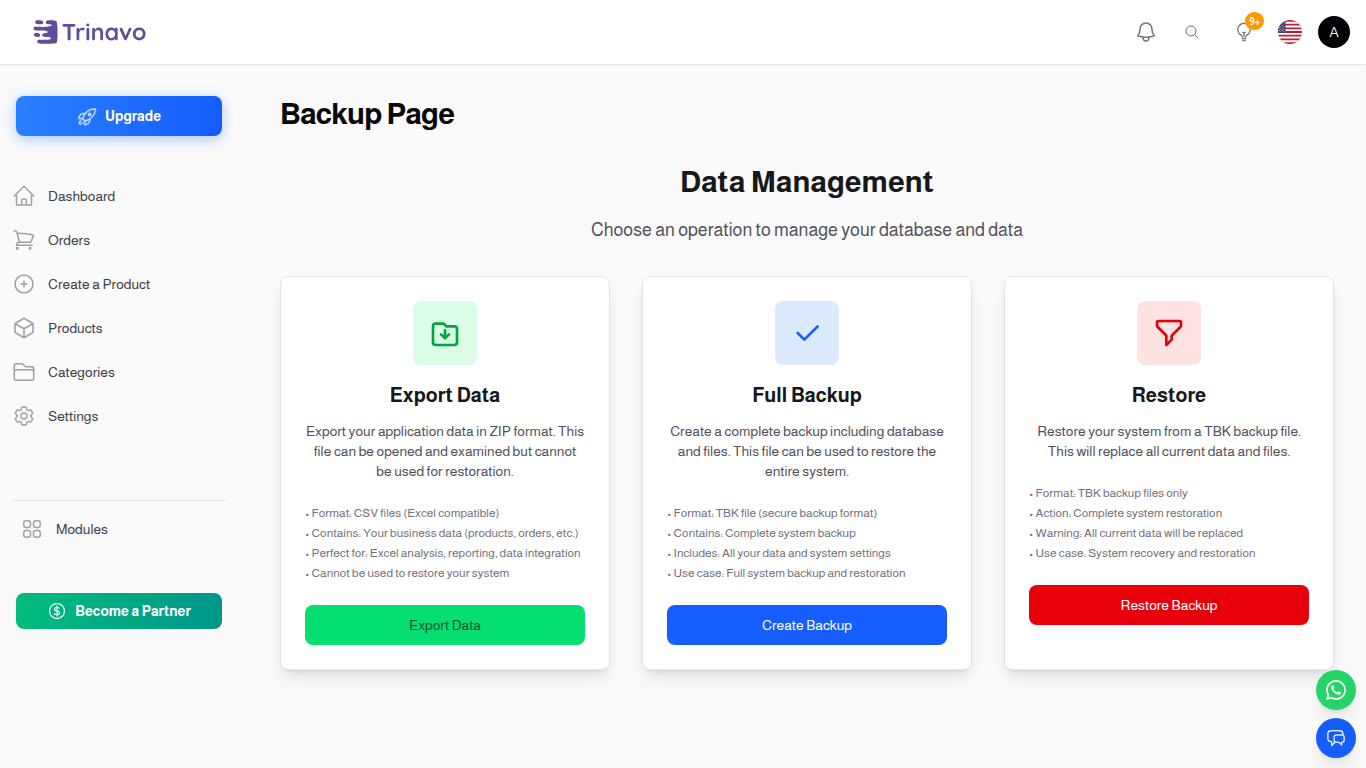
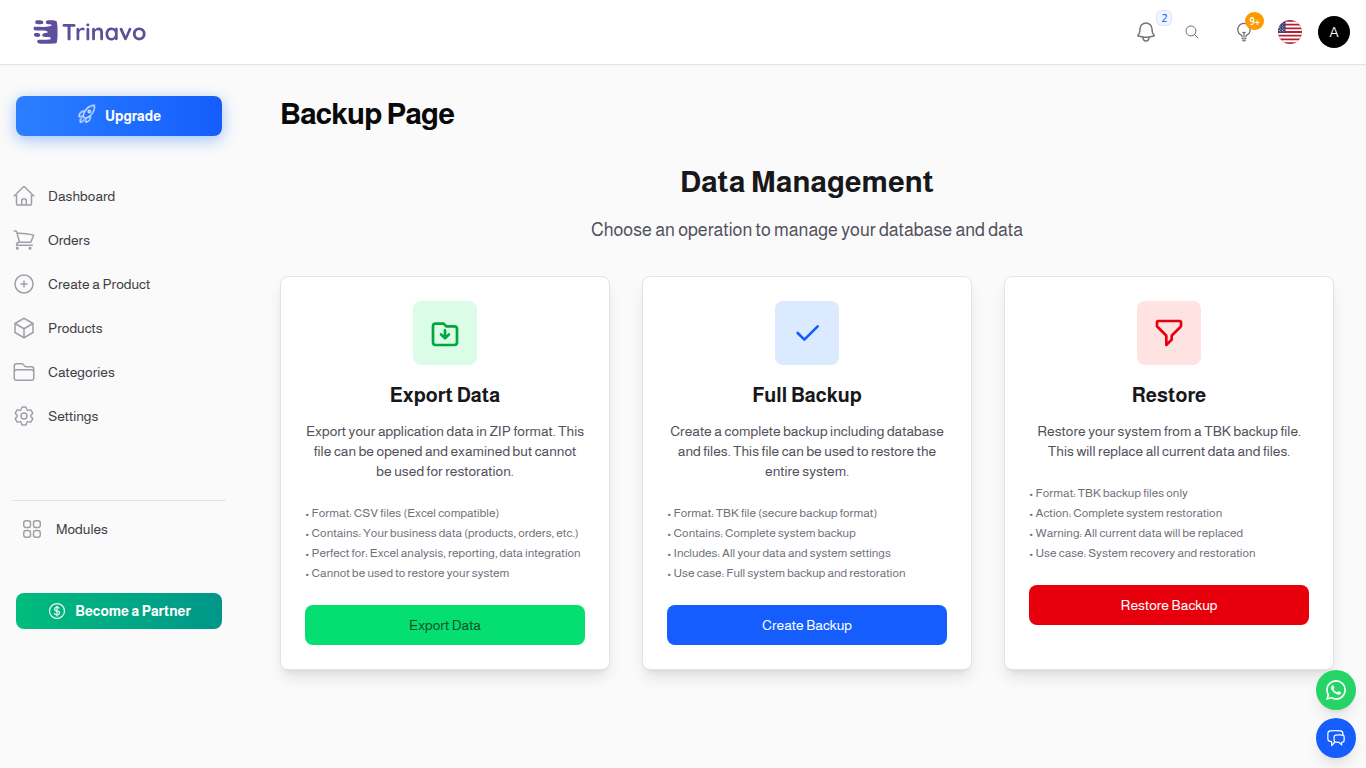
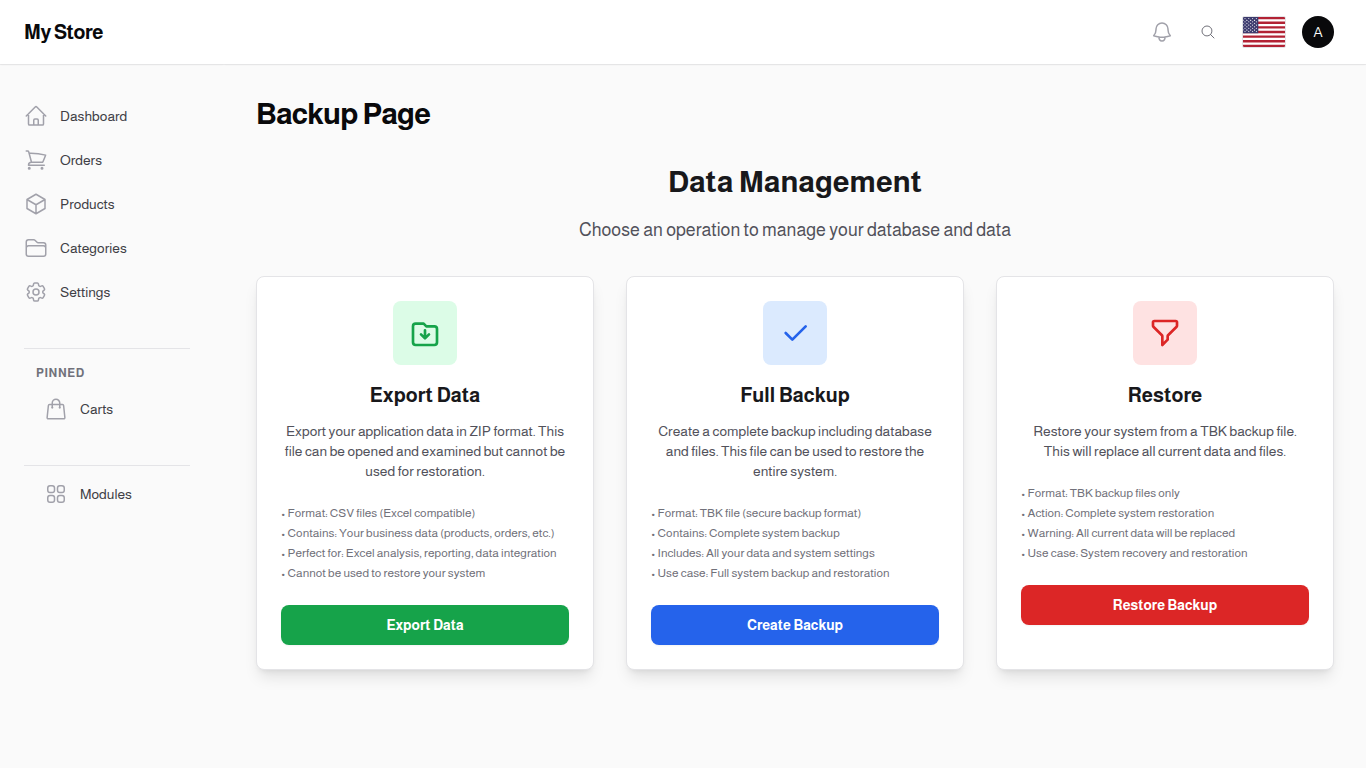
The page is structured as a small wizard. The first step asks which operation you want to run:
Export
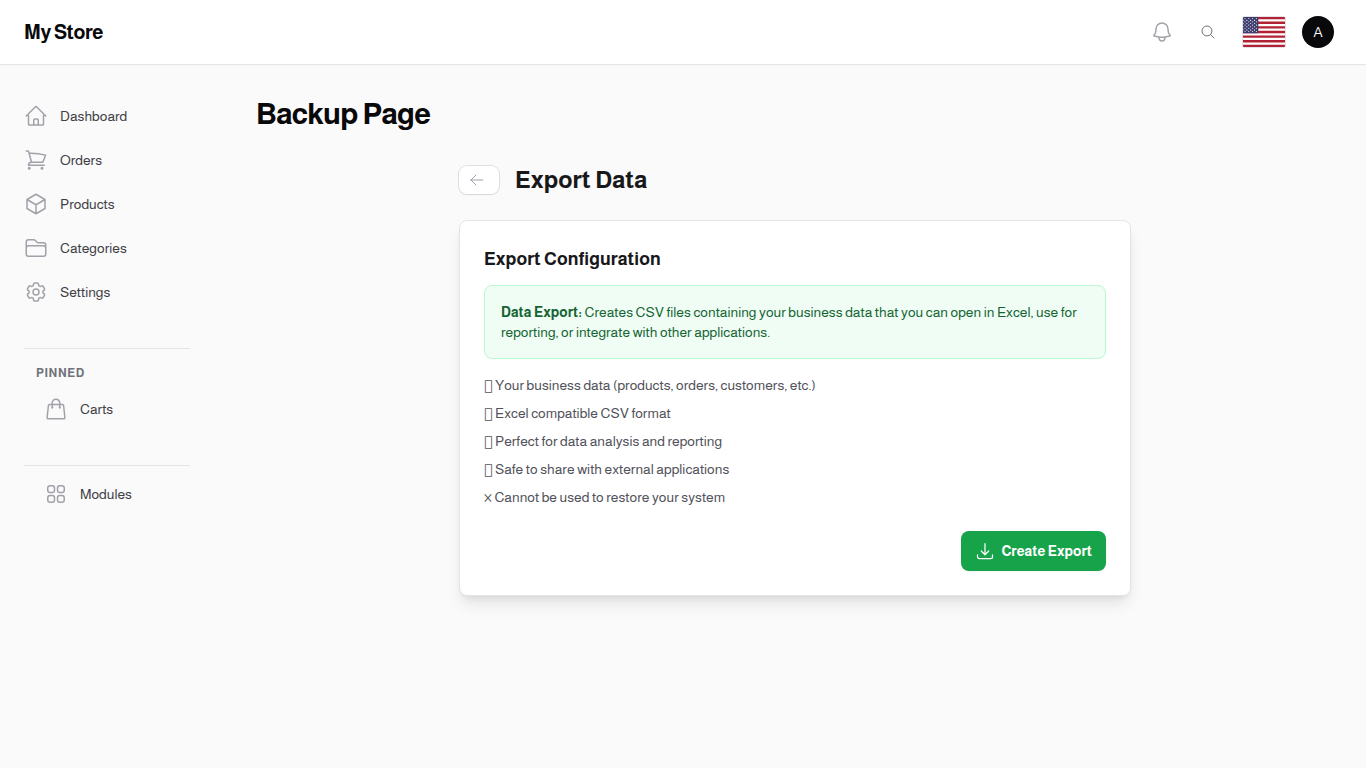
Generates a snapshot of the store data only (database tables) as a downloadable file. Use it to keep a copy you can re-import elsewhere or hand to support.
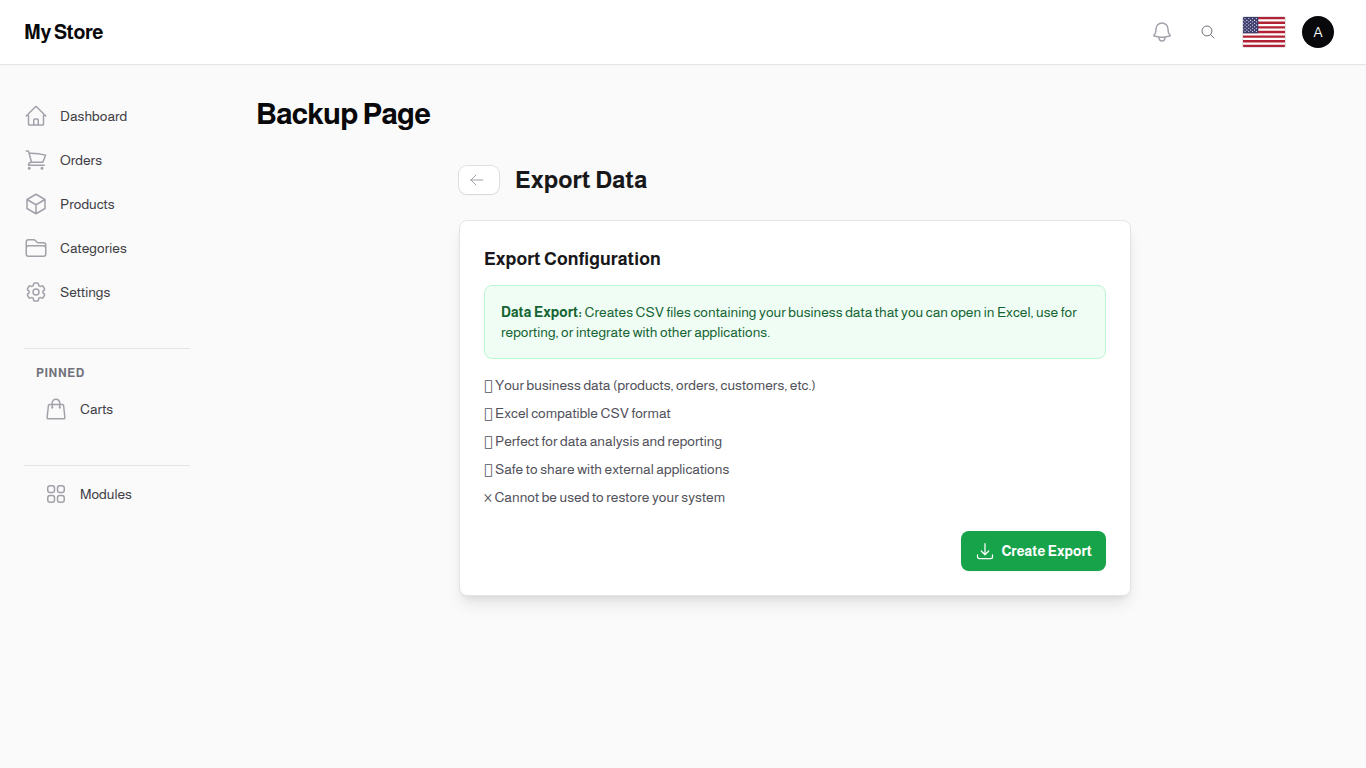
- Available to all super-admin users.
- Always works regardless of where you're connecting from.
- Excludes uploaded files (images, attachments) and configuration tied to the host.
Backup
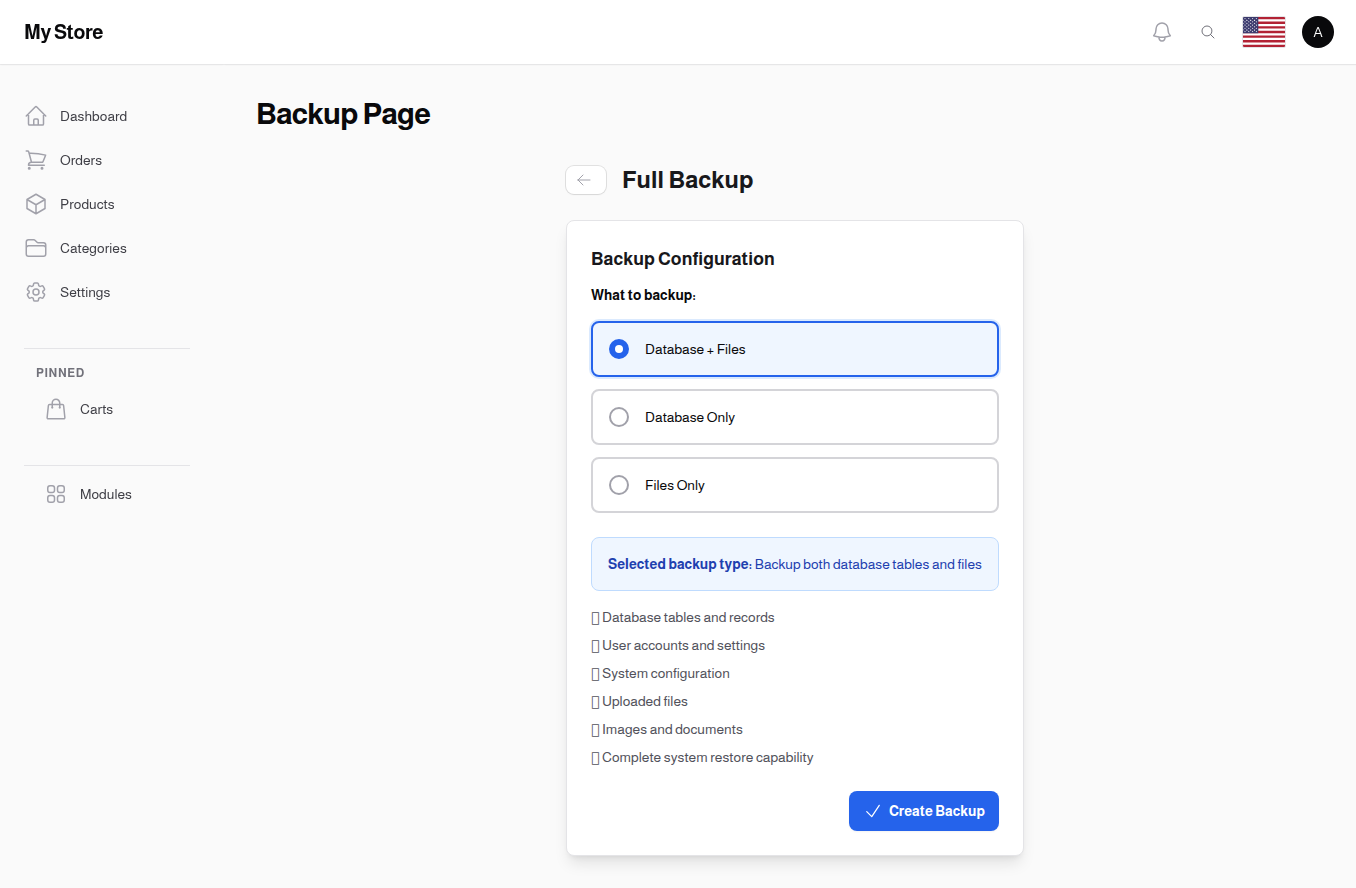
Generates a complete snapshot — database plus uploaded files (or just one of the two, your choice). Backups are larger than exports and are the right choice when you want to be able to fully restore the tenant.
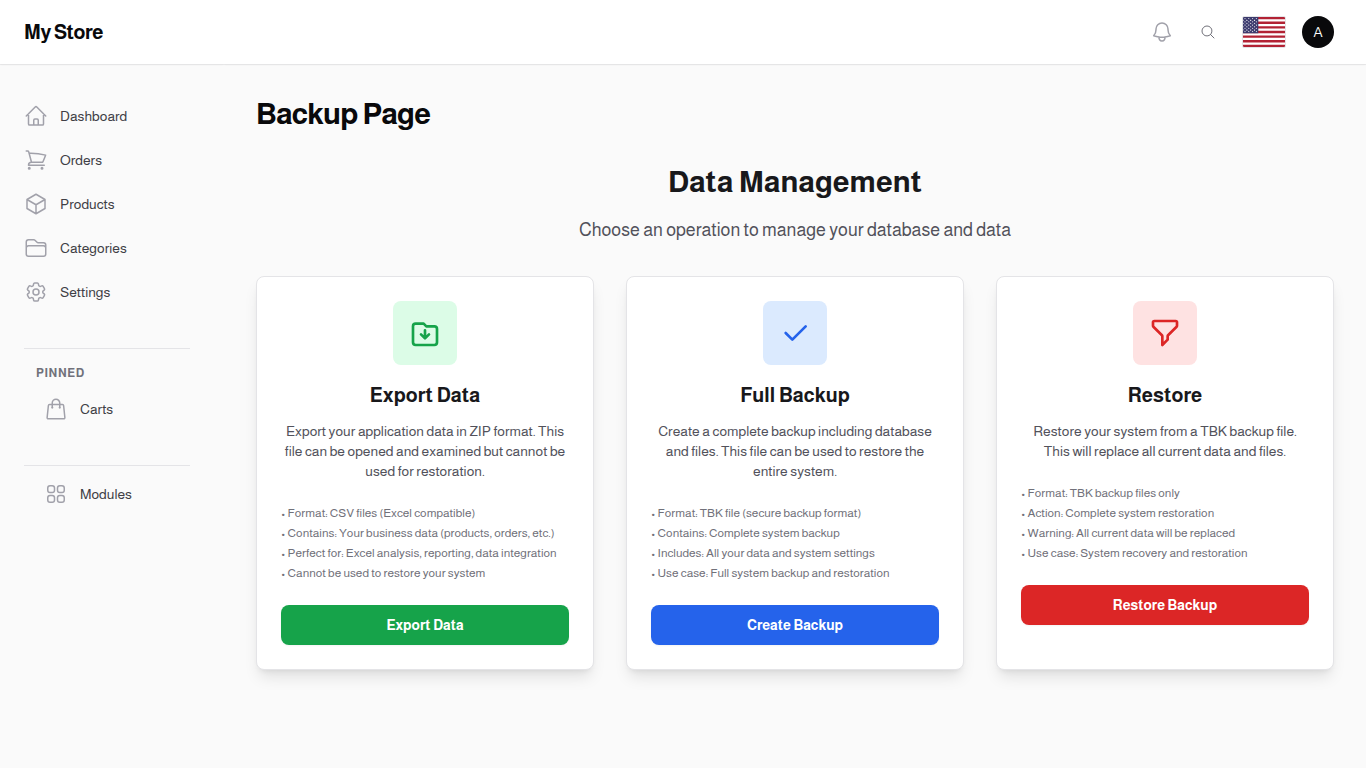
- Maintainer-only. Available only to super-admins connecting from a configured maintainer IP. If your IP isn't in the maintainer list, the Backup card is disabled and clicking it does nothing.
- Choose the backup type at the top of the form: Database, Files, or Both.
- The backup runs in the background as a queued job; the page polls progress and shows a Download button once it finishes.
Restore
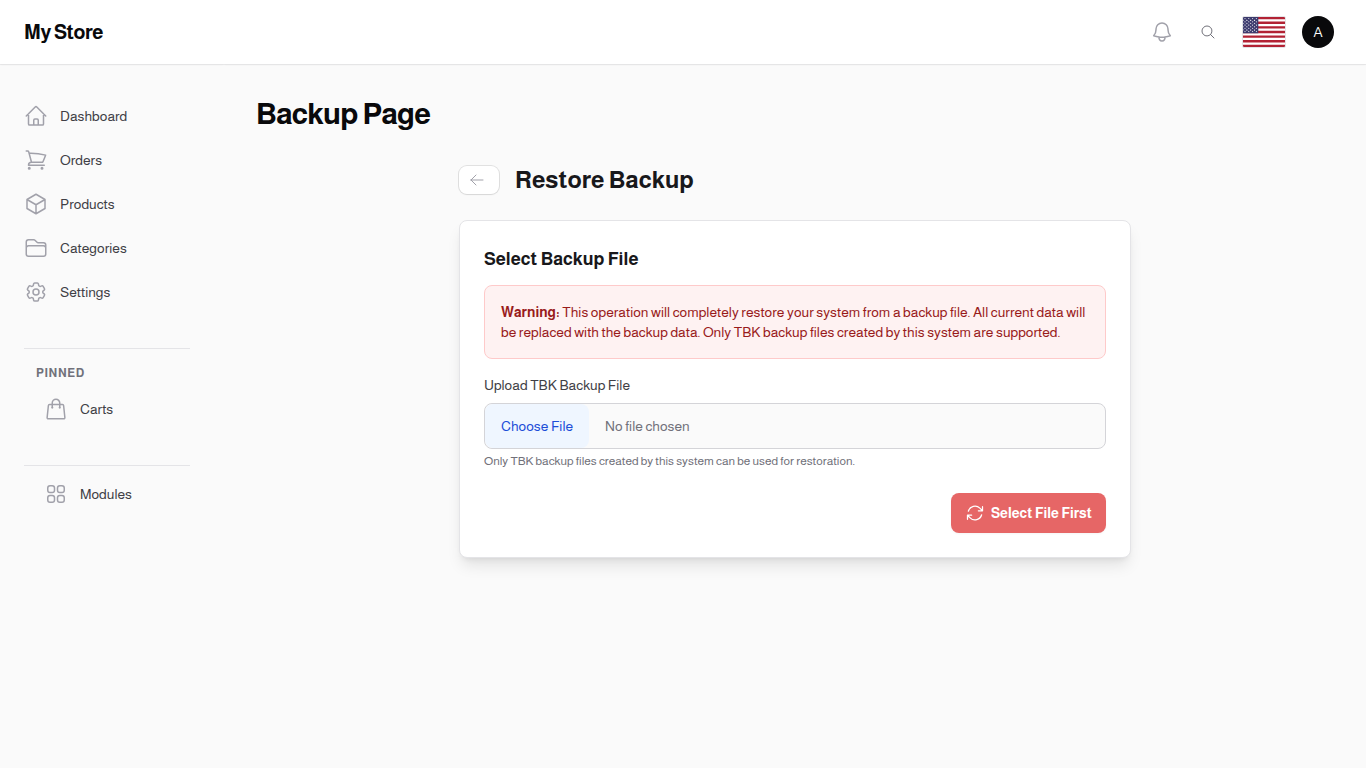
Replaces the current store with the contents of a backup file you upload.
- Maintainer-only, same rule as Backup.
- Restore is destructive — the existing data is overwritten by the backup contents. Take a fresh backup before restoring if you want a fallback.
- The restore form lets you pick database-only or files-only restore if your backup contained both.
- The job runs in the background; the page polls and reports success or failure.
Maintainer IP Restriction
Backup creation and restore are gated by the maintainer-IP check to make sure a stolen super-admin password cannot be used to extract or overwrite the entire store from an arbitrary location. Even if the Backup Data menu entry is visible, the destructive operation cards stay disabled when you connect from outside the maintainer network.
To run a backup or restore from a new location, ask the platform team to add your current IP to the maintainer list and try again.
Backup Types in Detail
| Type | Includes | Use when |
|---|---|---|
| Database | All tables, including users, products, orders, carts, settings | You only need to capture data — files haven't changed (e.g. catalog updates only). |
| Files | Uploaded images, attachments, theme assets, generated PDFs | You only need to recover media — your data is fine. |
| Both | Database and files | You need a complete tenant snapshot — recommended before major upgrades. |
What is Not Backed Up
- Tenant configuration on the platform (subdomain, plan, billing) — that lives in the platform manager, not on the tenant.
- Cached data — caches are rebuilt automatically after restore.
- Queue contents — in-flight jobs are not preserved.
If you need a full disaster-recovery plan that includes platform metadata, contact support.
Best Practices
- Schedule regular backups before traffic peaks (campaigns, sales, holidays). The backup files include a timestamp so you can keep multiple generations.
- Test restores in a staging tenant occasionally — a backup that has never been restored is unverified.
- Keep backups off-server if you store them locally — copy them to S3, Drive, or another tenant's storage.
- Don't restore in business hours unless absolutely necessary — restore overwrites the live tenant.
Related Sections
- Maintenance Mode — put the storefront in maintenance while a restore runs.
- Database Reinstaller — for full reset scenarios where you don't need the existing data back.
- Themes Manager — back up before swapping themes that touch many pages.