Customer Referrals
Watch the video
Customer Referral
Purpose
The Customer Referrals program lets your existing customers invite friends and earn wallet commissions when those friends make purchases. It is a simple way to turn happy customers into advocates, and grow revenue through word of mouth instead of paid ads.
Each customer gets a unique referral link. When a new visitor registers through that link, the referrer is permanently linked to them. Every time the referred customer's order is paid, the referrer earns a configured percentage of the order's items subtotal (after product-level discounts), credited automatically to their wallet. If the order is later refunded, the commission is reversed automatically.
The Customer Referrals program is a premium feature and is not available on free stores.
How It Works
- You enable the program in settings and set a commission percentage.
- Each logged-in customer sees a new Referrals link in their account menu (or only whitelisted users, if you restrict the program — see below).
- The referral page shows a shareable link and the customer's referral code.
- A new visitor becomes attributed to the referrer through any of three paths:
- opening the shareable
?ref=...link, then registering within 30 days; - typing the referral code into the optional field on the registration form (when that toggle is on);
- the admin sets Referred By on the user's profile from the Users page.
- opening the shareable
- For every paid order placed by the referred customer, the referrer's wallet is credited with the commission automatically.
- Both the customer (on their Referrals page) and the admin (on the Customer Referrals page) can see totals and recent activity.
Enabling the Program
Go to Settings → Customer Referrals (/admin/customer-referral-settings).
| Field | Type | Description |
|---|---|---|
| Enable Customer Referrals | Toggle | Turn the whole program on or off |
| Commission Percentage | Number (0 to 100) | Percent of each paid order's items subtotal (after product discounts) credited to the referrer (e.g. 5 means 5%). Delivery, tax, and service fees are excluded. |
| Show Referral Code Input in Registration Form | Toggle | Adds an optional Referral Code field to the public registration form so a new visitor can paste in the code their friend gave them, even if they didn't open a referral link |
| Restrict Referral Access to Specific Users | Toggle | When on, only users you add to the Allowed Users list can earn commissions and see the referral dashboard. Other customers won't see the Referrals menu link and won't receive credit even if their code is shared |
Changes take effect immediately after saving. The two extra toggles only appear once Enable Customer Referrals is on.
Letting Customers Enter a Code at Registration
By default, new visitors only get attributed to a referrer when they register after clicking a ?ref=... link. With Show Referral Code Input in Registration Form enabled, the public registration page also shows an optional Referral Code field. The visitor types in the 8-character code their friend shared and submits the form — the referrer is linked the moment the account is created.
Notes:
- The field is optional. Leaving it blank is fine — no error.
- When the visitor opened a referral link earlier, the captured code is pre-filled into the field so they can confirm or change it.
- If the visitor types a wrong code, registration is rejected with a "This referral code is not valid" message — they don't accidentally end up unattributed.
- If they leave the field blank but a captured cookie exists, the cookie is still used as a fallback. The form input simply takes priority when both are present.
Restricting the Program to a Curated List of Users
For programs you want to run with a hand-picked set of promoters (influencers, staff, VIPs) instead of every customer, turn on Restrict Referral Access to Specific Users in the settings page. Once on, a Manage Allowed Users button appears below the toggle.
Click the button to open Settings → Referral Allowed Users (/admin/customer-referral-allowed-users).
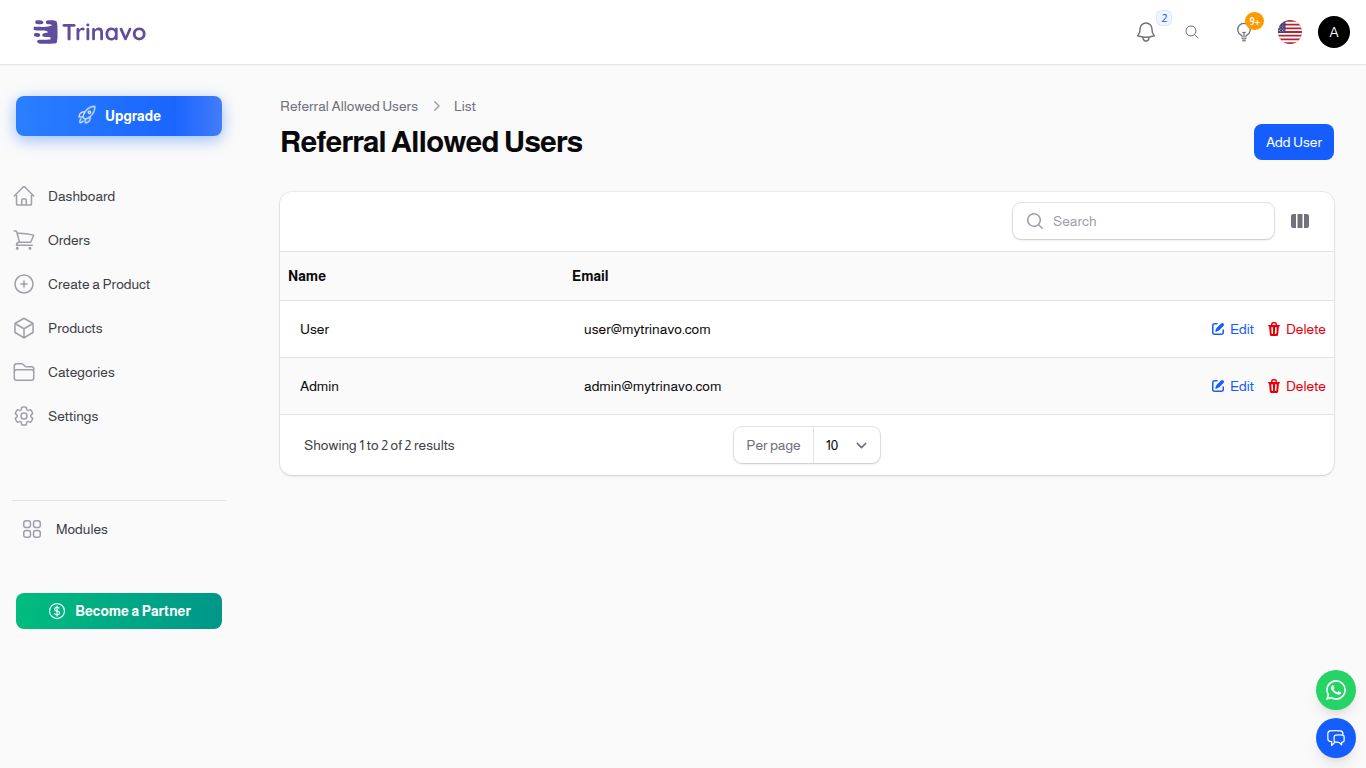
This is a small list page with one job: keeping the whitelist of users who are part of the referral program.
- Add a user: click Add User in the top-right. A modal opens with a single searchable user picker — type a name or email, pick the user, save.
- Edit a row: click the pencil action on the row. The same modal reopens.
- Remove a user: click the trash action. Removing them disables their referral participation (see below).
- Duplicates are blocked by the database — you'll see "This user is already on the allowed list" if you try to add the same user twice.
The resource only appears in the sidebar while the Restrict Referral Access to Specific Users setting is on; turning the setting off hides the menu entry.
What changes when the whitelist is on
| Behaviour | Whitelisted user | Non-whitelisted user |
|---|---|---|
| Sees Referrals link in their account menu | Yes | No |
Can open /profile/referrals |
Yes — dashboard renders normally | No — page returns 404 |
| Earns commission when their code is used on a paid order | Yes | No — commission is silently skipped |
Has a referrer_id set on referred signups |
Yes | No — attribution is dropped at signup |
A user who was earning commissions before the whitelist mode was switched on will simply stop earning new commissions while they're not on the list. Past wallet transactions stay untouched. Adding them to the list re-enables earning instantly.
Turning the Restrict Referral Access to Specific Users setting off restores the open-to-everyone behaviour without touching the whitelist contents — so you can toggle it on and off without losing your curated list.
Customer Experience
When the program is enabled, logged-in customers see a Referrals link in the account menu (both dropdown and vertical layouts), which opens a dashboard at /profile/referrals. If you have turned on Restrict Referral Access to Specific Users, only customers on your Referral Allowed Users list see the link and can open the dashboard — everyone else gets a 404 if they try the URL directly.
The dashboard is split into three tabs:
- Referral Link — the shareable link, a one-click copy button, and the customer's 8-character referral code.
- Profits — five stat cards (Referred Users, Total Orders, Total Earned, Last 7 Days, Last 30 Days) and a paginated list of every commission and reversal transaction the customer has received, newest first.
- Users — a paginated list of all users the customer has referred, with each row showing paid-order count and net commission earned from that specific user.
The default tab switches based on whether the customer has any referrals yet: new users land on Referral Link to encourage sharing, active referrers land on Profits so they see their earnings first. On mobile the stat cards scroll horizontally and the tables collapse into compact cards.
Admin Overview
Go to Marketing & Content → Customer Referrals (/admin/customer-referrals).
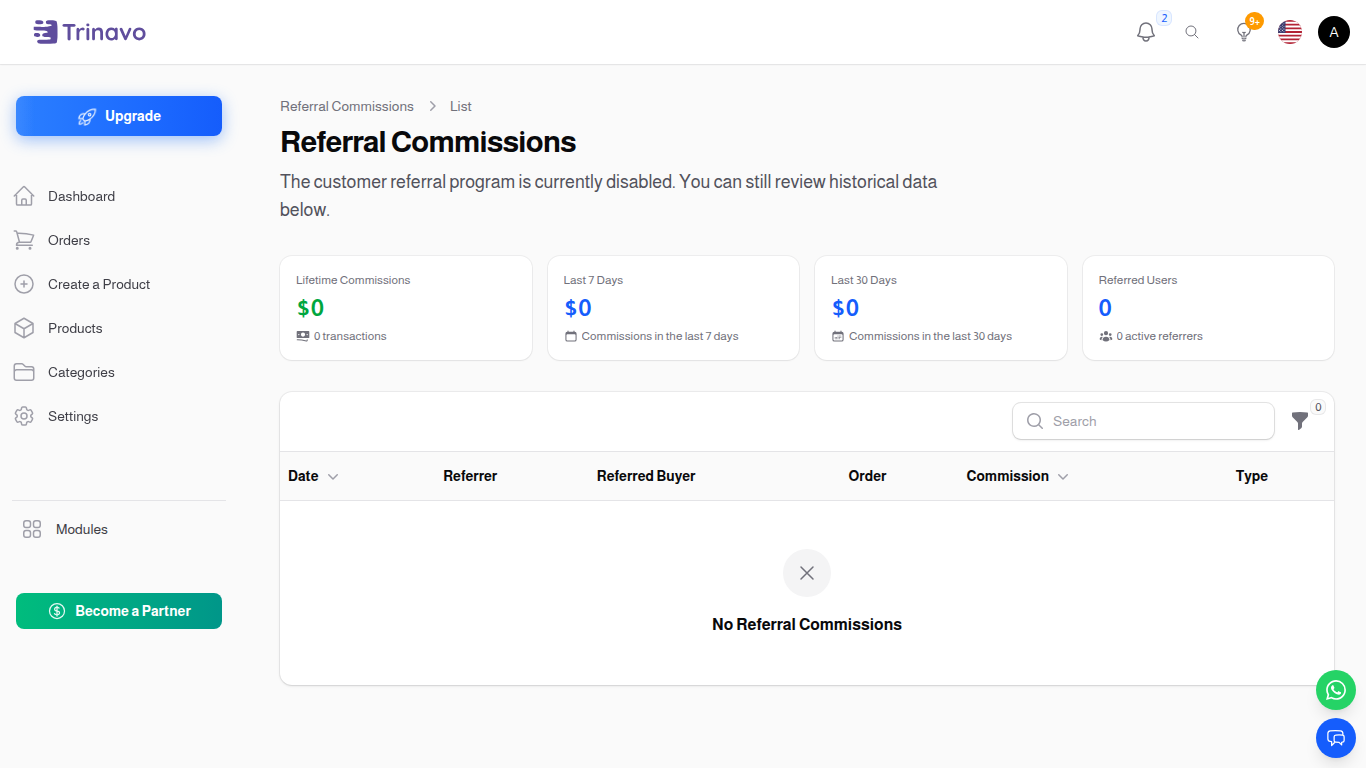
This is a standard list resource, one row per wallet transaction. A row is either an Earned commission or a Reversed clawback from a refunded order.
Columns:
- Date — when the transaction was created.
- Referrer — the customer whose wallet was credited (or debited); clickable to open the user record.
- Referred Buyer — the customer whose order triggered the commission.
- Order — the order number, clickable to open it.
- Commission — amount in the store's currency. Earned rows show the value in green; Reversed rows show a leading minus sign in red.
- Type — badge: Earned (green) or Reversed (red).
Filters:
- Date range (From / To).
- Referrer (search).
- Type (Earned / Reversed).
Stats strip (above the table, scrolls horizontally on mobile): Lifetime Commissions (net of reversals, with earned-transaction count), Last 7 Days, Last 30 Days, Referred Users with active-referrer count.
If the program is disabled, the list still loads and shows historical data — disable only prevents new commissions from being credited going forward.
Commission Rules
- Commission is a percentage of each paid order's items subtotal (after product-level discounts). Delivery, tax, service fees, and payment-method fees are pass-throughs and do not count toward the commission base.
- Commission is credited when the order transitions to paid (same trigger as loyalty points).
- Every paid order by the referred customer earns commission — there is no expiry window, and it applies for the lifetime of the referred account.
- Credits are idempotent: the same order can never produce two commission entries, even if the order paid event fires again.
- Refund clawback: if a paid order is refunded, the commission previously credited is automatically reversed — a debit transaction is added to the referrer's wallet for the same amount, and the admin list shows it with a red Reversed badge. The reversal is also idempotent on a per-order basis.
- If the referrer account is inactive or deleted, no commission is credited.
- Self-referrals (the referred user signs up with the referrer's own email) are silently ignored.
Wallet Transactions
Each commission creates a credit row in the referrer's wallet with:
- Reference Type:
customer_referral_commission - Reference ID: the order id that produced the commission
- Description:
Referral commission for order #<id>
If the order is later refunded, a matching debit row is added:
- Reference Type:
customer_referral_commission_reversal - Reference ID: the same order id
- Description:
Referral commission reversed for refunded order #<id>
Reversals are allowed to take the wallet balance negative — the referrer may have already spent the commission elsewhere before the refund occurred. Both row types appear in the usual Wallet Transactions list and can be exported.
Setting the Referrer from the Admin Panel
Sometimes a customer signs up without a referral link and tells you afterwards which existing customer referred them. From User Management → Users, open the customer record. The form has a Referral tab — switch to it.
The tab has two fields:
- Referred By — a searchable picker. Type a name, email, or referral code; pick the user who should be credited as the referrer. Leave it empty to clear any existing attribution.
- Referral Code — read-only. Shows this customer's own 8-character code so you can copy it and share it on their behalf if needed. New customers see "Will be generated on first use" until the system creates one (it's generated lazily the first time the customer visits their referral dashboard).
A customer cannot be set as their own referrer — the search results exclude the current user.
This setting only affects future paid orders. Past orders are not retroactively credited; if you need to backfill, run the referrals:backfill-commissions command (admin only) or contact support.
Sharing the Referral Link
The link is simply the store home page with a ?ref= query string, for example:
https://your-store.com/?ref=8CHARCODE
Customers can share it anywhere: social media, messaging apps, email signatures. When a visitor opens it, the code is stored in their browser for up to 30 days. If they register within that window, they are linked to the referrer.
Common Use Cases
Launching a Loyalty + Referral Combo
Pair the referral program with Loyalty Program to reward both the referrer (wallet commission) and the referred user (registration bonus points).
Seasonal Campaigns
Temporarily raise the commission percentage during a promotion, then lower it again.
Spotting Top Promoters
Filter the Customer Referrals list by referrer to see who is driving the most commissions, or sort by Commission amount to find the largest individual payouts — consider sending these customers a thank-you message or a VIP upgrade.
Troubleshooting
A referred customer placed an order but the referrer did not get commission
1. Check that the program is enabled in Settings.
2. Check that the order is actually paid.
3. Check that the referred customer has a referrer_id set (you can see this in the Referral tab of the user edit page, or it's also shown in the Customer Referrals admin list once any commission lands).
4. Check that the referrer account is active.
5. If Restrict Referral Access to Specific Users is on, check that the referrer is in the Referral Allowed Users list — non-whitelisted referrers are silently skipped.
A customer cannot see the Referrals menu link
- If Restrict Referral Access to Specific Users is on, only users in the Referral Allowed Users list see the menu and can open /profile/referrals. Add them to the list, or turn the restriction off.
The referral link did not attach the referrer - Browsers sometimes clear cookies; the link must be opened and then registration completed within 30 days. - The link will only attach if the program was enabled at the time of the visit. - If the whitelist is on and the referrer isn't in it, attribution is dropped at signup — registration still succeeds, but the new account ends up with no referrer.
A visitor entered a referral code on the registration form but got an error - The form rejects unknown codes with "This referral code is not valid". Confirm the code matches an existing customer's referral code (visible on the Referral tab of the user edit page, or under their Profits dashboard). - Codes are 8 characters, uppercase letters and digits — they are case-insensitive on entry.
The commission amount looks smaller than expected - The base is the order's items subtotal minus product-level discounts — it intentionally excludes delivery, tax, service fees, and payment-method fees. An order with a large delivery cost will produce less commission than the order total suggests.
A previously credited commission disappeared or went negative
- Check whether the order was refunded. A refund automatically creates a reversal (customer_referral_commission_reversal) debit of the same amount. Both rows are visible in the admin Customer Referrals list with a Type filter.
Related Sections
- User Wallets — where commissions are credited.
- Wallet Transactions — full transaction history.
- Loyalty Transactions — a similar reward system based on points.
- System Settings — where the program is enabled and tuned.