SEO & Social Media Settings
Overview
SEO & Social Media Settings configures default meta tags and social media integration for your store. These settings improve search engine visibility and control how your content appears when shared on social platforms.
Accessing SEO Settings
Navigate to: Modules → Settings → SEO & Social
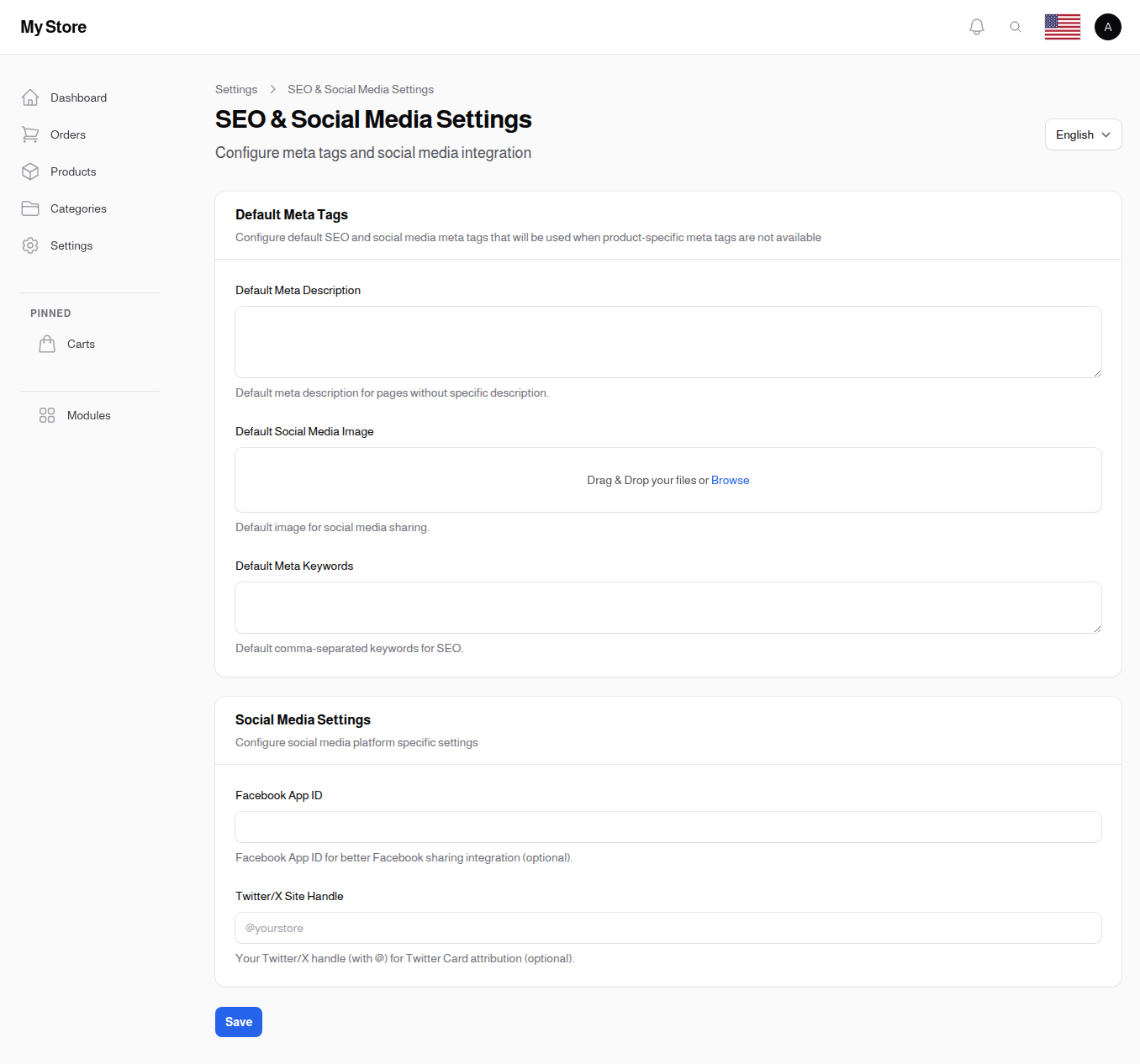
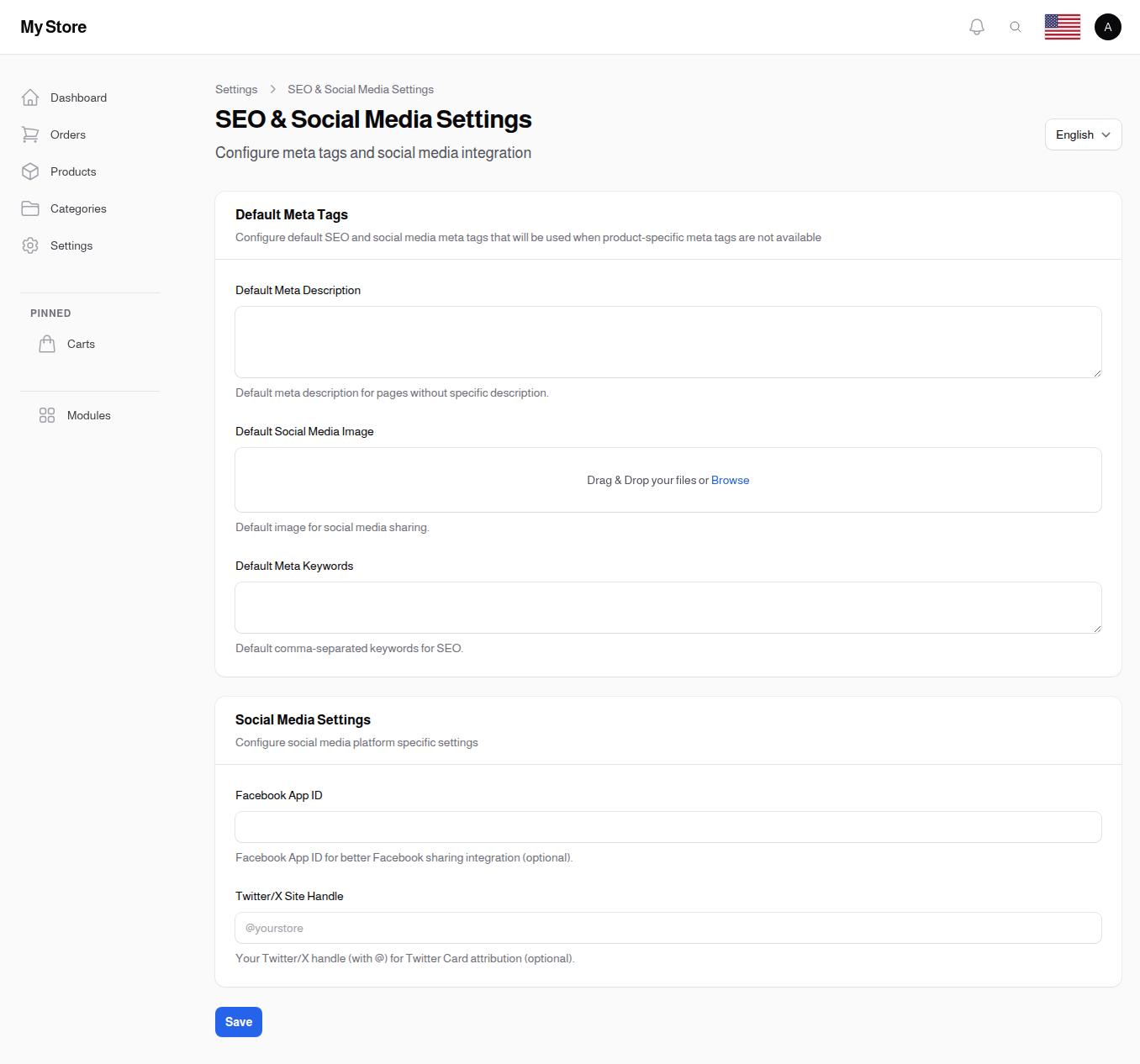
Default Meta Tags
These defaults are used when product-specific or page-specific meta tags are not available.
Default Meta Description
- Type: Multi-line text area
- Translatable: Yes
- Purpose: Default description shown in search results
Usage:
- Appears below page title in search results
- Summarizes page content
- Influences click-through rates
Best Practices:
- Keep under 160 characters
- Include keywords naturally
- Write compelling, action-oriented text
- Include unique value proposition
Example:
Shop the latest electronics at competitive prices. Free shipping on orders over $50. Quality products with 30-day returns.
Default Social Media Image
- Type: Image upload
- Recommended Size: 1200x630px (Facebook/LinkedIn) or 1200x628px (Twitter)
- Format: PNG, JPG
- Purpose: Default image shown when pages are shared on social media
Usage:
- Facebook, LinkedIn, Twitter card image
- Appears when URLs are shared
- Creates visual appeal in social feeds
Best Practices:
- Use high-quality, branded image
- Include logo or brand elements
- Avoid too much text (may be truncated)
- Test appearance on different platforms
Default Meta Keywords
- Type: Multi-line text area
- Translatable: Yes
- Purpose: Default SEO keywords for your store
Format: Comma-separated keywords
Example:
electronics, gadgets, smartphones, laptops, accessories, tech, online store
Note: While meta keywords have less SEO impact than they once did, they can still be useful for internal site search and some regional search engines.
Social Media Settings
Facebook App ID
- Type: Text input
- Purpose: Enhance Facebook sharing integration
- Optional: Not required but recommended
Benefits When Set:
- Better Facebook sharing analytics
- Access to Facebook Insights
- Improved domain verification
- Enhanced sharing experience
How to Get:
- Go to Facebook for Developers
- Create or select an app
- Copy the App ID from Settings → Basic
Twitter/X Site Handle
- Type: Text input
- Format: @yourstore
- Purpose: Attribution for Twitter/X cards
- Optional: Not required but recommended
Usage:
- Appears on Twitter cards when shared
- Credits your account
- Adds "via @yourstore" attribution
Example: @myelectronicsstore
How Meta Tags Work
Priority Order
When displaying meta information, the system checks in this order:
- Page/Product specific meta (if set)
- Category meta (for category pages)
- Default meta (from these settings)
- Store name/logo (ultimate fallback)
Open Graph Tags
The system automatically generates Open Graph tags for Facebook:
<meta property="og:title" content="Page Title">
<meta property="og:description" content="Page description">
<meta property="og:image" content="https://yourstore.com/image.jpg">
<meta property="og:type" content="website">
Twitter Cards
Twitter card tags are also generated:
<meta name="twitter:card" content="summary_large_image">
<meta name="twitter:site" content="@yourstore">
<meta name="twitter:title" content="Page Title">
<meta name="twitter:description" content="Page description">
<meta name="twitter:image" content="https://yourstore.com/image.jpg">
Search Engine Control
These settings control how search engines interact with your store. They are intended for demo or test stores that should not appear in search results or be archived.
Warning: Changing these settings affects how search engines see your site. Only enable these for demo or test stores. Incorrect use can remove your store from search results.
Prevent Search Engine Archiving
- Type: Toggle (On/Off)
- Default: Off
- Purpose: Prevents search engines from showing cached or archived copies of your pages
What it does:
- When enabled, search engines like Google will not show "Cached" links next to your search results
- Your site will still appear in search results normally
- Only the cached/archived copy is hidden
When to use:
- Demo stores where you don't want old versions of pages to be accessible
- Test stores with frequently changing content
- Stores with content that should always be viewed live
Hide from Search Engines
- Type: Toggle (On/Off)
- Default: Off
- Purpose: Completely removes your site from search engine results
DANGER: When enabled, search engines will completely remove your site from search results. Only use this for demo or test stores. This can take weeks to reverse even after you turn it off.
What it does:
- Tells search engines (Google, Bing, etc.) not to index any page on your site
- Your store will stop appearing in search results entirely
- Existing search listings will be gradually removed
When to use:
- Demo stores that should never appear in public search results
- Test/staging environments
- Stores that are not yet ready for public discovery
Important: Do NOT enable this on a live production store unless you intend to completely hide it from search engines. Recovery after disabling can take several weeks as search engines need to re-crawl and re-index your site.
Saving Changes
Click the Save button at the bottom of the page to apply your changes. Meta tag changes may take time to reflect in search engines.
Related Sections
- General Settings - Store name and logo
- Products - Product-level SEO settings
- Categories - Category-level SEO settings