Notification Settings
Purpose
This screen decides which of your staff hear about what.
A new order, a low stock warning, a withdrawal request: each is a kind of notification, and each staff member can be switched on or off for it independently. That is how you stop everyone being told about everything, which is how people learn to ignore notifications.
These are settings per user. The store-wide switches for sending notifications at all live under Settings.
Accessing Notification Settings
Click Modules → User Management → Notification Settings
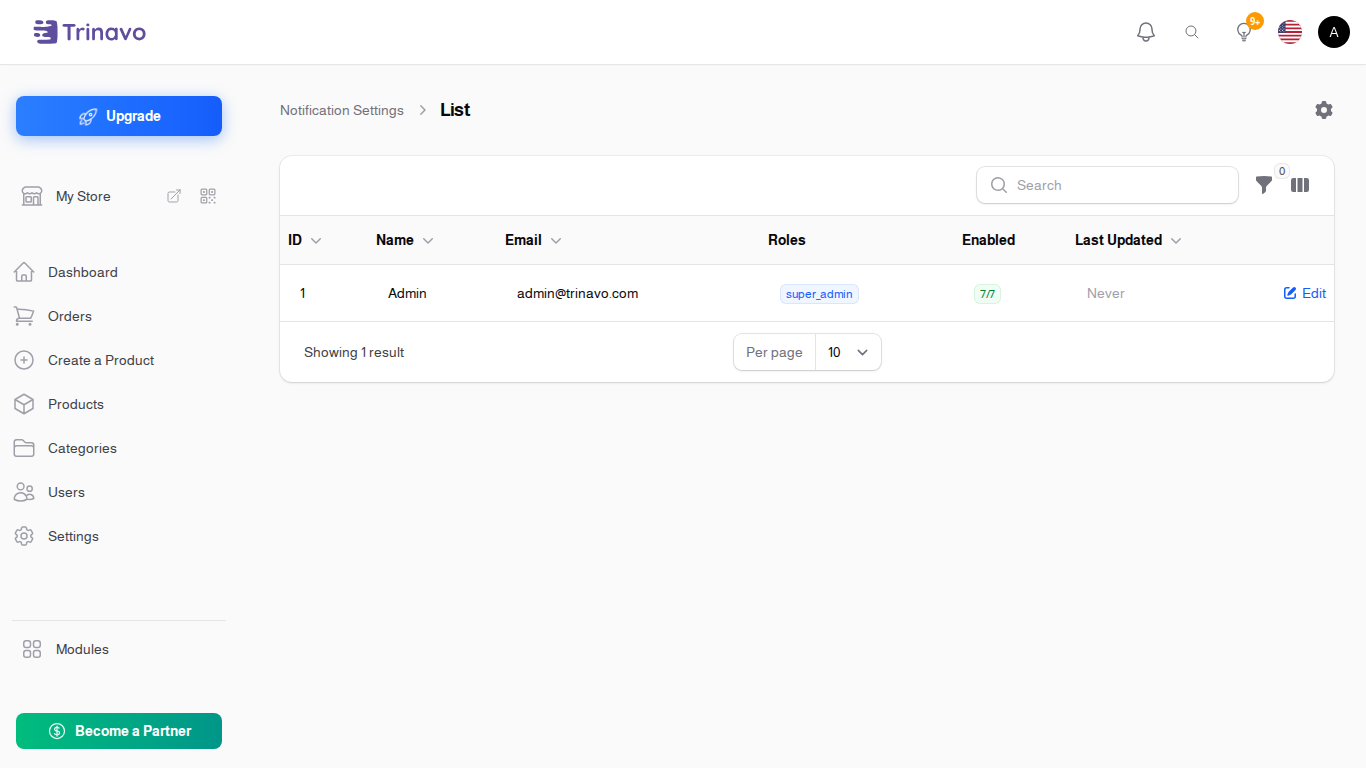
Reading the list
| Column | What it means |
|---|---|
| ID | the user's id |
| Name | the staff member |
| their address | |
| Roles | what they do in the store |
| Enabled | how many notification types they receive |
| Last Updated | when their preferences last changed |
Enabled is the useful column. A staff member showing zero receives nothing, which is worth knowing before you conclude that notifications are broken.
Filter by Role to set up a whole group at once, such as giving every warehouse user the stock warnings.
Editing someone's notifications
Click Edit on a row. The form shows the user's name, email and roles at the top, then one block per notification type. Each has:
- Enabled: whether they receive this type at all
- Channels: how it reaches them
Related Sections
- Users - the staff and customers themselves
- Roles - what each role is allowed to do
- Push Notifications - sending notifications to customers
- Notification Settings - the store-wide notification configuration