Product Bids
The Product Bids section allows you to manage customer price offers for products in your store. This feature enables customers to negotiate prices by submitting bids on products they're interested in purchasing. You can review, accept, or reject these bids based on your business policies.
Overview
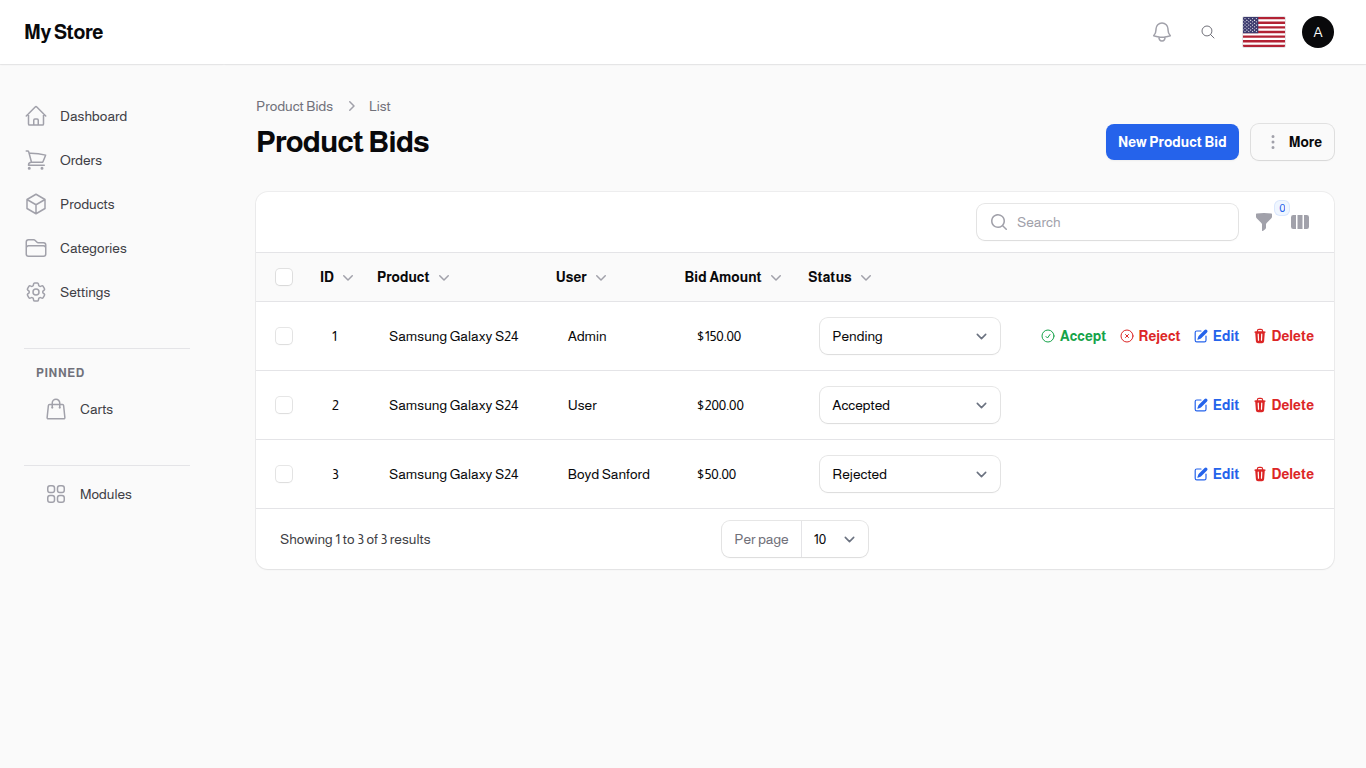
Product bidding is a powerful tool for engaging customers and potentially closing sales that might not happen at the listed price. When customers submit bids, you'll see all the details including the product, customer, bid amount, and current status. This feature is particularly useful for:
- Negotiating prices with serious buyers
- Moving inventory by accepting reasonable offers
- Building customer relationships through flexible pricing
- Understanding price sensitivity in your market
Accessing Product Bids
Bids are not in the menu. They are read on the product they were made on: open Modules → Catalog Management → Products and click the Bids icon on the product row, which appears once bidding is switched on in Cart Settings.
Understanding Bid Statuses
Each product bid has one of three statuses:
- Pending: New bids awaiting your review and decision
- Accepted: Bids you've approved, indicating agreement to sell at the offered price
- Rejected: Bids you've declined
The status is displayed as a dropdown in each bid row, allowing you to quickly change the status if needed.
Managing Product Bids
Reviewing Bids
The window lists every bid on that one product. There is no product column, because you opened it from the product itself:
- User: The customer who made the offer
- Bid Amount: What they are offering
- Notes: Anything the customer wrote with their offer
- Status: Pending, Accepted or Rejected
- Date: When the offer came in
- Actions: Accept, Reject and Delete
If nobody has bid on this product yet, the window simply says No bids yet.
Accepting a Bid
- Find the bid in the window. Pending bids show Accept and Reject.
- Click Accept.
- Your browser asks "Are you sure you want to accept this bid?". Confirm it.
The status changes to Accepted straight away, and Accept and Reject stop being offered for that bid. There is no notes box on the way through: the confirmation is a plain browser prompt, not a form.
Rejecting a Bid
Exactly the same, using Reject. Your browser asks you to confirm, and the status becomes Rejected.
Deleting Bids
Click Delete and confirm the browser prompt.
Important: Deleting a bid is permanent and cannot be undone. Reject a bid rather than deleting it when you want to keep the record of what the customer offered.
What this screen cannot do
You cannot add a bid yourself. Bids only ever arrive from customers on your storefront, so there is no New Bid button anywhere in the admin panel.
The bids window is deliberately small: it lists the bids on one product and lets you accept, reject or delete each one. It has no search box, no filters, no column chooser, no page-by-page navigation and no bulk actions. If you are looking for those, you are thinking of a full list screen, and bids do not have one.
Vendor-Specific Bid Viewing
If you're logged in as a vendor (not an administrator), you'll only see bids for products that belong to your store. This ensures vendors can only manage bids for their own inventory.
Related Configuration
Configure bidding functionality in System Settings:
- Enable Product Bidding - Turn the bidding feature on/off globally for all products