Dropshipping Plugins
A dropshipping plugin connects your store to a supplier who holds the stock and delivers for you. Once connected, the supplier's products, prices and stock come into your store, your customers' orders go to the supplier, and the order status comes back.
Where to find it
Open Modules → Dropshipping → Dropshipping Plugins.

Each row is one supplier connection, with the supplier's name under Plugin. Click a tick or cross in Enabled, Auto Update Product Data, Auto Publish Order or Auto Update Order Status to switch it on or off; you are asked to confirm. Profit Percentage is the markup added to this supplier's prices. Token, Token 2, Endpoint URL, Created At and Updated At can be added from the columns button.
At the top, the ⋮ menu (More) holds Export and Related reports. Tick rows to Export or Delete them from the bulk actions.
Dropshipping is switched on for each store separately by Trinavo. Until it is on for yours, these screens show a notice with ways to contact us, and your suppliers can be looked at but not added, changed or run. The supplier catalogue downloads are hidden, and a product's dropshipping sources can be looked at but not added, changed or deleted.
Connect a supplier
- Click + (New Dropshipping Plugin). The form opens as its own page.
- Under Basic Information, switch on Enabled, give the connection a Name, and pick the supplier in Plugin.
- Fill Default Profit Percentage with the markup you want on this supplier's prices.
- Fill API Endpoint URL with the address your supplier gave you. Suppliers with a fixed address do not show this field.
- Under Authentication, fill the details your supplier gave you (an API token, or a username and password, depending on the supplier). Click Test Authentication to check them before saving.
- Choose what runs on its own under Automation and what a product update brings in under Sync Options (see below).
- Click Create.
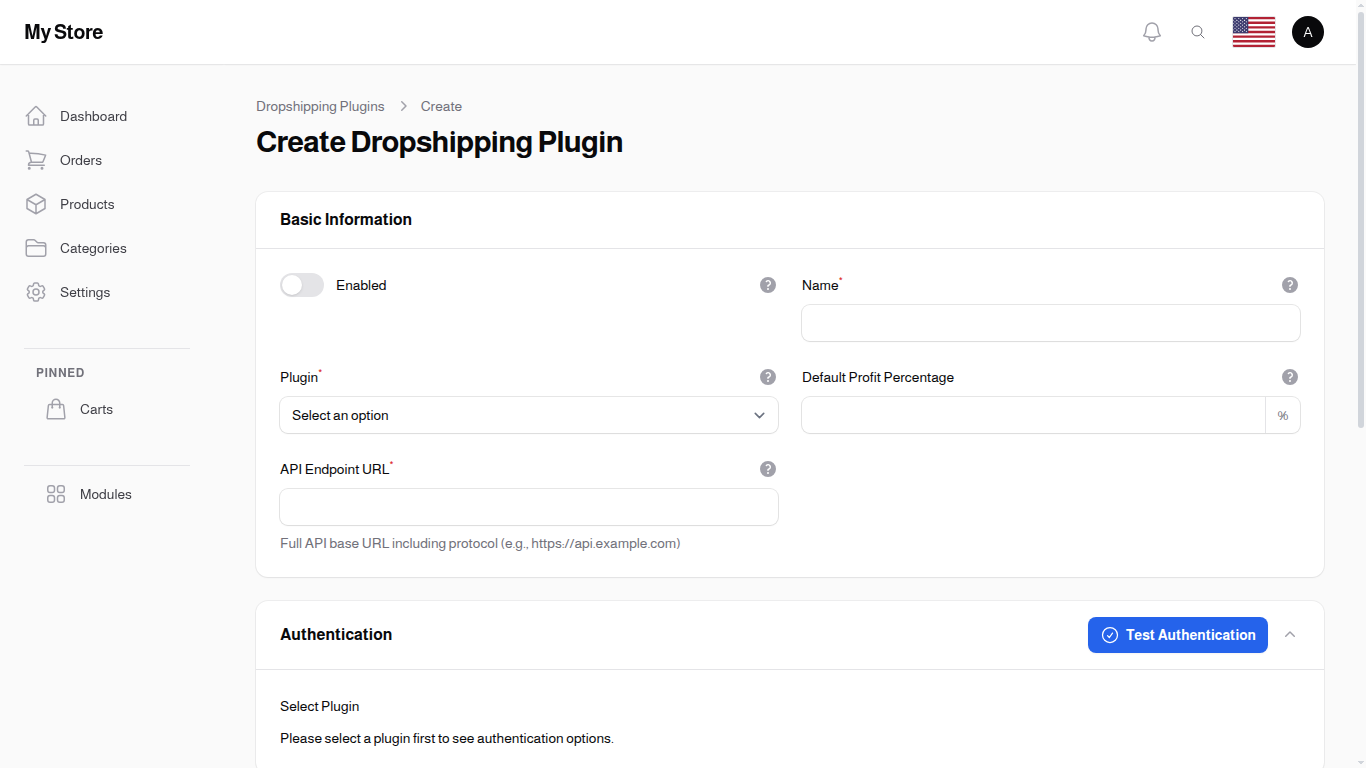
The Authentication fields change with the supplier you pick, so pick Plugin first. CJDropshipping works only when your store's main currency is the US dollar. Griffati prices in euros, so it cannot be switched on from the list until you add an exchange rate between the euro and your main currency.
| Field | What it does |
|---|---|
| Default Profit Percentage | Added on top of the supplier's price to make your selling price: with 20, a product the supplier sells for 100 is priced 120 in your store. Left empty, 20% is used. A single product can have its own percentage (see Link a product to a supplier). |
Choose what runs on its own
Open a supplier with Edit on its row, and scroll to Automation and Sync Options.
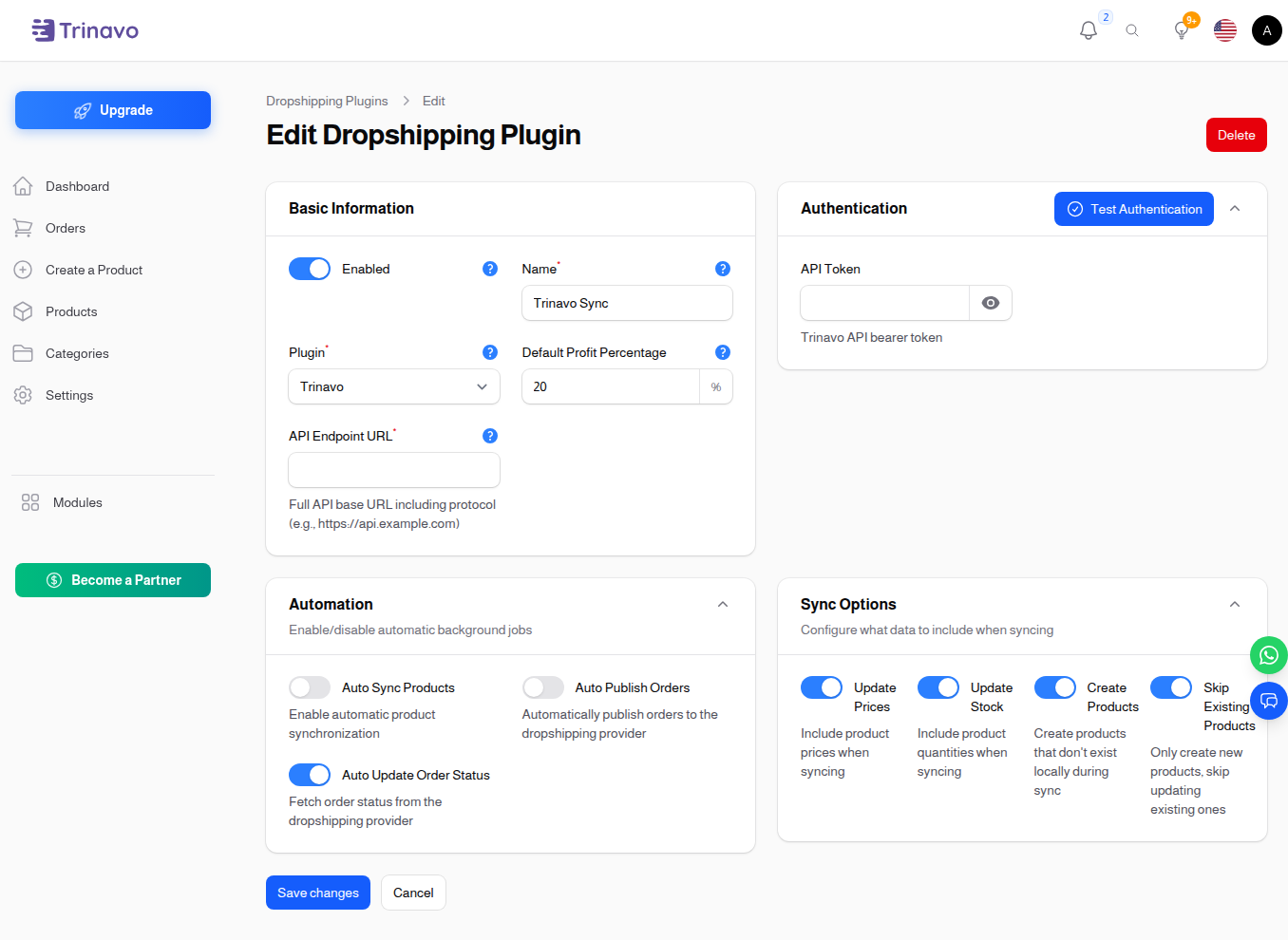
A switch the chosen supplier cannot do is greyed out and says so.
| Switch | What it does |
|---|---|
| Auto Sync Products | Updates the products you get from this supplier on a schedule, without you clicking anything. |
| Auto Publish Orders | Sends each paid order for this supplier's products to the supplier on its own. |
| Auto Update Order Status | Asks the supplier how your orders are going and updates them in your store. |
| Verify Account ID | Lets the customer check the account ID they typed on the product page before ordering. Saving is refused if the supplier does not allow it on your account. |
| Update Prices | A product update brings in the supplier's new prices. |
| Update Stock | A product update brings in the supplier's quantities. |
| Create Products | A product update also adds every supplier product you do not have yet. Leave it off to choose products yourself on Add Products. |
| Skip Existing Products | With Create Products on: only add new products, and leave the ones you already have as they are. |
To delete a supplier, open the ⋮ menu at the top of its page and choose Delete.
Run a job now
You do not have to wait for the schedule.
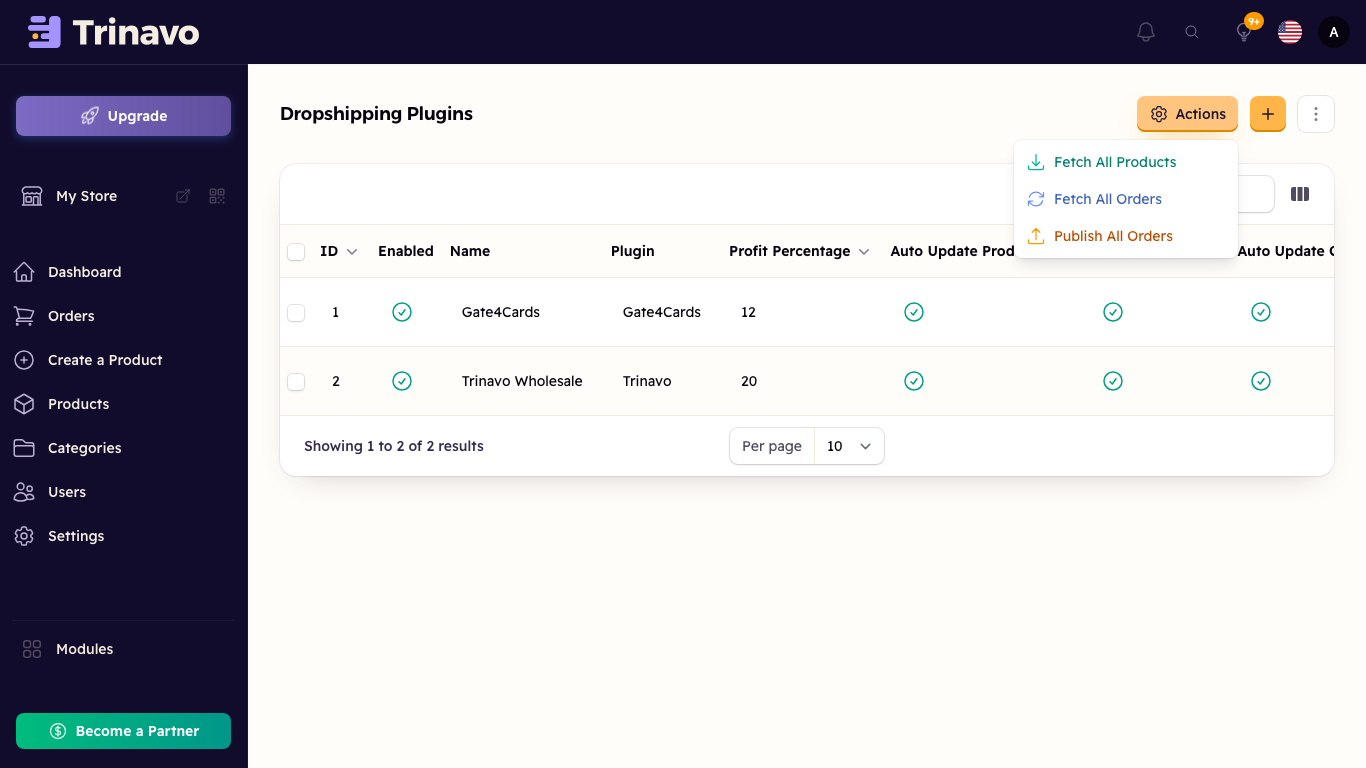
- For every supplier at once, open Actions at the top and choose Fetch All Products, Fetch All Orders (order status updates) or Publish All Orders (sends orders waiting to go out).
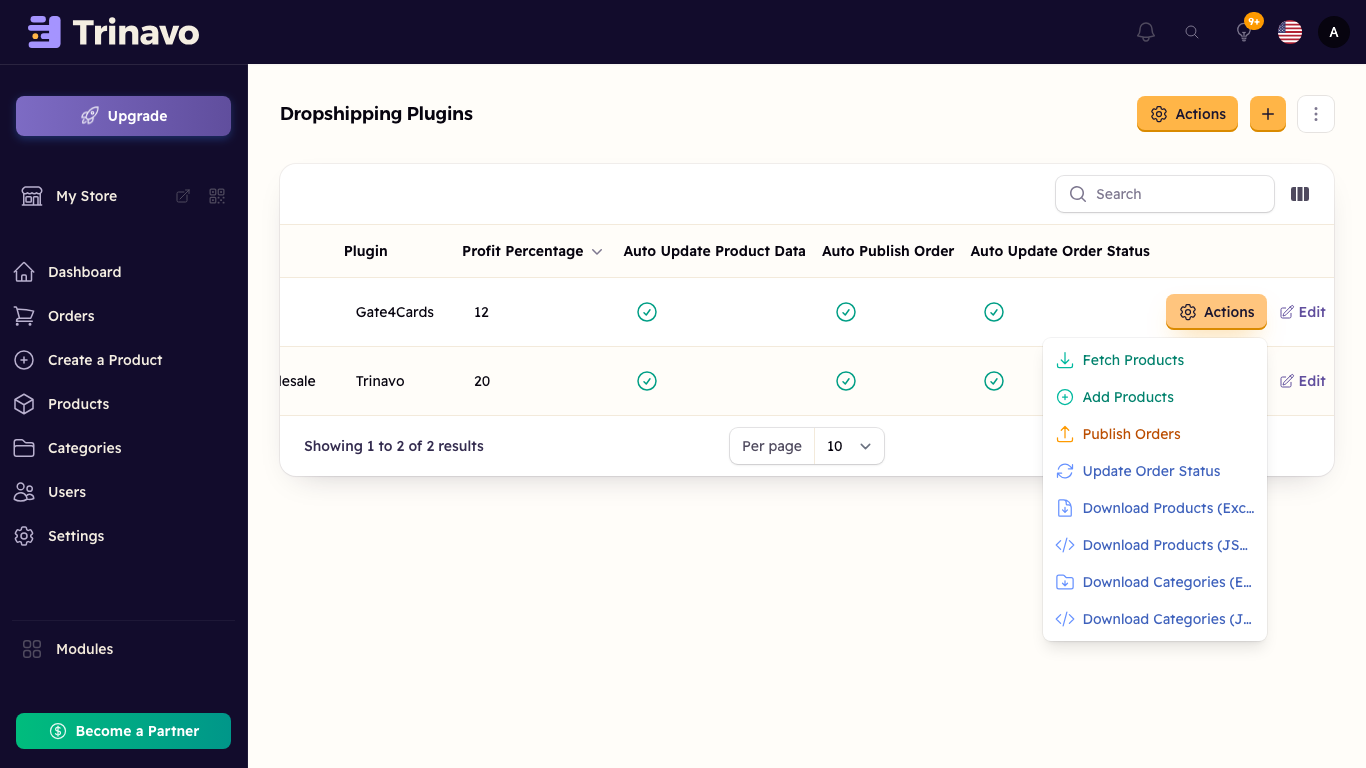
- For one supplier, open Actions on its row. It lists only what that supplier can do, and only while the supplier is enabled.
| Row action | What it does |
|---|---|
| Fetch Products | Updates the products you get from this supplier. |
| Add Products | Opens Add Products on this supplier's catalogue. |
| Publish Orders | Sends this supplier's orders that are waiting to go out. |
| Update Order Status | Asks this supplier how your orders are going. |
| Export Products | Sends your approved, enabled products to the supplier (for suppliers that accept them). Products already there are updated. |
| Download Products (Excel), Download Products (JSON), Download Categories (Excel), Download Categories (JSON) | Downloads what the supplier sells, as a spreadsheet or a data file. |
After you confirm a job, a page opens with its progress as it runs. Each job is also recorded in the Dropshipping Monitor.
Link a product to a supplier
A product comes from a supplier when it is linked to one: products the supplier sync or Add Products creates are linked for you. To see or change a product's links, open the three-dots button on the product's row in Products and choose Dropshipping Sources (shown once you have a supplier).
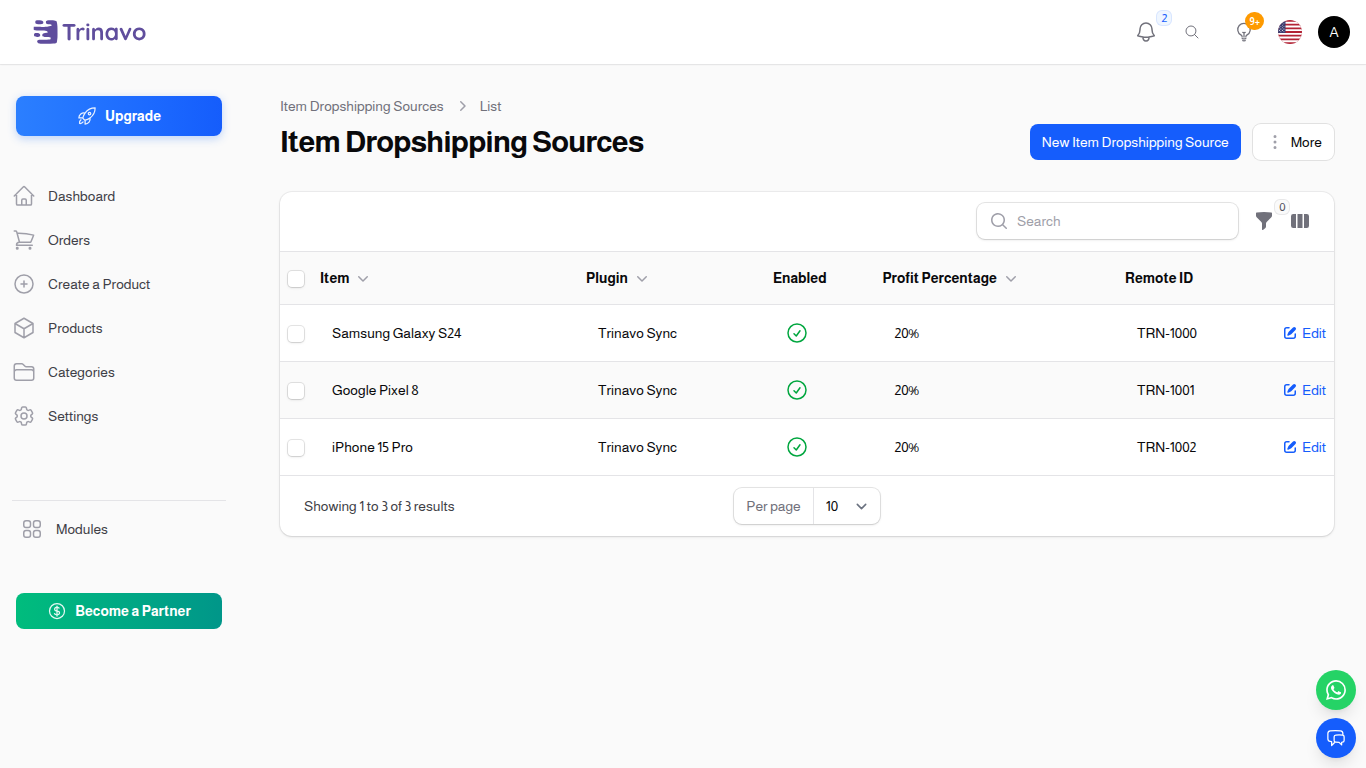
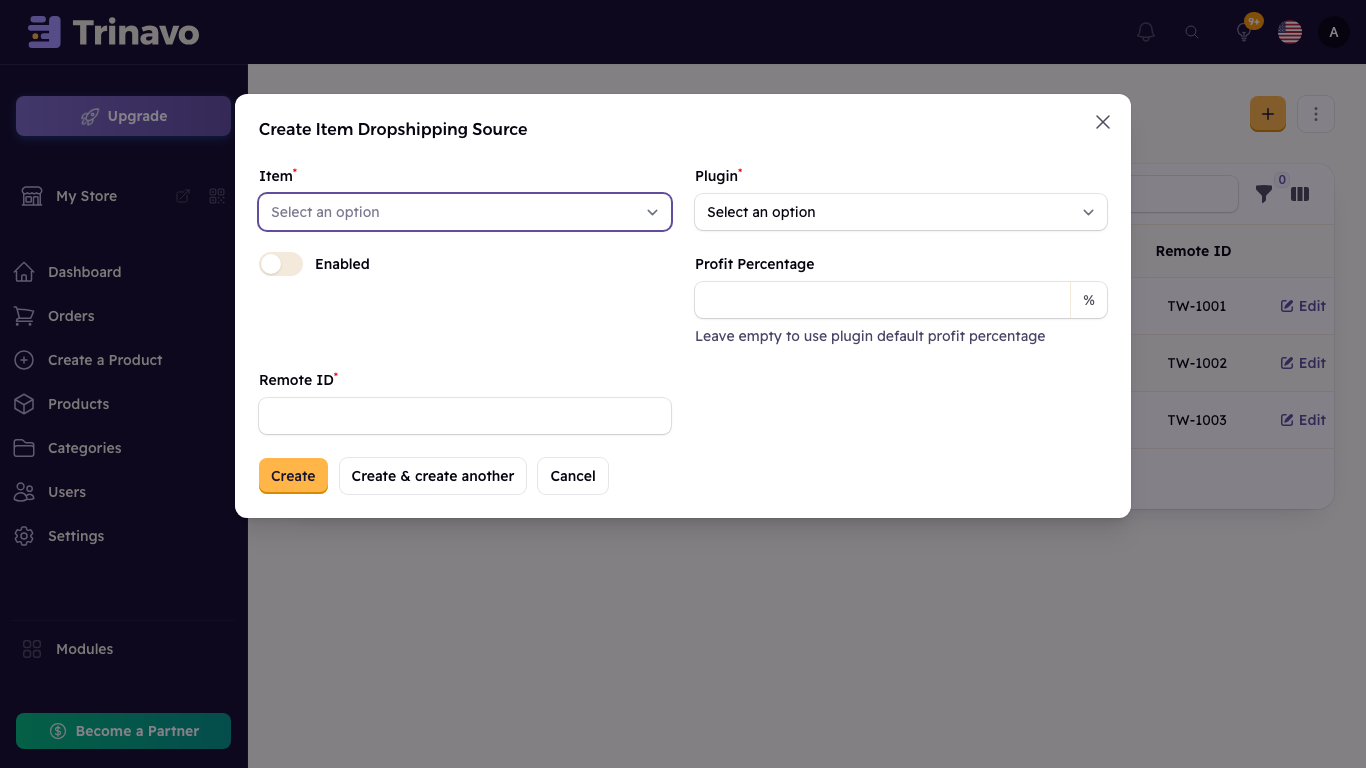
To link a product by hand:
- Click + (New Item Dropshipping Source).
- Pick the Item (your product) and the Plugin (the supplier).
- Type the supplier's own number for the product in Remote ID.
- Switch on Enabled, and fill Profit Percentage only if this product needs a different markup from the supplier's.
- Click Create.
Profit Percentage reads Default when the product uses the supplier's. The filters show one Item, one Plugin, Enabled or not, and a custom or default Profit Percentage. For a Friends-SY product, Setup user fields on its row adds the number and value fields the customer fills in when ordering.
Suppliers you can connect
Each supplier is listed in Plugin under its own name:
| Plugin | Supplier |
|---|---|
| Trinavo | Another store on Trinavo that sells to you wholesale. |
| Gate4Cards | Digital cards, top-ups and gift cards. |
| DailyCard | Digital cards, game top-ups and prepaid vouchers. |
| Daftra | An accounting and stock system: products and stock come from a Daftra account, and orders go back to it. |
| Friends-SY | Syrian mobile top-ups and bill payments. |
| Usharez | Lebanese mobile credit and gift cards. |
| CJDropshipping | CJDropshipping, a worldwide supplier: the products you picked in your CJ account, with their options, and shipping tracking. |
| SofizPay | Algerian digital services: game credit, internet, phone credit and bills. |
| OneClick | Algerian digital services from Algérie Télécom and Djezzy. |
| GrizzlySMS | One-time phone numbers for receiving a verification text. |
| GRIFFATI | An Italian wholesaler of branded clothing and accessories. |
Related
- Dropshipping Monitor
- Add Products from Supplier
- Dropshipping Reconciliation
- Products
- API Tokens: let another store buy your products by dropshipping