App Drawer Items
The links in the side menu of your mobile app: which ones show, what they are called, their icons and their order. A new store starts with the usual ones, such as Home, Categories, My Orders and Profile.
Where to find it
Open Modules → Settings → App Drawer Items, or click Manage App Drawer Items in the App Drawer section of Mobile App settings.
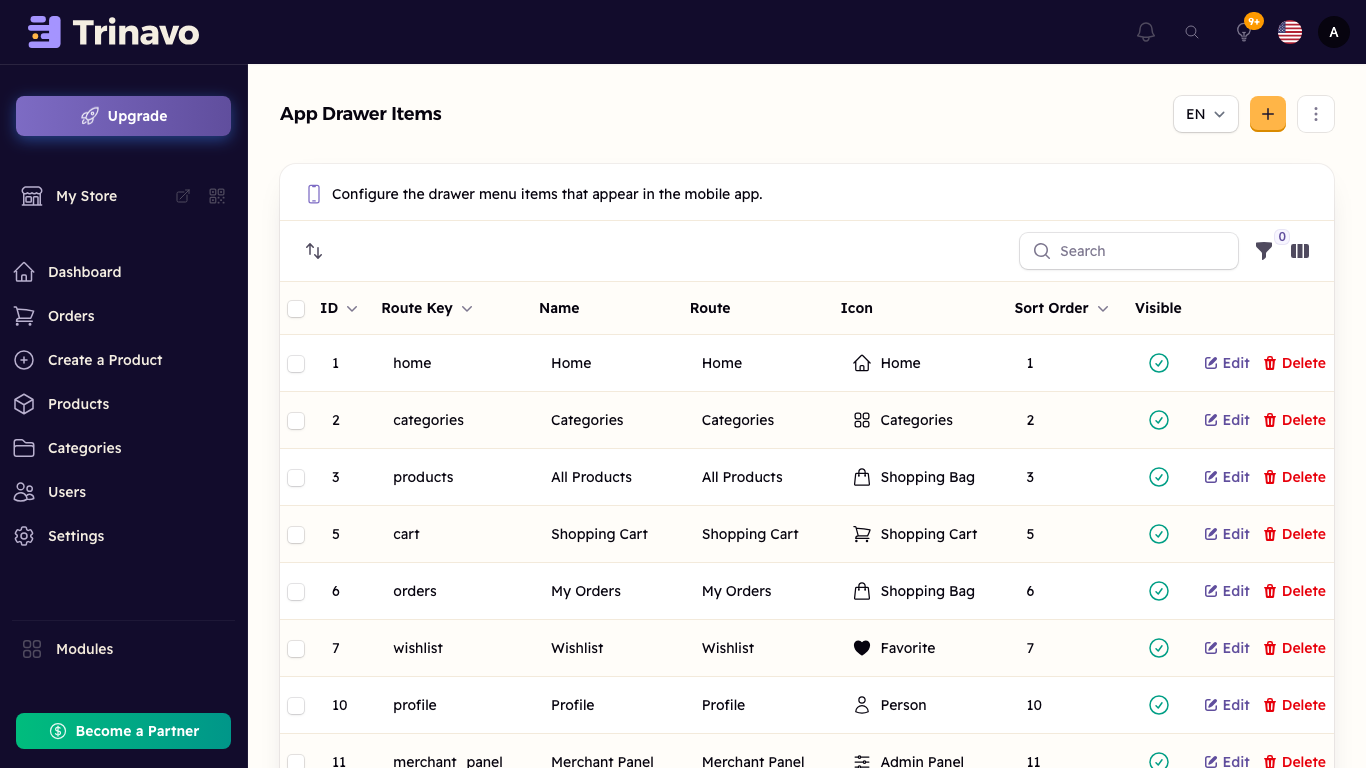
Each row is one link: its Route Key, the Name customers see, the Route it opens (by the screen's name), its Icon, its Sort Order and whether it is Visible. The list is in menu order. Filter shows only visible or only hidden links. Updated At can be added from the columns button. The ⋮ menu (More) at the top holds Related settings, which goes back to the Mobile App settings.
Add a link
- Click + (New App Drawer Item).
- Fill in the fields below.
- Click Create.
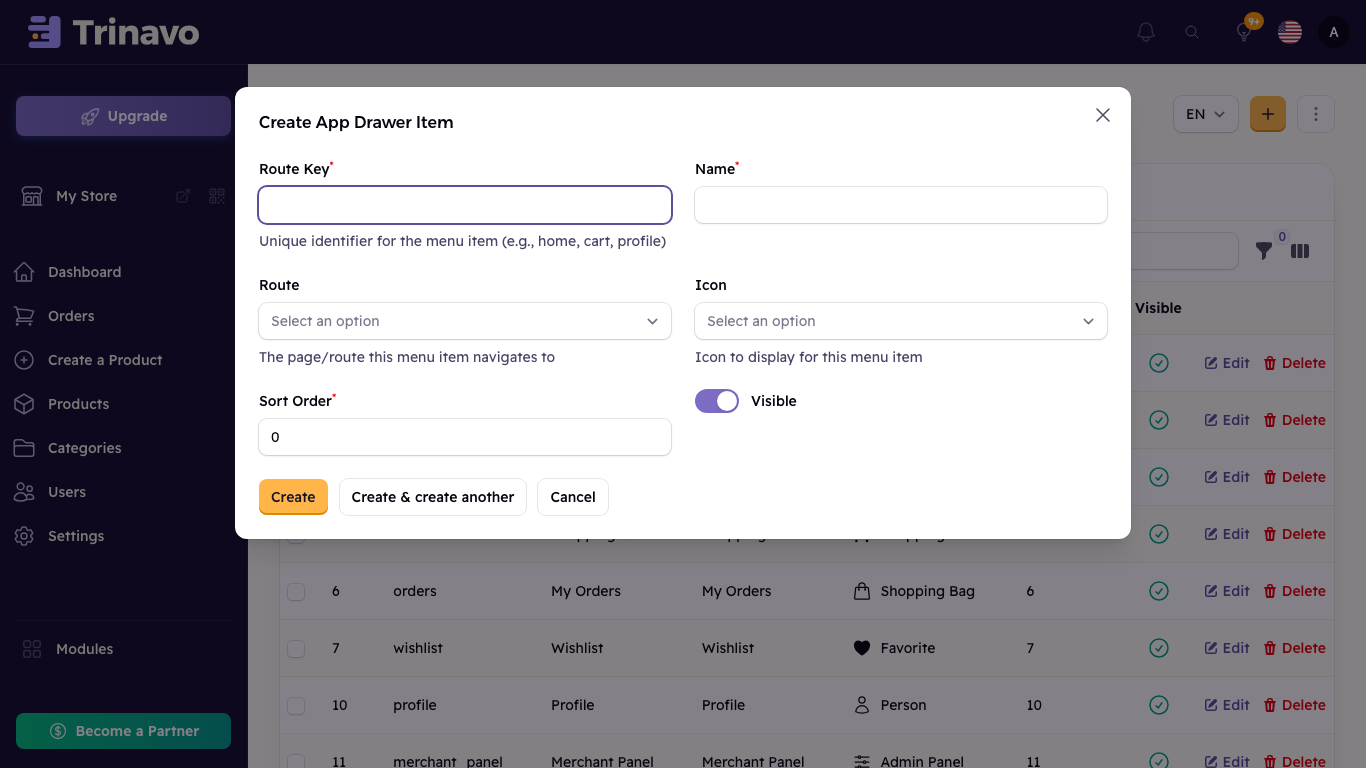
| Field | What it does |
|---|---|
| Route Key | A short name of your own for the link, such as offers. Each link needs a different one. |
| Name | The text in the menu. The language switcher at the top of the list changes which language you type it in; fill it in each language your store uses. |
| Route | The app screen the link opens: Home, Categories, All Products, Shopping Cart, My Orders, Wishlist, Profile, Merchant Panel, Become a Merchant, Settings, Contact Information or Live Chat. Choose Page to open one of your Pages, then pick it under Page. |
| Icon | The picture next to the name. |
| Sort Order | Where the link sits: lower numbers come first. |
| Visible | Off keeps the link out of the menu without deleting it. |
Change, hide or reorder links
- Edit on a row opens the same form with the link's details.
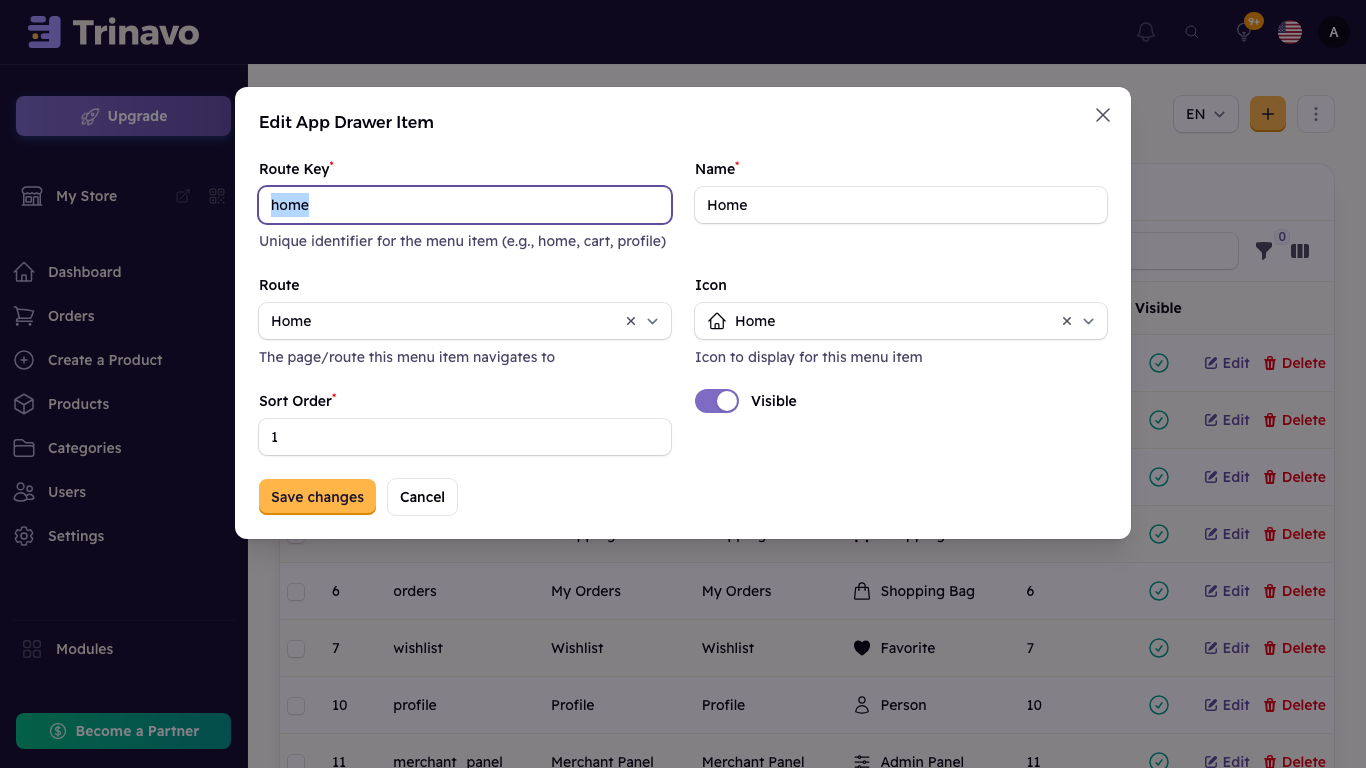
- Click the Visible icon on a row to show or hide that link at once.
- Click Reorder records above the list and drag the rows into the order you want, then Finish reordering records.
- Delete on a row removes the link. Tick several rows to delete them together from the bulk actions.