Label Designs
A label design decides what your parcel labels show and in what order. Three built-in designs are always there when you print (Standard, Full waybill and Minimal); this screen is for adding your own.
Where to find it
Open Modules → Delivery & Payments → Label Designs, or click Label Designs under the Design field when printing a label from an order. Vendor accounts do not have it.
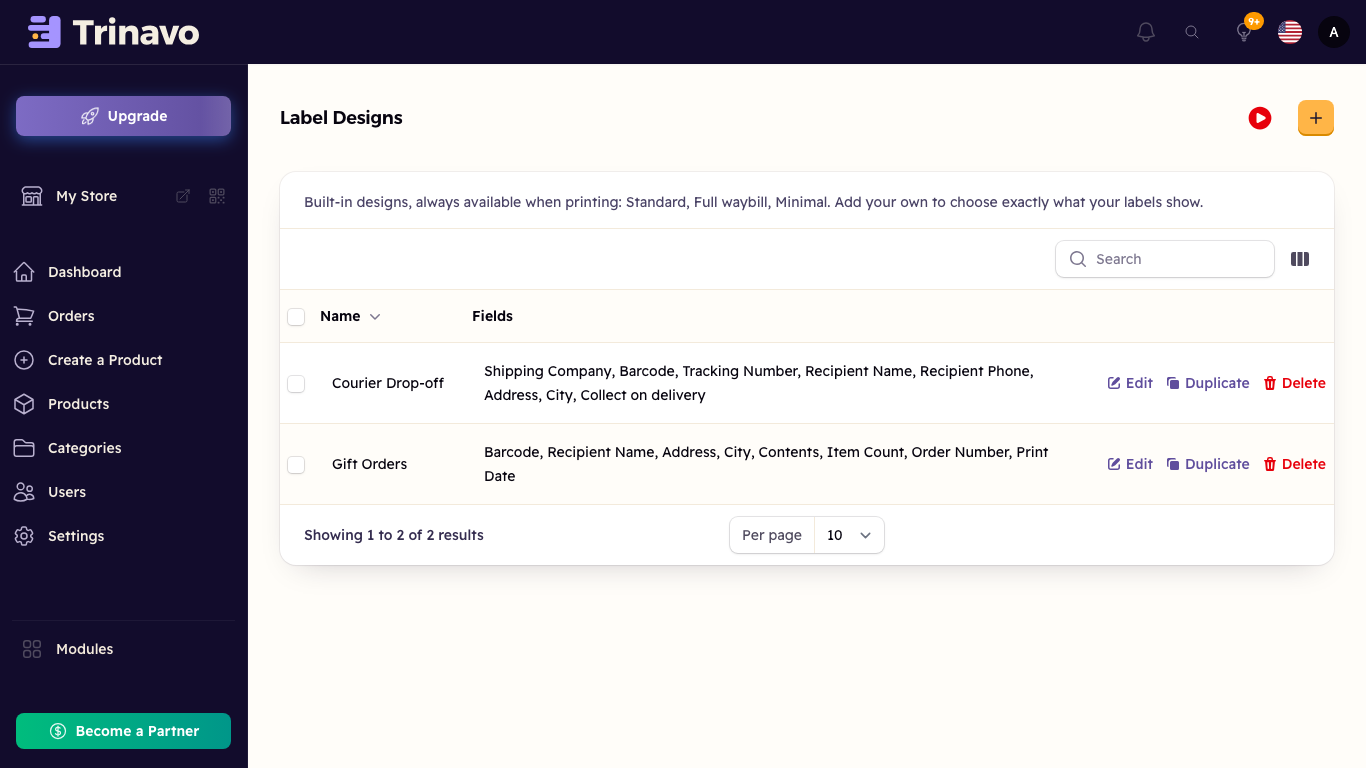
The line above the table names the built-in designs. Each row shows one of your designs and its Fields in print order.
Add a label design
- Click + (New Label Design).
- Type a Name, the one you will pick when printing.
- In Start from, choose the built-in design closest to what you want. Its fields fill the list.
- Change the Fields: pick a field and its Width on each row, click Add Field for another, move rows up or down with the arrows, and delete the ones you do not need.
- Watch the Preview beside the list: it is the label as it prints, on a 100 × 150 mm sticker.
- Click Create.
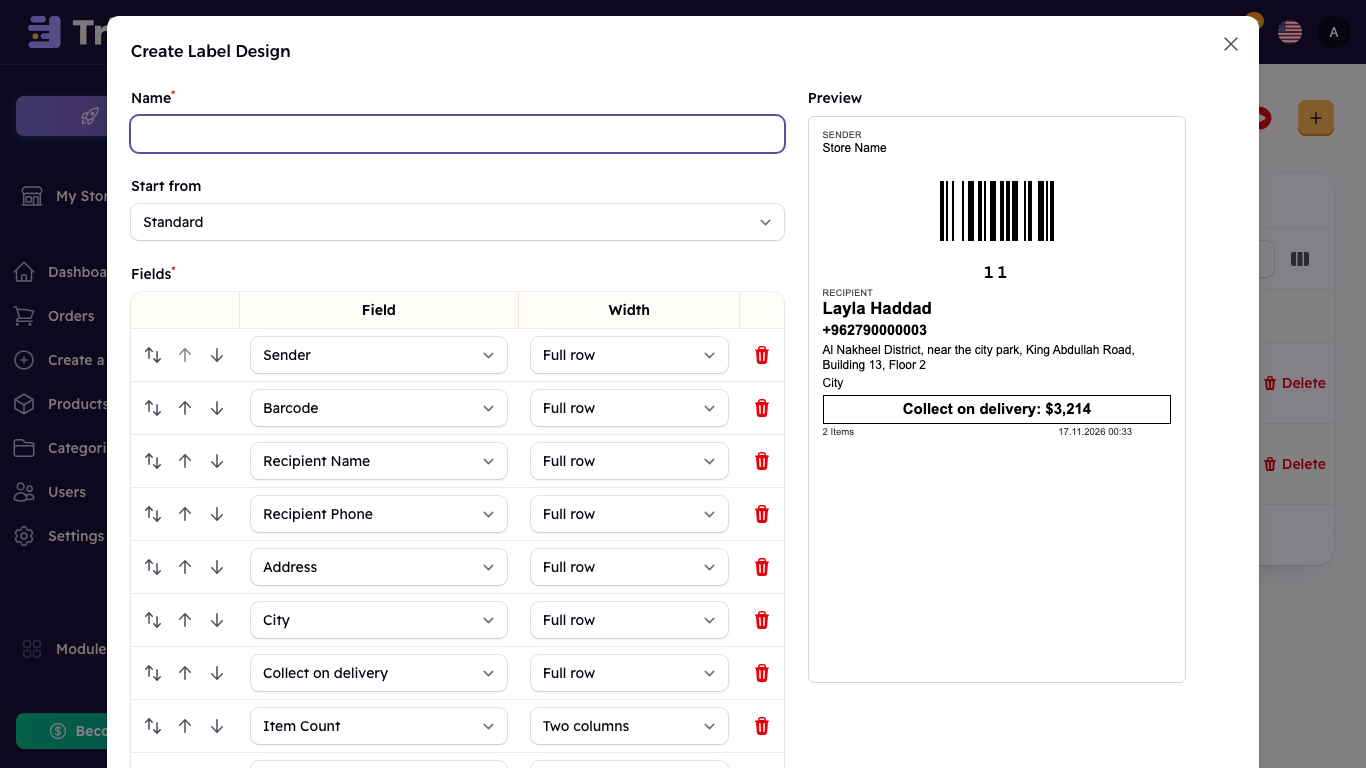
A label is three columns wide: each field takes One column, Two columns or a Full row, and short fields can share a row. Every design must keep Barcode, Recipient Name and Address, so a parcel can always be scanned and delivered.
| Field | What it does |
|---|---|
| Barcode | The order number as a barcode on your store's label, or the delivery company's own code on its waybill. |
| Shipping Company | The name of the delivery company carrying the parcel. |
| Sender | Your store's name and phone number. |
| Contents | The products in the order. |
| Collect on delivery | The order total, for the driver to collect. Left off when the order is already paid. |
| Print Date | When the label was printed. |
A field the label has no value for is left out when it prints, for example Tracking Number before the parcel has been handed to a company.
Print with a design
In Orders, Print Shipping Label has a Design field listing the built-in designs and yours. The design is used for your store's own label and for the waybill the store draws for a delivery company that has none of its own (Yurtiçi Kargo, YFS); other companies send their waybill ready-made, so there is nothing to choose. The dialog remembers the design you last printed with, separately for each kind of label.
Edit, copy or delete a design
- Edit on a row opens the same form; change it and click Save changes.
- Duplicate makes a copy named "Copy of" and the design's name, to start a variation.
- Delete removes it. Printing then falls back to the built-in design for that kind of label.