AI Credits
Every AI feature in your store spends AI credits. This screen shows how many you have left, lets you buy more, and lists what was spent.
Where to find it
Open Modules → Data Enrichment → AI Credits.
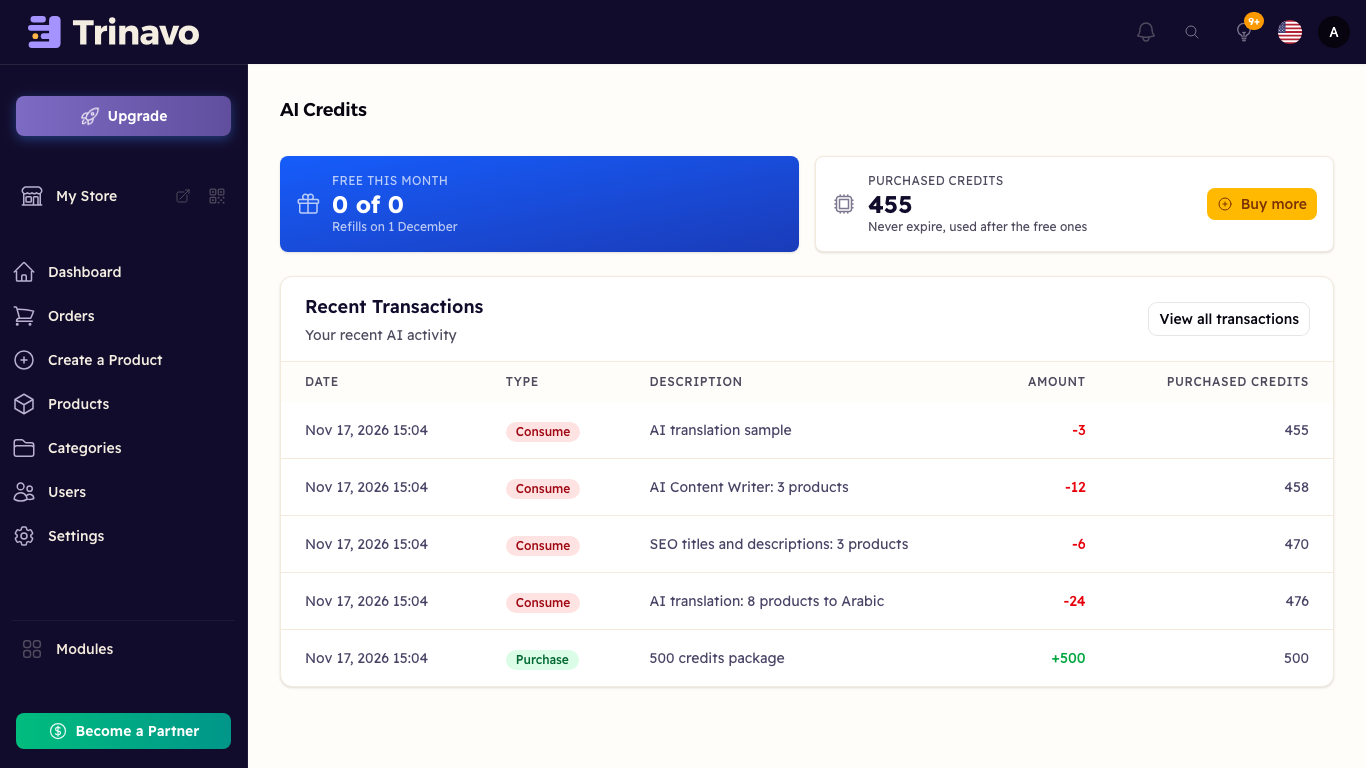
- Free this month: how many of this month's free credits are left, out of how many, and the date they refill (Refills on).
- Purchased credits: credits you bought. They never expire and are spent after the free ones.
AI features stop when both are used up. On a plan without AI, the screen offers an upgrade instead, with the number of free credits paid plans get each month.
When your balance cannot be read, the screen shows Failed to connect to the credits service. Please try again later. with a Try Again button, rather than a balance of zero.
What uses credits
| Feature | Credits |
|---|---|
| An AI button on a product field, or generating all fields at once | 1 per click |
| AI Translation | 1 per product, category or brand, all its fields together |
| AI Content Writer in Enricher Sources | 1 per product |
| TecDoc Vehicle Compatibility in Enricher Sources | 3 per product |
A translation sample and the enrichment test on the first product are free.
Buy more credits
- Click Buy more.
- Choose a package. Each shows its credits, about how many products it translates, and any bonus credits.
- Click the buy button, which carries the price in your country's currency, and pay by card.
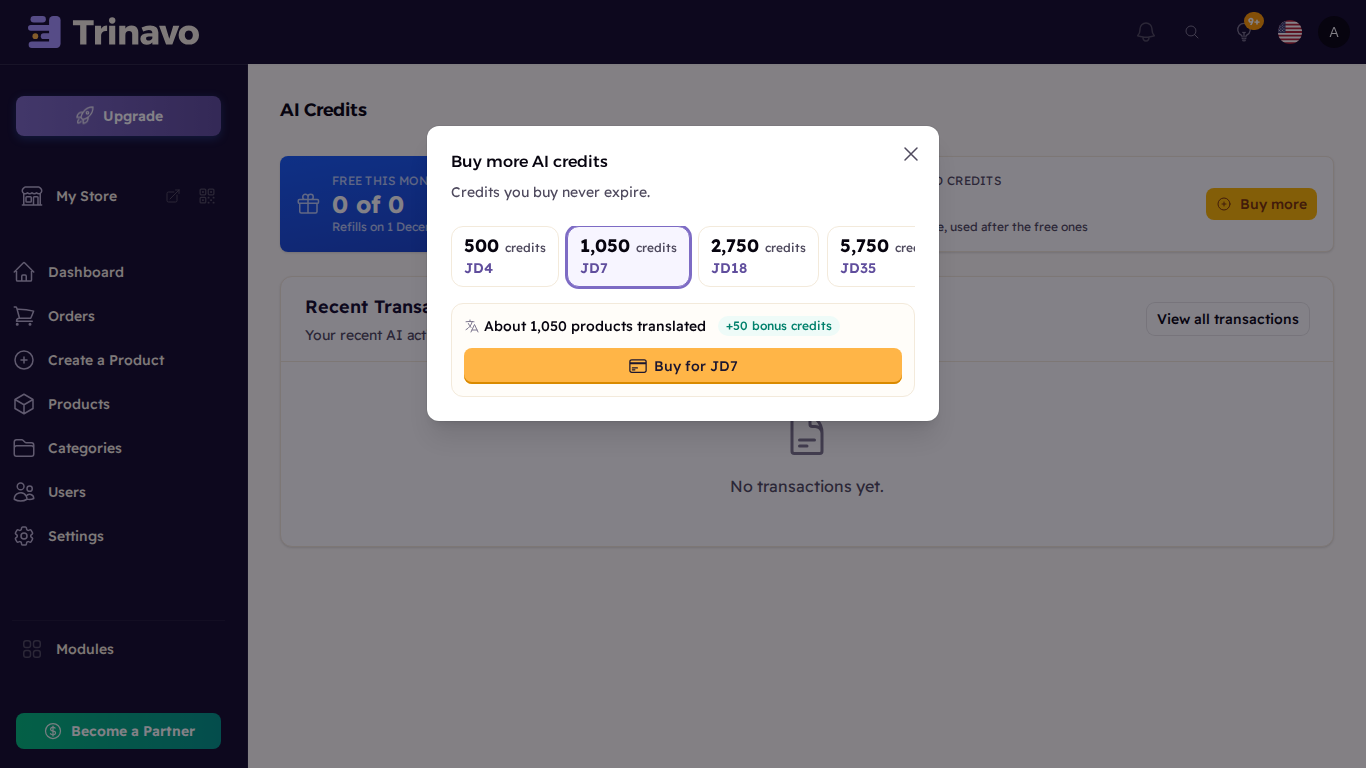
You come back to this screen after paying, and the credits appear in a moment. Only the store owner can buy; other staff see Contact your store administrator to upgrade. The same packages open from the credits button at the top of AI Translation.
See what was spent
Recent Transactions at the bottom of the screen lists your latest activity. View all transactions opens AI Credits History (also under Modules → Data Enrichment), the full record, newest first, with Previous and Next to page through it.
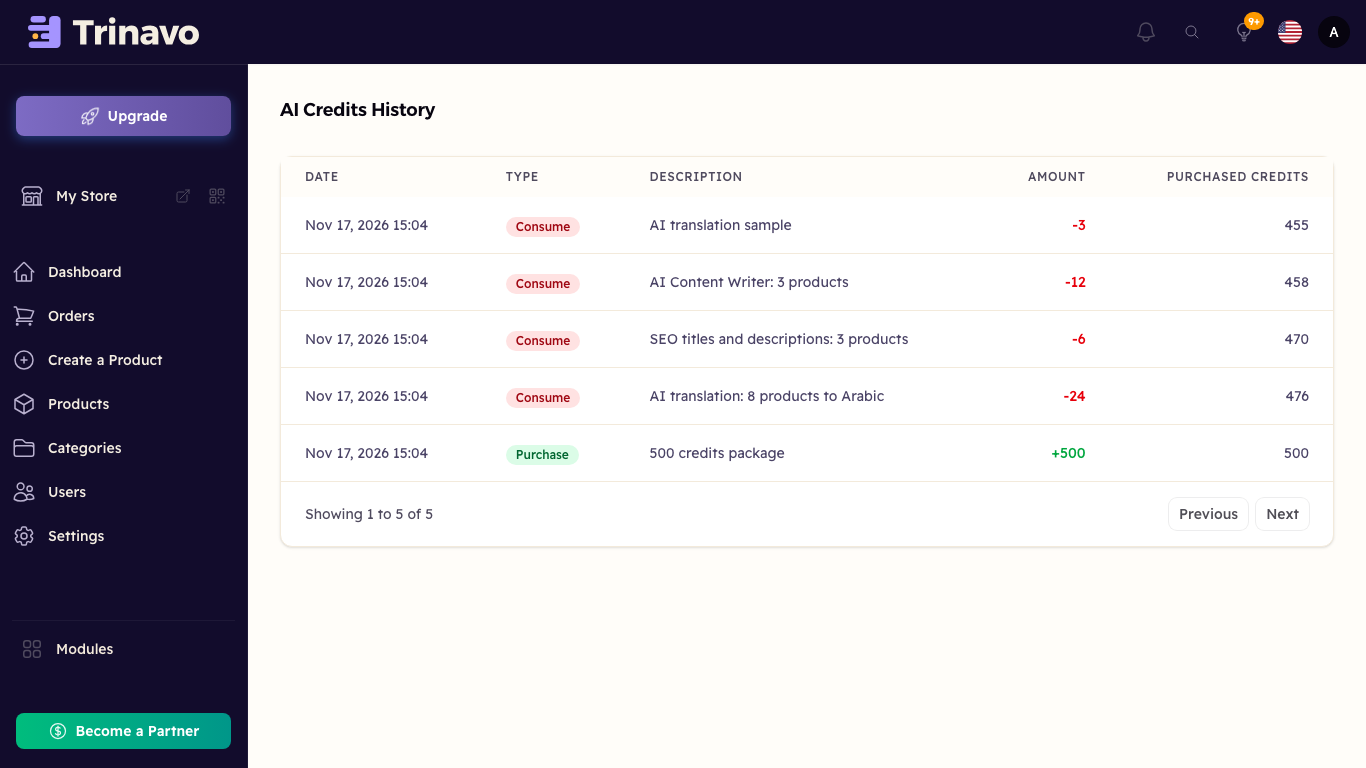
| Column | What it shows |
|---|---|
| Type | Free credit (spent from the monthly free credits), Consume (spent from purchased credits), Purchase, Refund or Admin adjustment. |
| Description | What the credits were spent on. |
| Amount | Added (green) or spent (red). |
| Purchased credits | Your purchased credits after that line. |
AI Credits History is not in the menu on a free store.