Top-up Cards
Cards with a 16-digit number, each worth a fixed amount of wallet money. You generate them here and hand them out: printed and sold at your shop, given as gifts, or sent in a message. The first customer to type a card's number gets its value in their wallet, and the card is used up.
Where to find it
Open Modules → Wallet Management → Top-up Cards.
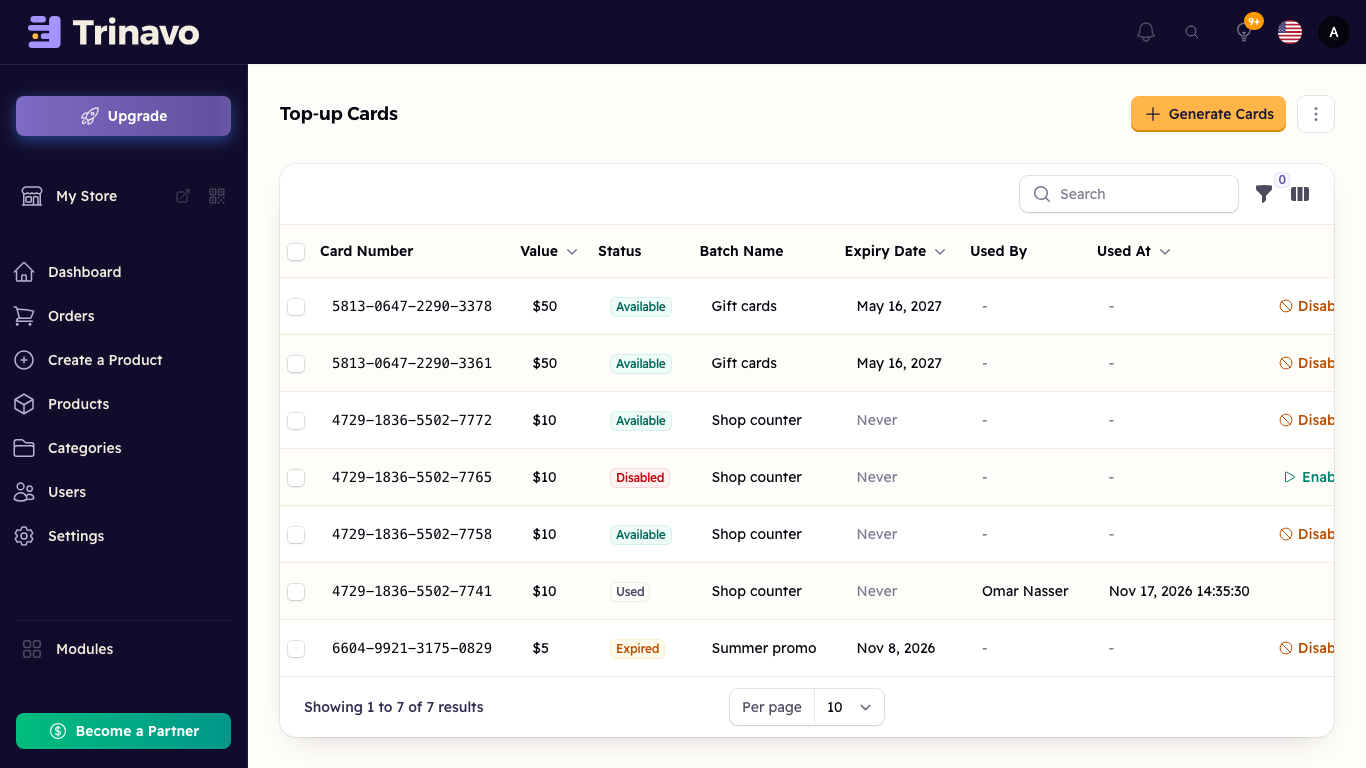
Status is Available, Used, Expired or Disabled. Used By and Used At say who used a card and when; the name opens that customer. Click a Card Number to copy it. Search by card number, with or without the dashes, or by batch name.
The filters show one Status or one Batch Name. Created By and Created At can be added from the columns button. The ⋮ menu (More) at the top holds Export and Related reports.
Generate cards
- Click Generate Cards.
- Type the Card Value and the Number of Cards (up to 1,000 at a time).
- Give the cards a Batch Name, to find, export or disable them together later. It starts as today's date and time.
- Pick an Expiry Date, or leave it empty for cards that never expire. A card stops working at the end of that day.
- Click Generate.
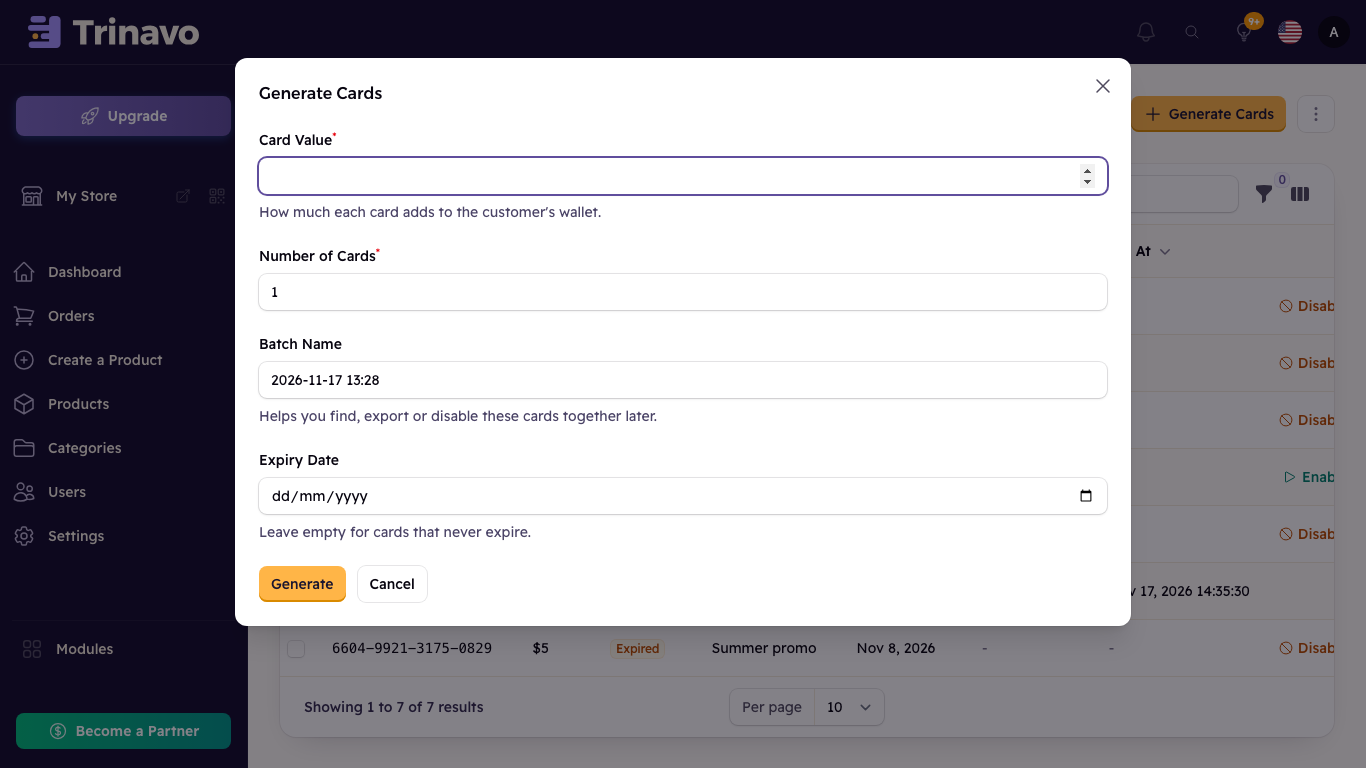
Each card gets its own random number. With wallets in several currencies turned on in Wallet Settings, the form also asks for the Currency; otherwise cards are in your main currency.
Print or share the numbers
Tick the cards, or filter by Batch Name and tick them all, then choose Export from the bulk actions. The spreadsheet holds the card numbers to print or send.
How customers use a card
In their account, under My Wallet, the customer opens the deposit page, chooses Top-up Card, types the Card Number and confirms. The value is added to the wallet at once, with no request for you to review, and appears in Wallet Transactions as Top-up Card.
Top-up Card is offered on the deposit page whenever at least one card is available, even with deposits switched off in Wallet Settings. After five wrong numbers, the customer has to wait up to ten minutes before trying again.
Disable or delete cards
If cards are lost or leaked, click Disable on a card's row, or tick several and choose Disable from the bulk actions. A disabled card is refused when typed; Enable on its row makes it work again.
Delete removes a card that has not been used. Delete Unused Cards in the bulk actions deletes the ticked cards and keeps any that were used, because a used card is the record of the money it added. Cards cannot be edited: to change a value, delete the unused cards and generate new ones.