Delivery Targets
Purpose
Define delivery zones and set shipping costs for specific geographic areas per delivery method. Control which areas are serviced and pricing for each delivery method in those areas.
Accessing Delivery Targets
Click Modules → Delivery & Payments → Delivery Methods, open the delivery method you want to price, then go to its Delivery Targets tab.
Every delivery target belongs to one delivery method, which is why you set them from inside that method rather than from a menu of their own. The tab is not shown for delivery methods where the shipping company works out the price itself, because your own zone prices are not used in that case.
List View
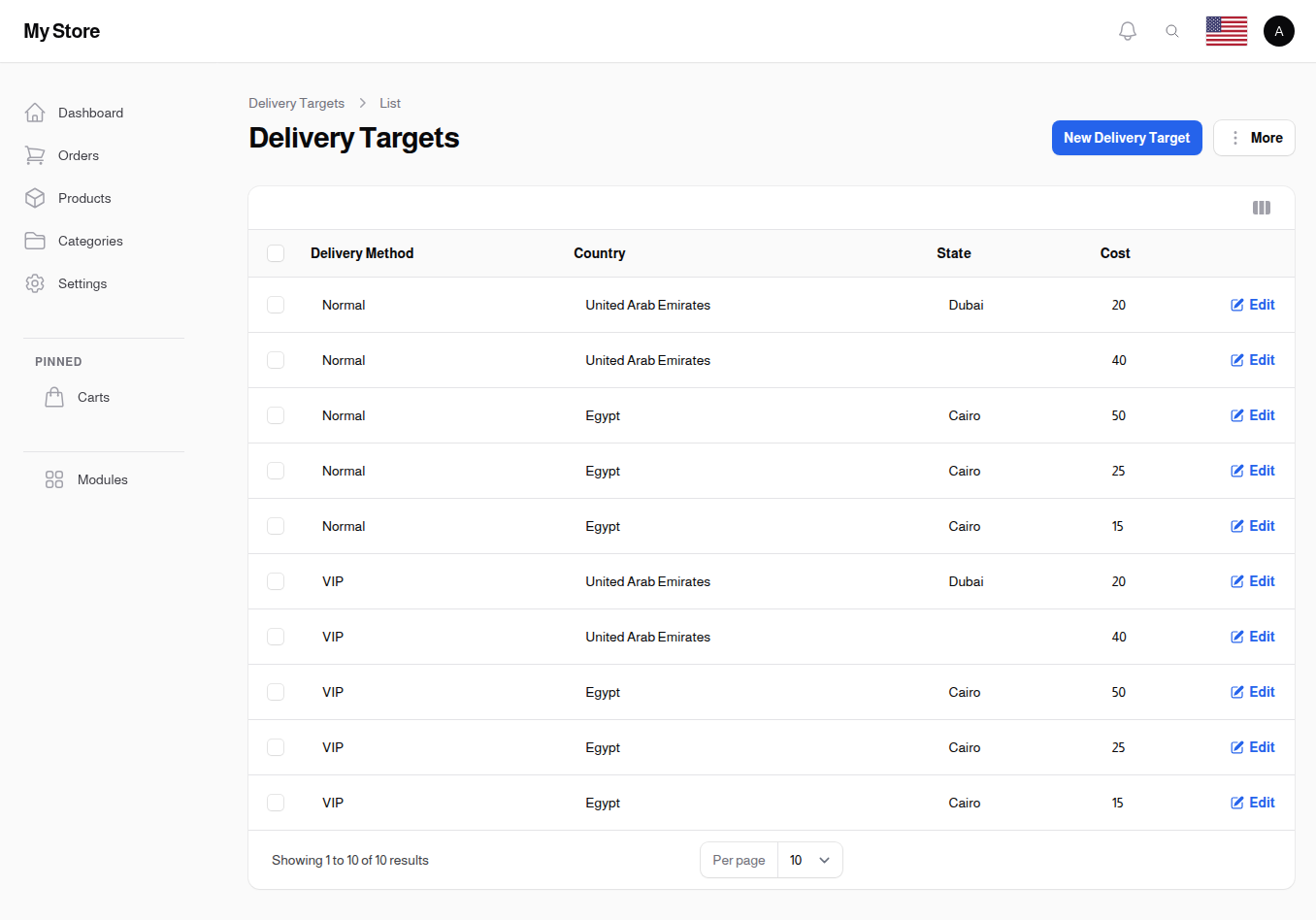
The tab lists the delivery costs set for this delivery method, one row per geographic area.
Table Columns
Country
- Format: Text
- Purpose: Country for this delivery zone
State
- Format: Text
- Purpose: State/province for this delivery zone (if applicable)
City
- Format: Text
- Purpose: City for this delivery zone (if applicable)
Location
- Format: Text
- Purpose: Neighborhood/area within city (if applicable)
Cost
- Format: Plain number, shown without a currency symbol
- Purpose: Delivery/shipping cost for this zone
Row Actions
- Edit: Modify delivery target settings
- Delete: Remove a single delivery zone. You are asked to confirm first
Bulk Actions
- Delete: Remove multiple delivery targets
Creating a Delivery Target
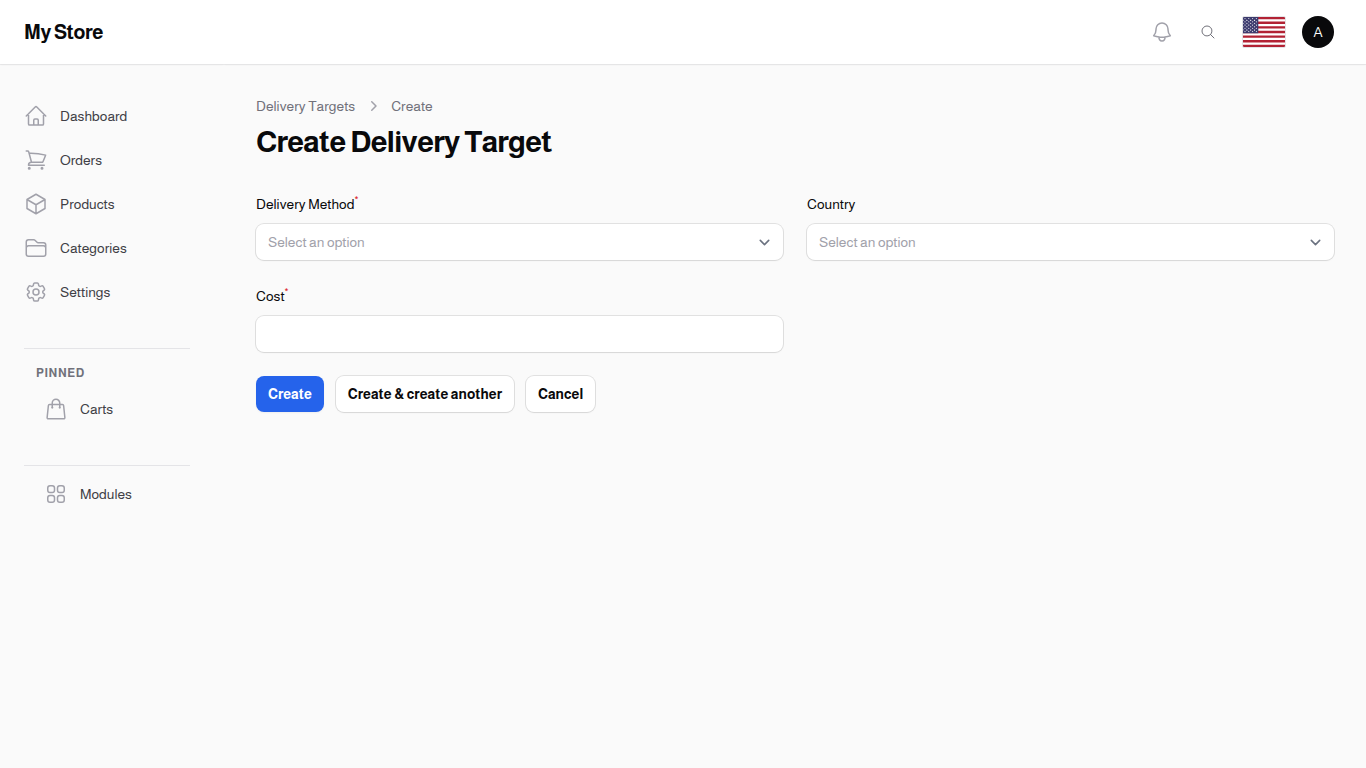
Click Add Delivery Target to set shipping costs for a new delivery zone. The form opens in a dialog over the tab, so you stay on the delivery method you are pricing. The cost is saved against that method, so there is nothing to pick here.
Form Fields
Country Optional
- Type: Searchable dropdown
- Purpose: Select the country for this delivery zone
- Behavior: Selecting a country resets the State, City, and Location fields
- Options: All available countries
State Optional
- Type: Searchable dropdown
- Purpose: Select state/province for this zone
- Conditional: Only shown once a country is selected
- Behavior: Selecting state resets City and Location fields
- Auto-Populate: Dropdown shows only states from selected country
- Note: Leave blank to charge one cost across the whole country
City Optional
- Type: Searchable dropdown
- Purpose: Select specific city for more granular zone control
- Conditional: Only shown when a country is selected and your store lets customers pick their city from a list. If Modules → Settings → Checkout → Use Text Input for City is turned on (this is the starting setting), customers type their city by hand, and then this field and the City column in the list are both hidden
- Behavior: Selecting city resets Location field
- Auto-Populate: Dropdown shows only cities from selected country/state
- Note: Leave blank for country-wide or state-wide delivery cost
Location Optional
- Type: Searchable dropdown
- Purpose: Select neighborhood/area for most granular zone control
- Conditional: Only shown when a city is selected, which also means your store must let customers pick their city from a list. While Use Text Input for City is turned on, neither this field nor the Location column appears
- Auto-Populate: Dropdown shows only locations from selected city
- Note: Leave blank for city-wide delivery cost
Cost Required
- Type: Number input, decimals allowed
- Purpose: Delivery/shipping cost for this zone
- Currency: Uses store's default currency
- Example: 5, 12.5, 99.99
Create Actions
- Create: Save and close the dialog
- Create & create another: Save and open blank form for next entry
- Cancel: Discard changes
Editing a Delivery Target
Click the Edit icon to modify the cost for an existing delivery zone or change the geographic boundaries.
Geographic Zone Levels
You can create delivery targets at different granularity levels:
- Country Level: Same cost for entire country
- Set Country only
-
Leave State, City, Location blank
-
State Level: Different costs per state
- Set Country and State
-
Leave City, Location blank
-
City Level: Different costs per city
- Set Country, State, and City
-
Leave Location blank
-
Neighborhood Level: Most precise control
- Set all fields: Country, State, City, and Location
Key Information
- Geographic Hierarchy: Zones are organized by Country → State → City → Location
- Per-Method Costs: Each delivery method has separate costs per zone
- Cascading Selection: Selecting parent level clears child levels
- Flexible Granularity: Define costs at country, state, city, or neighborhood level
- Fallback Logic: System uses most specific matching zone; broader zones apply if no specific match
- Used For: Delivery Methods pricing during checkout
Related Sections
- Delivery Methods - Shipping methods with associated costs
- Countries - Available countries in system
- States - Available states/provinces
- Cities - Available cities
- Locations - Neighborhoods within cities