Countries
The countries your customers choose from in their address and phone number. Every country in the world is already in the list, with its name in English and Arabic, so most stores only hide the ones they do not serve or leave this screen alone.
Where to find it
Open Modules → System Settings → Countries.
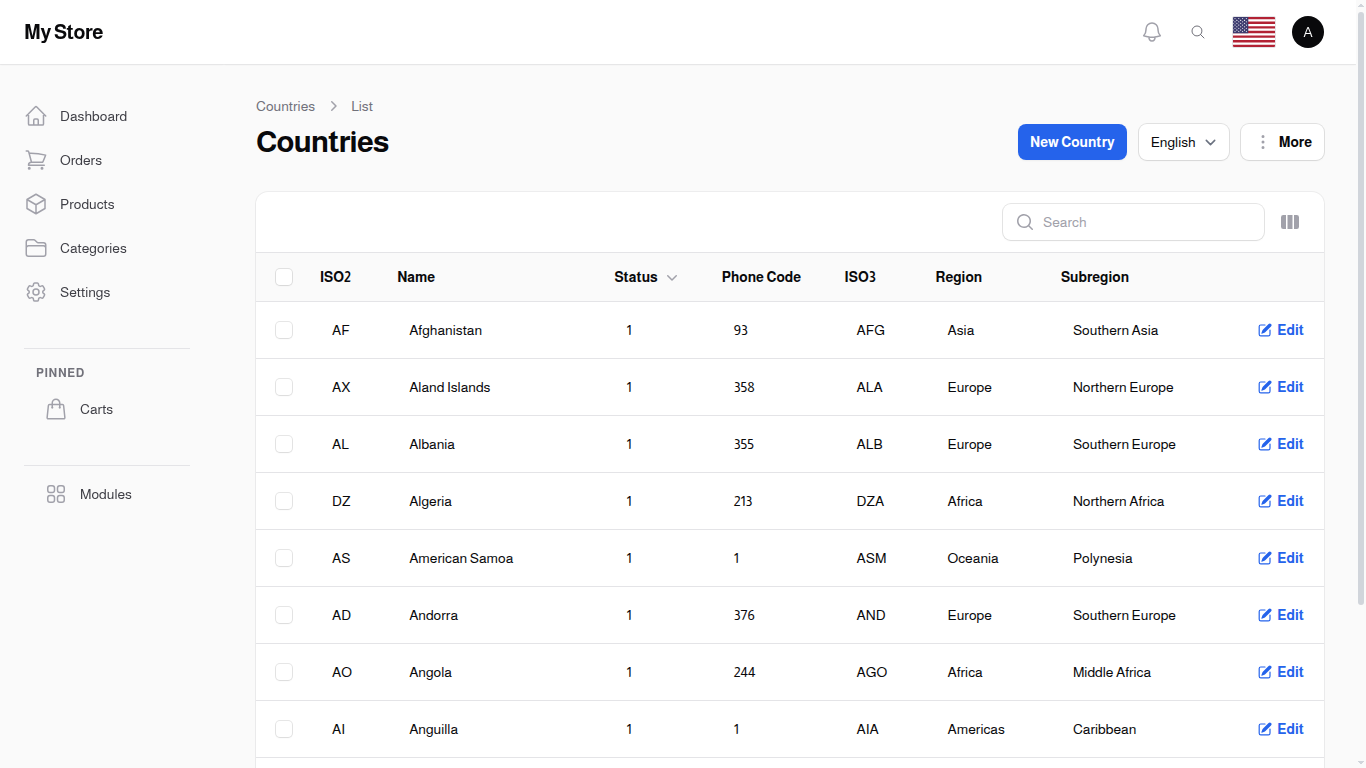
The links above the table, Countries, States, Cities and Locations, each with its count, move between the four place lists without going back to the menu.
The ⋮ menu (More) at the top holds Export and Related settings, which leads to Country Blocking, User Registration and General Settings.
Hide a country from customers
- Click Edit on the country's row.
- Switch Status off to hide it, or on to show it.
- Click Save changes.
In the list, Status shows a tick for a country customers see and a cross for a hidden one. A hidden country is left out of the country lists in customers' addresses and of the phone number's country code picker. Nothing else changes: its states, cities and delivery prices stay.
Add a country
- Click + (New Country).
- Fill in the Name and the codes. Status starts on, so customers see the country.
- Click Create.
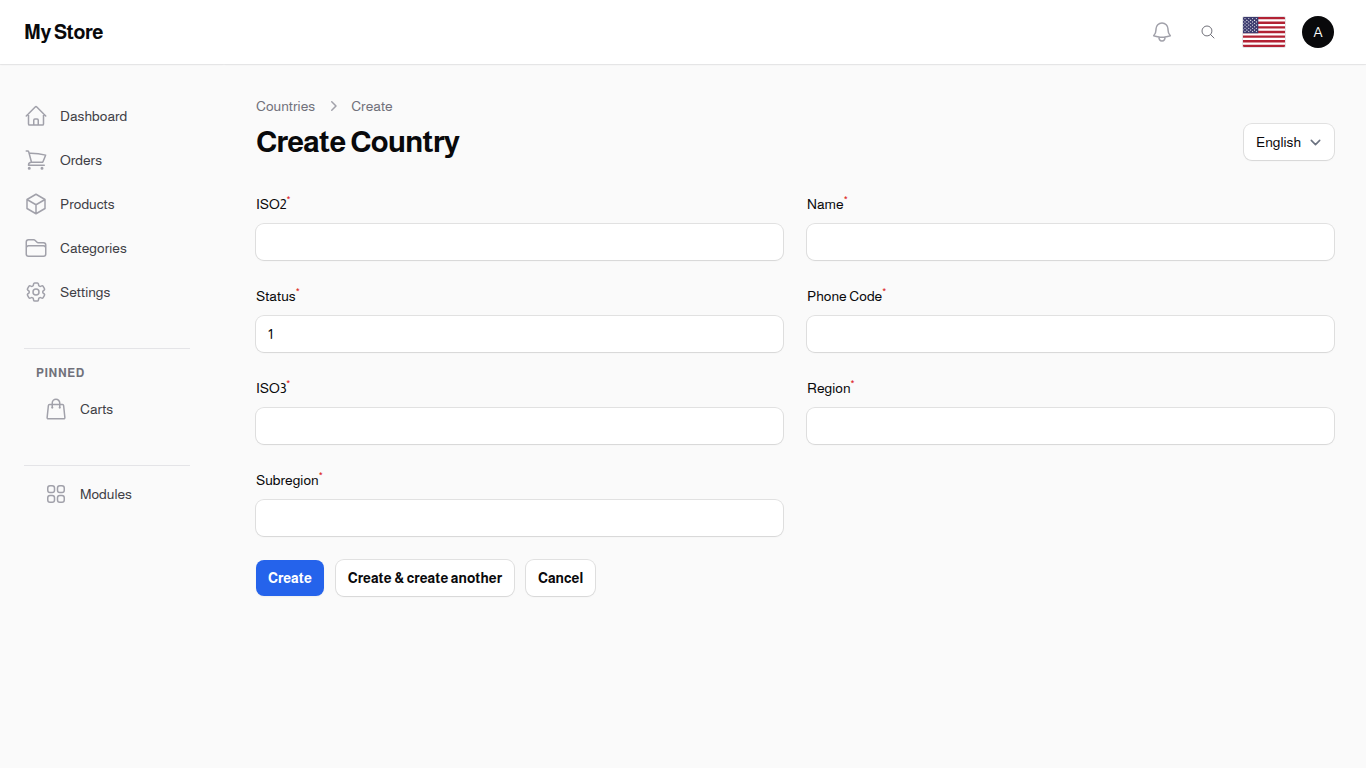
| Field | What it does |
|---|---|
| ISO2, ISO3 | The country's two- and three-letter codes (AE and ARE for the United Arab Emirates). The two-letter code picks the flag and the built-in city list. |
| Phone Code | The dialling code without the plus, such as 971. |
| Region, Subregion | Where the country is in the world, such as Asia and Western Asia. |
The language switcher in the form changes which language you type the name in.
Delete a country
- Click Delete on the country's row.
- Read the dialog: it counts the states, cities and locations that go with the country, and the delivery prices, addresses and orders that are kept.
- Confirm.
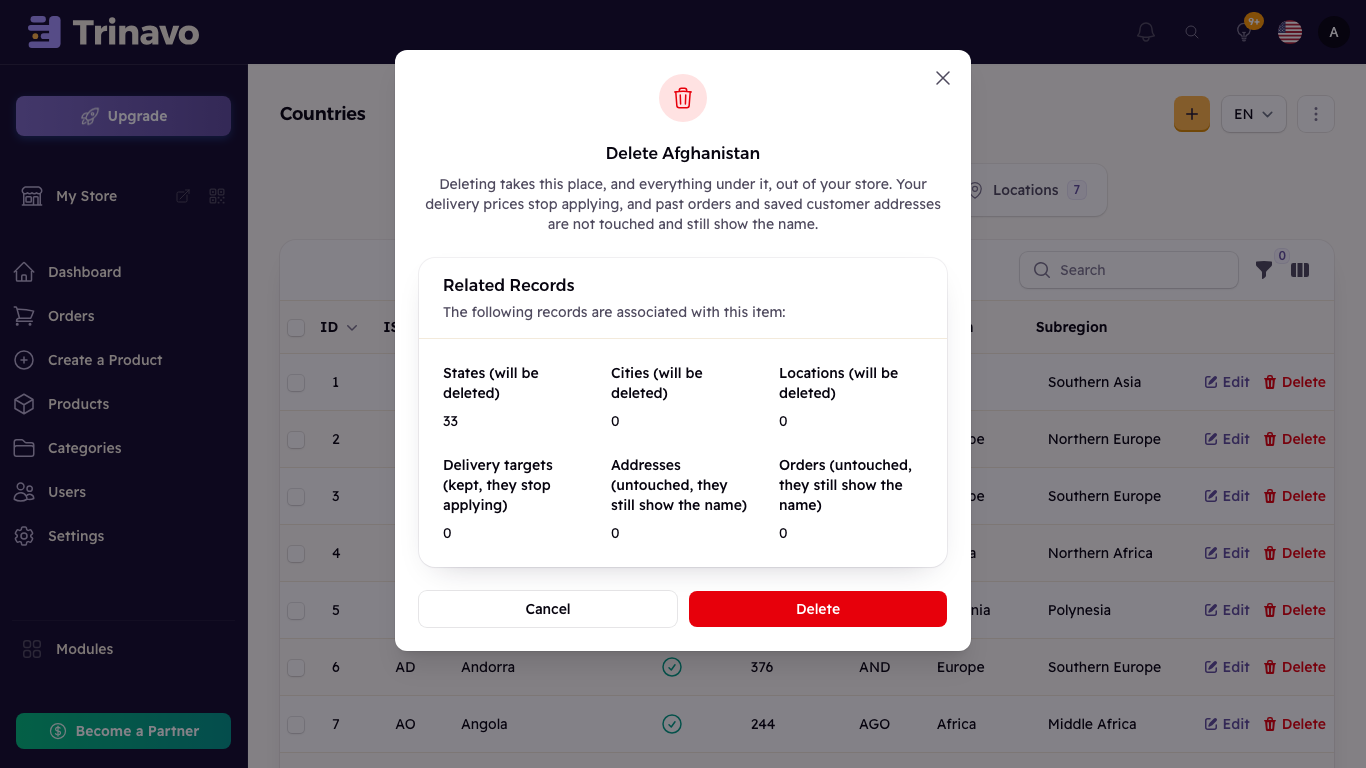
Deleting takes the country, and everything under it, out of your store. Delivery prices for it stop applying. Past orders and saved customer addresses are not touched and still show the name.
To bring it back, set the Deleted records filter to show deleted countries, then choose Restore from the row's three-dot menu. The states, cities and locations deleted with it come back too. Force delete in the same menu removes the country for good, with its states, cities, locations and delivery prices; addresses and orders are kept but lose the country.