Coupons
Watch the video
Create Coupon
Watch the:
A coupon is a code customers type in the cart to get a percentage off their products. You can limit a coupon to some products or categories, give it an end date, cap how much it takes off and how many orders can use it.
Where to find it
Open Modules → Marketing & Content → Coupons.
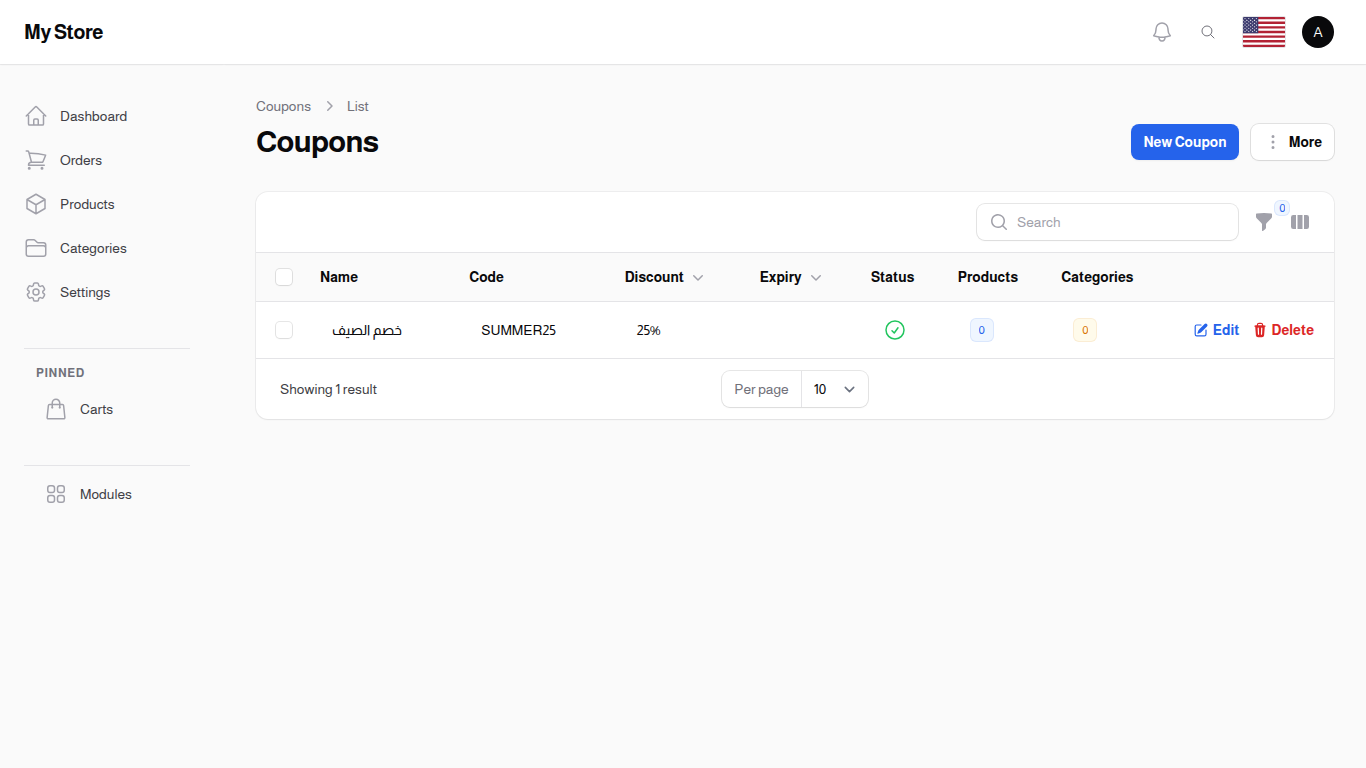
The Products and Categories columns count what a coupon is limited to. A red date in Expiry has passed. Click the icon in Status to turn a coupon off or back on. Filter the list by Status or by expiry date with Expires After and Expires Before.
Add a coupon
- Click + (New Coupon).
- On Basic Information, type a Name for your own reference and the Code customers will type.
- Enter the Discount as a percentage.
- Set an Expiry Date and a Usage Limit if the offer should end.
- Open Scope & Restrictions to set a minimum order or a maximum discount.
- Click Create.
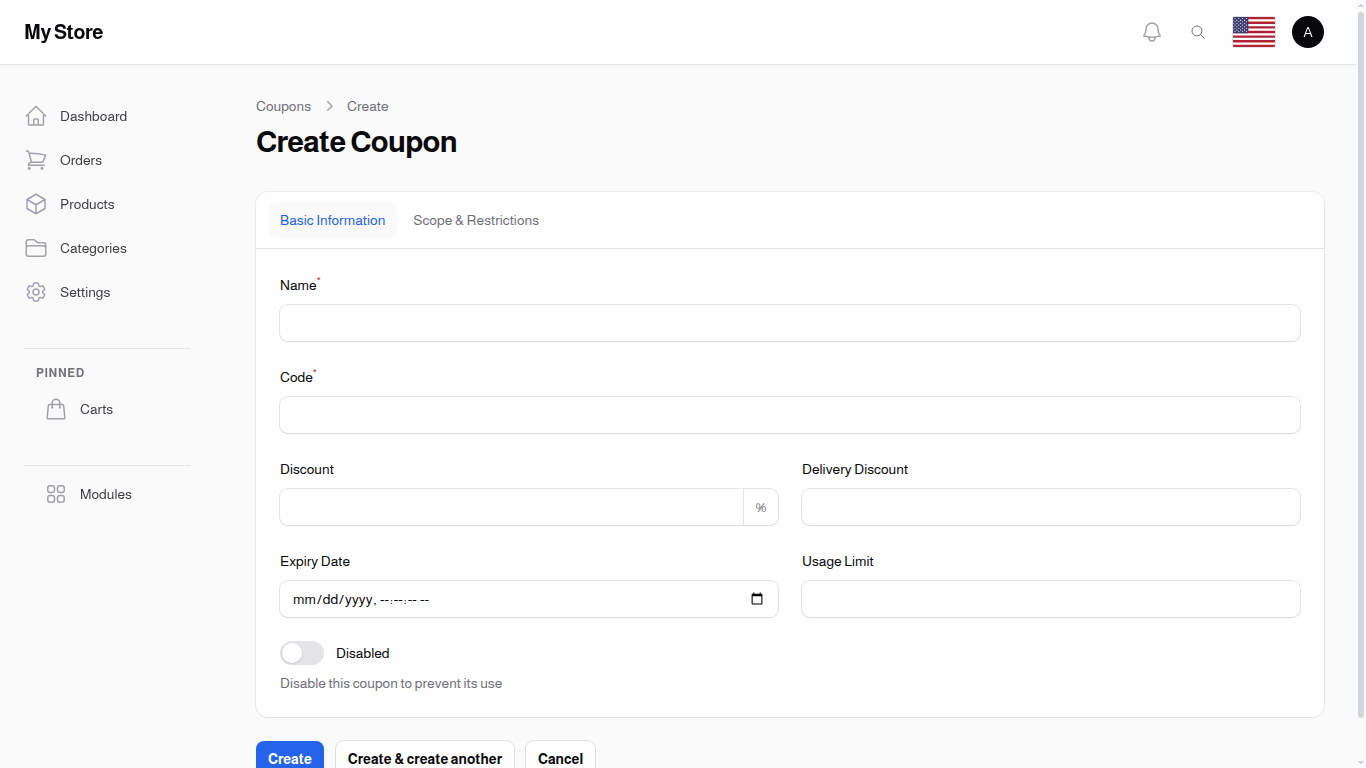
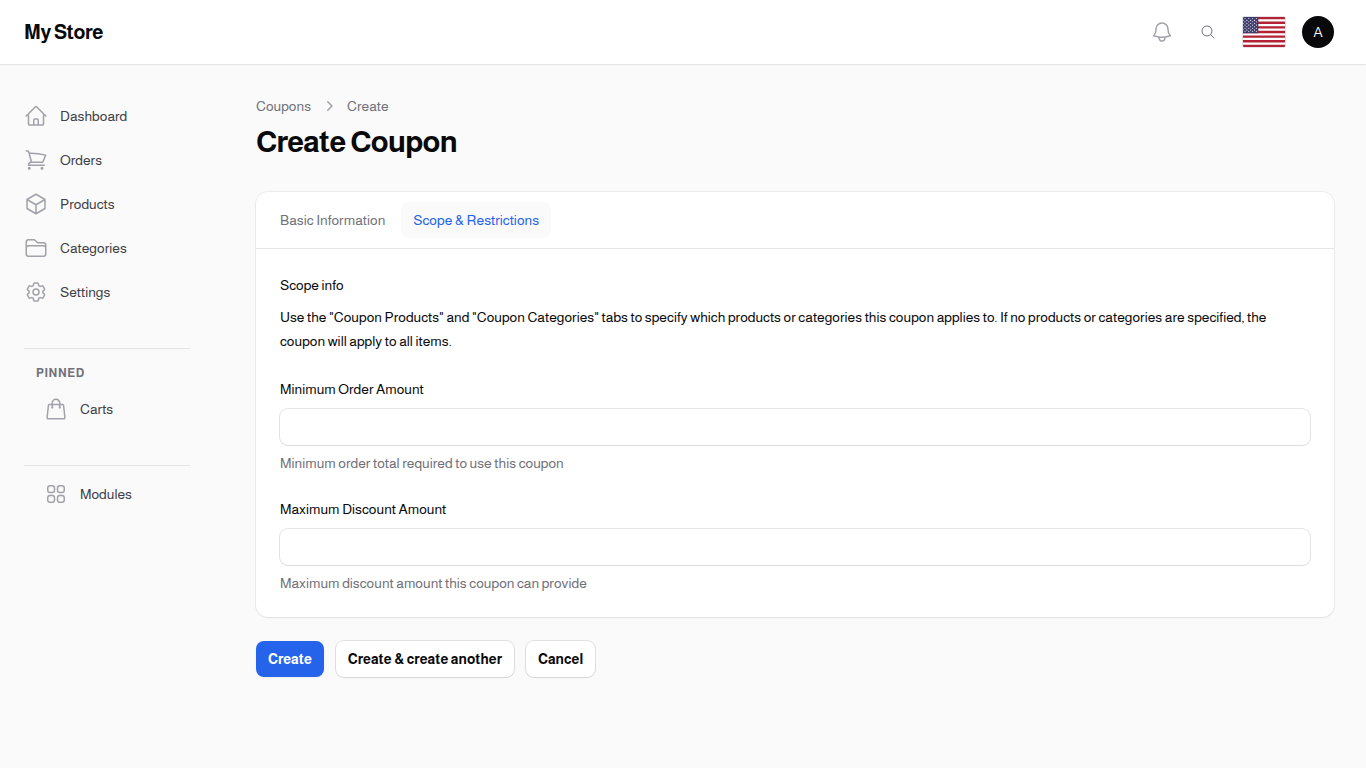
| Field | What it does |
|---|---|
| Code | What the customer types. Upper and lower case are treated the same, and no two coupons can share a code. |
| Discount | The percentage taken off each product the coupon covers (price times quantity; product addons are not discounted). A coupon needs at least 1% to be accepted. |
| Delivery Discount | Kept with the coupon, but checkout does not take it off the delivery charge. To deliver for free, turn on Enable Free Shipping on the delivery method. |
| Expiry Date | From this date and time the code is refused. Empty means it never expires. |
| Usage Limit | How many orders can use the coupon in total. Orders still being placed, cancelled orders and failed deliveries do not count. Empty means no limit. |
| Disabled | Stops the coupon working without deleting it. |
| Minimum Order Amount | The cart total, before the discount, that the customer must reach. |
| Maximum Discount Amount | The most the coupon can take off one order, however big it is. |
Limit a coupon to some products or categories
Without a limit, a coupon covers every product in the cart. To limit it, save the coupon first, then:
- Click Edit on the coupon's row.
- Under the form, on the Coupon Products tab, click Add Product, choose the product and click Attach.
- To cover whole categories, open the Coupon Categories tab and click Add Category. A category also covers its subcategories.
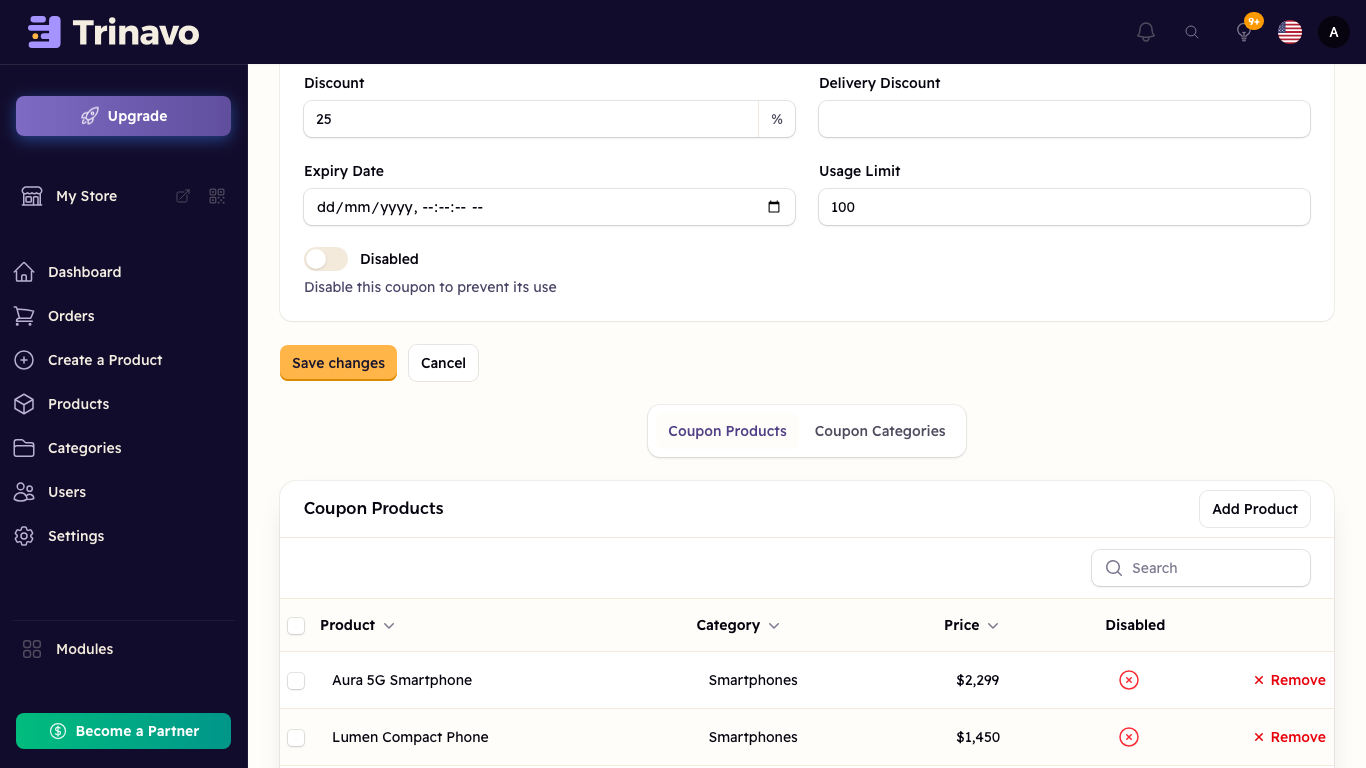
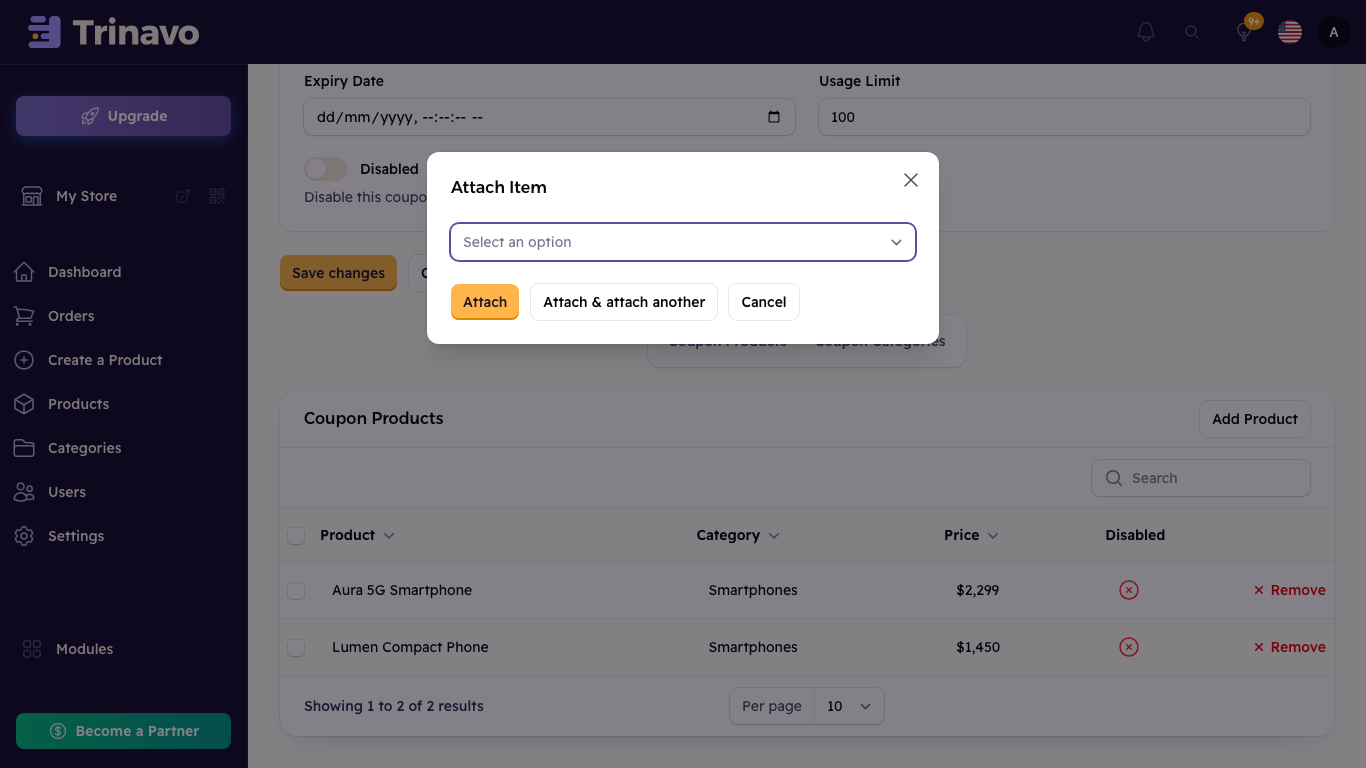
Remove on a row takes that product or category off the coupon. A product with Ignore Coupon turned on in its form is never discounted by any coupon. See Products.
Let customers enter a coupon
Customers type the code in the cart. The box shows while Show Coupon Input is on in Cart Settings. Related settings in the list's ⋮ menu (More) opens that page.
Edit, import and export coupons
- Click Edit on the coupon's row.
- Change what you need and click Save changes.
The ⋮ menu (More) at the top of the list holds Import and Export, to add or download coupons as a spreadsheet (up to 1,000 rows per import).
Coupons that Landing Pages create for their offers are not shown in this list.
Delete a coupon
Click Delete on the coupon's row and confirm. To delete several, tick them and choose Delete selected from the bulk actions. Orders that used the coupon keep their discount.