Invoice Settings
The business details printed at the top of your invoices and payment receipts, whether product pictures are shown, and a footer for the invoice page.
Where to find it
Open Modules → Settings → Invoice.
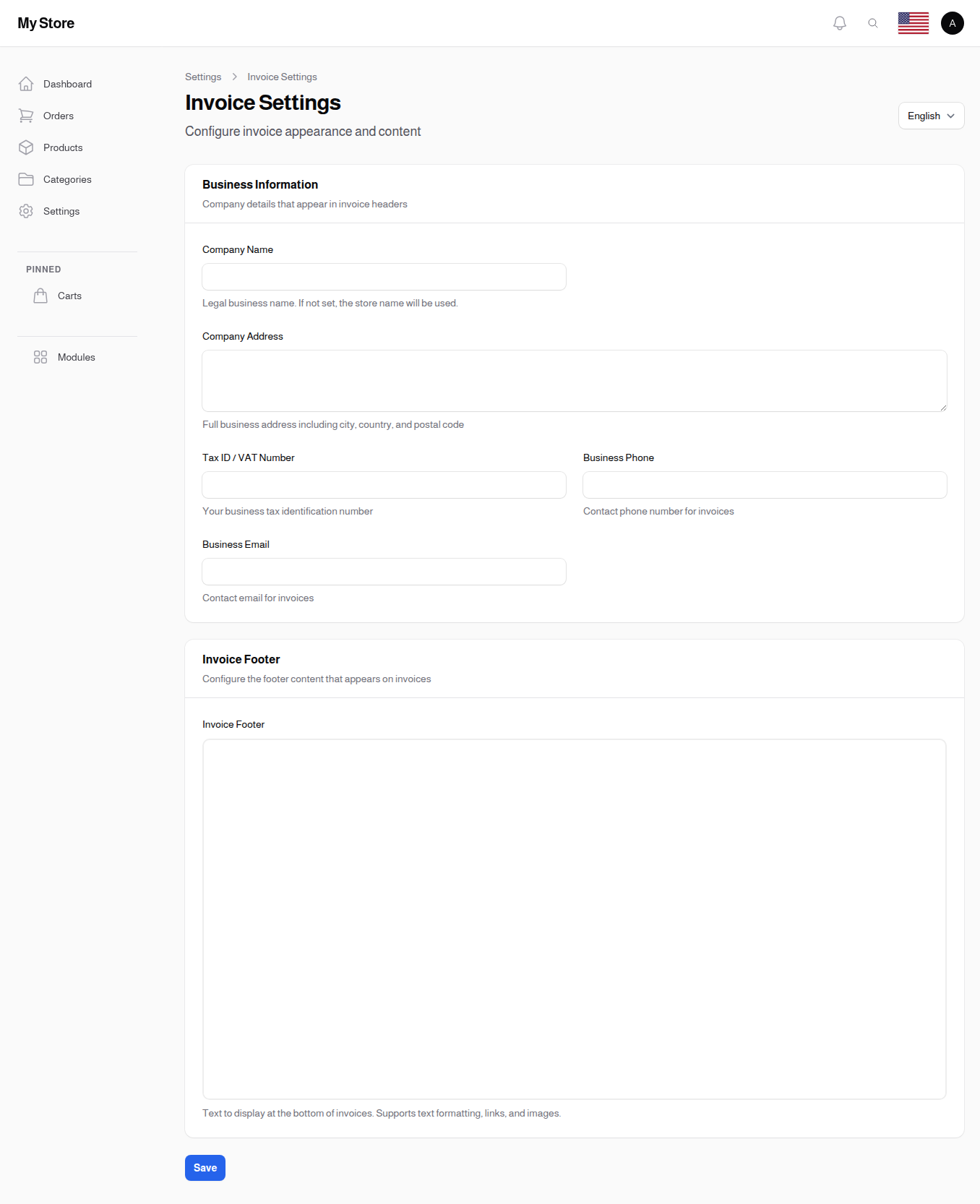
Fill in your business details
- Under Business Information, fill in the Company Name, Company Address, Tax ID / VAT Number, Business Phone and Business Email.
- Click Save.
Each detail you fill in is printed in the header of the customer's invoice page, the invoice PDF and the payment receipt PDF, and an empty one is left out. Without a Company Name the invoice shows your store name. The Tax ID / VAT Number is printed as "Tax ID".
The Company Name, Company Address and Invoice Footer can be written in each language your store uses: pick the language with the language switcher at the top of the page, fill the fields, and save.
Show product pictures on the invoice
Switch on Show Product Images on Invoice to show each product's picture, or the chosen option's picture, next to its line on the invoice page and the invoice PDF.
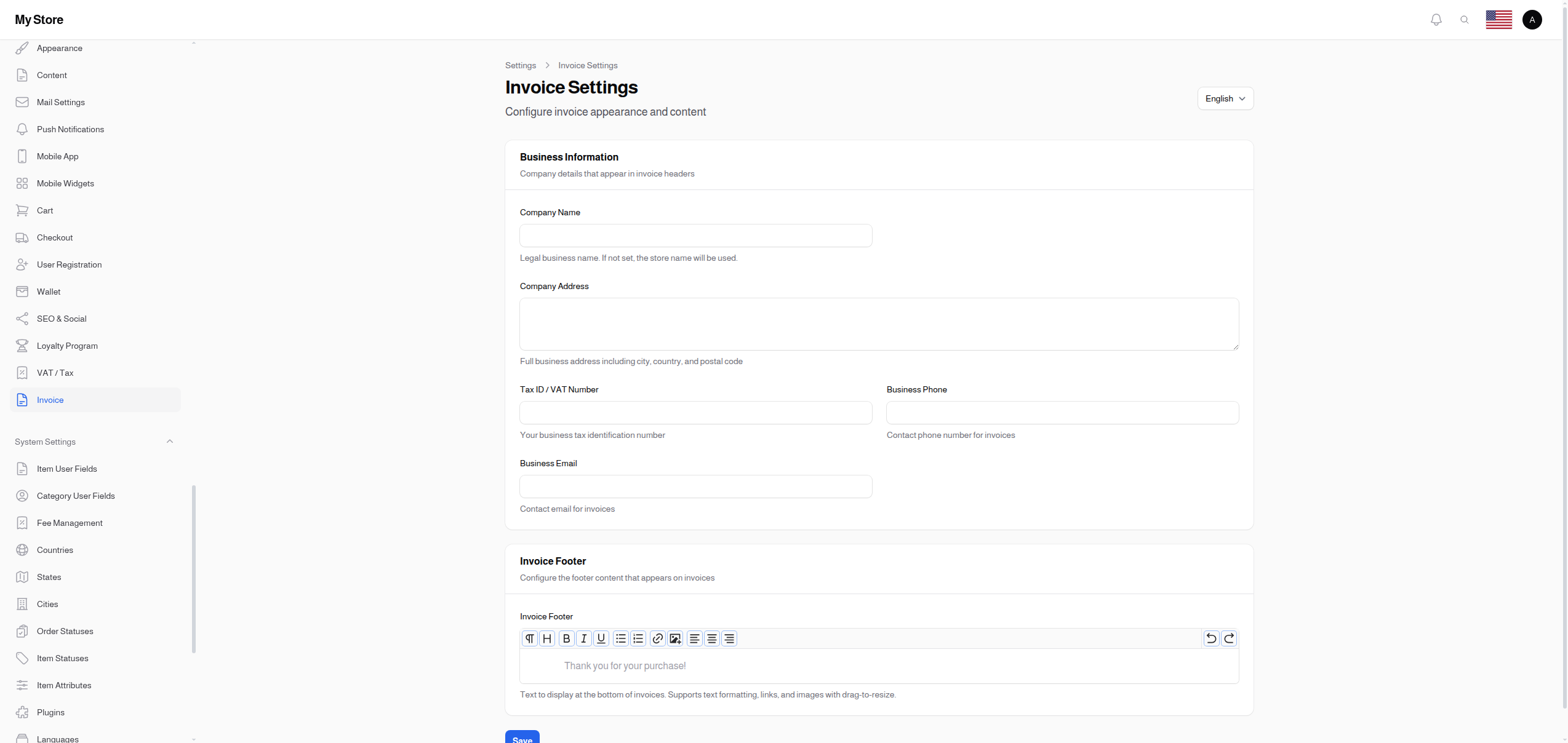
Add a footer
Type your footer in the Invoice Footer editor: a thank-you note, your return policy, bank details. You can format the text and add links and pictures. It is shown at the bottom of the customer's invoice page, the one View Invoice opens from an order. The invoice PDF and the payment receipt do not include it. Click Save.