API Tokens
An API token is a key you hand to another program, such as your accounting system, a warehouse app or a store that buys from you by dropshipping, so it can read and change your store's data without anyone signing in. You decide what each key may touch, and you can cancel it at any moment.
Where to find it
Open Modules → User Management → API Tokens. The number next to the menu item is how many tokens exist.
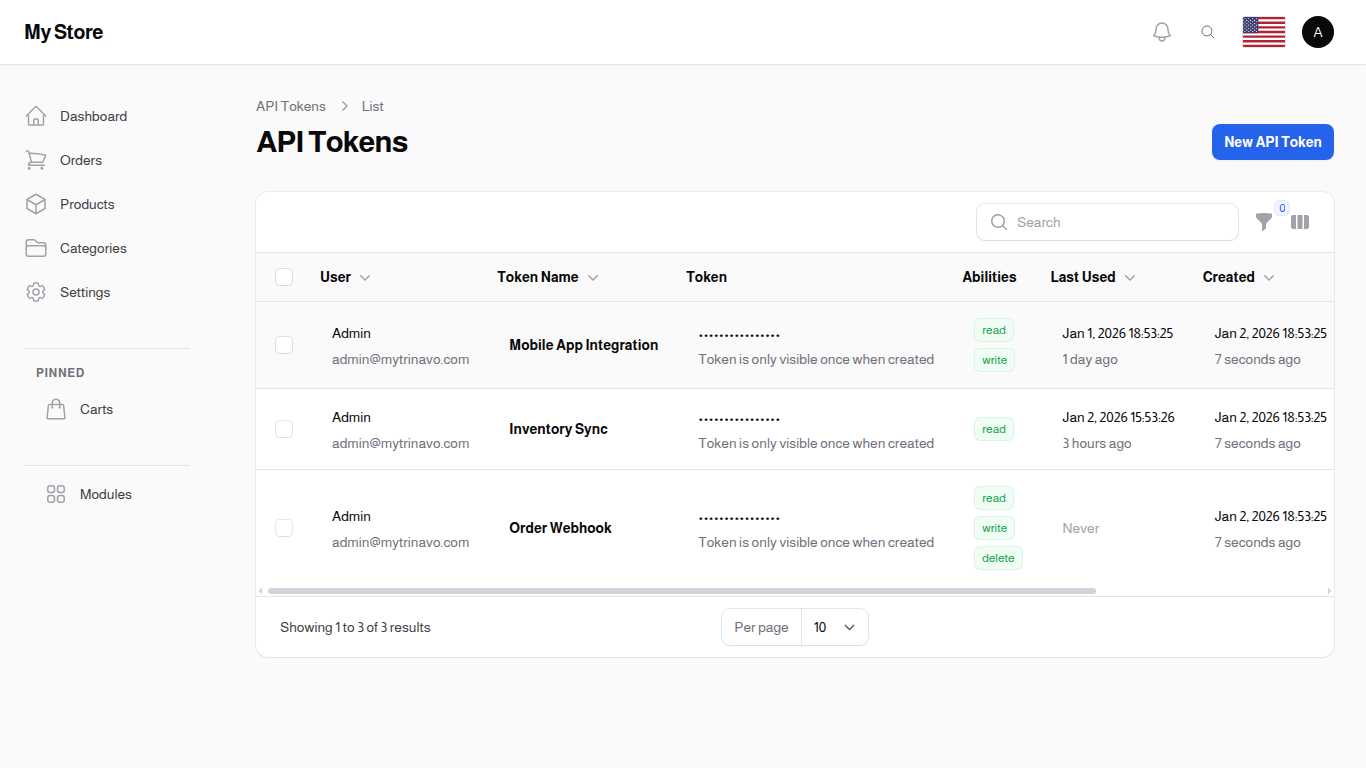
Last Used tells you whether a program is still using a token; Never means it never has. The filters show one User's tokens, Used Tokens Only, or Never Used ones, which are often forgotten keys worth revoking.
API Documentation at the top opens the reference your developer or the other company needs to connect.
Programs can use tokens on paid plans. The calls a dropshipping buyer makes to your store work on every plan.
Create a token
- Click + (New API Token).
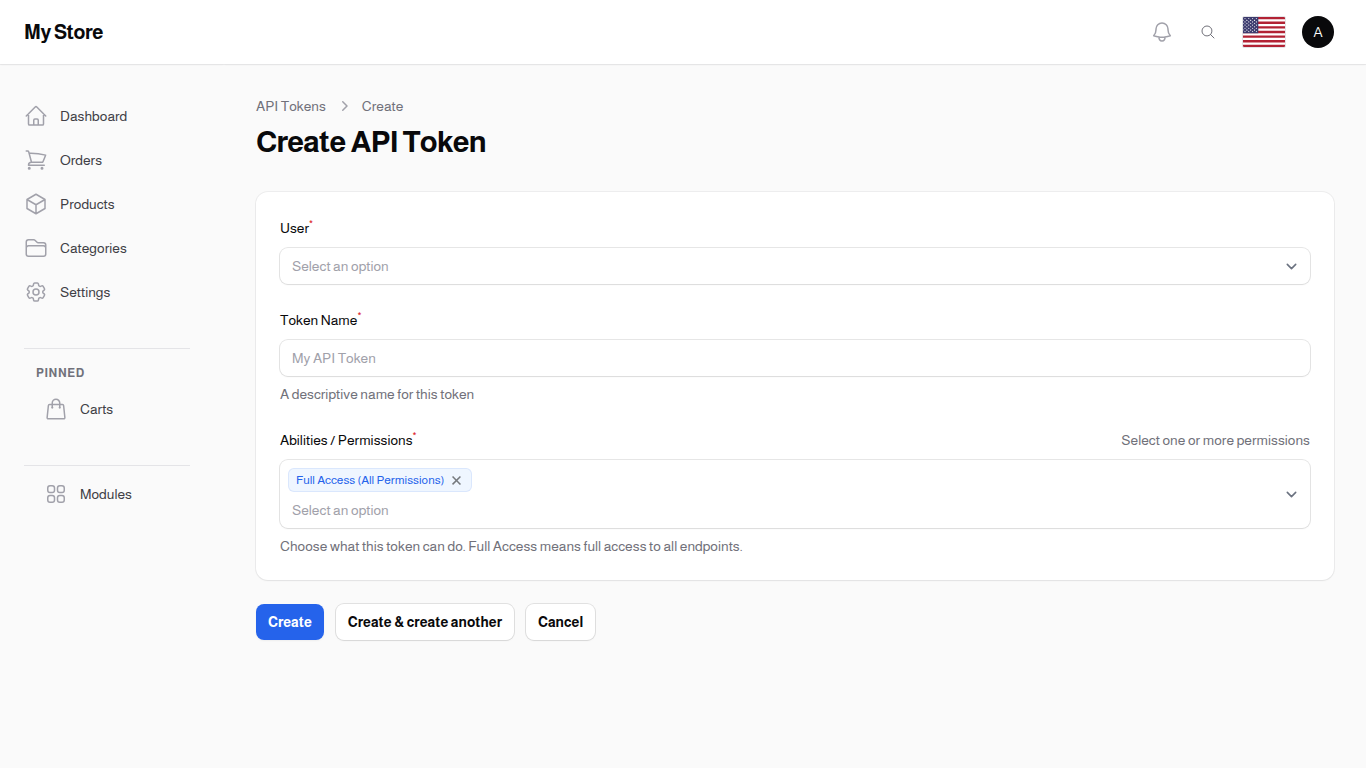
- Pick the User the program works as, and give the token a Token Name you will recognise later, such as the program's name.
- In Abilities / Permissions, pick what it may do (below).
- Click Create.
The list opens with the token in a box. Click Copy, hand it to the program, then click I have copied the token. It is shown this one time only: the store keeps no readable copy, so a lost token has to be replaced.
| Ability | What it allows |
|---|---|
| Full Access (All Permissions) | Everything below. Give it only to a program you fully trust. |
| Dropshipping | What a store buying your products by dropshipping needs: read products and categories, place orders and read its own orders. See Dropshipping Plugins. |
| Categories, Items | Read only, create and update, or delete, as three separate choices. |
| Orders | Read all orders, read only the orders the program placed, create orders, or mark them paid, cancel, refund and ship. |
| Customers | Read only, or create and change. |
| Coupons | Read only, or create, change and delete. |
| Reviews | Read only, or approve and unapprove. |
| Webhooks | Let the program set up its own Webhooks. |
Replace or revoke a token
Open the token's ⋮ menu:
- View: the token's name, user, abilities and dates. The token itself is never shown again.
- Regenerate: the old token stops working at once and a new one, with the same name and abilities, is shown one time. Give it to the program straight away.
- Revoke: the token stops working at once. This cannot be undone.
To revoke several, tick them and choose Revoke Selected from the bulk actions. A token cannot be edited: to change what it may do, create a new one and revoke the old.