Cart Settings
Overview
Cart Settings controls how the shopping cart behaves in your store. Configure cart modes, guest access, quantity validation, and cart expiry notifications to match your business model.
Accessing Cart Settings
Navigate to: Modules → Settings → Cart
The cart settings are organized into three tabs: Behavior, Expiry & Notifications, and Removal Lock.
Behavior Tab
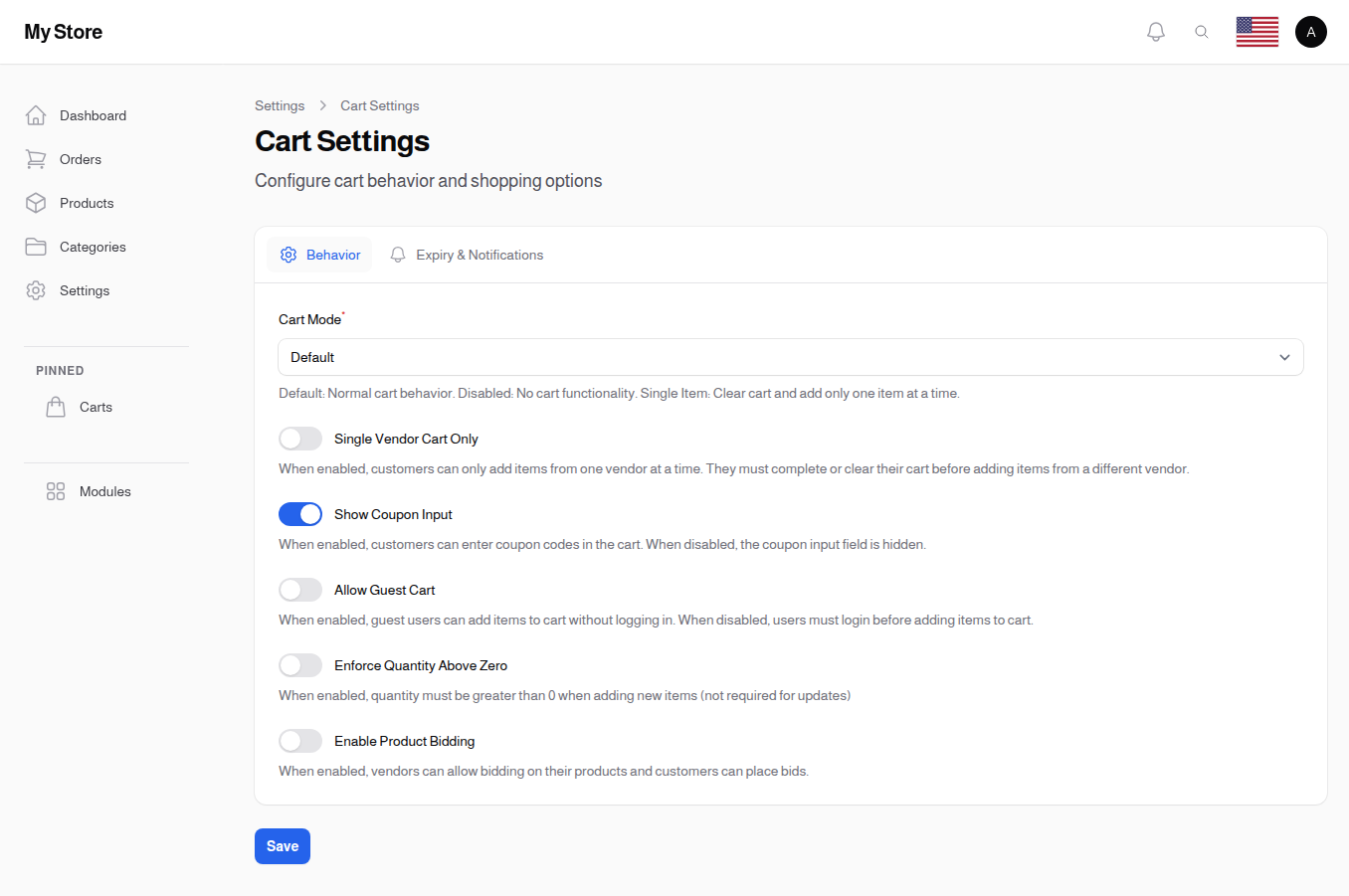
Cart Mode Required
- Type: Dropdown selection
- Default: Default
- Purpose: Control how the shopping cart behaves
Options:
| Mode | Description | Use Case |
|---|---|---|
| Default | Normal cart behavior—customers can add multiple items from multiple vendors | Standard e-commerce stores |
| Disabled | No cart functionality—must checkout immediately after selecting product | Service bookings, event tickets, single-purchase items |
| Single Item | Cart clears and adds only one item at a time—adding a new item removes the previous item | Rental stores, subscription boxes, one-item-per-order businesses |
Skip Cart Review on Single Item
- Type: Toggle switch (On/Off)
- Default: Off (show cart review)
- Visibility: Only appears when Cart Mode is set to "Single Item"
- Purpose: Bypass cart/review page and go directly to payment
When Enabled:
- After adding product to cart, customer goes directly to payment
- Faster checkout for single-item purchases
- If customer data is missing, redirects to cart to collect information
When Disabled:
- Customer sees cart/review page before payment (standard flow)
- Gives customer chance to review item details
Allow Guest Cart
- Type: Toggle switch (On/Off)
- Default: Off (must login)
- Purpose: Let guests add items to cart without logging in
When Enabled:
- Anyone can browse and add to cart
- Login required only at checkout
- Better conversion (lower barrier to entry)
- Cart is stored in session/cookies
When Disabled:
- Must login to add items to cart
- Better for member-only stores
- Captures user data earlier
- Useful for B2B stores
Enforce Quantity Above Zero
- Type: Toggle switch (On/Off)
- Default: Off (not enforced)
- Purpose: Require quantity to be greater than 0 when adding items
When Enabled:
- Cannot add item with quantity of 0
- Prevents accidental empty cart additions
- Validation error shown if quantity is 0
Single Vendor Cart Only
- Type: Toggle switch (On/Off)
- Default: Off
- Purpose: Restrict cart to products from a single vendor
When Enabled:
- Cart can only contain products from one vendor at a time
- Adding a product from a different vendor clears the previous items
- Useful for marketplace stores with vendor-specific checkout flows
When Disabled:
- Standard multi-vendor cart behavior
- Customers can add products from multiple vendors in a single order
Show Coupon Input
- Type: Toggle switch (On/Off)
- Default: On
- Purpose: Display coupon code input field in cart
When Enabled:
- Customers see a coupon code input field
- Can apply discount codes before checkout
When Disabled:
- No coupon input displayed
- Cleaner cart interface if you don't use coupons
Enable Customer Notes on Cart Items
- Type: Toggle switch (On/Off)
- Default: Off
- Purpose: Let shoppers write a short personal note on each item in their cart
This is a note the shopper writes for themselves, to help them remember something about the item. A common example: someone buying the same shirt for several people writes "3 pieces for John" so they can keep track. It is not a request or an instruction to your store.
When Enabled:
- Right after a shopper adds a product to the cart, a small box appears asking for a note
- The note is optional. The shopper can simply close the box and the product stays in the cart
- If they add the same product again and write another note, the new note is added on a new line underneath the first one. For example, adding three pieces with "3 pieces for John" and then two more with "2 pieces for Maria" leaves one cart line of five pieces with both notes kept together
- An envelope icon appears next to each cart item. Clicking it reopens the box so the shopper can read and edit the full note
- The note travels with the order, so the shopper can still see it later in their order history
When Disabled:
- No note box appears and no envelope icon is shown
- Notes shoppers saved earlier are kept in the database and reappear if you switch the setting back on
Where You Will See the Note:
- On the order page in the admin, under the item it belongs to
- It does not appear on the invoice or the printed PDF
A note about wording: the box tells shoppers the note is their own private reminder and not a message to the store. Your team can still see it on the order screen, so please treat it as a helpful hint about what the shopper intended, not as an instruction to act on.
Note Prompt Message
- Type: Text (translatable)
- Default: Empty, which uses the wording the store ships with
- Purpose: Write the line shoppers read above the note box in your own words
- Visible: Only when Enable Customer Notes on Cart Items is on
By default the box explains that the note is a private reminder. If your store has a more specific use for it, say so directly - a bakery might write "Tell us the name to write on the cake". The text is saved per language, so switch the language at the top of the page to write the other one.
Note Prompt Example
- Type: Text (translatable)
- Default: Empty, which uses the default example
- Purpose: The faded example shown inside the empty note box
- Visible: Only when Enable Customer Notes on Cart Items is on
A short example tells shoppers what kind of thing to type much faster than an explanation does. The shipped example is "e.g. 3 pieces for John".
Ask These User Levels Only
- Type: Multi-select of customer levels
- Default: Empty, which asks everyone
- Purpose: Ask only certain customers for a note
- Visible: Only when Enable Customer Notes on Cart Items is on
Leave this empty and every shopper is asked. Pick one or more levels and only customers at those levels see the note box - useful when the note matters for your trade accounts but would only slow down everyone else. Note that once you pick at least one level, visitors who are not logged in are never asked, because a visitor has no level yet.
Editing these from your store: you do not have to come here. Turn on live edit from the admin bar, then click the gear on your cart, or the gear at the end of the breadcrumb line on any product page. Both windows carry all four note options on a Cart Note tab of their own, so the rest of the settings stay in view.
Best For:
- Stores where customers regularly buy several of the same product for different people
- Gift shopping, group orders, and family or office purchases
Minimum Order Value
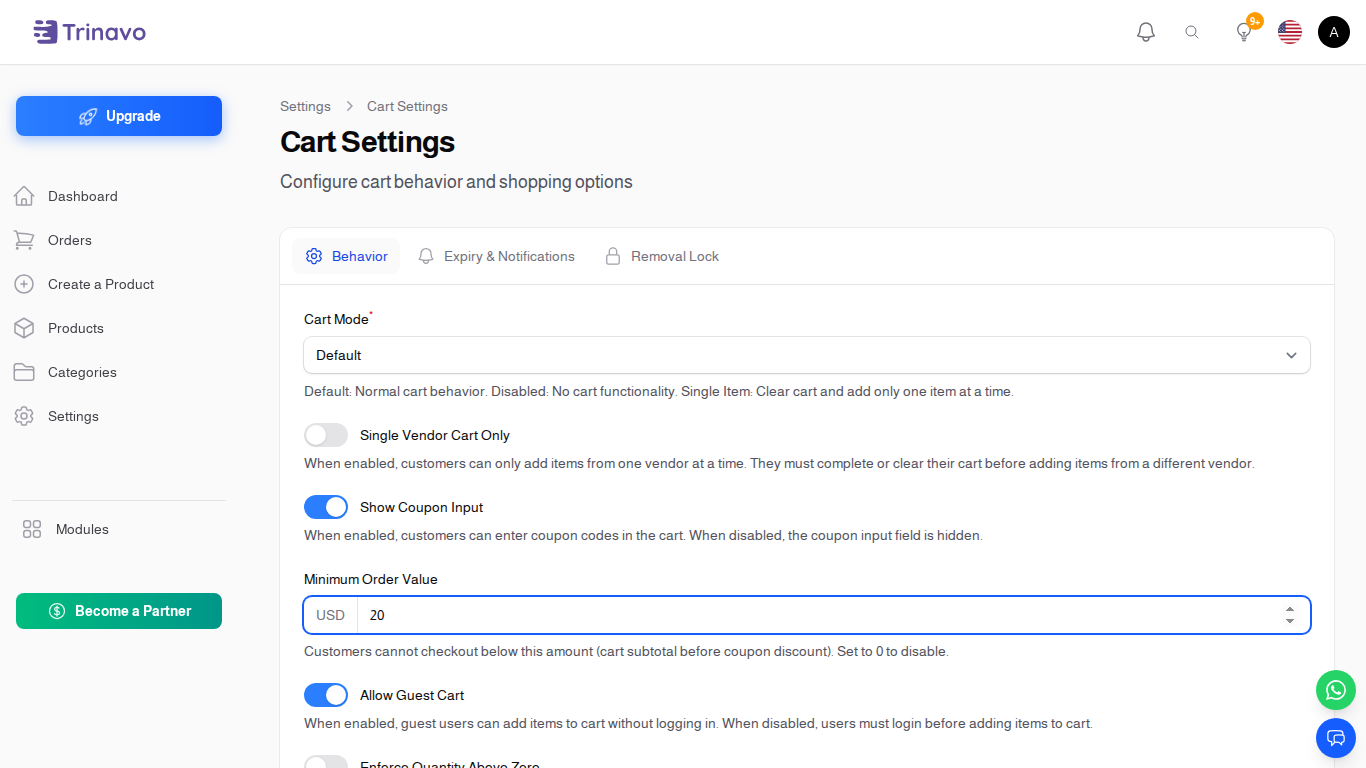
- Type: Number input (in your shop's base currency)
- Default: 0 (disabled)
- Purpose: Set a minimum cart subtotal customers must reach before they can check out
How It Works:
- The check is applied to the cart subtotal before any coupon discount, so customers cannot stack discounts to bypass the floor.
- When the cart is below the limit, the cart page shows a warning banner telling the customer how much more they need to add, and the Continue to Checkout button is disabled.
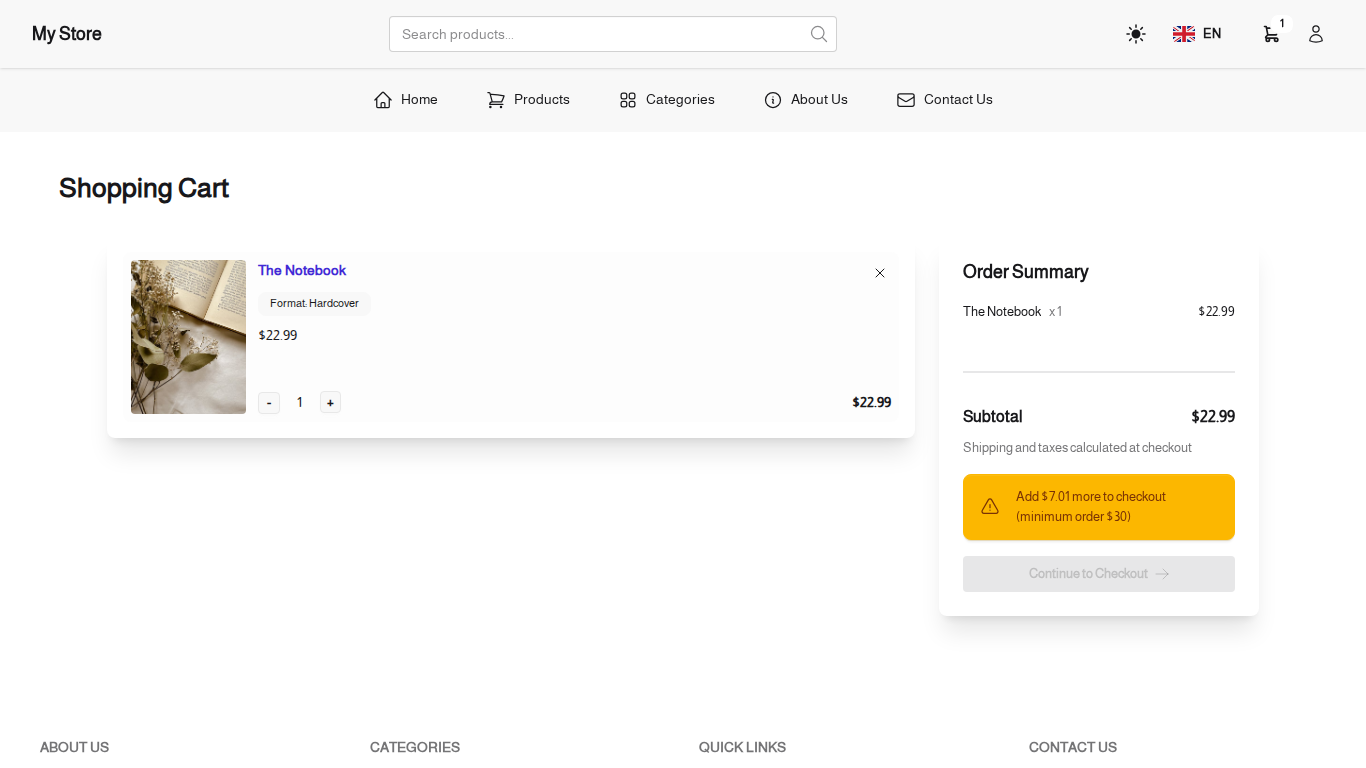
- Set the value to 0 to disable the rule entirely.
Best For:
- Stores where small orders aren't profitable after shipping and handling
- Wholesale or B2B catalogues with a buy-in floor
- Reducing payment-gateway overhead on micro-transactions
Enable Product Bidding
- Type: Toggle switch (On/Off)
- Default: Off
- Purpose: Allow customers to submit price offers on products
When Enabled:
- Customers can propose their own price for products
- Sellers can accept, reject, or counter the bid
- Useful for negotiable pricing, auctions, or B2B scenarios
When Disabled:
- Standard fixed pricing only
Hide Quantity Selector
- Type: Toggle switch (On/Off)
- Default: Off
- Purpose: Hide quantity controls so every add-to-cart action adds exactly 1 unit
When Enabled:
- Quantity selector is hidden on product pages and in the cart
- Quantity is always treated as 1
- Simplifies the shopping experience for stores where quantity selection is not needed
When Disabled:
- Standard quantity controls are visible
- Customers can choose how many units to add
Best For:
- Digital products
- Service-based stores
- Stores where each product is unique (handmade, one-of-a-kind)
Expiry & Notifications Tab

Configure automatic cart cleanup and abandoned cart notifications.
Cart Expiry Days
- Type: Number input
- Default: 7
- Range: 1-365 days
- Purpose: Automatically mark inactive carts as expired after specified days
How It Works:
- Set the number of days a cart stays valid before it is marked as expired
- The countdown starts when the customer begins the cart, and customers whose carts reserve stock see the remaining time on the cart page
- Individual users can have custom expiry days set in their profile
- Helps manage abandoned carts and keep inventory accurate
Restart Expiry When an Item Is Added
- Type: Toggle switch (On/Off)
- Default: Off
- Purpose: Decide whether adding another product gives the cart a fresh expiry period
When Disabled (recommended):
- The countdown keeps running from the moment the cart was started
- Customers who keep adding products still see the remaining time going down
- Reserved stock is freed on schedule instead of being held indefinitely
When Enabled:
- Every time the customer adds a product, the countdown starts again from the full number of days
- A customer who keeps shopping can keep the same cart, and any stock it reserves, alive with no end date
- Use this only if you want shoppers to be able to take as long as they like
Send Reminders to Customers
- Type: Toggle switch (On/Off)
- Default: Off
- Purpose: Send email reminders to customers with abandoned carts
When Enabled:
- Customers receive email reminders about their abandoned carts
- Helps recover potentially lost sales
- Uses the reminder days setting below
Notify Admins about Abandoned Carts
- Type: Toggle switch (On/Off)
- Default: Off
- Purpose: Send notifications to store admins about abandoned carts
When Enabled:
- Admins receive notifications about abandoned carts
- Allows manual follow-up with customers
- Useful for high-value cart monitoring
Reminder Days
- Type: Tags input (multiple values)
- Visibility: Only appears when customer or admin notifications are enabled
- Purpose: Days after which to send abandoned cart reminders
How It Works:
- Enter one or more days when reminders should be sent
- Type a number and press Enter to add it
- Suggested values: 1, 3, 7, 14, 30
- Reminders are sent after the specified days of cart inactivity
Example Configuration:
| Days | Reminder Schedule |
|---|---|
| 1, 3, 7 | First reminder after 1 day, second after 3 days, third after 7 days |
| 1, 7, 14 | Reminders at 1 day, 1 week, and 2 weeks |
| 3, 7 | Reminders at 3 days and 1 week only |
Removal Lock Tab
Configure restrictions on removing items from the cart after a certain time period.
Enable Cart Item Removal Lock
- Type: Toggle switch (On/Off)
- Default: Off
- Purpose: Prevent customers from removing items that have been in their cart for a specified duration
When Enabled:
- After the configured number of hours, cart items become locked
- Locked items cannot be removed by the customer
- Useful for stores with commitment-based purchasing or reservation models
When Disabled:
- Customers can always remove any item from their cart
Lock After Hours
- Type: Number input
- Default: 24
- Range: 1-8760 hours (up to 1 year)
- Visibility: Only appears when Cart Item Removal Lock is enabled
- Purpose: Set how many hours after adding an item before it becomes locked
Example:
| Hours | Behavior |
|---|---|
| 1 | Items lock 1 hour after being added |
| 24 | Items lock after 1 day |
| 72 | Items lock after 3 days |
Affected User Levels
- Type: Multi-select dropdown
- Visibility: Only appears when Cart Item Removal Lock is enabled
- Purpose: Choose which user levels are subject to the removal lock
- Default: Empty (applies to all users)
How It Works:
- Select specific user levels to restrict
- Leave empty to apply the lock to all users
- Useful for applying different rules to wholesale vs retail customers
Cart Mode Examples
Standard E-commerce (Default Mode)
Customer Journey:
1. Browse products
2. Add Item A to cart
3. Continue shopping
4. Add Item B to cart
5. View cart (Items A + B)
6. Proceed to checkout
7. Pay for both items
Event Tickets (Disabled Mode)
Customer Journey:
1. Select event/ticket
2. Choose quantity
3. Immediately proceed to payment
4. No cart page shown
5. Complete purchase
Subscription Box (Single Item Mode)
Customer Journey:
1. Browse subscription options
2. Select "Premium Box"
3. Cart now contains "Premium Box"
4. Customer changes mind, selects "Basic Box"
5. Cart now contains only "Basic Box" (Premium removed)
6. Proceed to checkout
Saving Changes
Click the Save button at the bottom of the page to apply your changes. Changes take effect immediately for new shopping sessions.
Related Sections
- Checkout Settings - Delivery form fields
- Registration Settings - User account requirements
- Payment Methods - Available payment options
- Coupons - Manage discount codes