Wallet Transfers
Watch the video
Wallet Transfers
Watch the:
Customers can send money from their wallet to another customer's wallet. A transfer happens at once, with nothing for you to approve; this screen is the record of every transfer made in your store.
Where to find it
Open Modules → Wallet Management → Wallet Transfers.
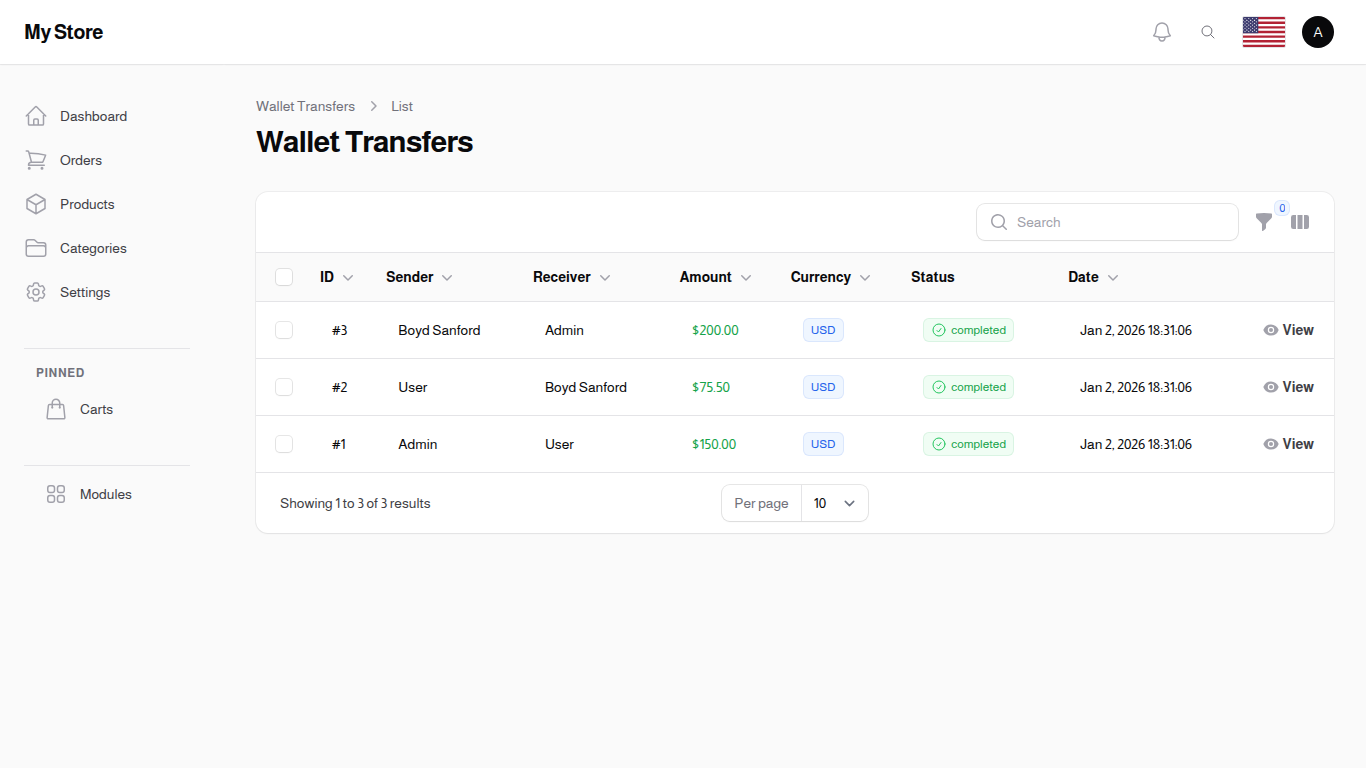
The Transfer Fee column shows what the store kept on each transfer, or a dash when there was no fee.
Search by the sender's or receiver's name. The filters show one Status, one Sender, one Receiver, a Date Range, and deleted transfers. Sender ID, Receiver ID and Notes can be added from the columns button.
The ⋮ menu (More) at the top holds Related reports and Related settings. To download transfers as a spreadsheet, tick them and choose Export from the bulk actions.
How a customer sends money
In their account, under My Wallet, the customer opens the transfers page, chooses the wallet to send from, types the receiver's user ID, the amount and an optional note, and confirms. Each customer finds their own user ID on their wallet page, to share with whoever sends them money.
The money leaves the sender's wallet (Transfer Sent in Wallet Transactions) and reaches the receiver's wallet in the same currency (Transfer Received). The receiver is notified on the site and by email.
Transfer fee
You can keep a commission on each transfer: set Transfer Fee (a percentage) under Transfer Limits in Wallet Settings. The sender pays it on top of the amount, and the receiver always gets the full amount: with a 2% fee, a customer who sends 100 is charged 102 and the receiver gets 100. The fee is shown to the customer before they confirm, and it appears in the sender's wallet as its own Transfer Fee line. Leave it at 0 to keep transfers free.
A transfer is refused when the sender does not have enough available credit for the amount plus any fee, the user ID does not exist or is their own, or the amount is outside the Minimum Transfer Amount and Maximum Transfer Amount. Transfers are only possible while Enable Wallet Transfers is on in Wallet Settings.
View a transfer
Click View on the transfer's row to see the amount, the date, the sender's and receiver's names, emails and user IDs, and the note. When a fee was charged, it also shows the Transfer Fee with its rate and the Total charged to the sender.
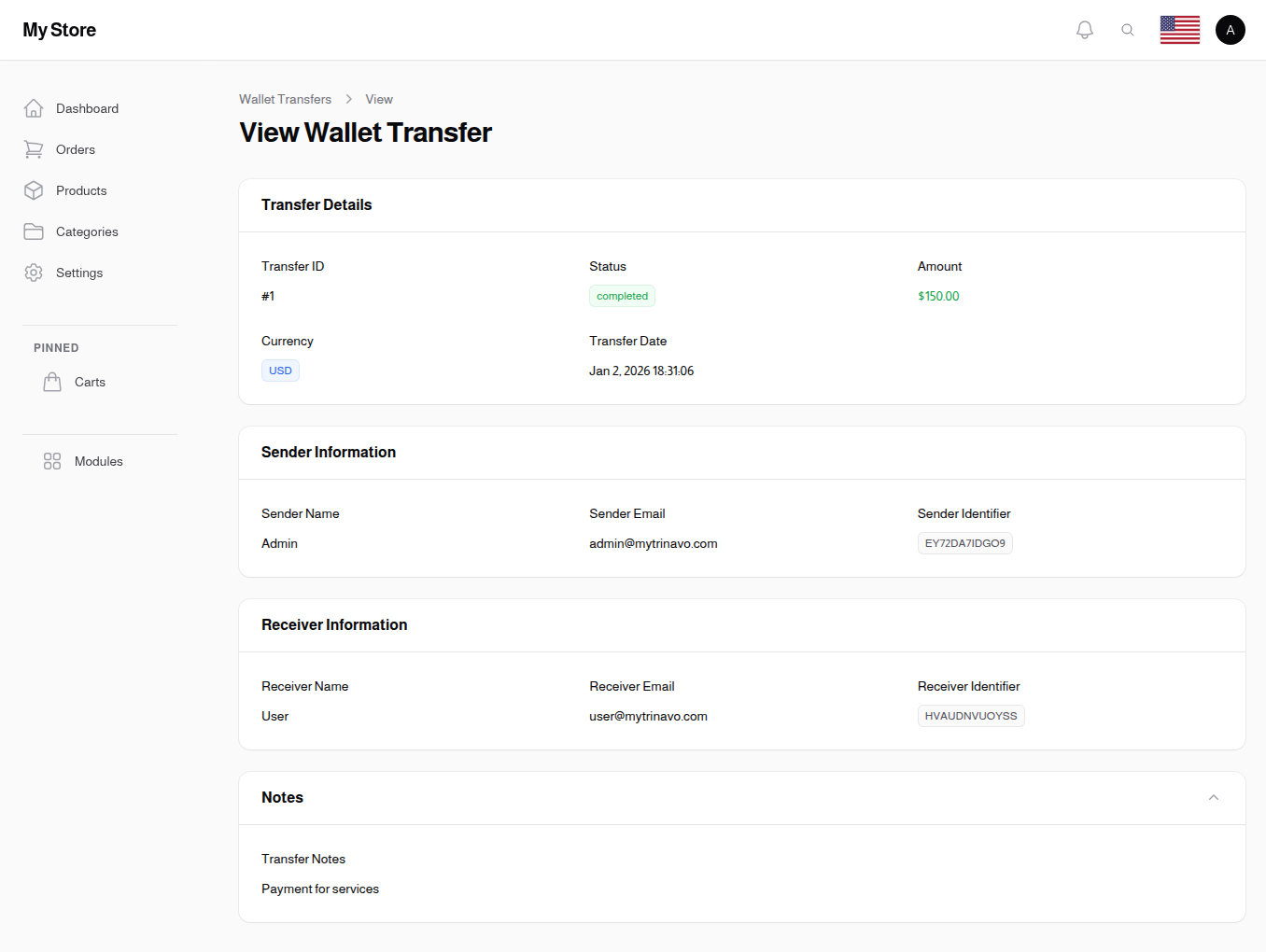
Transfers cannot be added, changed or deleted here. To correct one, use Add and Deduct on the two wallets in User Wallets.