Bulk Product Updates
Two screens change many products in one go and show you the result before anything is saved: Bulk Price Update for prices, and Bulk Field Update for any other single field.
Where to find it
- Open Products and tick the products to change. The filters help you pick them, for example every product of one category.
- Open Bulk actions above the table.
- Choose Bulk Price Update or Bulk Update Fields.
The screen opens for the products you ticked, and its title says how many there are. A vendor's screen only changes the vendor's own products.
Change prices
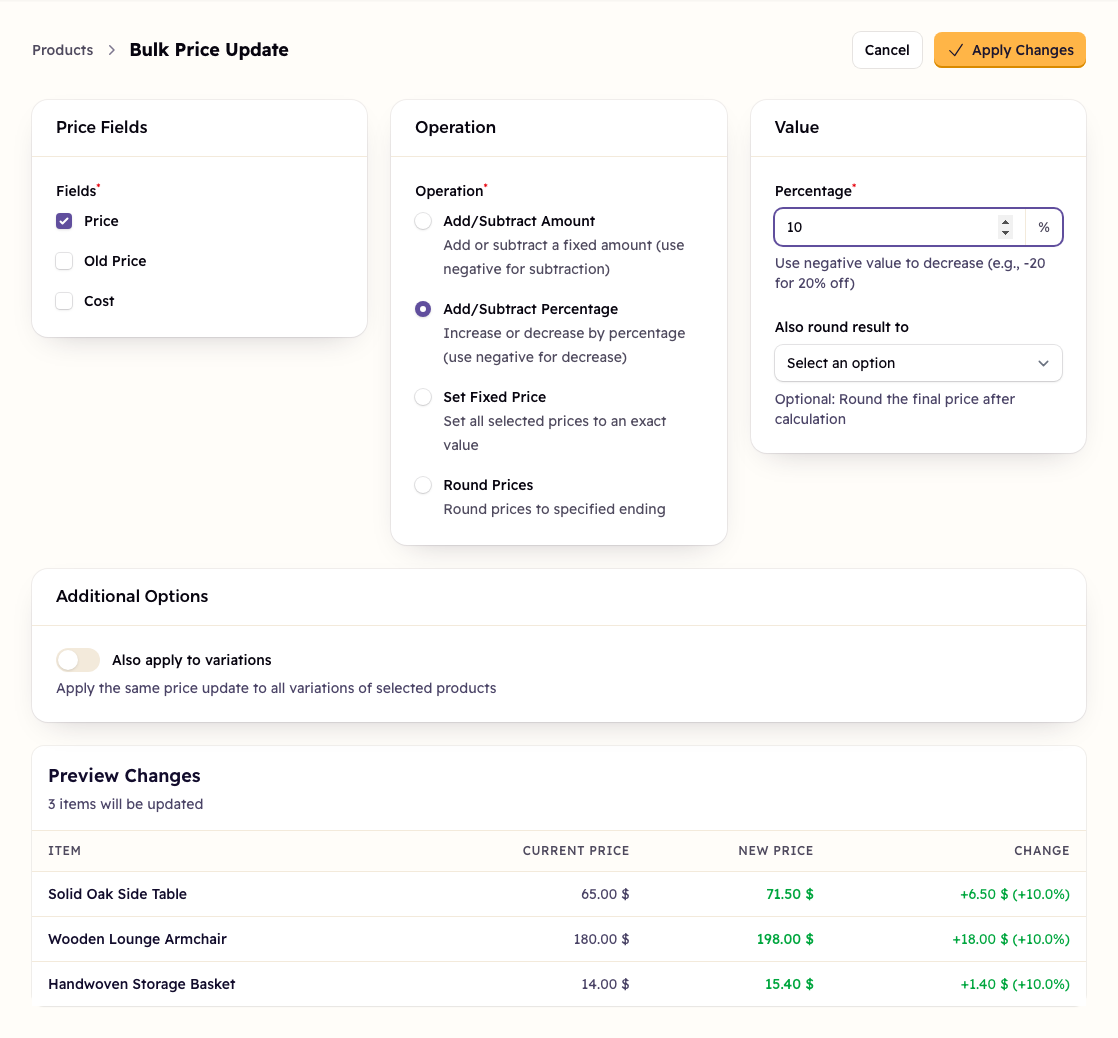
- Under Price Fields, tick the prices to change: Price, Old Price, Cost.
- Under Operation, choose how:
- Add/Subtract Amount adds a fixed amount. Use a minus sign to subtract, for example -5.
- Add/Subtract Percentage raises or lowers by a percentage. Use a minus sign to lower, for example -20 for 20% off.
- Set Fixed Price gives every product the same price.
- Round Prices only rounds the prices to an ending such as .99 or .00.
- Under Value, enter the Amount or Percentage, or choose the ending in Round to. Also round result to rounds the new prices after the change.
- Turn on Also apply to variations to change the prices of the products' variations too.
- Check Preview Changes: each product with its current price, new price and the change. The first 50 products are shown. A product with an empty price is skipped and marked.
- Click Apply Changes and confirm. This cannot be undone.
Change one field
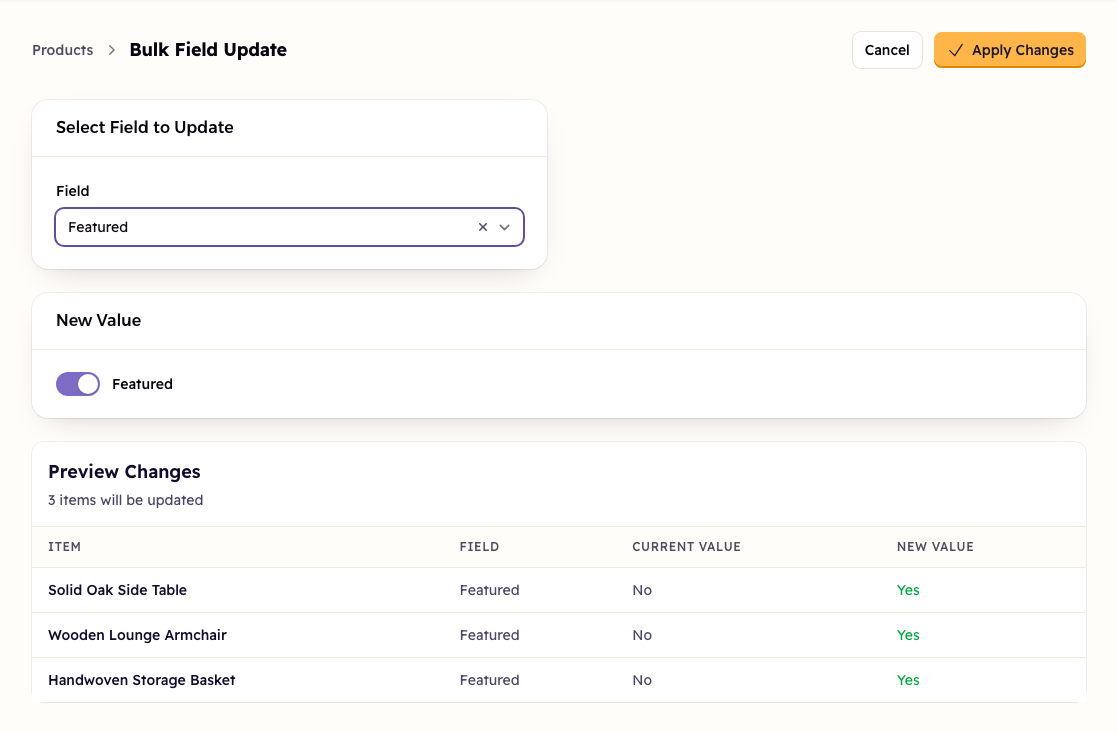
- Choose the Field to change. The list includes the descriptions and search engine fields, the book fields, numbers such as Item Order, Weight, Min Quantity, Max Quantity and Cost, the Product Image and Meta Image, on/off switches such as Hidden, Disabled, Featured and Track Inventory, and choices such as Category, Brand, Status, Unit and Allow Backorder.
- For a field written in each language, tick the languages to change under Select locales to update.
- Enter or choose the New Value.
- Check the preview: each product with its Current Value and New Value.
- Click Apply Changes and confirm.
The new value replaces what each product had. This cannot be undone.