Virtual Item Lists
Virtual Item Lists allow you to organize and manage collections of virtual items such as gift card codes, license keys, serial numbers, and other digital content. These lists serve as containers for related digital items and include options for encryption to protect sensitive data.
Overview
Virtual Item Lists are useful for:
- Organizing digital inventory by type or purpose (e.g., separate lists for gift cards, license keys, vouchers)
- Managing security through optional encryption of sensitive codes
- Grouping related items for easier management and bulk operations
- Creating searchable categories for your digital products
Each list can store multiple virtual items and can be configured to encrypt the stored data for enhanced security.
Accessing Virtual Item Lists
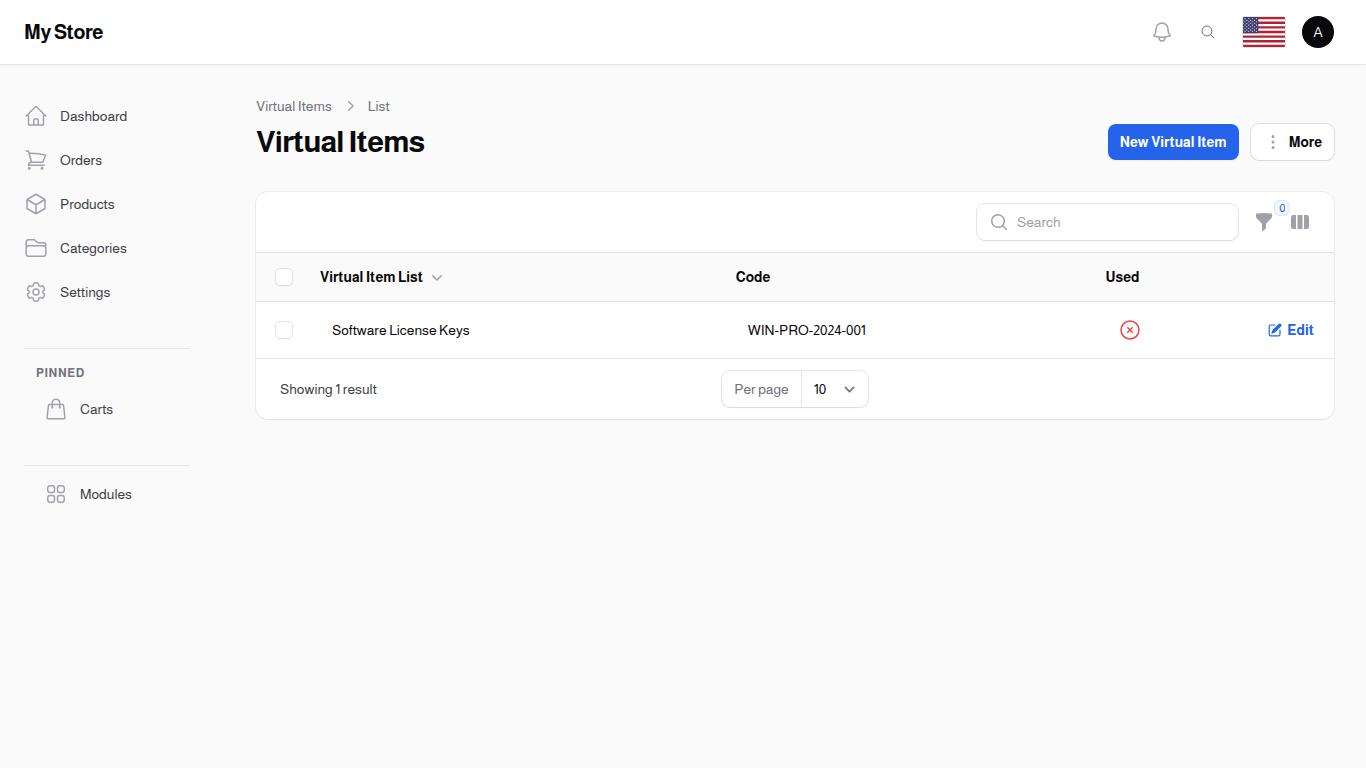
Lists are not in the menu. Open Modules → Catalog Management → Virtual Items, then click the Virtual Item Lists button at the top of that screen. The Virtual Items button on this screen takes you back.
You do not have to come here to make a list: the Virtual Item List field on a code creates one in place.
Understanding Virtual Item Lists
What Are Virtual Items?
Virtual items are digital goods or codes that you can deliver digitally to customers. Examples include:
- Gift Card Codes: Pre-generated codes that customers can redeem for store credit
- License Keys: Software product keys or activation codes
- Serial Numbers: Product serial numbers for warranty tracking
- Voucher Codes: Promotional or discount codes
- Access Tokens: Digital tokens for access to services or content
- Digital Files: Links or keys for downloading digital content
List Components
Each virtual item list contains:
- Name: A descriptive title for the list (e.g., "2024 Holiday Gift Cards")
- Encrypted: A security toggle to encrypt sensitive data in the list
- Virtual Items: Multiple digital items/codes belonging to this list
Managing Virtual Item Lists
Reviewing Lists
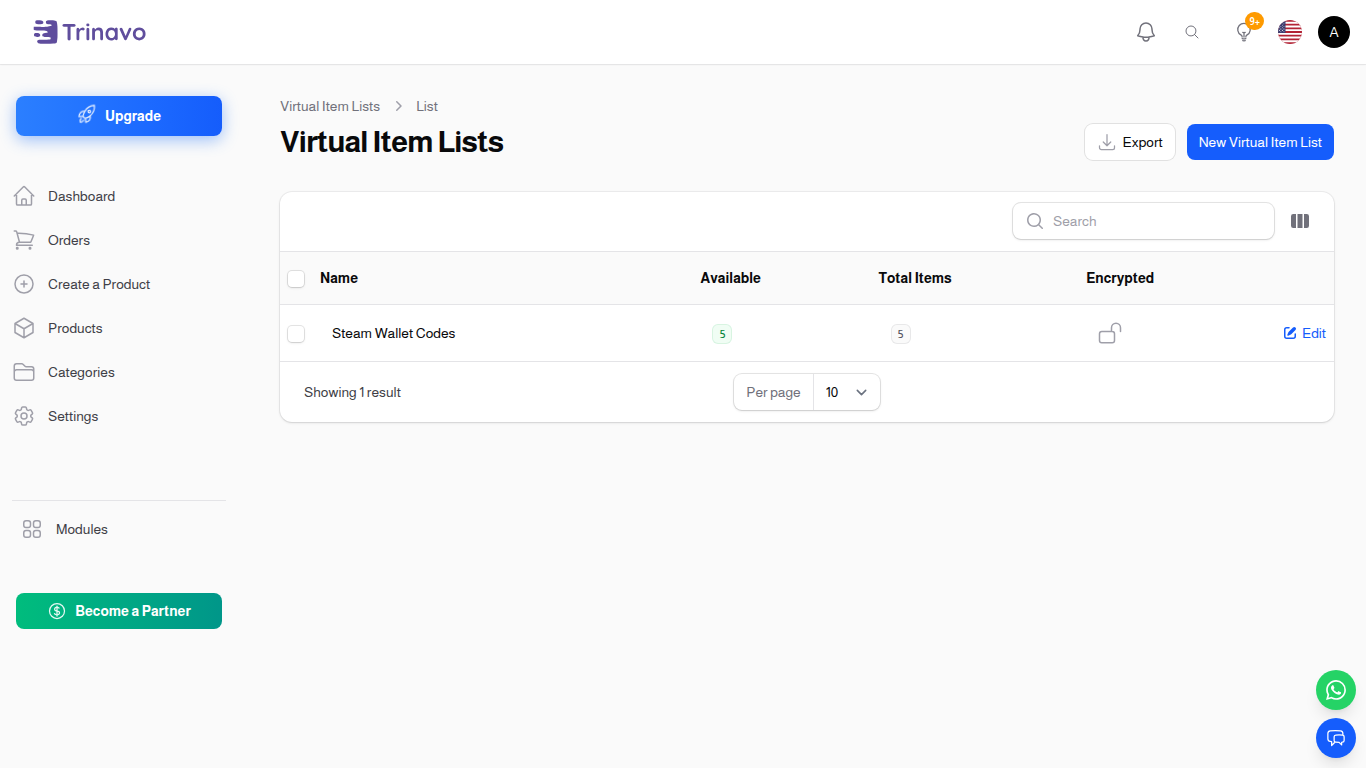
The Virtual Item Lists view displays:
- Name: The descriptive name of the virtual item list
- Encrypted: Icon indicating if the list's items are encrypted (checkmark = encrypted)
- Action: Edit button for modifying the list
Creating a Virtual Item List
To create a new virtual item list:
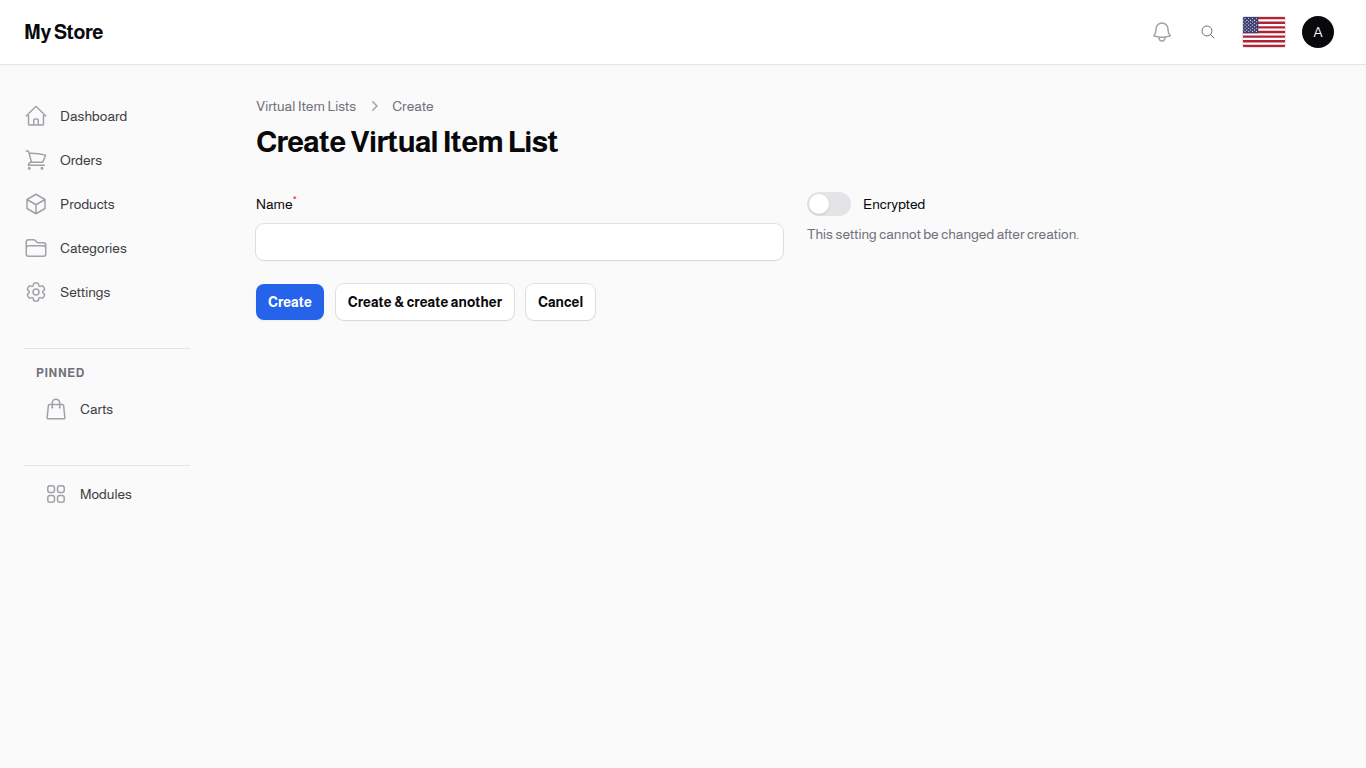
- Click the New Virtual Item List button at the top right - a small window opens over the list
- Enter the Name for your list (required, up to 100 characters)
- Choose a clear, descriptive name
- Examples: "Q1 Promo Codes", "Software Licenses", "Gift Card Batch 001"
- Toggle the Encrypted option to enable data encryption:
- Enabled (toggled on): Items in this list will be stored encrypted for security
- Disabled (toggled off): Items will be stored as plain text for easier reference
- This choice is permanent: it can only be set while creating the list
- Click Create to save the list, or Create & create another to save and immediately add another list
- Click Cancel to discard changes and close the window
When to Use Encryption
Enable encryption for:
- License keys that shouldn't be displayed in plain text
- High-value gift card codes
- Sensitive customer data or tokens
- Any proprietary or confidential digital content
Disable encryption for:
- Public promotional codes
- Non-sensitive serial numbers
- General reference information
- Items you need quick access to
Editing Virtual Item Lists
To modify a list:
- Click the Edit button in the Actions column - a small window opens over the list
- Update the list name
- Click Save to apply changes
Note: The encryption setting is not shown here. It is fixed when the list is created, so the codes already stored keep working. If you need the other setting, create a new list and move the items to it.
Deleting Virtual Item Lists
To remove a list:
- Click the Delete button in the Actions column (or select multiple lists and use bulk delete)
- A window shows how many virtual items and products are attached to the list
- If items or products are attached, choose another list to move them to, then confirm
Important: Consider exporting the list first if you need to preserve the data.
Working with Virtual Items
While you manage lists here, the actual items (codes, keys, etc.) in these lists are managed in the Virtual Items section. Each virtual item belongs to one virtual item list and inherits the list's encryption settings.
Virtual Item Properties
Each item in a list has:
- Code: The actual digital item or code (e.g., gift card code, license key)
- Info: Additional information or metadata about the item
- Used Status: Whether the item has been redeemed or activated
- List Association: Reference to its parent virtual item list
Filtering and Searching
Search Functionality
Use the search box to find virtual item lists by:
- List name
- Partial name matches (e.g., search "gift" to find "2024 Holiday Gift Cards")
Sorting
Click on column headers to sort:
- Name: Alphabetical order
- Encrypted: Grouped by encryption status
Click again to reverse the sort order.
Column Management
Click the Toggle columns button to show or hide columns based on your preference.
Bulk Actions
Select multiple lists using the checkboxes, then use bulk actions to:
- Delete multiple lists at once (removes lists and all their items)
- Export lists to a file for backup or reporting
To select all lists on the current page, use the checkbox in the table header.
Pagination
Use pagination controls at the bottom to:
- Change the number of lists displayed per page (5, 10, 25, 50, or All)
- Navigate between pages
Related Sections
- Virtual Items - Virtual items in lists
- Products - Physical product listing