Pages
Watch the video
Edit About And Contact
Watch the:
Pages of text and pictures on your store, such as About Us, Contact Us, Terms and Conditions and Privacy Policy. A new store starts with these four.
Where to find it
Open Modules → Marketing & Content → Pages.
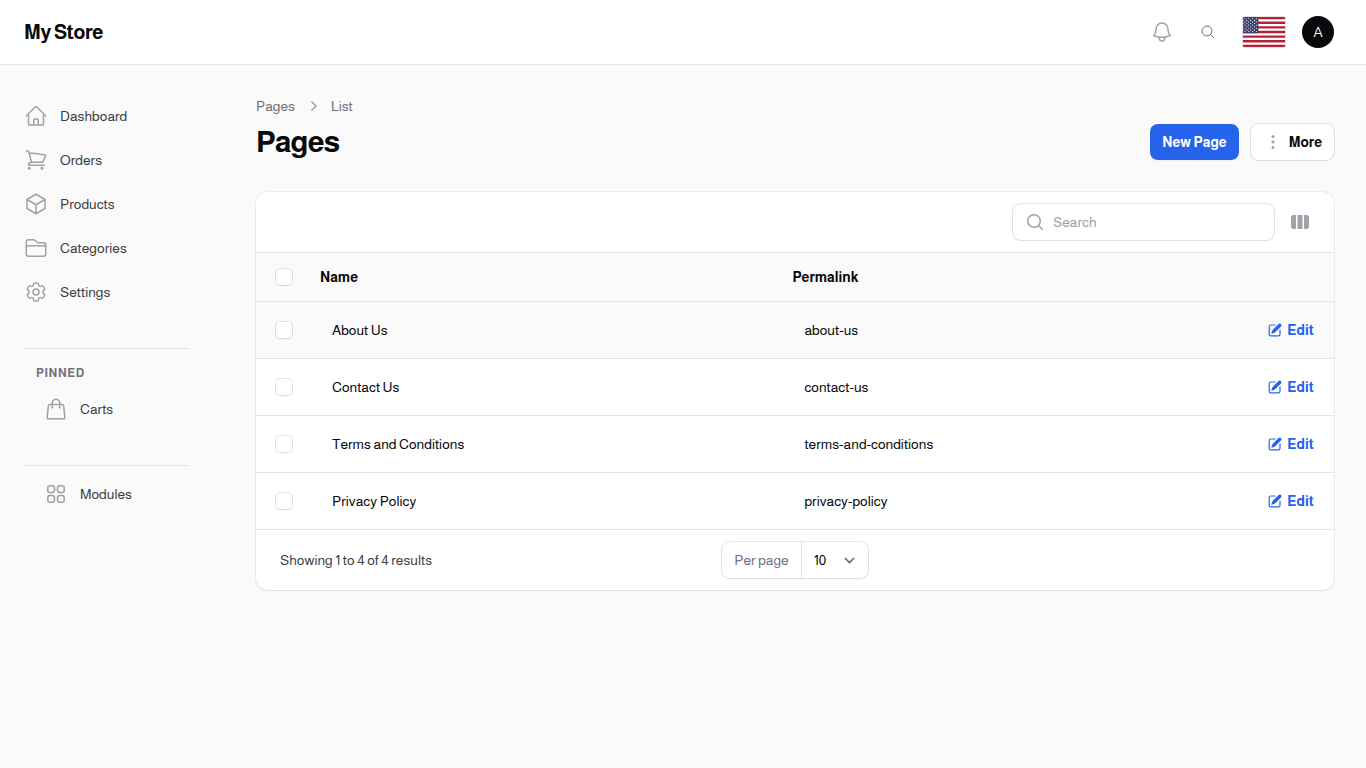
A page opens on your store at /page/ followed by its Permalink, for example /page/about-us.
Add a page
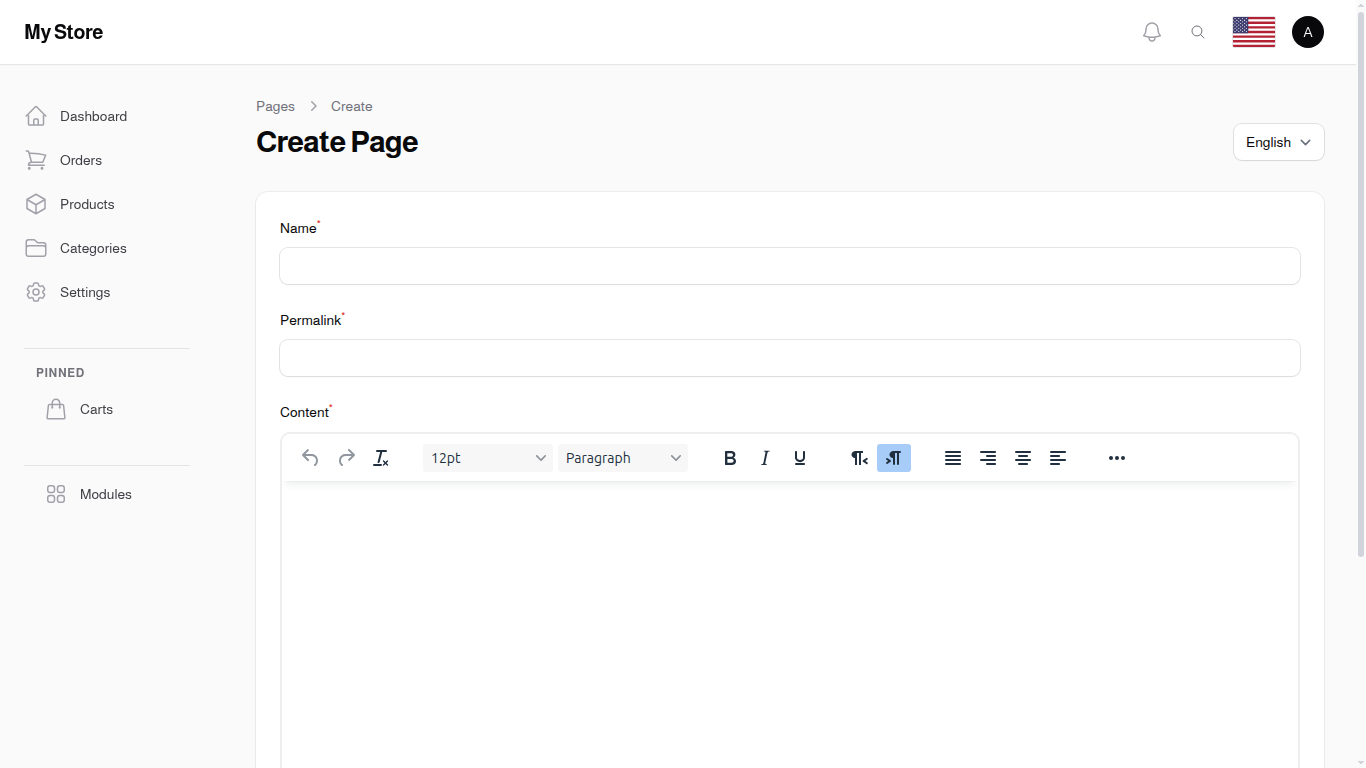
- Click + (New Page).
- Type the Name, which is the page's heading, and a Permalink.
- Write the Content. The editor's toolbar formats text and adds pictures and links.
- Fill the SEO Meta Tags section if you need it, then click Create.
| Field | What it does |
|---|---|
| Permalink | The last part of the page's address. No two pages can share one. |
| Meta Title, Meta Description | What search engines show for the page. Empty uses the name and the start of the content. |
| Social Media Image | The picture shown when the page is shared on social media. |
A new page is not linked from anywhere yet. To put it in the header or footer, add it to a menu from the Page tab of a menu item. See Frontend Menus.
Translate a page
The language switcher at the top of the form changes which language you type in. Fill the Name, Permalink, Content and SEO fields in each language your store uses. Each language can have its own permalink; a customer who opens the page with another language's address is sent to the right one.
Edit a page
- Click Edit on the page's row.
- Change what you need and click Save changes.
Related settings in the ⋮ menu (More) at the top of the list opens Content Settings, which holds the short About Us and Contact Us texts, or SEO & Social Media Settings.
Keep old links working
If you change a page's permalink, its previous address keeps leading to the page on its own. Old Links shows those addresses and lets you add more, such as the page's address on a store you moved from. See Old Links.
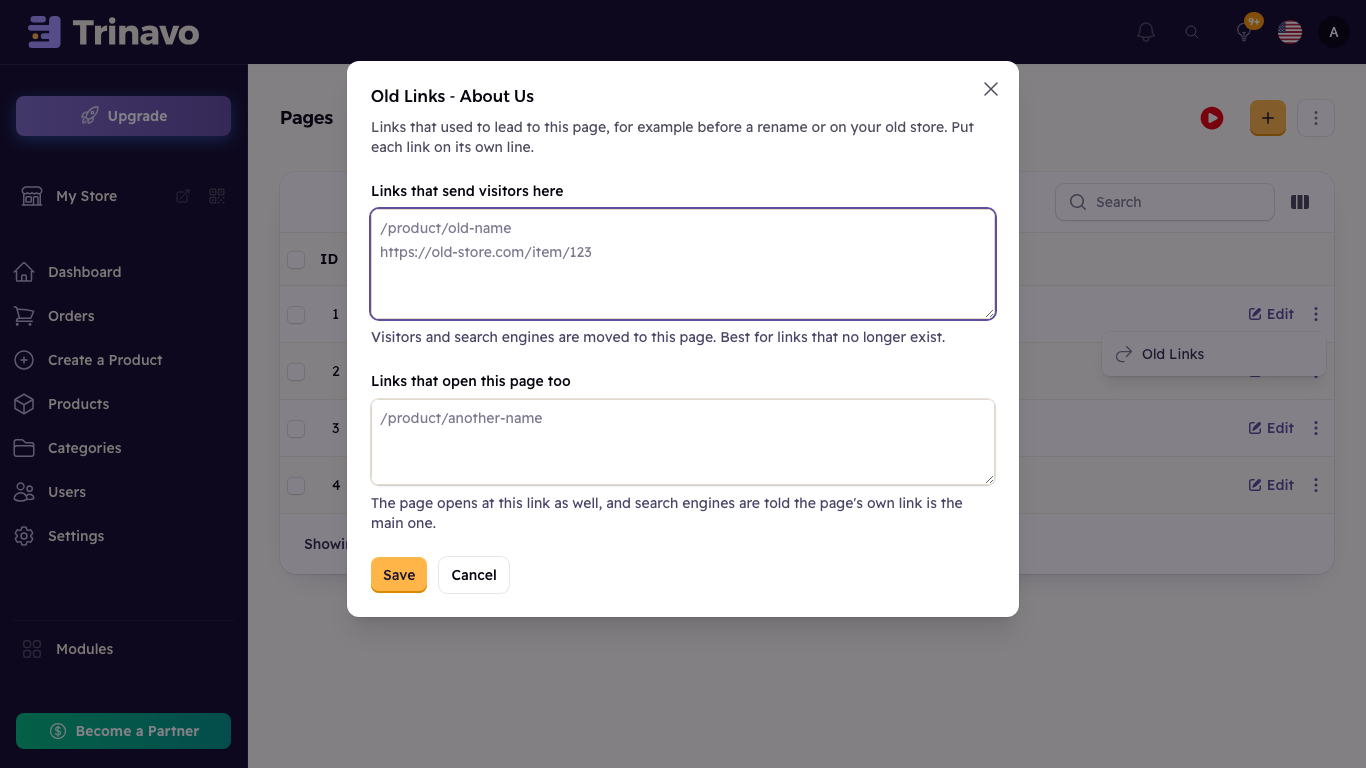
- Open the row's three-dot menu and click Old Links.
- Put each old address on its own line in Links that send visitors here. Visitors and search engines are moved to this page.
- Use Links that open this page too for an address that should show the page as it is.
- Click Save.
Delete a page
Open the page with Edit, then the ⋮ menu (More) at the top, and click Delete. To delete or export several pages, tick them in the list and use the bulk actions. Menu links that point to the page are deleted with it.