Gateway Payment Orders
Purpose
The Gateway Payment Orders page gives you full visibility into every payment request your shop sends to a payment provider (such as Geidea, Paymob, Moyasar, Fawry, Tabby, Ziina, and others). Use it to debug failing payments, follow up with provider support, and look up provider-specific transaction identifiers.
Each row corresponds to one payment attempt started from your shop — regardless of whether it succeeded, failed, was cancelled, or is still pending.
When to use this page
- A provider (for example Geidea) asks you to share the transaction ID of a test payment so they can move your merchant account into production.
- A customer reports that they paid, but the order status is still "Pending Payment".
- A refund did not appear on the provider dashboard and you want to see exactly what was returned.
- You are configuring a new payment method and want to confirm that the callbacks from the provider are being received.
Accessing Gateway Payment Orders
Click Modules → Orders & Sales → Gateway Payment Orders
To narrow the list to a specific order, use the Order Code or Customer Email search, or filter by status and payment method.
List View
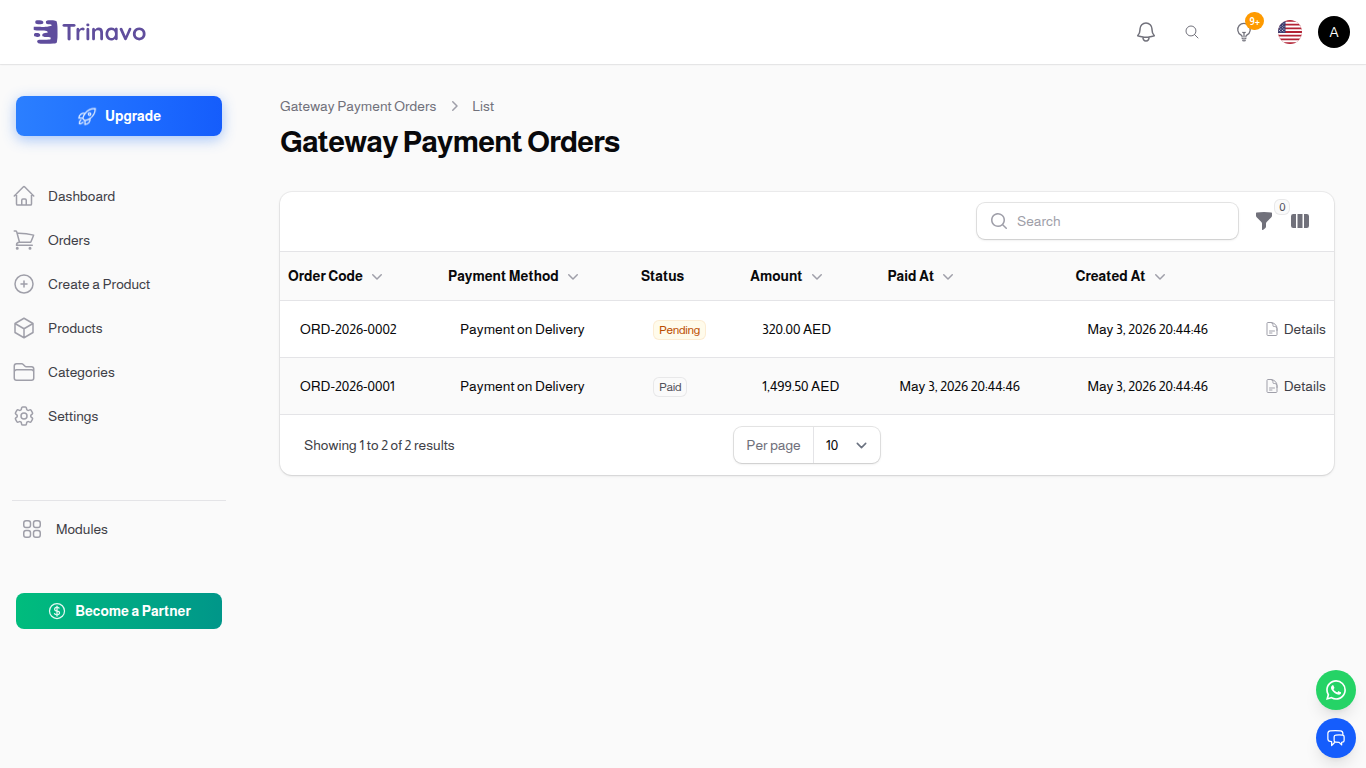
The list shows one row per payment attempt, newest first.
Table Columns
Order Code
- Format: Text (e.g.
PO-IA8LXMD6OR) - Purpose: The unique reference that your shop sent to the provider. Most providers record this as their merchant reference ID or order code. This is what you share with their support when they ask "which order do you mean?".
- Tip: The value is copyable — hover to reveal the copy icon.
Payment Method
- Format: Text (e.g. Geidea, Paymob, Moyasar)
- Purpose: Which configured payment method handled this attempt.
Status
- Format: Coloured badge
- Values:
- Pending — the payment was created but the provider has not reported a final result yet.
- Completed — the provider confirmed the payment succeeded.
- Failed — the provider rejected or declined the payment.
- Cancelled — the customer cancelled or the session expired.
Refunded
- Format: Badge (Yes / No)
- Purpose: Indicates whether a refund was later processed against this payment.
Amount
- Format: Number with currency code (e.g.
125.00 SAR) - Purpose: The amount that was charged.
External Transaction ID
- Format: Text, copyable
- Purpose: The transaction identifier returned by the provider (often called
transactionId,payment_id,invoice_id, etc.). Use this when the provider asks for their own internal ID.
Customer Email
- Format: Text (toggleable column)
- Purpose: The email of the customer who initiated the payment.
Paid At
- Format: Date & time
- Purpose: When the payment was confirmed. Empty for pending, failed, or cancelled attempts.
Created At
- Format: Date & time
- Purpose: When the payment attempt was first started.
Filters
- Status — narrow the list to Pending, Completed, Failed, or Cancelled.
- Payment Method — show only payments made through a specific provider.
- Refunded — toggle to see only refunded payments.
- Search — type into the search box to find payments by Order Code, External Transaction ID, or Customer Email.
Row Actions
- View — open the full payment details, including all provider-specific identifiers and the raw response data.
Creating, editing, and deleting rows is intentionally disabled — the page is a read-only audit view. Records are written automatically by the shop whenever a payment attempt is started.
Viewing a Gateway Payment Order
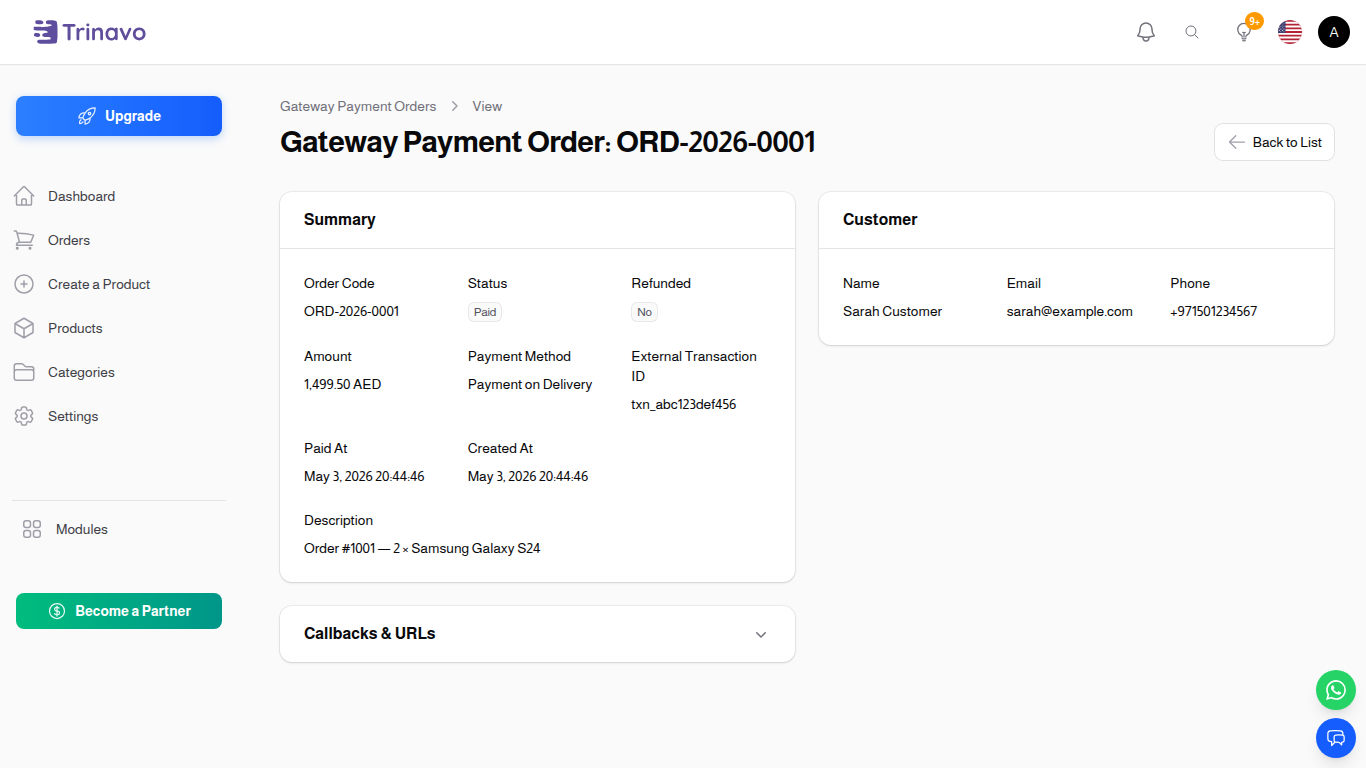
Click a row to open its details page. The details are organised into several sections.
Summary
The top section lists the core facts of the payment:
- Order Code — the merchant reference sent to the provider (copyable).
- Status — current status badge.
- Refunded — whether the payment has been refunded.
- Amount — charged amount with currency.
- Payment Method — which provider handled the payment.
- External Transaction ID — the provider's own identifier (copyable).
- Paid At — when the payment was confirmed.
- Created At — when the attempt was started.
- Description — the localized description sent to the provider (for example "Payment for order #42").
Customer
- Name, Email, Phone — the contact details of the customer who started the payment. Emails and phones are copyable.
- Customer Data — a JSON block that contains extra information passed by the shop (for example the internal
order_id). The whole block is copyable so you can paste it into a support ticket.
Provider Data
This is the most important section when debugging. Every key that the provider returned is shown as its own row with a copy button. Typical keys include:
- Geidea:
geidea_order_id,geidea_session_id,geidea_merchant_reference_id,geidea_status,geidea_detailed_status - Fawry:
fawry_reference_number,fawry_merchant_ref - Ziina:
ziina_payment_intent_id - Thawani:
thawani_session_id - MyFatoorah:
myfatoorah_invoice_id - Generic keys:
transaction_id,status,message,original_amount,payment_method_fee
If the provider returned a value you don't see listed here, scroll down to Raw Payment Data (JSON) — it contains the complete response, pretty-printed and copyable.
Tip: When a provider support agent asks you for their order ID (for example, Geidea asks for the
orderIdof a test transaction), copy the value from the Geidea Order Id row in this section.
Refund Data
Only visible when the payment has been refunded. Contains the provider's refund response (refund transaction ID, refunded amount, original transaction ID, and the raw refund payload).
Callbacks & URLs
Collapsed by default — expand it to inspect:
- Success URL / Failure URL — where the customer is redirected after the provider finishes processing.
- Success Callback / Failure Callback — internal hooks that run server-side when a callback is received.
These are mostly useful when diagnosing why a customer saw the wrong page after payment, or why the shop did not update the order status automatically.
Ignored Plugins
Rarely used. Shown only when specific plugins were excluded from handling this payment attempt.
Header Actions
- Back to List — return to the list view.
- View Related Order — when the payment is linked to a shop order (via
customer_data.order_id), this opens the related shop order directly.
Key Information
- Read-only: You cannot create, edit, or delete gateway payment orders from this page — they are written automatically by the payment flow.
- Super Admin Only: By default only super administrators can see gateway payment orders. The data can include customer contact details and provider correlation IDs, so it is kept behind a permission.
- One row per attempt: Each row is one attempt. Customers who retry after a failure will create additional rows with the same related order.
- Linked to Orders: When the payment was started from a shop order (the normal case), the "Customer Data" section contains
order_id, and the header includes a shortcut to the related order. - Do not share Raw JSON externally without review: The raw payload may contain information the provider would not want exposed publicly (session tokens, signatures).
Related Sections
- Orders & Sales — Shop orders and their payments.
- Payment Methods — Configure the gateways that create these payment orders.
- Offline Payment Methods — Bank transfer and other manual methods.