User Custom Fields
Extra questions you ask your customers on top of name, email and mobile: a company name, a licence number, a document to upload. Each field can show on the sign-up form, on the customer's profile, or both, and can be limited to some roles.
Where to find it
Open Modules → User Management → User Custom Fields.
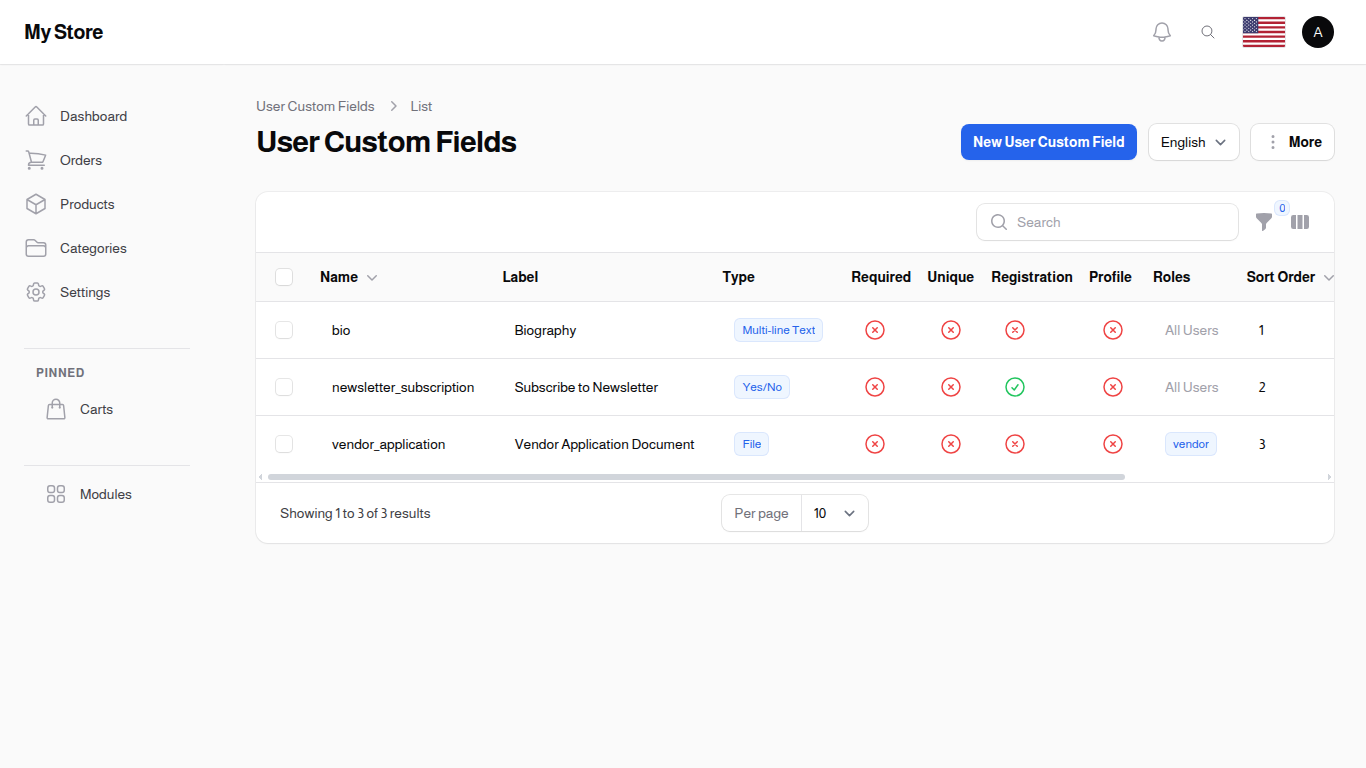
The ticks in Required, Unique, Registration, Profile and Disabled can be clicked to switch them on the spot. Roles shows All Users for a field that every user gets. The filters narrow the list by Type, Required, Show in Registration, Show in User Profile and Disabled.
Add a field
- Click + (New User Custom Field).
- Type a Name (an internal name, unique among your fields) and the Label customers read.
- Pick the Type and fill Field Configuration if it asks for anything.
- Set the switches under Field Settings, pick Roles if the field is only for some users, and click Create.
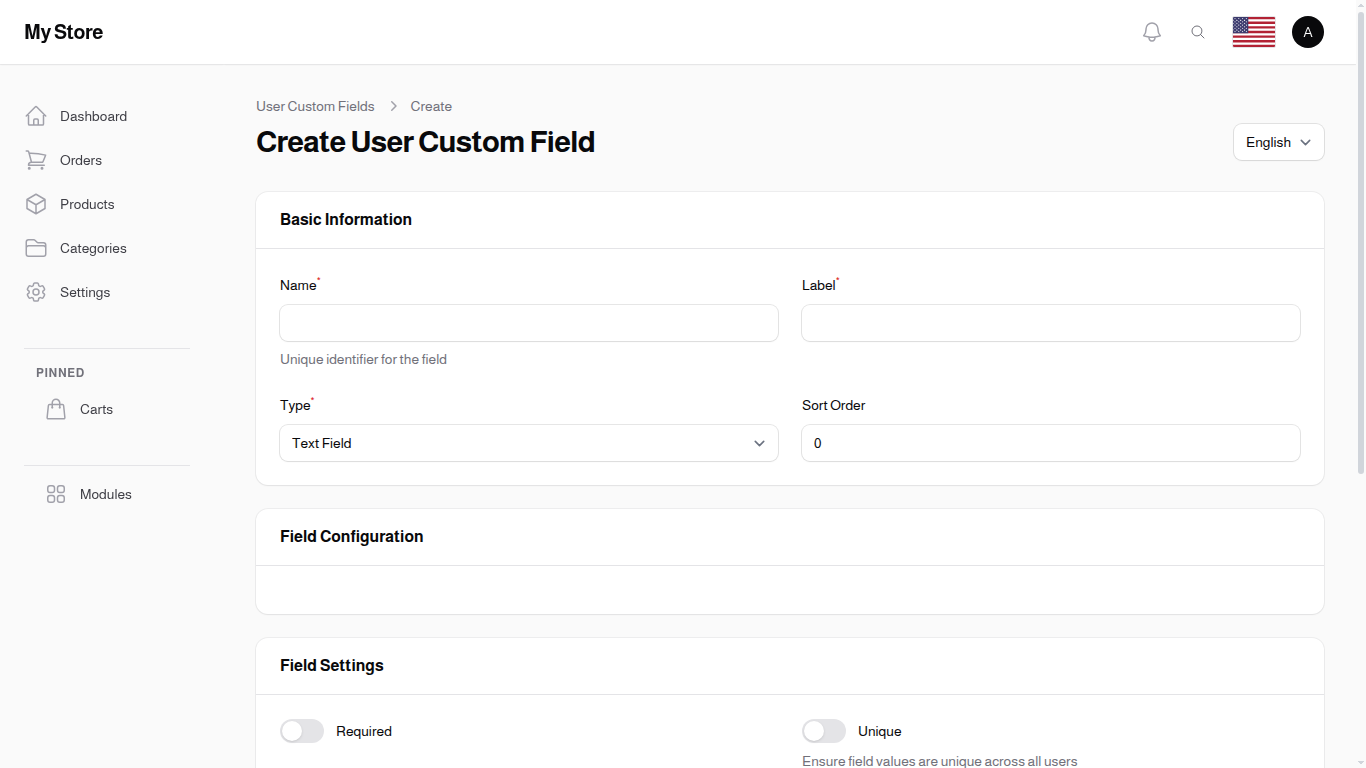
The language switcher at the top of the list changes which language you type the Label in. Fill it in each language your store uses.
| Field | What it does |
|---|---|
| Type | Text Field, Multi-line Text, Number, File, Dropdown, Yes/No or Checkbox. |
| Allowed File Types | For a File field: which kinds of file may be uploaded (images, PDF, Word and so on). |
| Max File Size (MB) | For a File field. Empty uses the store's normal limit. |
| Dropdown Options | For a Dropdown field: click Add Option for each choice, with the Label customers see and the Value that is saved. |
| Sort Order | Fields with a lower number come first. |
| Unique | No two users may give the same answer. |
| Show in Registration | The field is on the sign-up form. |
| Show in User Profile | The customer sees and edits the field on their profile page. |
| Disabled | Hides the field everywhere without deleting the answers already given. |
| Roles | Only users with one of these roles get the field. Empty means everyone. |
A customer's answers also show on the Custom Fields tab of their user page, where you can change them. Number and Checkbox fields are not on that tab. See Users.
Change or delete a field
Click Edit on the field's row, change what you need and click Save changes.
Delete removes the field together with every answer customers gave to it. To stop asking without losing the answers, turn on Disabled instead.
The ⋮ menu (More) at the top holds Export and a link to Registration Settings.