Meta Pixel (Facebook Pixel)
Sends your store's visits and shopping steps to Facebook and Instagram, so your ads there can be measured and shown to the people most likely to buy.
Where to find it
Open Modules → System Settings → Plugins, go to the Analytics tab and click Configure on the Meta Pixel (Facebook Pixel) card.
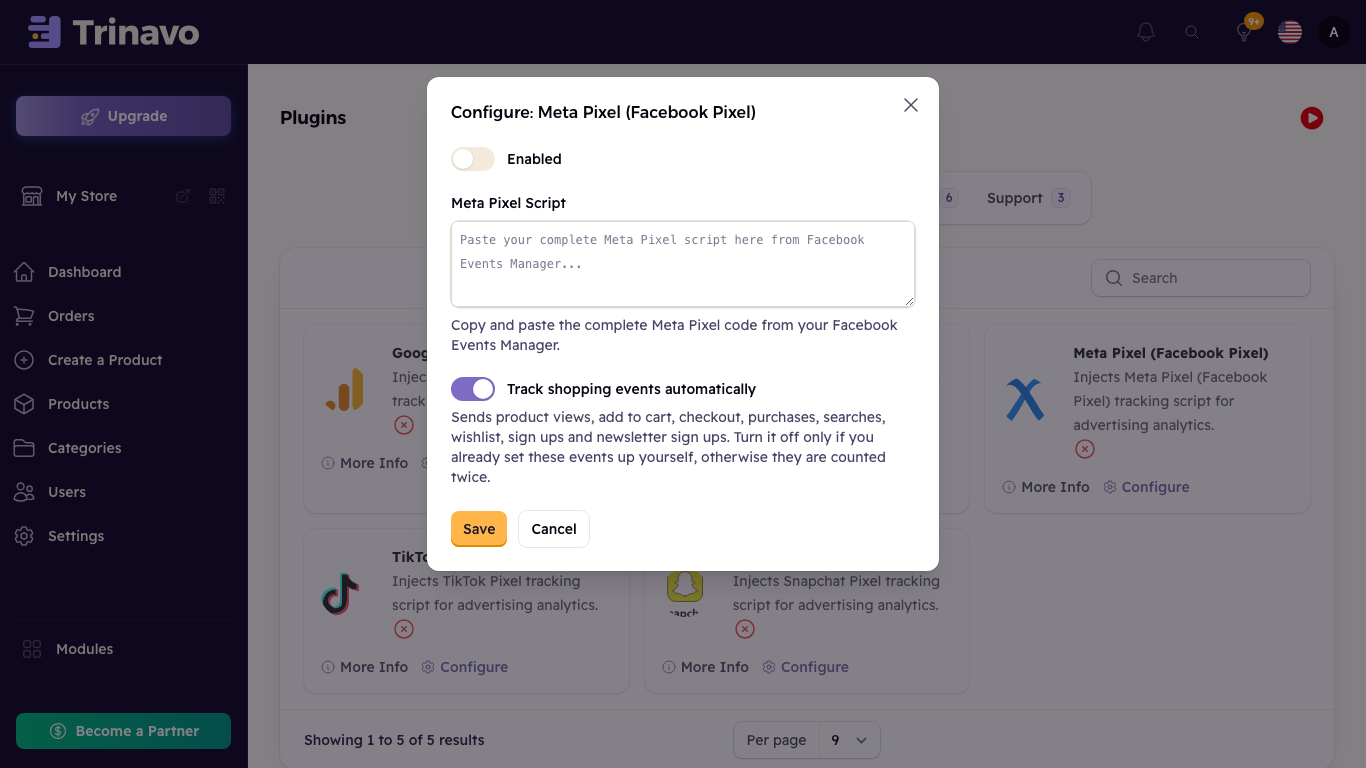
Connect your pixel
- In Meta Events Manager, choose your pixel (or create one), choose to install the code manually, and copy the whole pixel code, from
<script>to</script>. - In the plugin's settings, switch on Enabled.
- Paste the code in Meta Pixel Script.
- Leave Track shopping events automatically on, and click Save.
| Field | What it does |
|---|---|
| Meta Pixel Script | The pixel code exactly as Facebook gives it. It is added to every page of your store, and it counts page views by itself. |
| Track shopping events automatically | Also sends product views, add to cart, wishlist, searches, checkout, payment, purchases, sign ups and newsletter sign ups, with the product, quantity and price. Turn it off only if you already send these events yourself, otherwise each one is counted twice. |
To check it works, open your store with the Meta Pixel Helper browser extension, or watch Test events in Events Manager.