Plugins
Watch the video
Enable Whatsapp
Meta Pixel
Purpose
View and manage installed system plugins and extensions. Enable, disable, and configure plugins to add functionality to your store.
Available Plugins
Analytics
Track visitor behavior and measure marketing performance:
- Google Analytics - Track website traffic and user behavior
- Meta Pixel - Facebook advertising and conversion tracking
- TikTok Pixel - TikTok advertising and conversion tracking
- Snapchat Pixel - Snapchat advertising and conversion tracking
SEO
Improve search engine visibility:
- Google Search Console - Verify site ownership with Google
Support
Add live chat and customer support tools:
- Tidio - Live chat and AI chatbot widget
Communication
Connect with customers through messaging platforms:
- WhatsApp Floating Button - Add floating WhatsApp contact button
- OneMessengerHub WhatsApp - Send WhatsApp notifications via OneMessengerHub API
- Telegram Notifier - Send Telegram notifications via Telegram Bot API
Accessing Plugins
Click Modules → System Settings → Plugins
List View
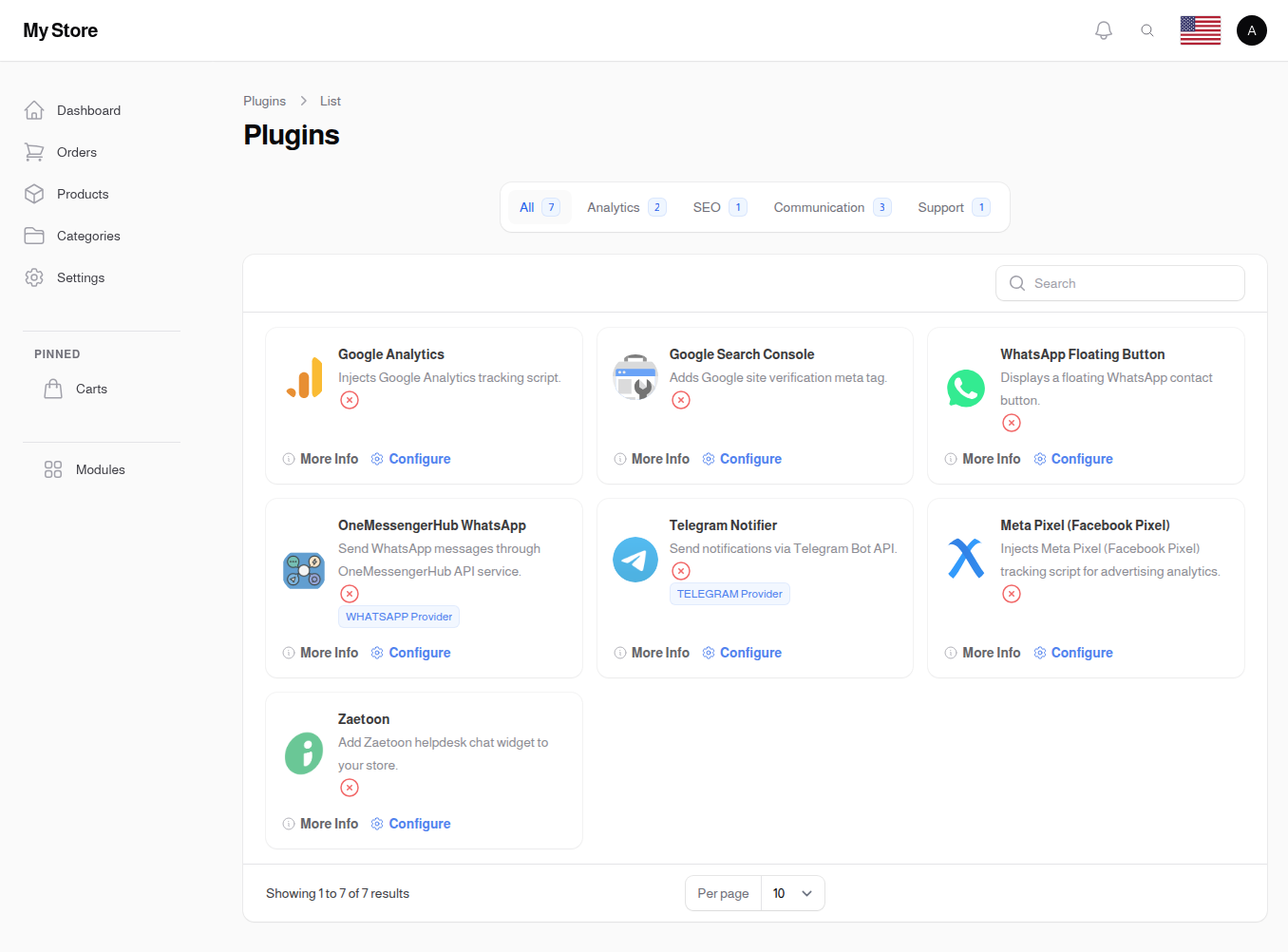
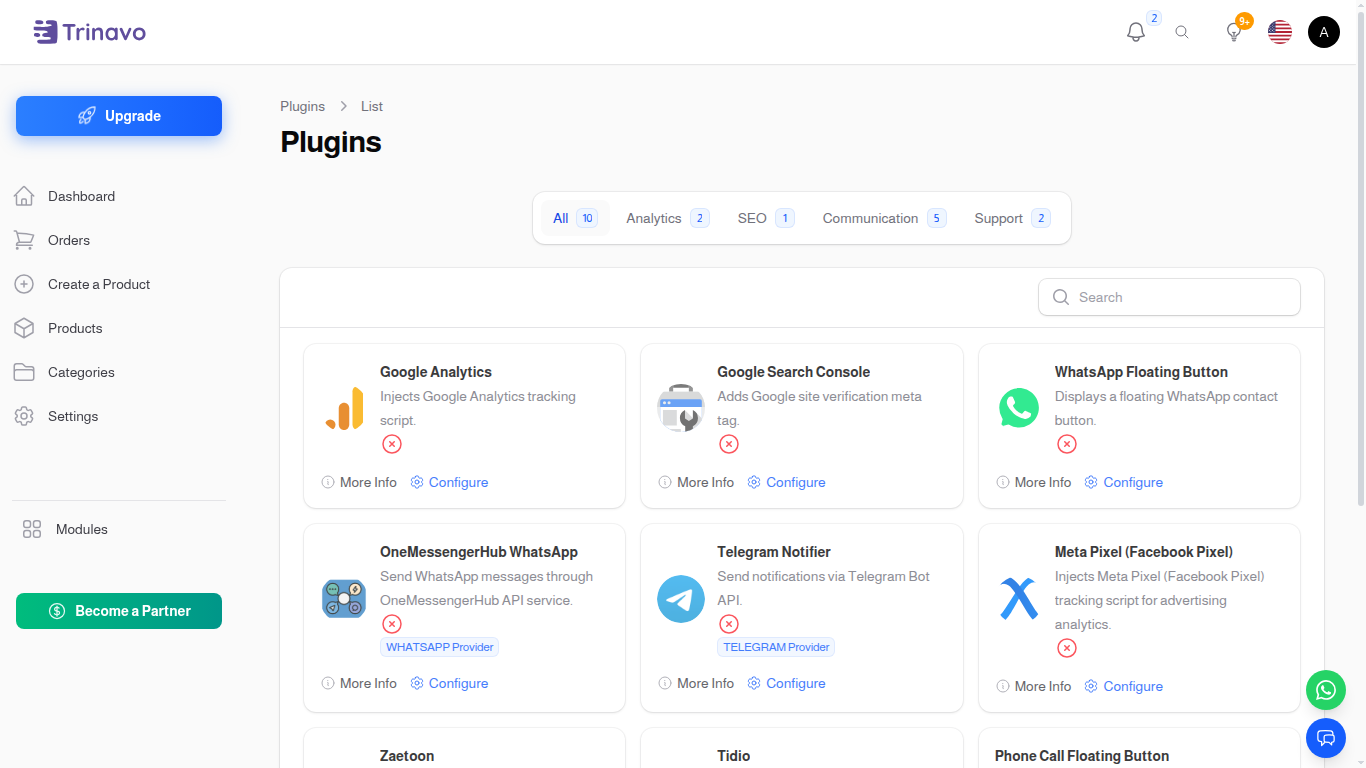
Plugins are displayed as cards in a grid layout. Each card shows the plugin name, description, and status.
Plugin Information
Each plugin card displays:
- Plugin Name: Plugin label/title
- Description: Brief description of what the plugin does
- Logo: Plugin icon (if available)
- Status: Enabled (green checkmark) or Disabled (red X)
Viewing Plugins
- Search: Use search to find plugins by name
- Browse: Scroll through installed plugins
- Status: See at a glance which plugins are active
Plugin Actions
Toggle Status
- Click the enabled/disabled icon on any plugin card
- Toggle between enabled/disabled instantly
- Notification confirms the status change
Test Plugin
- Available only for enabled plugins that support testing
- Opens modal to test plugin functionality
- Use to verify plugin is working correctly
More Information
- Opens plugin details in new window
- Provides extended documentation or plugin website
- Available if plugin has documentation URL
Configure Plugin
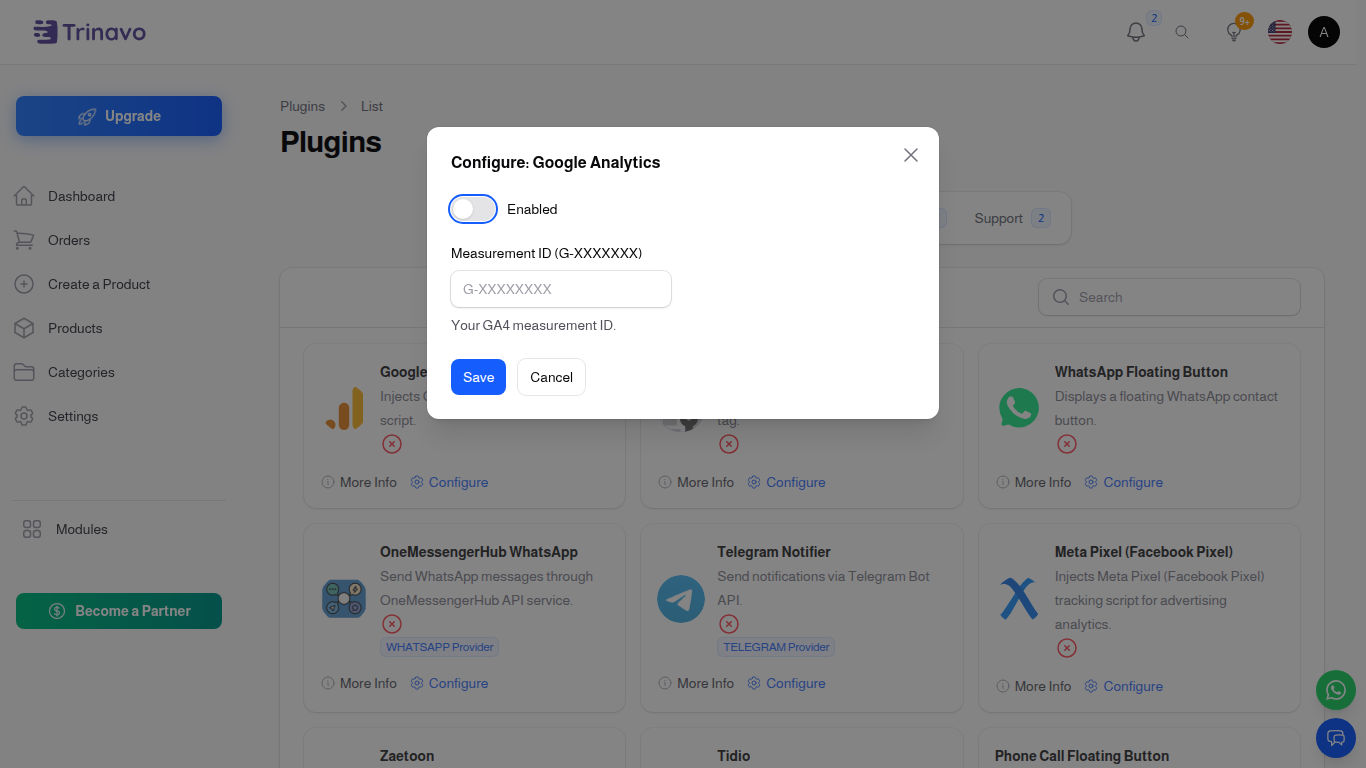
- Opens configuration modal for the plugin
- Adjust plugin settings and options
- Plugin-specific fields vary based on plugin requirements
Configuring a Plugin
Click the Configure button on any plugin to adjust its settings.
General Settings
- Enabled: Toggle to activate/deactivate the plugin globally
Plugin-Specific Configuration
Each plugin may have additional configuration fields such as:
- API keys
- Service credentials
- Feature toggles
- Custom parameters
All plugin configurations are saved and persist across sessions.
Key Information
- Pre-installed: Plugins come pre-installed and ready to use
- No Creation: Cannot create new plugins from this interface
- Status Persistence: Plugin enabled/disabled status is remembered
- Configuration Storage: All plugin settings are stored securely
- Integration: Enabled plugins integrate automatically with your store
Related Configuration
Configure email and notification settings in System Settings:
- SMTP Configuration - Set up email server settings for mail plugins
- OneSignal Settings - Configure push notification credentials
Related Sections
- System Settings - General system configuration
- Dropshipping Plugins - Dropshipping-specific plugins