Supplier Invoices
Purpose
A supplier invoice is what your supplier has billed you. It is the debt side of purchasing: goods receipts say what arrived, invoices say what you owe for it, and payments say what you have settled.
Keeping them here is what lets the store answer "how much do I owe, and what is overdue" without a spreadsheet.
This is a paid feature. Without it on your plan the list stays readable but nothing new can be created.
Accessing Supplier Invoices
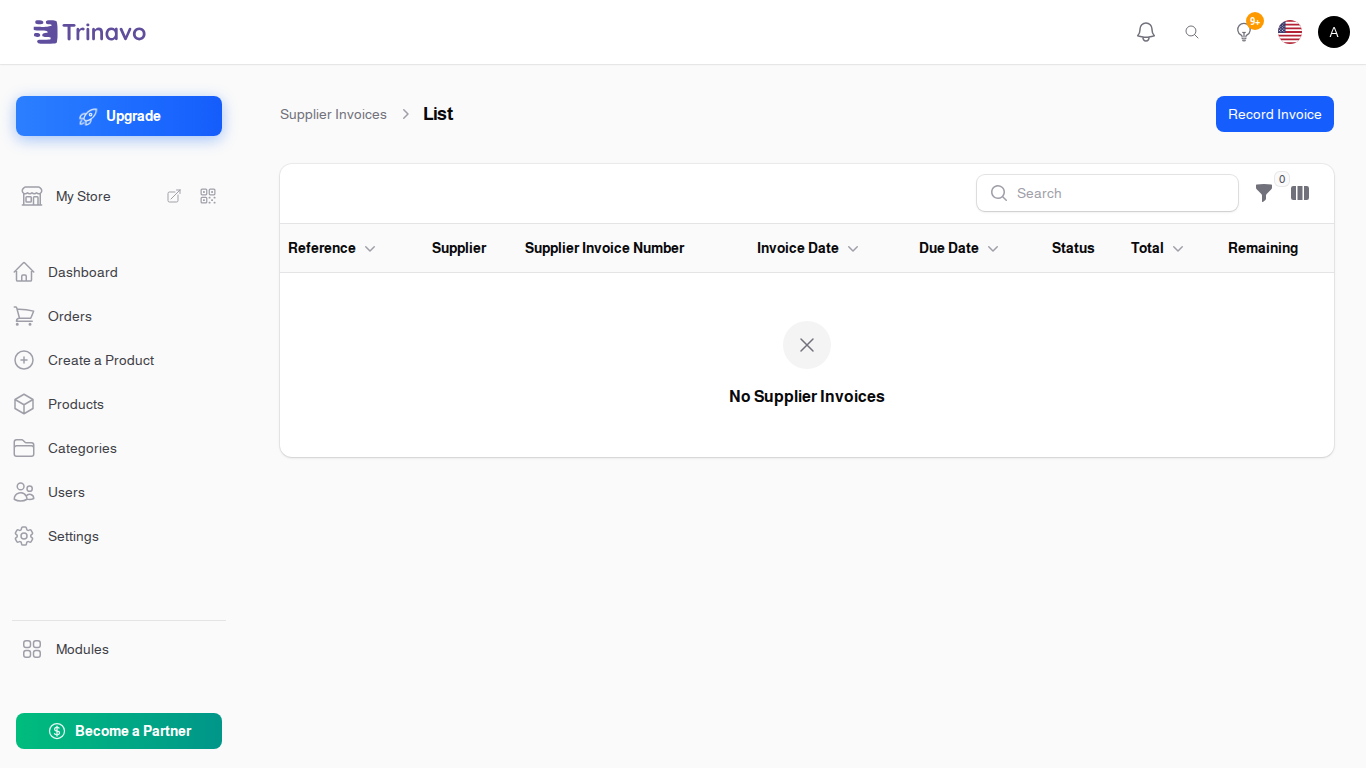
Click Modules → Purchasing → Supplier Invoices
Where invoices come from
Most invoices should not be typed here at all.
When you post a goods receipt, the dialog asks whether you have the invoice for that delivery. Say yes, give the number and a due date, and the invoice is created from the receipt's own lines. That is the normal route, and it means the lines cannot disagree with what actually arrived.
Type one in here directly when there is no delivery behind it, or when the invoice arrived long after the goods.
The Form
Invoice Details
- Supplier: who billed you
- Supplier Invoice Number: their number, printed on their document. This is what you quote back to them
- Invoice Date: the date on the invoice
- Due Date: when it must be paid. If you set Payment Terms (Days) on the supplier, this follows from the invoice date
- Reference: your own number, if you use one
- Supplier Document: a scan or photo of the invoice
- Notes: anything else
Invoice Lines
One line per thing billed: Item, Variation, Description, Quantity, Unit Cost and a calculated Line Total.
Invoice Total
- Tax: added on top of the lines
- Total: the lines plus tax
- Paid: how much has been applied to this invoice from payments
- Remaining: what is still outstanding
Paid and Remaining are not typed. They follow from the payments you record and allocate.
Statuses
- Draft: entered, not yet counted as a debt
- Unpaid: owed in full
- Partially Paid: some money applied, some still outstanding
- Fully Paid: settled
- Cancelled: withdrawn
The status moves on its own as payments are allocated. You do not set it by hand.
Filtering
Filter by Status and Supplier. Filtering to Unpaid and Partially Paid gives you the list of everything you still owe.
Related Sections
- Suppliers - who billed you, and their payment terms
- Goods Receipts - where most invoices are created from
- Supplier Payments - how an invoice gets settled
- Supplier Aging Report - the same debts, sorted by how late they are