Languages
Purpose
Manage available languages for your multi-language store. Configure language codes, names, and text direction (LTR/RTL).
Accessing Languages
Click Modules → System Settings → Languages
List View
The list displays all available languages configured for your store.
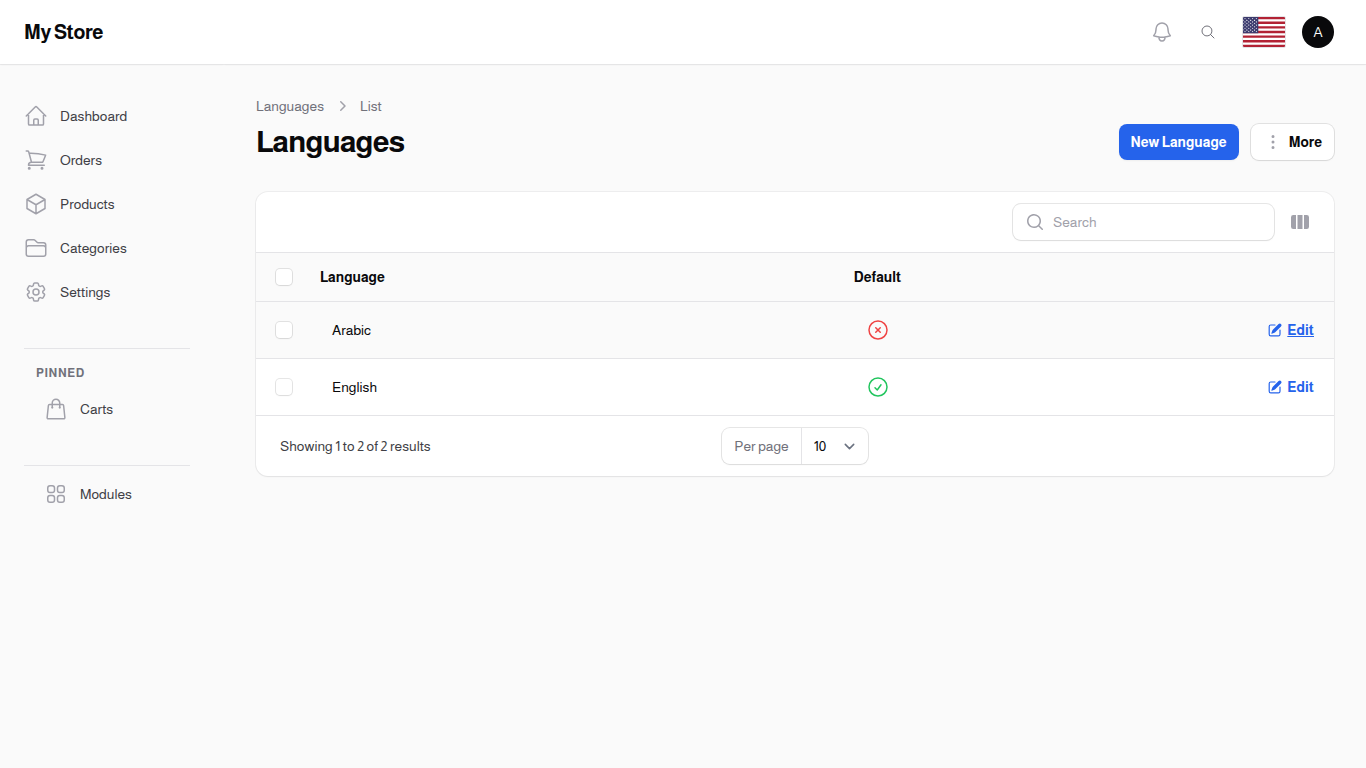
Table Columns
Code
- Format: Text (2-3 characters, e.g., "en", "ar")
- Purpose: Language code identifier used internally
Name
- Format: Text (Language name in English)
- Purpose: Display name for staff/admin
Name Native
- Format: Text (Language name in native language)
- Purpose: Display name for customers in their language
Direction
- Format: Text ("LTR" or "RTL")
- Purpose: Text direction - LTR (Left-to-Right) or RTL (Right-to-Left) for languages like Arabic
Row Actions
- Edit: Modify language settings
Bulk Actions
Languages typically do not support bulk actions as they are core system configurations.
Creating a Language
Click "New Language" to add a new language to your store. The form opens in a dialog over the list, so you keep the search and filters you were working with.
Form Fields
Code Required
- Type: Text input (2-3 characters)
- Purpose: Unique language code identifier
- Examples: "en" (English), "ar" (Arabic), "es" (Spanish), "fr" (French)
- Note: Usually uses ISO 639-1 codes
Name Required
- Type: Text input
- Purpose: Language name in English
- Examples: "English", "Arabic", "Spanish", "French"
Name Native Required
- Type: Text input
- Purpose: Language name in its native language
- Examples: "English", "العربية", "Español", "Français"
Direction Required
- Type: Dropdown (LTR or RTL)
- Purpose: Text reading direction
- LTR: English, Spanish, French, German (left-to-right)
- RTL: Arabic, Hebrew, Persian (right-to-left)
Editing a Language
Click Edit to modify language settings such as name or text direction.
Key Information
- Store Languages: Languages you create here become available throughout your store
- Content Translation: Users can provide content in each language
- Text Direction: Automatically switches UI layout between LTR and RTL
- Customer Experience: Affects customer-facing interface language
- Required: At least one language must be configured for your store
Locales: Activating Languages on the Storefront
A Language is the catalog entry (English, Arabic, …). A Locale is an activated language on the storefront — the rows that show up in the public language switcher. Locales are managed from System Settings → Locales.
Each locale row has:
- Language — picked from the Languages list above. A given language can only be activated once.
- Country — optional. Pick a country to use its flag in the locale switcher (for example, set the country to United Kingdom for an English locale to show the British flag, or United States to show the American flag). Leave it empty to auto-detect from the language.
- Flag Image — optional custom upload that overrides the country flag. Use this for languages that don't map cleanly to a single country, or to use a stylised flag that matches your branding. Accepts standard image formats with the usual avatar size limit.
- Default — exactly one locale at a time can be the storefront's default. Toggling another row to default automatically clears the previous default.
Custom Flags
When you upload a Flag Image, it overrides the country flag for that locale anywhere the language switcher appears (header, footer, mobile menu, account area). Custom flags are useful when:
- A language is shared by multiple countries and none feels canonical (e.g. Arabic, French, Spanish).
- You want to show a regional or stylistic flag instead of the official country flag.
- The default country flag doesn't match the rest of your branding and you've prepared a custom-coloured variant.
The image is editable in-place after upload — you can crop or zoom using the image editor before saving.
English & Arabic Are Seeded By Default
A fresh installation comes with both English and Arabic locales pre-seeded so the storefront is multilingual on day one. If you only need one language you can simply delete the other locale; the underlying translations will trim themselves on the next deployment.
Related Sections
- System Settings - General store language settings
- Translation Overrides - Customise specific phrases per locale