Delivery Report
Purpose
The Delivery Report shows every delivered or in-flight order grouped so you can review which delivery methods are pulling their weight, how long each customer's last shipment took, and which orders are still on the road. Use it to negotiate rates with couriers, spot underperforming routes, and prepare reconciliation lists.
Accessing the Report
Sidebar → Reports → Delivery Report.
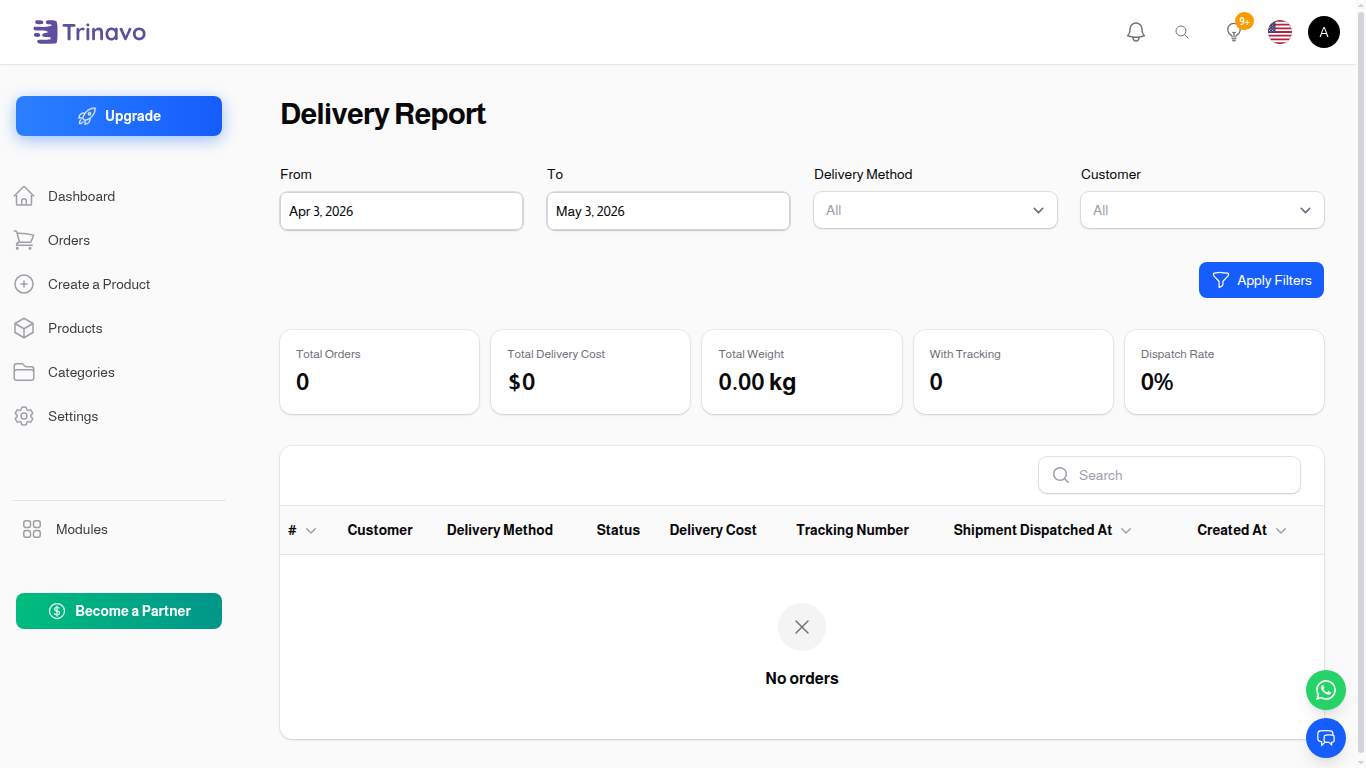
Filters
The header has four filters that all narrow the table at once:
- From / To — date range. Defaults to the last 30 days; pick any window you need.
- Delivery Method — limit to one method (Standard, Express, Aramex, etc.). Leave empty for all methods.
- Customer — search by name or email and pick a single customer to see only their shipments.
Click Apply Filters after changing values; the table and the KPI strip both update.
KPI Strip
Above the table, five summary cards roll up the rows that match your filters:
- Total Orders — count of orders in the window.
- Total Delivery Cost — sum of
delivery_costacross the matched orders. - Total Weight — sum of order weights, useful when negotiating with weight-based couriers.
- With Tracking — number of orders that have a tracking number recorded.
- Dispatch Rate — percentage of matched orders that have been dispatched (have a
shipment_dispatched_attimestamp).
Columns
The default columns are:
- # — order ID, clickable to open the full order.
- Customer — customer name as recorded on the order.
- Delivery Method — what shipping method was used.
- Status — current order status (Accepted, In Delivery, Delivered, etc.).
- Delivery Cost — what the customer paid for delivery on this order.
- Tracking Number — the courier tracking number (empty if not yet dispatched).
- Shipment Dispatched At — when the order was handed to the courier (empty for not-yet-shipped rows).
- Created At — when the order was placed.
Each row also exposes a View action that jumps straight to the order page.
What This Report Is Good For
- Courier comparison — filter by delivery method and look at the Total Delivery Cost and Dispatch Rate to see which methods are pulling their weight.
- Customer follow-up — pick a customer who complained about delivery; the report shows every shipment they've received with the dispatched timestamp and tracking number.
- Open shipments — leave the date range wide and look for rows with an empty Tracking Number or Shipment Dispatched At — those are orders still pending dispatch.
- Operational reporting — review the KPI strip at the end of the month for finance or fulfilment summaries.
Related Sections
- Orders — open individual orders to update tracking info or status.
- Delivery Methods — configure the methods that show up here.
- Reports — other operational reports.