Price Import/Export
Bulk update product and variation prices using Excel spreadsheets. Export your current prices, modify them in any spreadsheet application, and import the changes back with a preview before applying.
Purpose
Managing prices across a large product catalog can be time-consuming when done one product at a time. The Price Import/Export feature allows you to:
- Export all product prices to an Excel file
- Edit prices in bulk using familiar spreadsheet software
- Import changes back with a preview showing exactly what will change
- Apply updates confidently after reviewing the changes
This is particularly useful for:
- Seasonal price adjustments
- Cost-based price recalculations
- Promotional pricing campaigns
- Synchronizing prices with external systems
Accessing Price Import/Export
There are two ways in:
- Click Modules → Catalog Management → Price Import/Export.
- Or open Products and click the Price Import/Export button in the header actions area (shown in orange so it stands out).
Either way you land on the same page, with its two tabs: Export and Import.
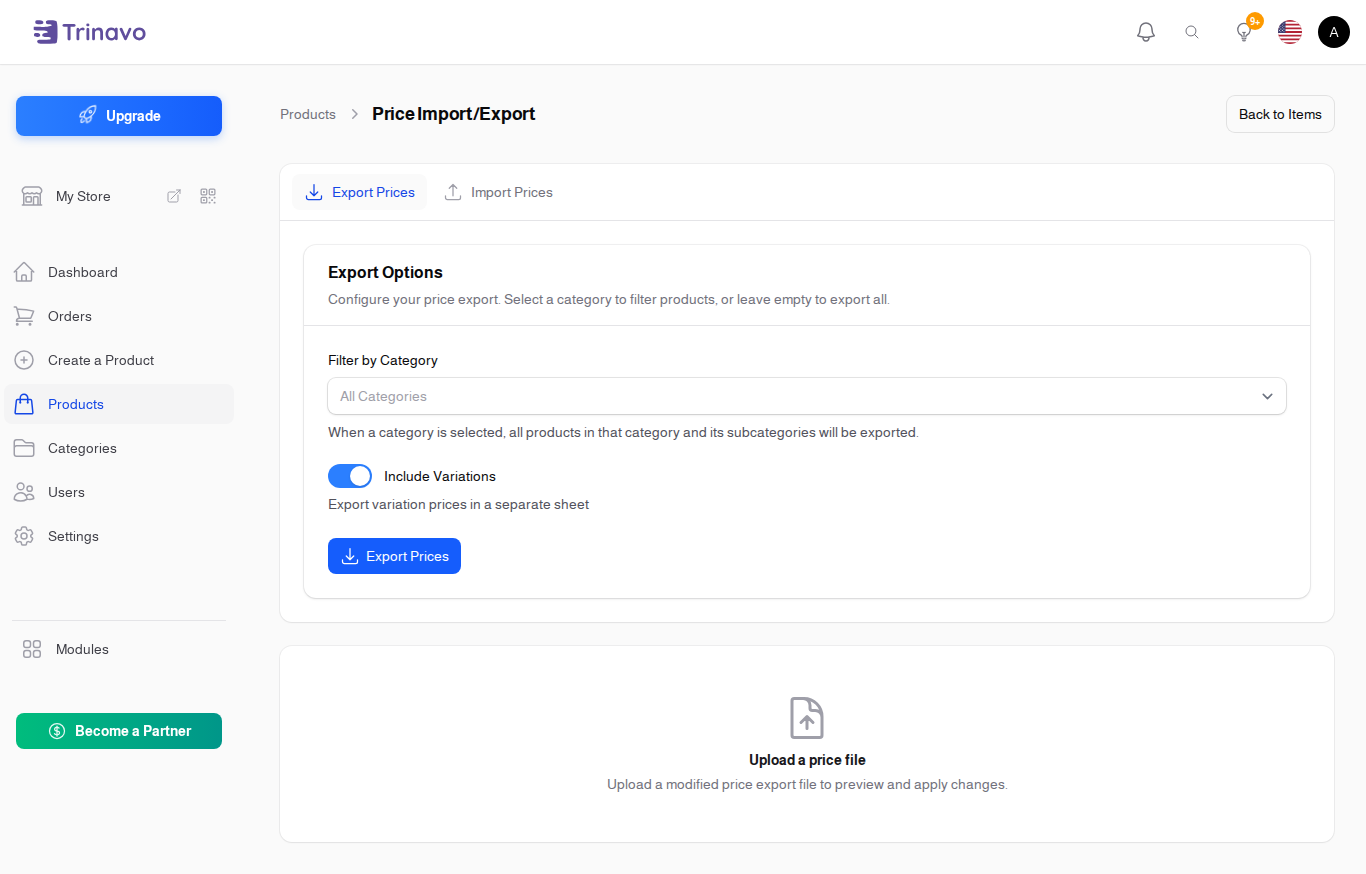
Export Prices
The Export tab allows you to download your current prices as an Excel file.
Export Options
Filter by Category Select a specific category to export only products from that category and all its subcategories. Leave empty to export all products.
Include Variations Enable this option to include a separate sheet with variation prices. This is useful if your products have size, color, or other variations with different prices.
Include User Level Prices Enable this option to include customer tier pricing (user levels) in a third sheet. Only relevant if you use the loyalty program with level-based pricing.
Export Format
The exported Excel file contains up to three sheets:
Items Sheet
| Column | Description | Editable |
|---|---|---|
| id | Product ID (for matching) | No |
| sku | Product SKU | No |
| name | Product name | No |
| category | Category path | No |
| price | Current selling price | Yes |
| old_price | Compare-at price (strikethrough price) | Yes |
| cost | Cost price | Yes |
| quantity | Current stock | No |
Variations Sheet (if enabled)
| Column | Description | Editable |
|---|---|---|
| variation_id | Variation ID | No |
| item_id | Parent product ID | No |
| item_sku | Parent SKU | No |
| item_name | Parent product name | No |
| variation_sku | Variation SKU | No |
| variation_name | Variation attributes (e.g., "Red / XL") | No |
| price | Variation price | Yes |
| old_price | Compare-at price | Yes |
| cost | Cost price | Yes |
| quantity | Current stock | No |
User Level Prices Sheet (if enabled)
| Column | Description | Editable |
|---|---|---|
| id | Price record ID (null for new) | No |
| item_id | Product ID | No |
| item_sku | Product SKU | No |
| variation_id | Variation ID (if applicable) | No |
| user_level_id | User level ID | No |
| user_level_name | Level name | No |
| price | Special tier price | Yes |
How to Export
- Go to Catalog > Products
- Click the Price Import/Export button
- On the Export tab, configure your options:
- Select a category filter if needed
- Enable/disable variations export
- Enable/disable user level prices export
- Click Export Prices
- The file downloads automatically as
prices_export_YYYY-MM-DD_HHMMSS.xlsx
Import Prices
The Import tab allows you to upload a modified price file and preview changes before applying them.
Preparing Your Import File
- Start with an exported file (don't create from scratch)
- Open in Excel, Google Sheets, or any spreadsheet application
- Modify only the editable columns (price, old_price, cost)
- Keep the ID columns unchanged - they're used for matching
- Save as .xlsx, .xls, or .csv format
Upload and Preview
- Click the Import tab
- Upload your modified price file
- The system validates the file and generates a preview showing:
- Summary: Total items, variations, and user level prices with changes
- Items section: Products with price changes (current vs. new values)
- Variations section: Variations with changes
- User Level Prices section: Tier pricing changes
- Errors section: Any issues found (missing products, invalid values)
Review Changes
The preview table shows:
- Current value: The price currently in the system
- New value: The price from your import file
- Change: The difference (amount and percentage)
Items without changes are not shown - only affected records appear in the preview.
Apply Changes
- Review the preview carefully
- Check the errors section for any issues
- Click Apply Changes in the header
- Confirm the update in the modal dialog
- A success notification shows how many records were updated
Tips & Best Practices
Workflow Recommendations
- Always export first: Don't create import files from scratch. Export the current data, modify it, and import back.
- Keep backups: Save a copy of the exported file before modifying, in case you need to restore prices.
- Test with small batches: For large catalogs, consider filtering by category and updating in batches.
- Review carefully: Always check the preview before applying changes.
Common Use Cases
Percentage price increase
1. Export all prices
2. In Excel, add a new column with formula: =E2*1.10 (for 10% increase)
3. Copy-paste values to replace the price column
4. Import and review
Update prices from cost
1. Export including cost column
2. Calculate new prices based on desired margin: =G2/(1-0.40) (for 40% margin)
3. Copy-paste values to price column
4. Import and review
Match competitor prices 1. Export your prices 2. Update prices to match competitor data 3. Import and verify changes make sense 4. Apply updates
Handling Errors
If the import shows errors:
- Product not found: The ID doesn't match any product. This can happen if products were deleted after export.
- Invalid price value: The price must be a number >= 0. Check for text or negative values.
- SKU mismatch: The SKU changed between export and import. Re-export for fresh data.
Permissions
To use the Price Import/Export feature:
- Export: Requires
export_itempermission - Import/Apply: Requires
update_itempermission
Super administrators have full access to this feature.
Related Sections
- Products - Product management overview
- Item Variations - Managing product variations
- Inventory Management - Stock tracking
- User Levels - Loyalty program tiers with special pricing