Dashboard
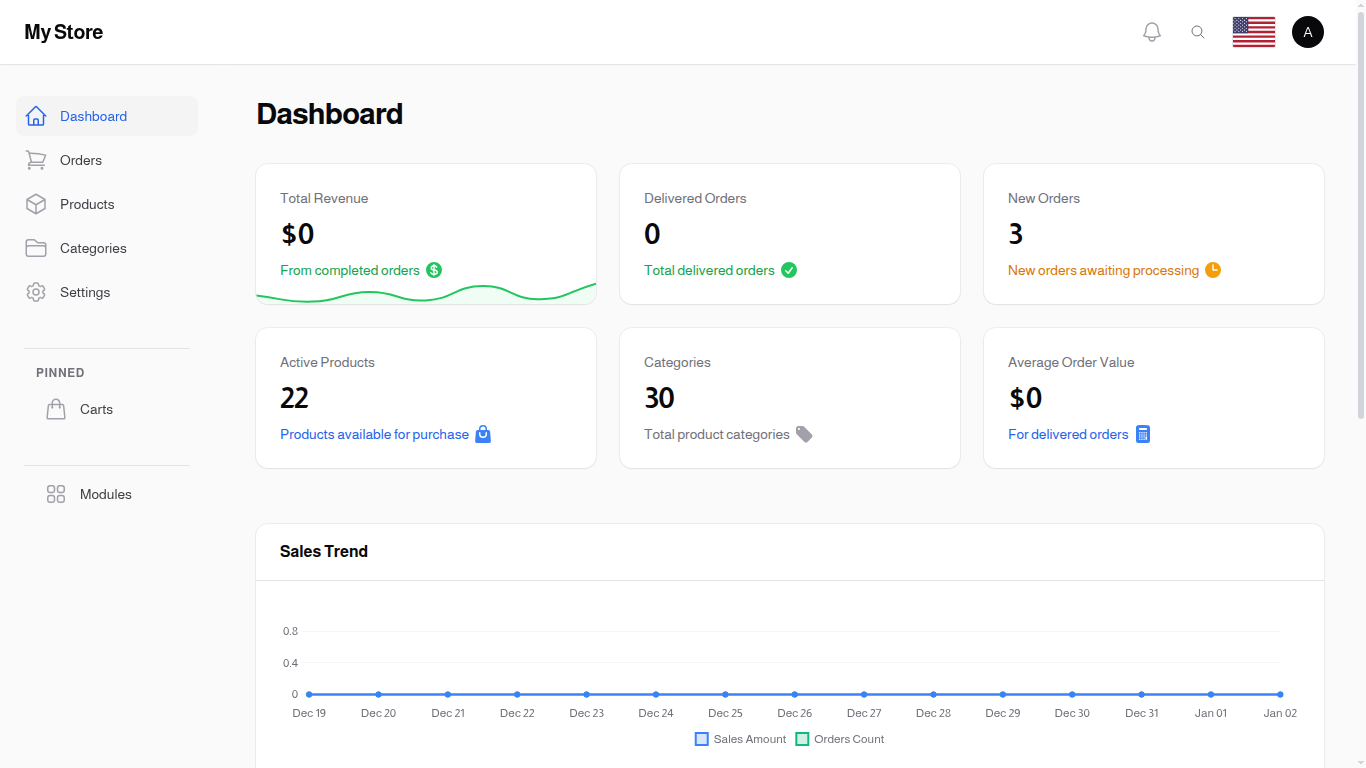
The first screen after you sign in: your store's sales in a few numbers, the latest orders, and the setup steps you have left.
Where to find it
Click Dashboard at the top of the sidebar. The heading greets you by name: Welcome your name to your store.
The bar above the numbers links to Trinavo's pages under Follow us, and Short video learning opens Tutorial Videos, short videos on how each screen works.
Read your numbers
| Card | What it shows |
|---|---|
| Total Revenue | The value of all delivered orders. |
| Delivered Orders | How many orders reached the Delivered status. |
| New Orders | How many orders are still at New, waiting for you to accept them. |
| Active Products | Products that are not disabled. |
| Categories | How many categories your store has. |
| Average Order Value | The average value of a delivered order. |
Refunded orders are left out of the delivered figures. The order values are the products in the order, before delivery, tax and order discounts, so they can be lower than what customers paid.
A vendor sees the figures for their own orders and products only.
Follow your sales
Sales Trend draws the last 14 days, one point per day, from the delivered orders placed that day:
- Sales Amount: their value.
- Orders Count: how many there were.
Click a name above the chart to hide or show its line. For another period, use Analytics.
Open a recent order
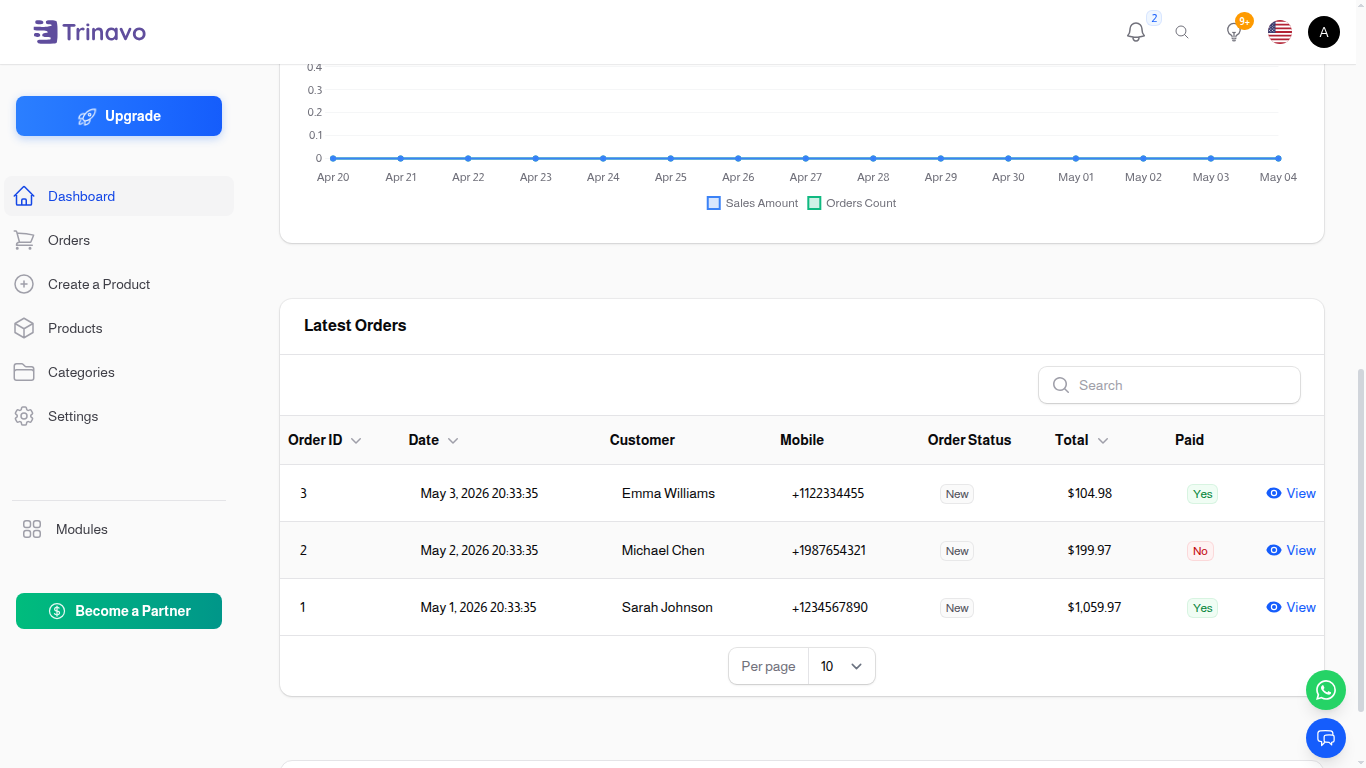
Latest Orders lists your orders, newest first, without drafts.
- Find the order: type its number, the customer's name or mobile in the search box, or sort by Order ID, Date or Total.
- Click the eye (View) on its row.
The order opens in Orders. Paid shows Yes once the order has been paid.
Finish setting up your store
The Setup Guide at the bottom lists six steps, with a progress bar and how many steps remaining:
- Add your first product: Products
- Set up categories: Categories
- Configure delivery methods: Delivery Methods
- Set up payment methods: Payment Methods
- Customize appearance: Appearance Settings
- Add your store info: General Settings
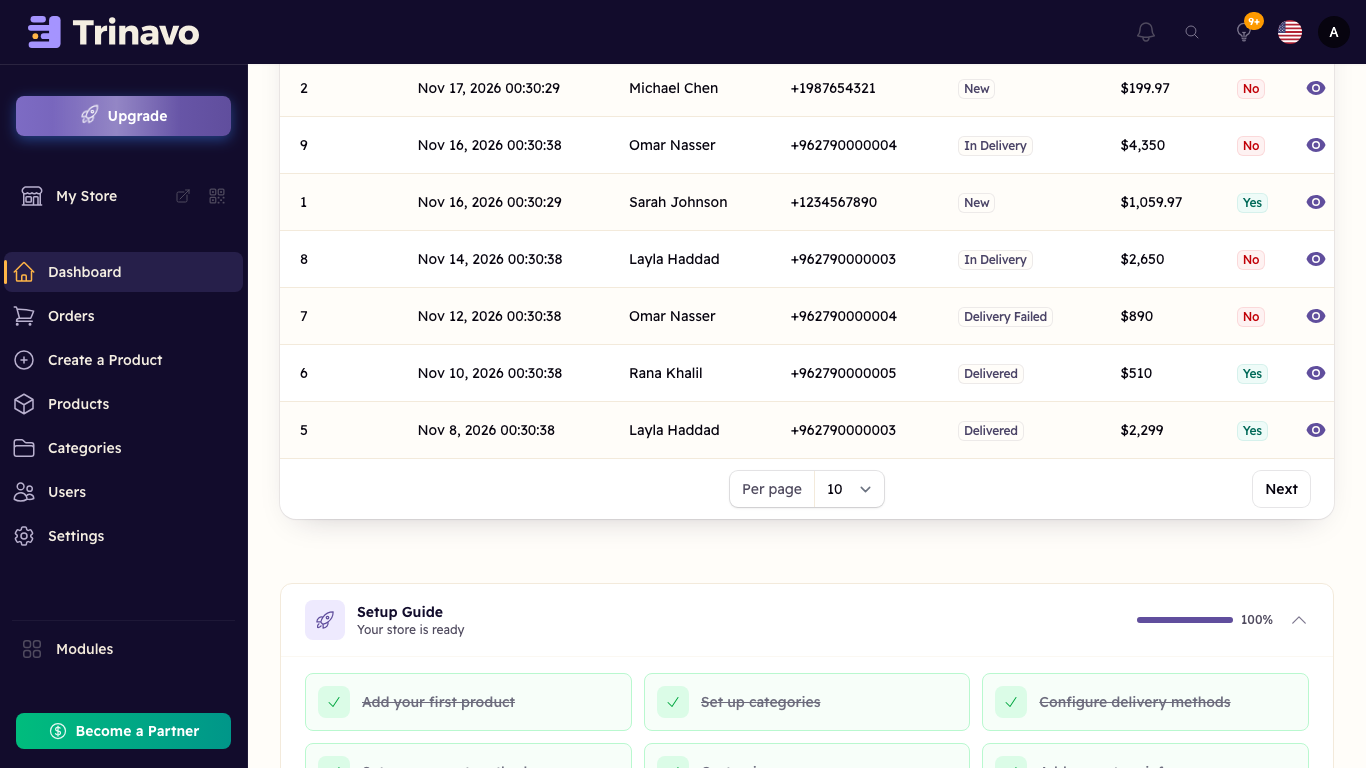
Click a step to open its screen. A finished step is ticked and struck through, and when all six are done the guide says Your store is ready. Once half the steps are done the guide starts folded; click Setup Guide to open it.
Choose who sees the dashboard
The dashboard opens only for staff whose role has Dashboard ticked under Pages, in Roles. On it, the numbers, Sales Trend and Latest Orders each show only when the role also has them ticked under Widgets: Dashboard: store statistics, Dashboard: sales trend and Dashboard: latest orders.