Old Links
Addresses that used to lead to a page of your store, kept working so that visitors and search engines who follow them still land in the right place. You need them after you change a product's link, or when you move to Trinavo from another platform and your old product addresses are still shared and listed in search results.
Where to find it
Open Modules → Marketing & Content → Old Links.
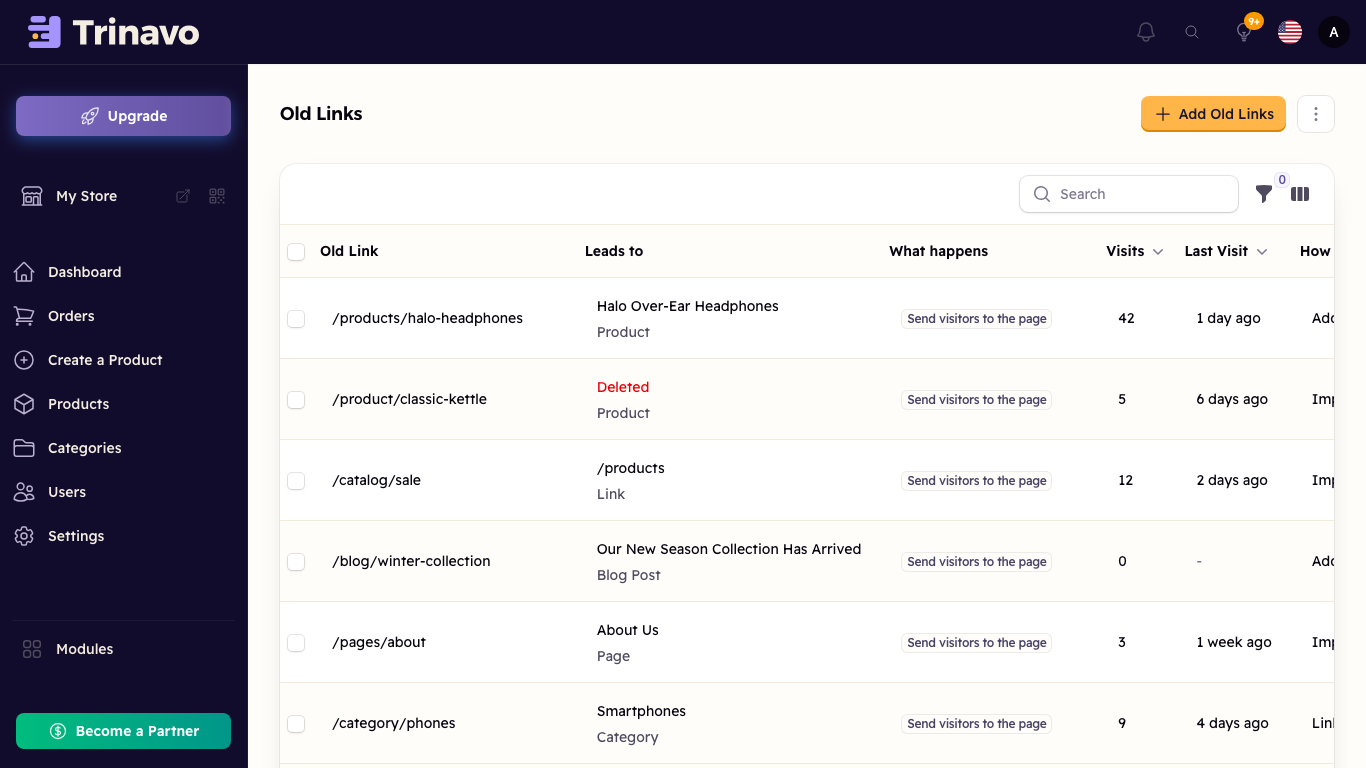
Each row is one old link:
- Old Link: the address that is kept working. Click it to copy it.
- Leads to: the product, category, brand, page, blog post or address it leads to. Click it to open that page. Deleted in red means the product, category or brand it led to has been deleted. Deleting a page or a blog post removes its old links with it.
- What happens: Send visitors to the page moves visitors to the page's own address; Open the page at this link too shows the page at the old address as well.
- Visits and Last Visit: how often the old link is still used. An old link nobody visits any more can go.
- How it was added: Added by hand, Imported, or Link changed for those your store made itself.
Filter the list by Leads to, What happens or How it was added. Leads to a deleted page lists the old links that now lead nowhere, so you can point them somewhere else or delete them.
Old links your store makes for you
When you change the permalink of a product, category, brand, page or blog post, the previous address is added here on its own, marked Link changed, so links already shared keep working. If a page later takes that address for itself, the old link is removed, because the real page always wins.
Add old links
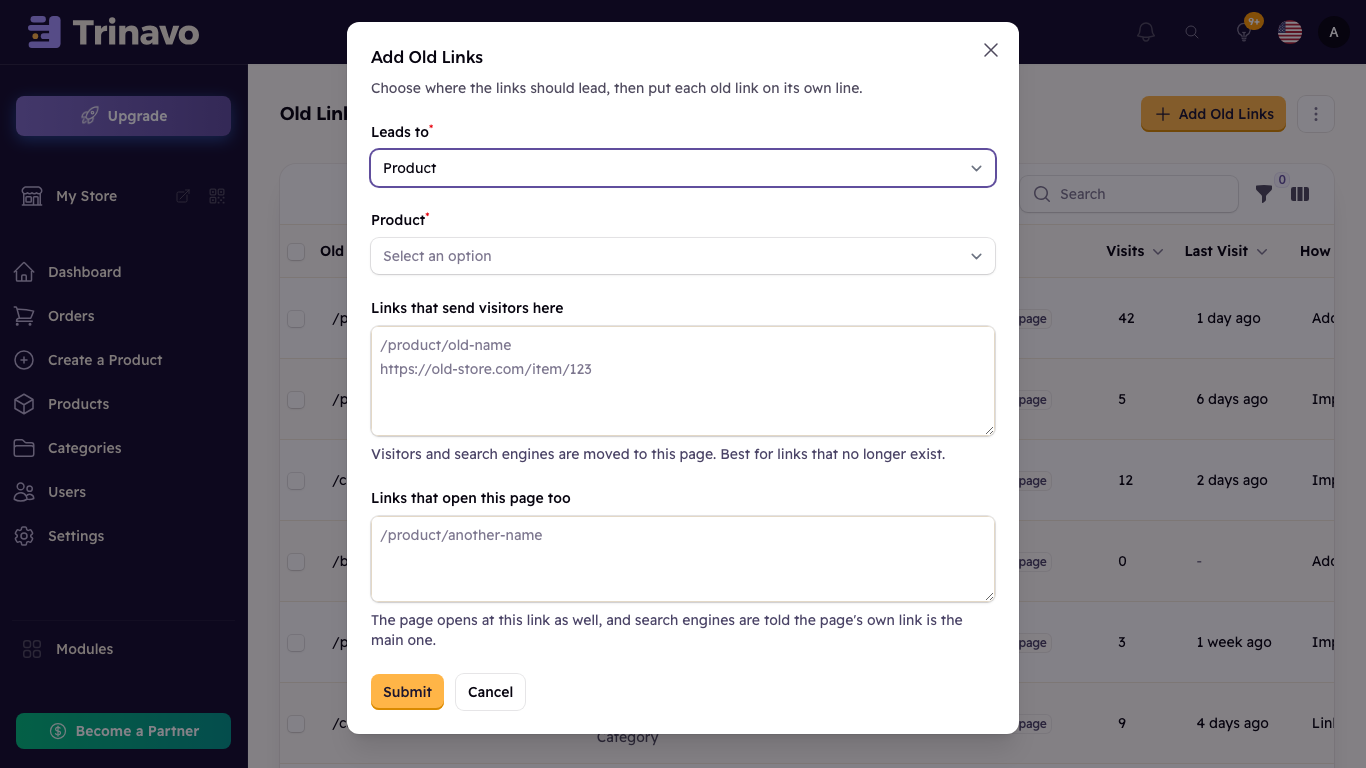
- Click Add Old Links.
- In Leads to, choose what the links lead to, then pick it. For Link, type the New link instead: an address on your store, such as
/products, or a full address on another website. - Put each old address on its own line, in one of the two boxes.
- Click Submit.
| Box | What it does |
|---|---|
| Links that send visitors here | Visitors and search engines are moved to the page. Best for addresses that no longer exist. |
| Links that open this page too | The page opens at this address as well, and search engines are told the page's own address is the main one. Not offered for Link. |
You can paste a full address, such as https://old-store.com/item/123, or only the part after the domain; both are kept as the same old link.
The same two boxes open from Old Links in the ⋮ menu of a row in Products, Categories, Brands, Pages and Blog Posts, already pointed at that record. See Pages.
Change an old link
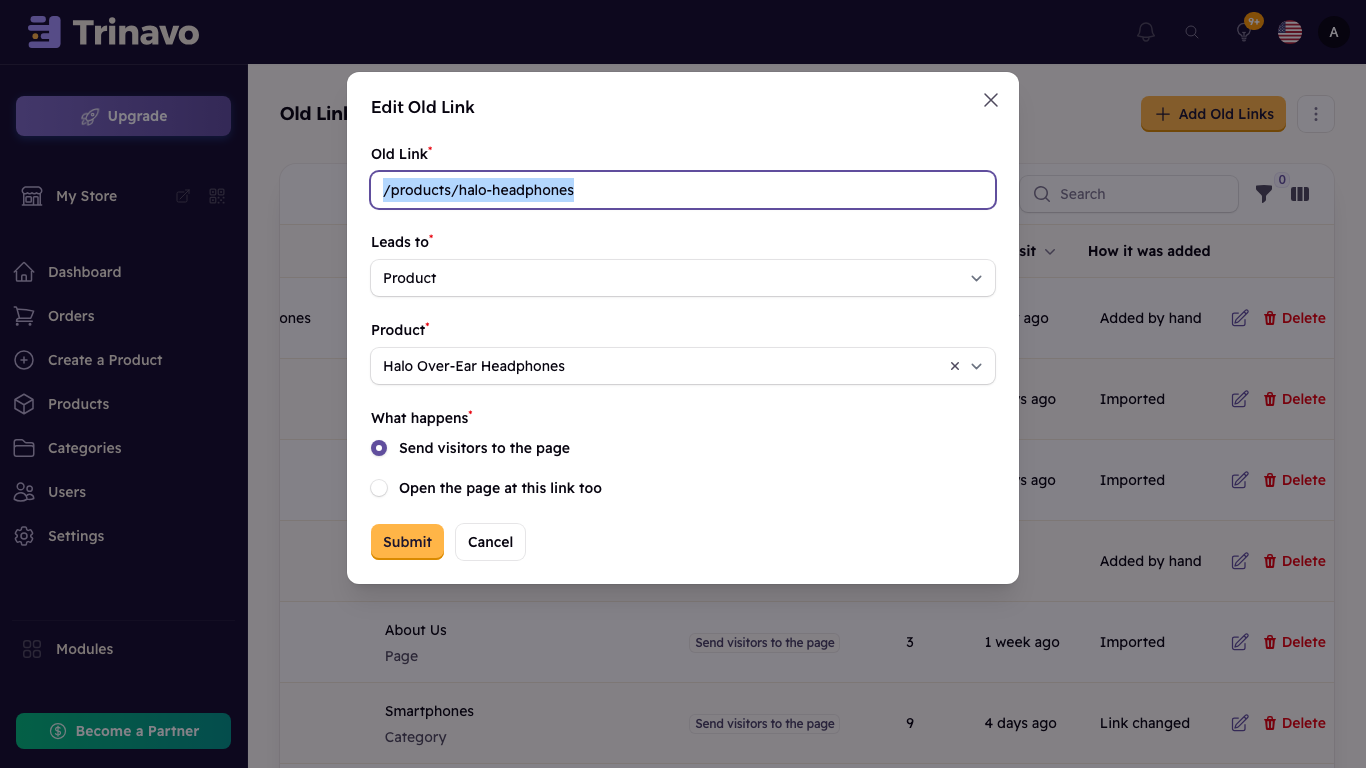
- Click the pencil (Edit) on the row.
- Change the Old Link, where it Leads to, or What happens.
- Click Submit.
Import old links from a file
Moving from another platform can mean hundreds of old addresses. Bring them in from a spreadsheet:
- Open the ⋮ menu (More) at the top and click Import.
- Choose your file, then match its columns: Old Link, Leads to and, if you have it, What happens.
- Start the import. You are told how many rows came in, and can download the rows that failed with the reason.
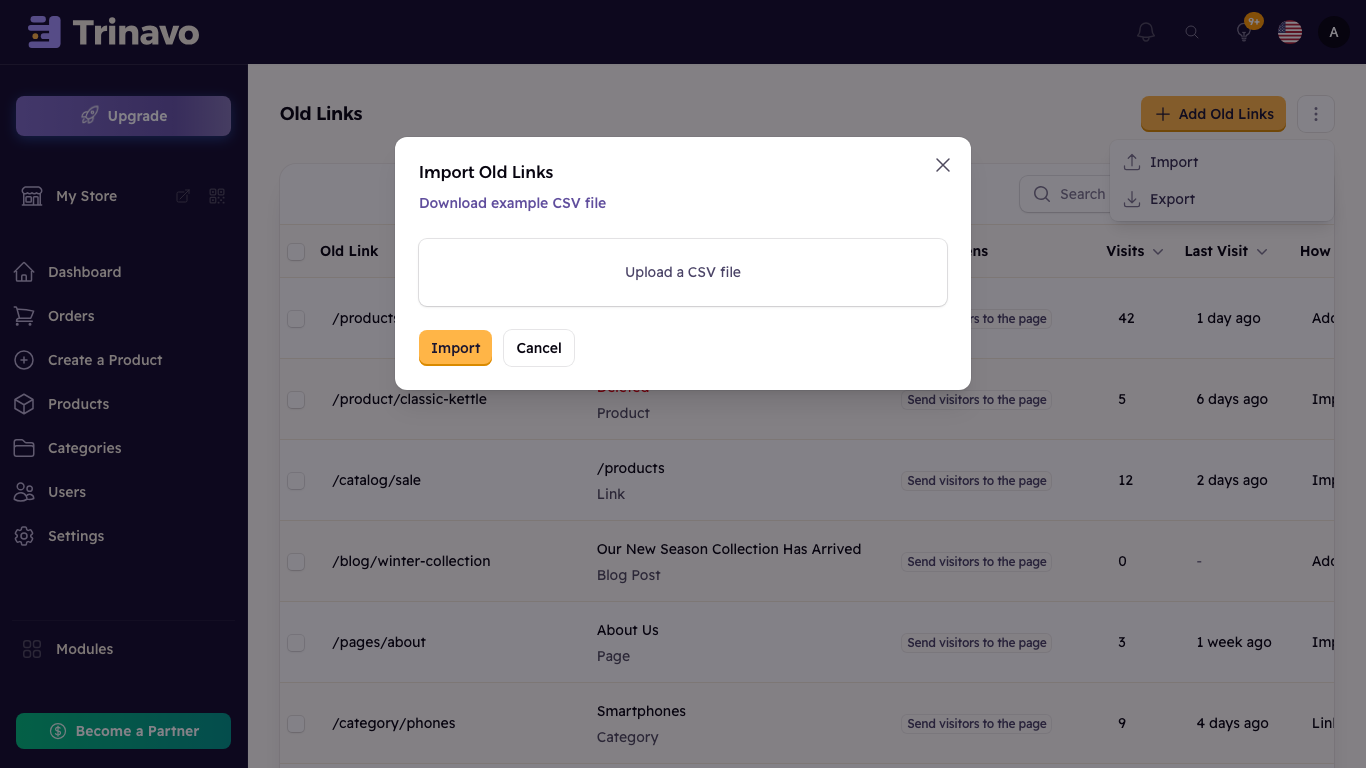
Leads to in the file is either an address, such as /products or https://example.com/sale, or a record of your store: item: followed by a product's SKU or permalink, or category:, brand:, page: or blog_post: followed by its permalink. An address on your store that opens a product or category is saved as that product or category, so it keeps working when you rename it. Importing an old link that is already in the list moves it to the new target. Export in the same menu downloads the list in the same columns.
Delete old links
Click Delete on the row. Tick several rows to delete or export them together.