Deposit Requests
Watch the video
Wallet Deposit
Watch the:
When a customer pays you outside the store, by bank transfer or cash, and wants the money in their wallet, they send a deposit request with a photo of the receipt. You check that the money arrived, then approve the request to add it to the wallet, or reject it.
Where to find it
Open Modules → Wallet Management → Deposit Requests. The number beside the menu item counts the requests waiting for you.
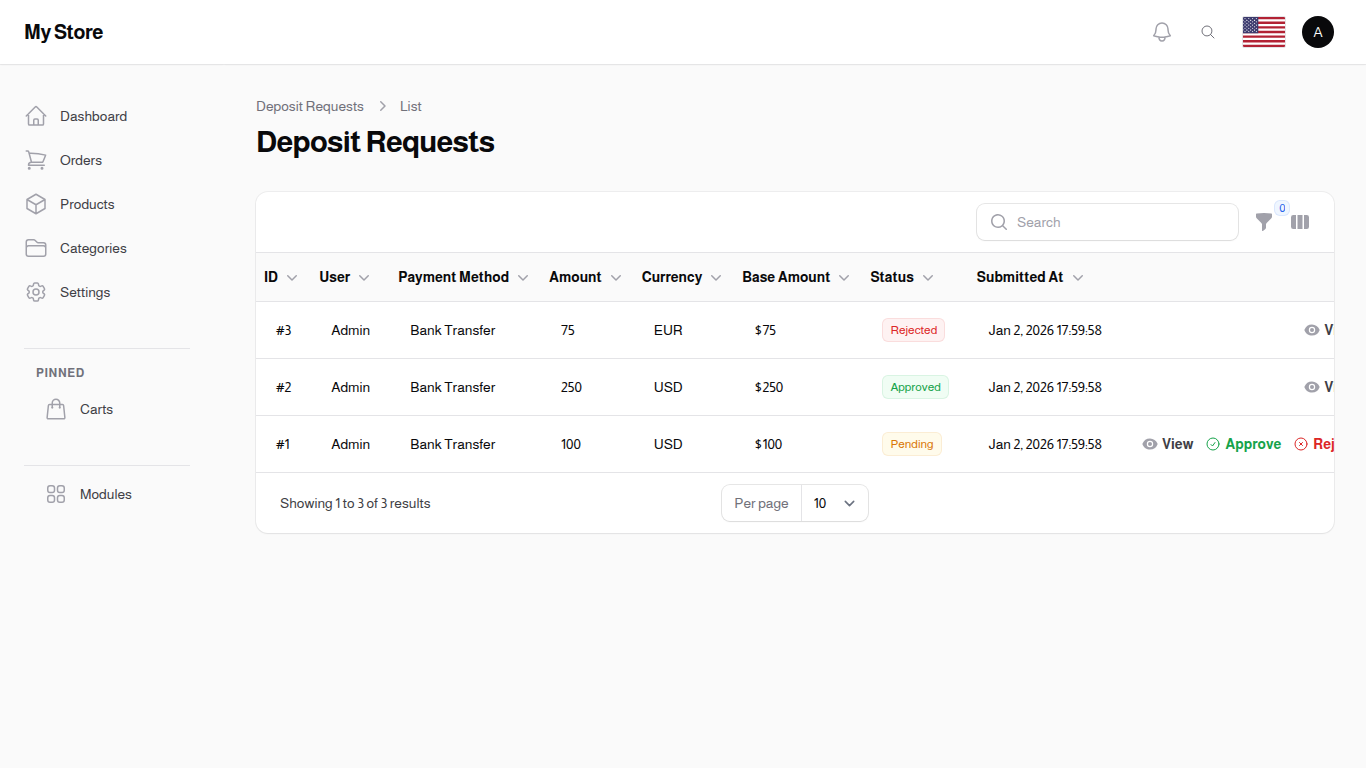
Newest requests are first. Fee % and Fee Amount are what the payment method charges, and Final Amount is what reaches the wallet once the fee is taken. Automatic under the payment method marks money a customer added online: those requests are approved by the payment itself and need nothing from you.
The filters show one Status, one Payment Method, the requests sent between two dates (Submitted From, Submitted Until), and deleted requests. Reviewed At and Reviewed By can be added from the columns button.
How a customer sends one
In their account, under My Wallet, the customer opens the deposit page, picks one of your Manual Payment Methods, reads your notes and payment details, types the amount, uploads the receipt and sends. Staff who get wallet deposit notifications in Notification Settings are told at once.
Customers can only send deposit requests while Enable Wallet Deposits is on in Wallet Settings, which also sets the Minimum Deposit Amount and how many requests one customer may have waiting (Max Pending Deposit Requests).
With Enable Adding Funds Online on in Wallet Settings, the same page also lists the online payment methods you ticked there under Automatic Payment. The customer pays on the spot and the money reaches the wallet as soon as the payment succeeds; the request shows up here already Approved. A top-up card is used from the same page.
Check a request
Click View on the request's row. The page shows the customer, the method, the amount, the fee and the final amount, the customer's notes and the receipt they uploaded.
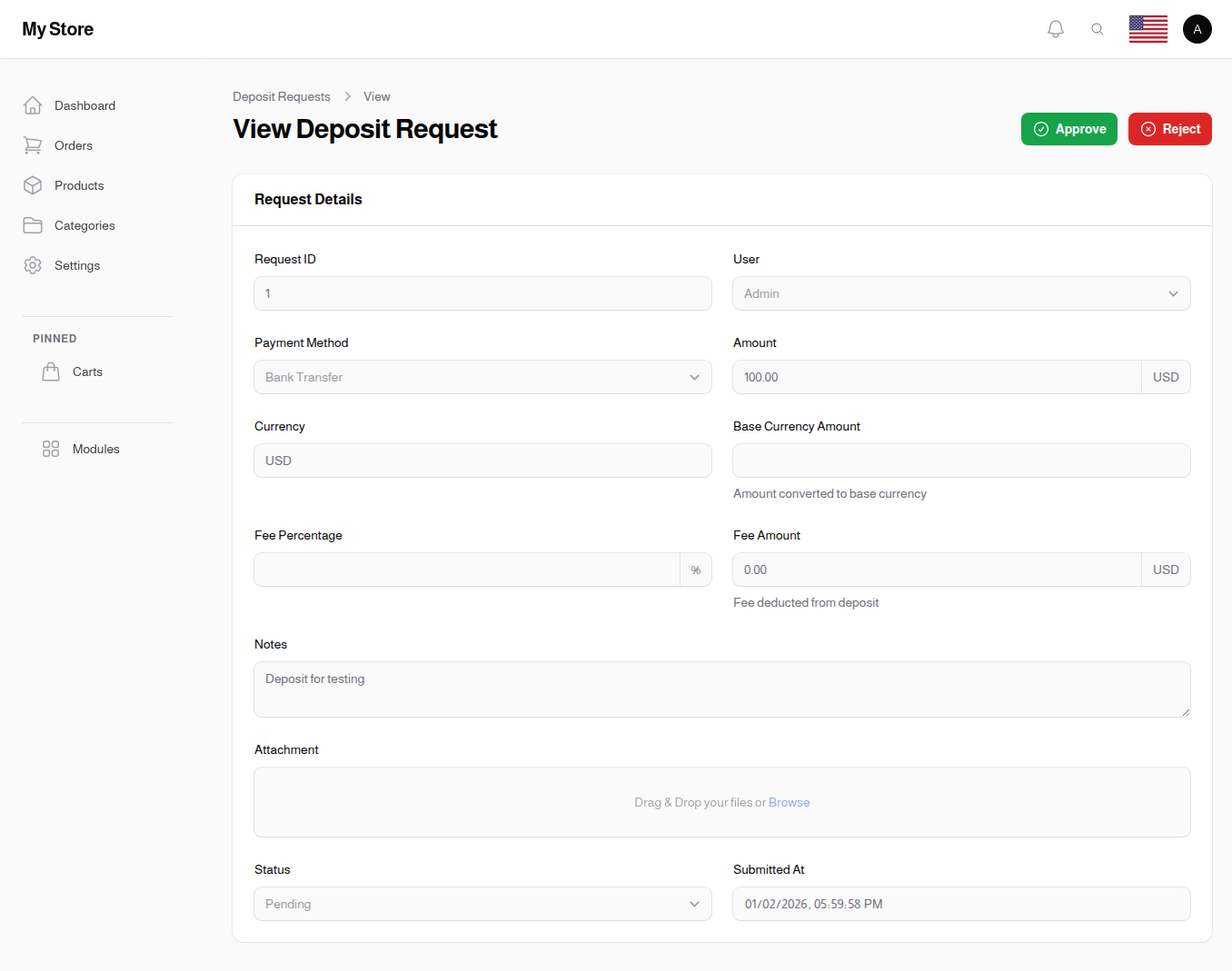
Once a request has been reviewed, the page also shows who reviewed it, when, and the reason for a rejection.
Approve a request
- Make sure the money is in your account.
- Click Approve, on the row or on the request's page.
- Click Confirm.
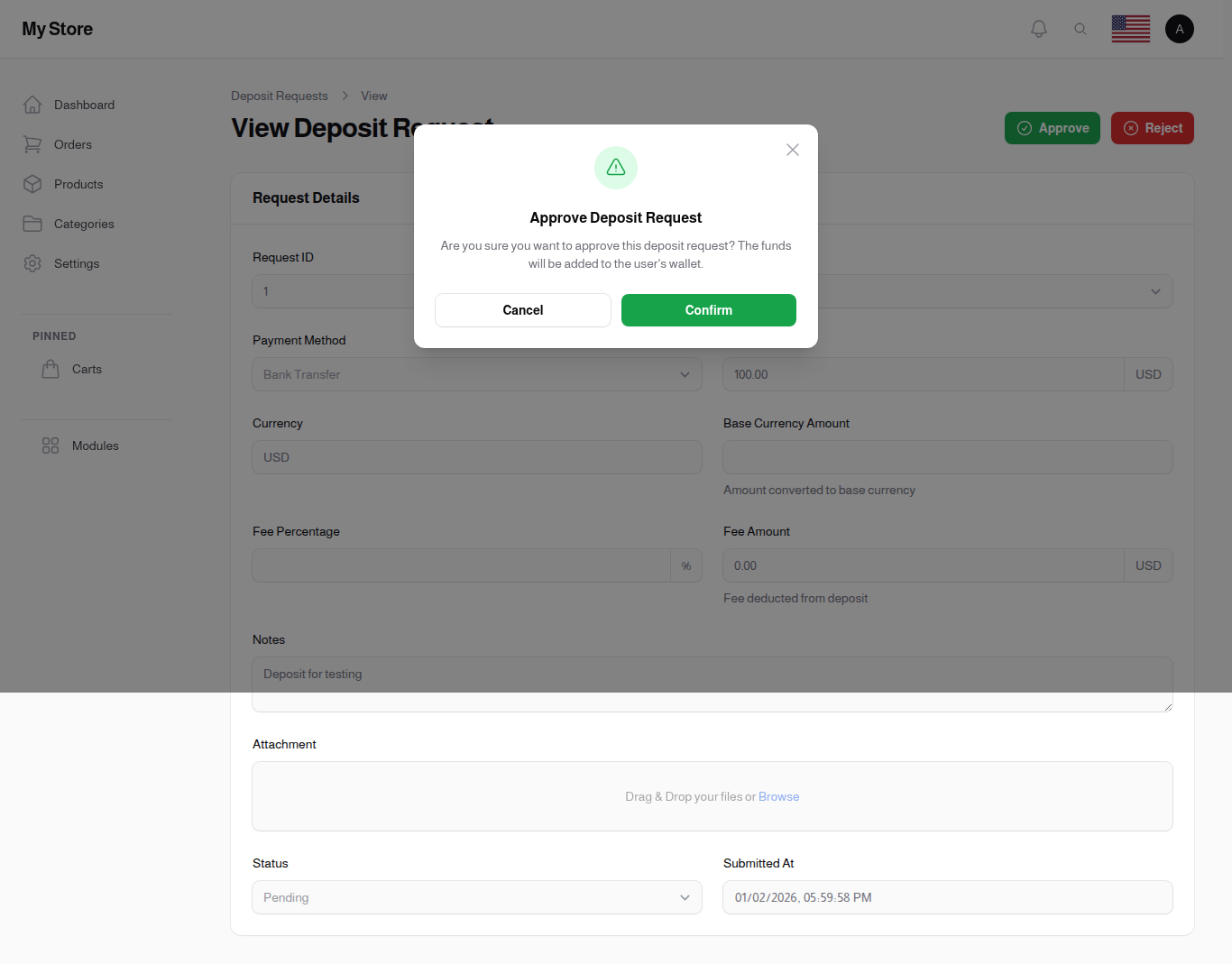
The final amount is added to the customer's wallet at once, the request turns Approved, and the customer is notified on the site and by email. With wallets in several currencies, the money goes to the wallet in the request's currency; otherwise it is converted into the main-currency wallet.
Reject a request
- Click Reject.
- Write the Rejection Reason. The customer sees it.
- Click Submit.
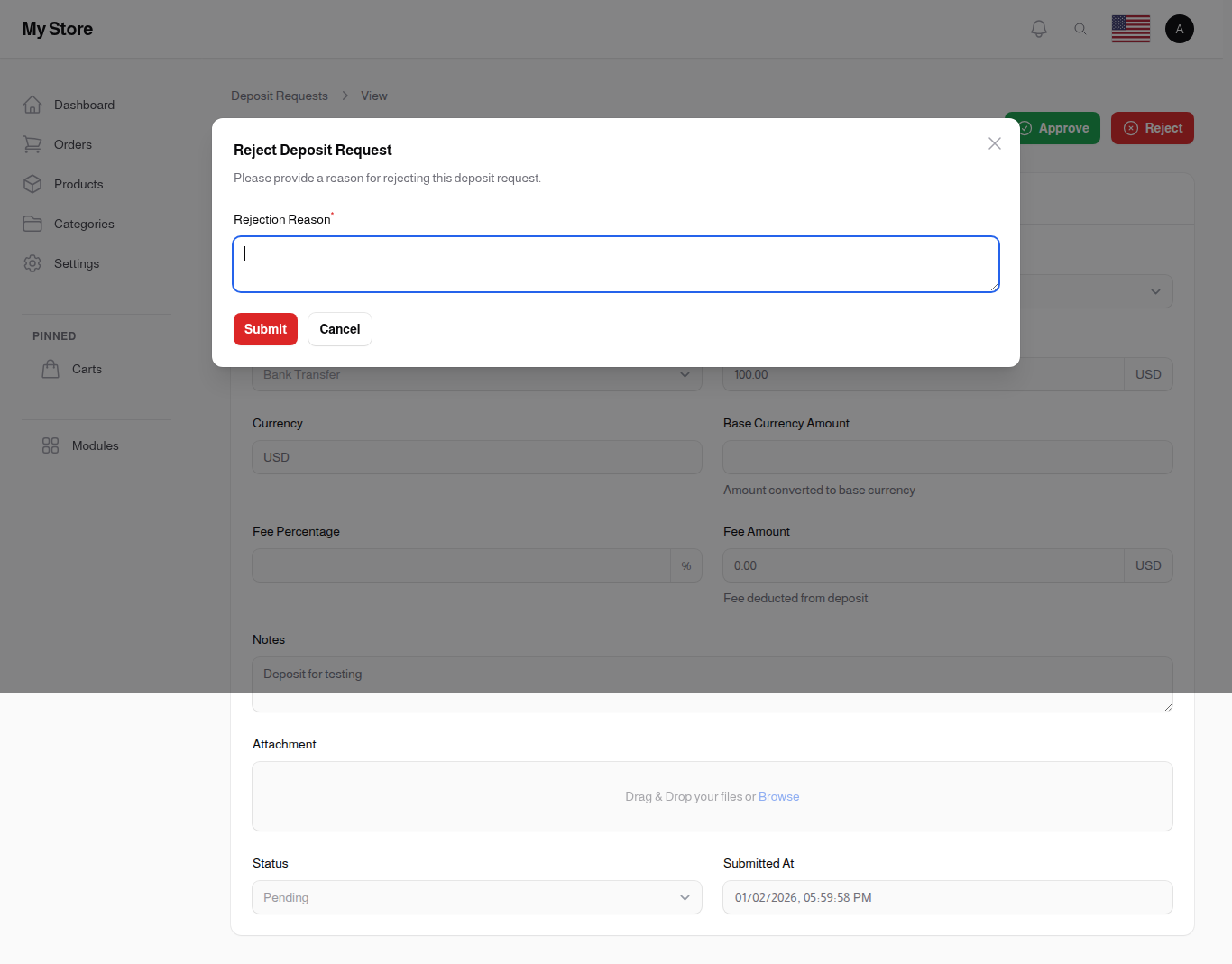
Nothing is added to the wallet. A reviewed request cannot be approved or rejected again: if you rejected by mistake, add the money with Add in User Wallets.