Social Publishing
Overview
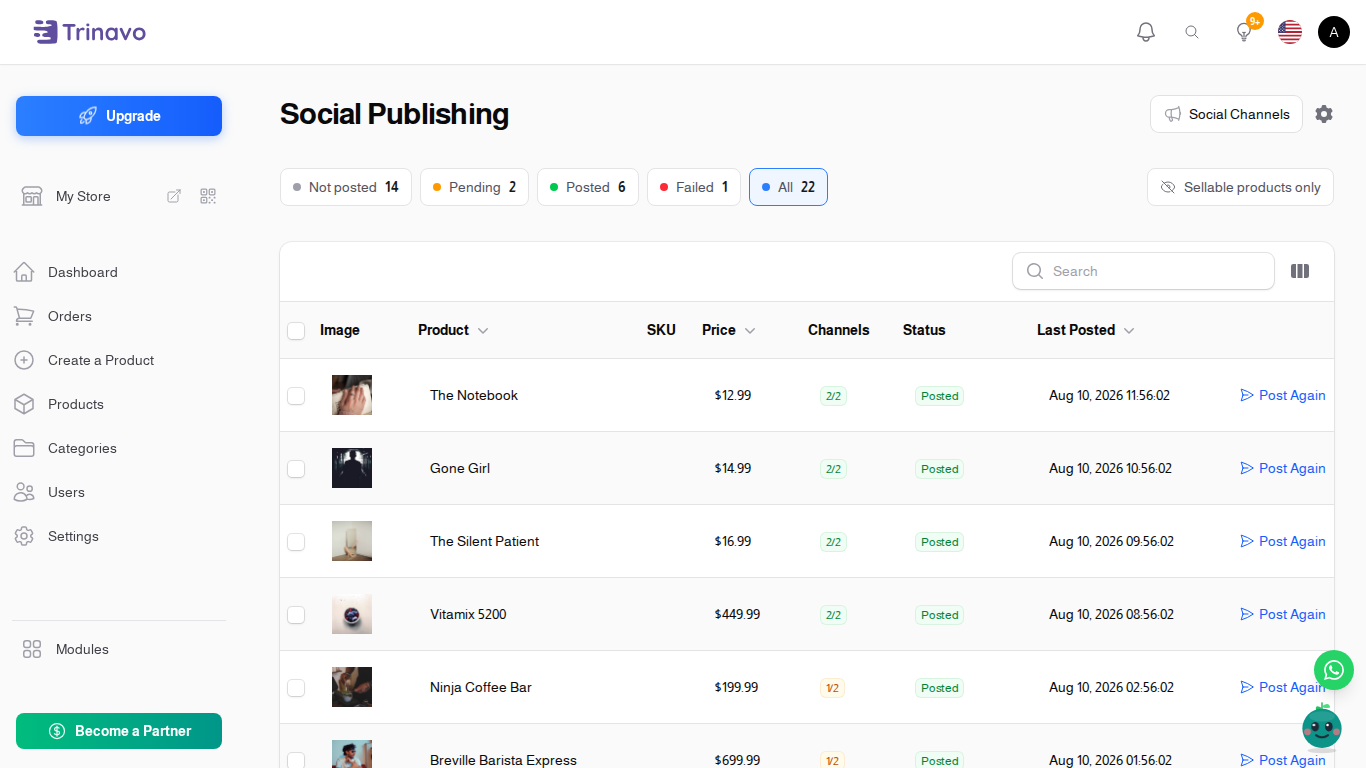
Social Publishing posts your products to your Telegram channel. You open one screen, see which products you have not announced yet, tick the ones you want, and press a button. The posts go out on their own, a few seconds apart, with the photo, the name, the price, and a link straight back to the product in your store.
Nothing happens automatically. A product is posted only when you decide to post it, so adding or importing products never floods your channel.
Telegram is the only network today. More are on the way, and the screen is built so they will simply appear in the same list.
Why post your products
A store is a place people have to remember to visit. A channel arrives in their pocket.
Customers who follow your channel see every new product, every price drop, and every restock the moment you announce it - without an ad budget, without an algorithm deciding who sees you, and without paying for the reach. The link in each post opens the product in your store, so a post can turn into an order in two taps.
Connecting your channel
You do this once.
Step 1 - create a bot on Telegram. In Telegram, open a chat with @BotFather, send /newbot, and follow the two questions it asks. It replies with a long token, something like 1234567890:ABCdef.... Copy it.
Step 2 - add the bot to your channel. Open your channel, go to its administrators, and add your new bot as an administrator with permission to post messages. Without this the bot cannot write anything.
Step 3 - add the channel to your store. Navigate to: Marketing & Content > Social Publishing, then press Social Channels at the top, then New Social Channel.
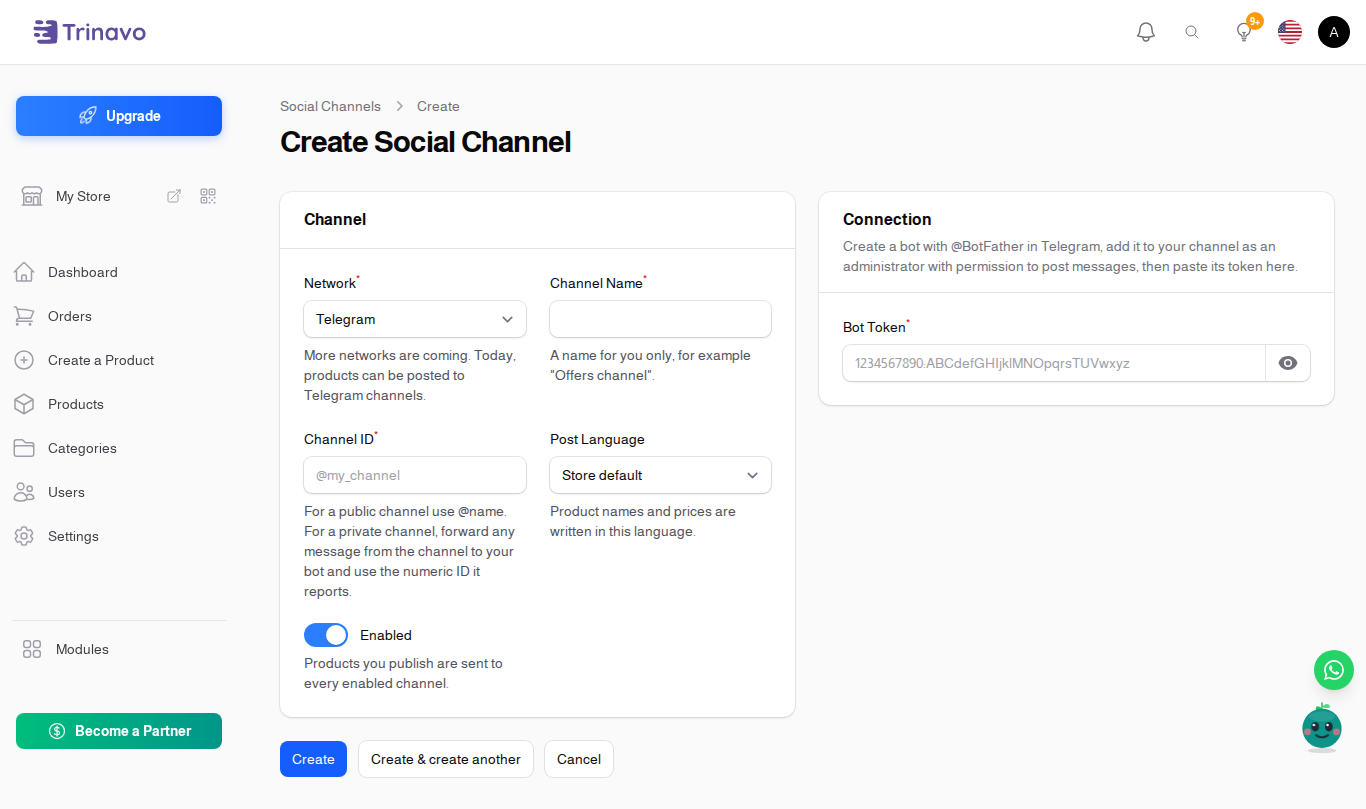
- Network - Telegram.
- Channel Name - a name for you only, for example "Offers channel". Customers never see it.
- Channel ID - for a public channel this is
@yourchannel. For a private channel, forward any message from the channel to your bot, and the bot replies with a numeric ID - use that. - Post Language - the language product names and prices are written in. Leave it on Store default unless the channel is for a specific audience.
- Enabled - products you publish are sent to every enabled channel.
- Bot Token - the token @BotFather gave you.
Save, and you are set up.
Checking it works before you post
The channel list gives you two ways to be sure before you send a real product.
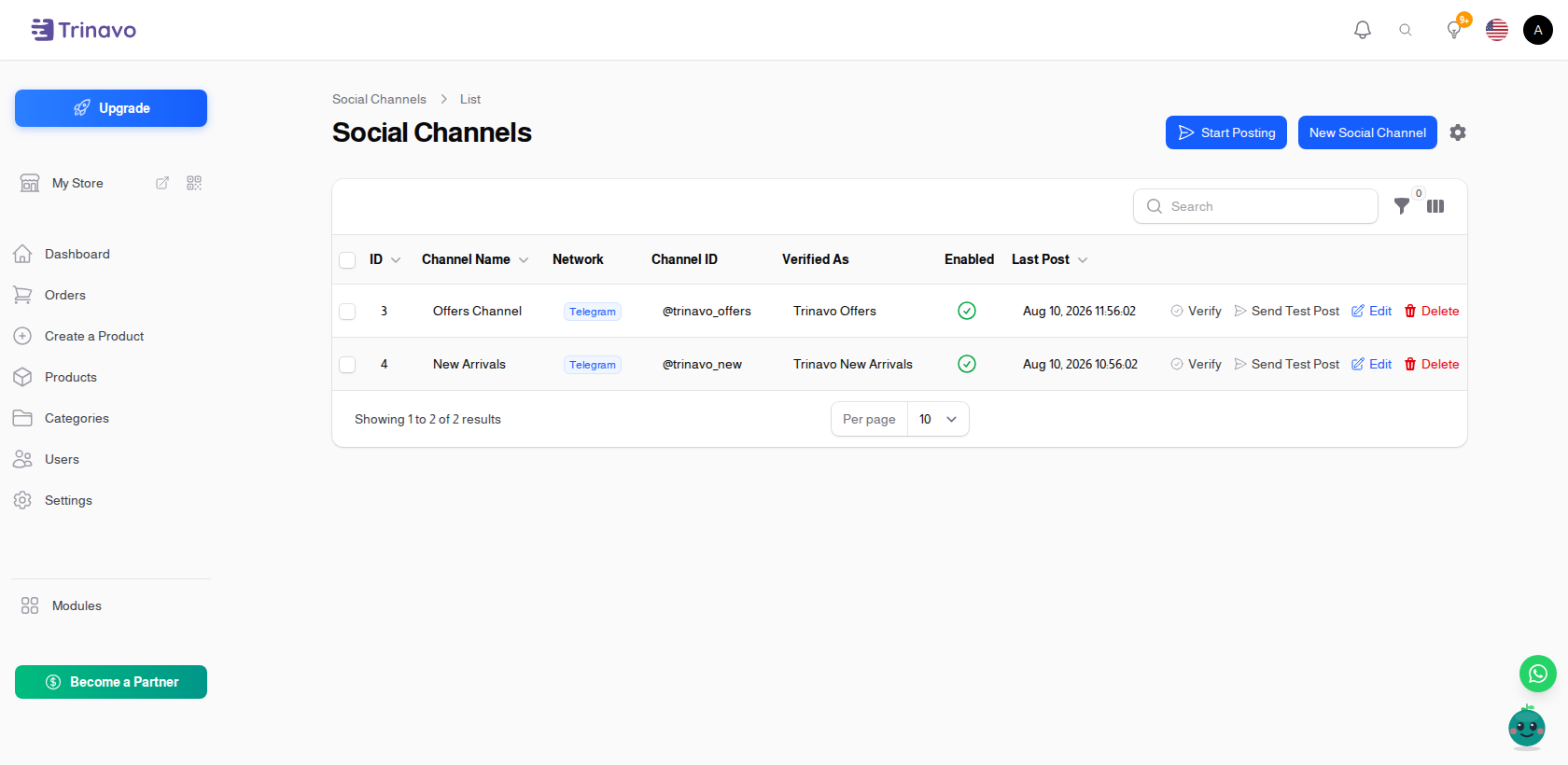
- Verify - asks Telegram whether the bot can see the channel, and shows you the channel name it found. This is the fastest way to catch a wrong channel ID or a bot that was never made an administrator.
- Send Test Post - sends one short message so you can watch it land in the channel.
The Verified As column keeps the name Telegram reported, and Last Post shows when something last went out.
Tip: you can add more than one channel - one for offers, one for new arrivals, one in another language. Every enabled channel receives what you publish.
The publishing screen
Navigate to: Marketing & Content > Social Publishing
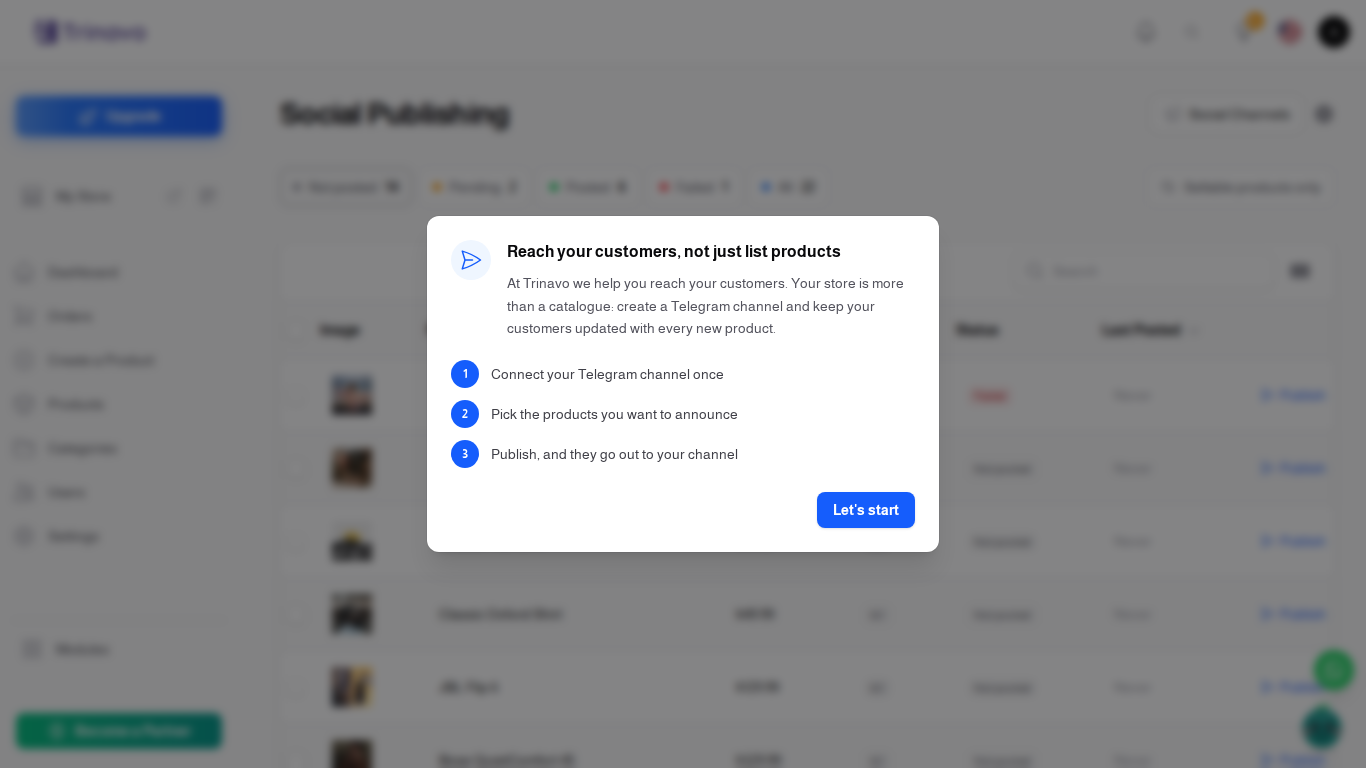
The first time you open it, a short welcome lays out the three steps. It appears once.
The coloured chips across the top are both a summary and a filter. Click one to see only those products.
- Not posted - never announced. This is where you normally start.
- Pending - waiting to go out in the next few minutes.
- Posted - already announced.
- Failed - something went wrong; open the delivery log to see what.
- All - every product.
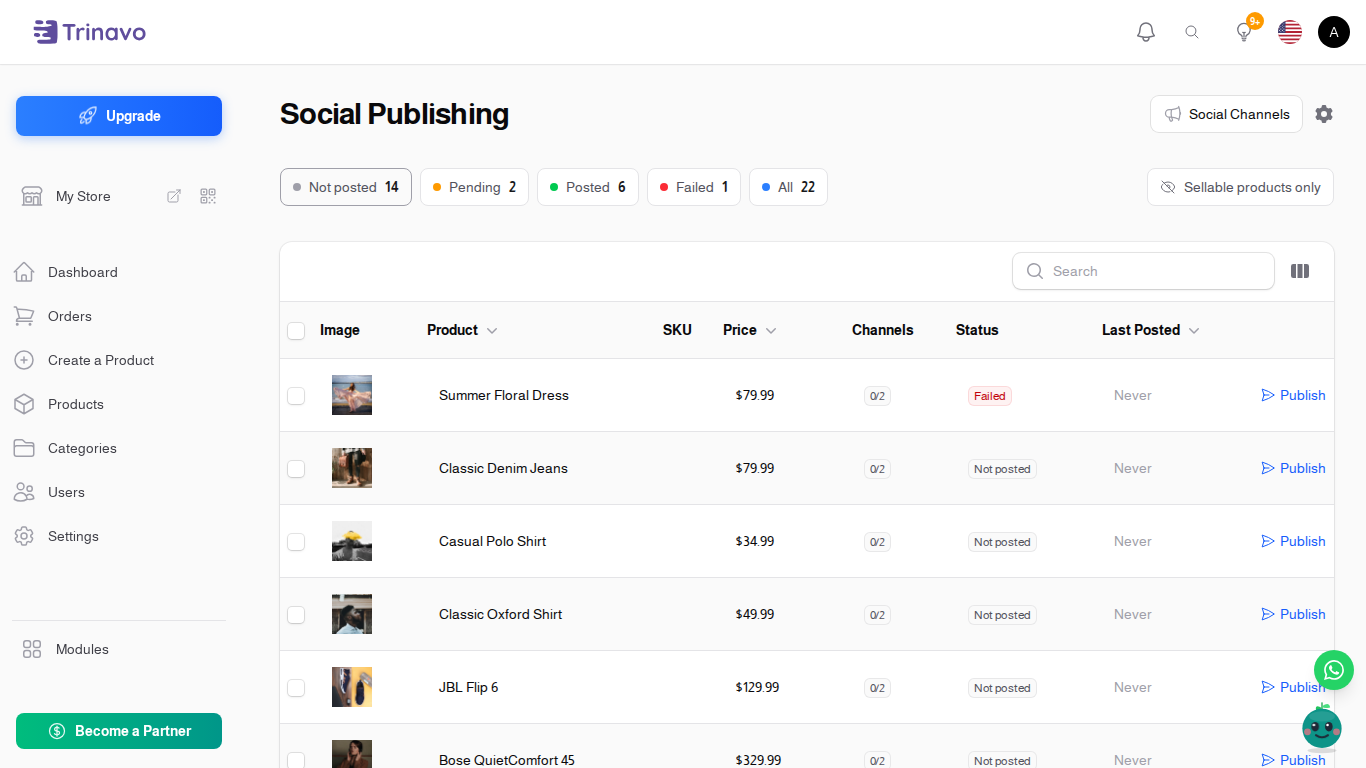
The Channels column reads like 1/2: this product has gone out to one of your two enabled channels. Green means every channel has it, amber means some, grey means none.
By default the screen shows Sellable products only - the products customers can actually buy. Press that button to include hidden, disabled, and unapproved products as well.
Publishing a product
Press Publish on any row. If the product has been posted before, the button reads Post Again - re-posting is perfectly normal, for a price drop or a restock.
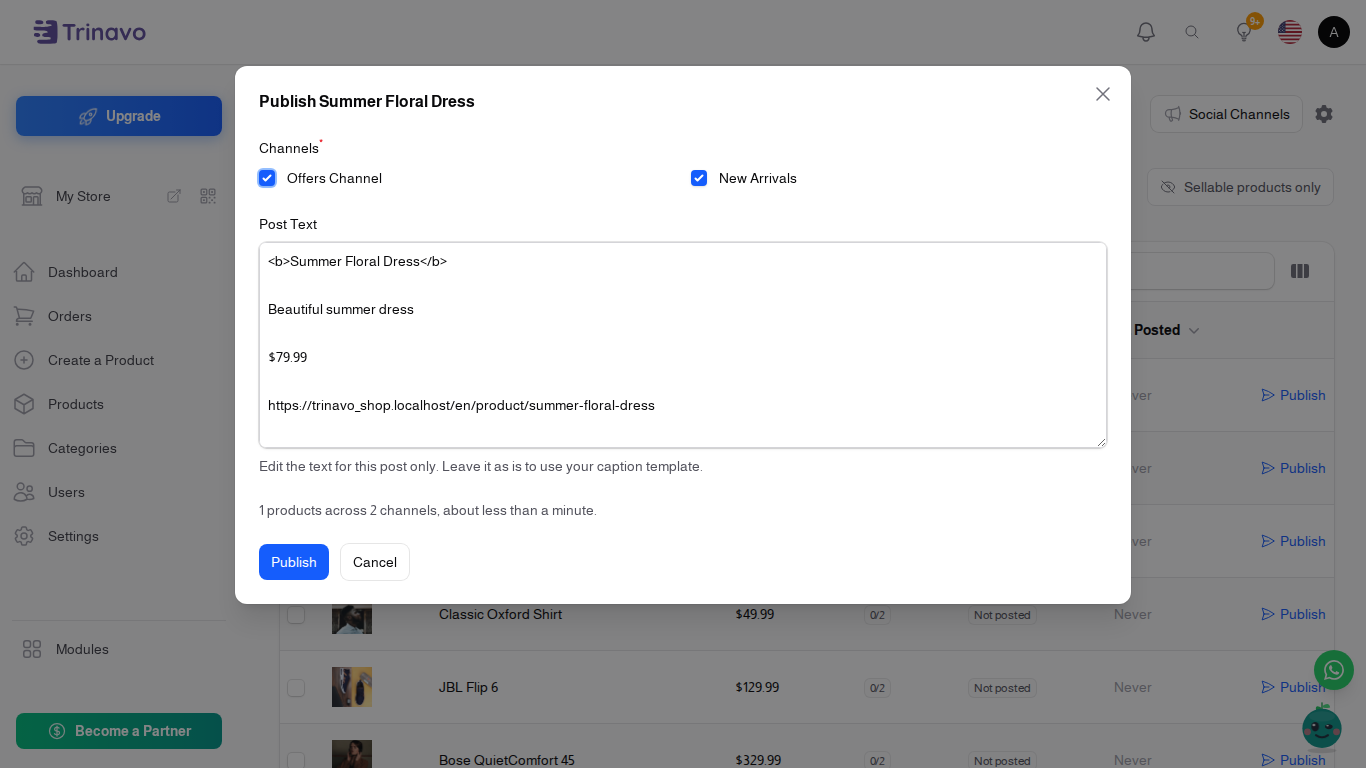
The window shows:
- Channels - only when you have more than one enabled channel. All of them are ticked; untick any you want to skip.
- Post Text - exactly what will be sent. Edit it here to change this one post without touching your template.
- A line telling you how many posts this is and roughly how long they will take.
Press Publish and you are done. The posts move to Pending and go out over the next few minutes.
Publishing many at once
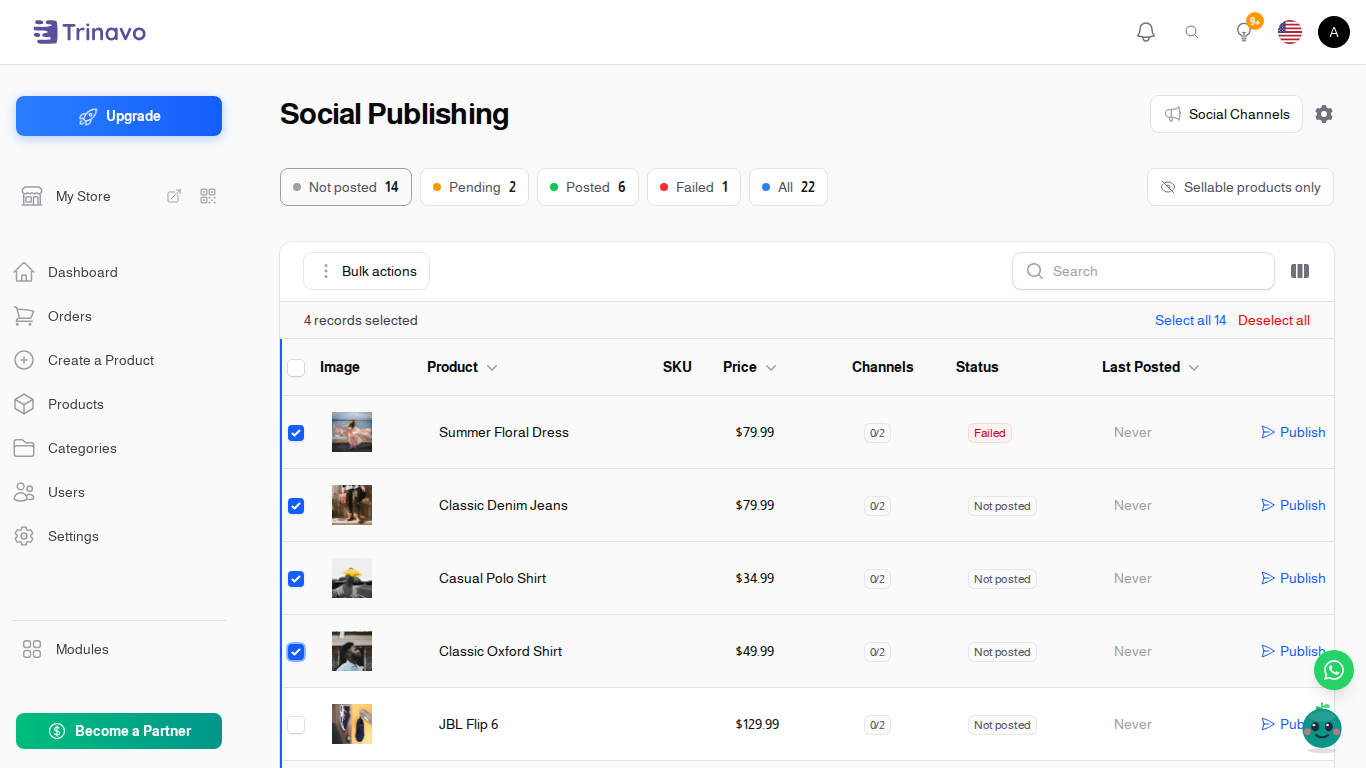
Tick the products you want. A toolbar appears above the table as soon as anything is selected; open it and choose Publish to Social.
The window is the same, minus the text box - each product uses your template so they do not all read alike.
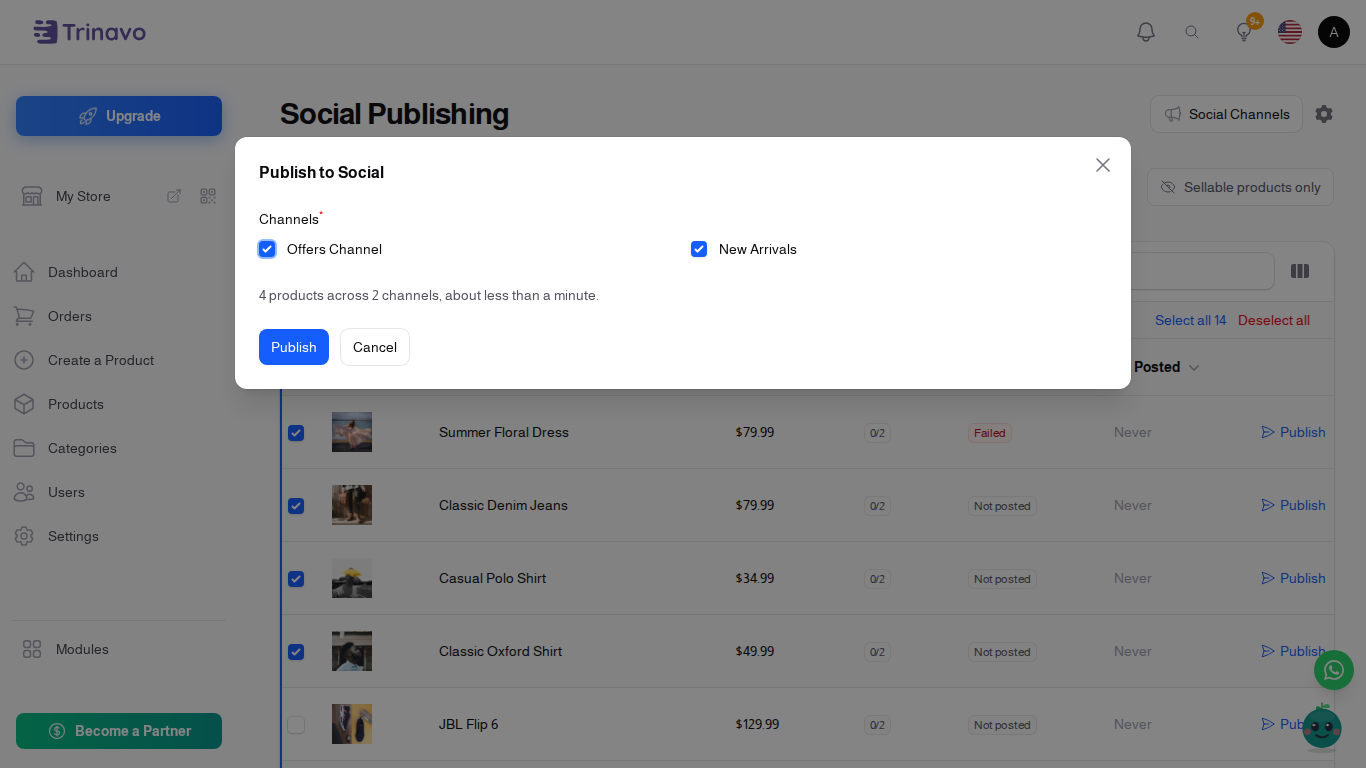
Note: posts are sent a few seconds apart on purpose. Telegram limits how fast anything can post to a channel, and going slowly is what keeps your channel working. One hundred products is a few minutes, not an instant. Up to 200 products can be published in one go.
You can also reach this screen straight from your catalogue: Products > More > Social Publishing.
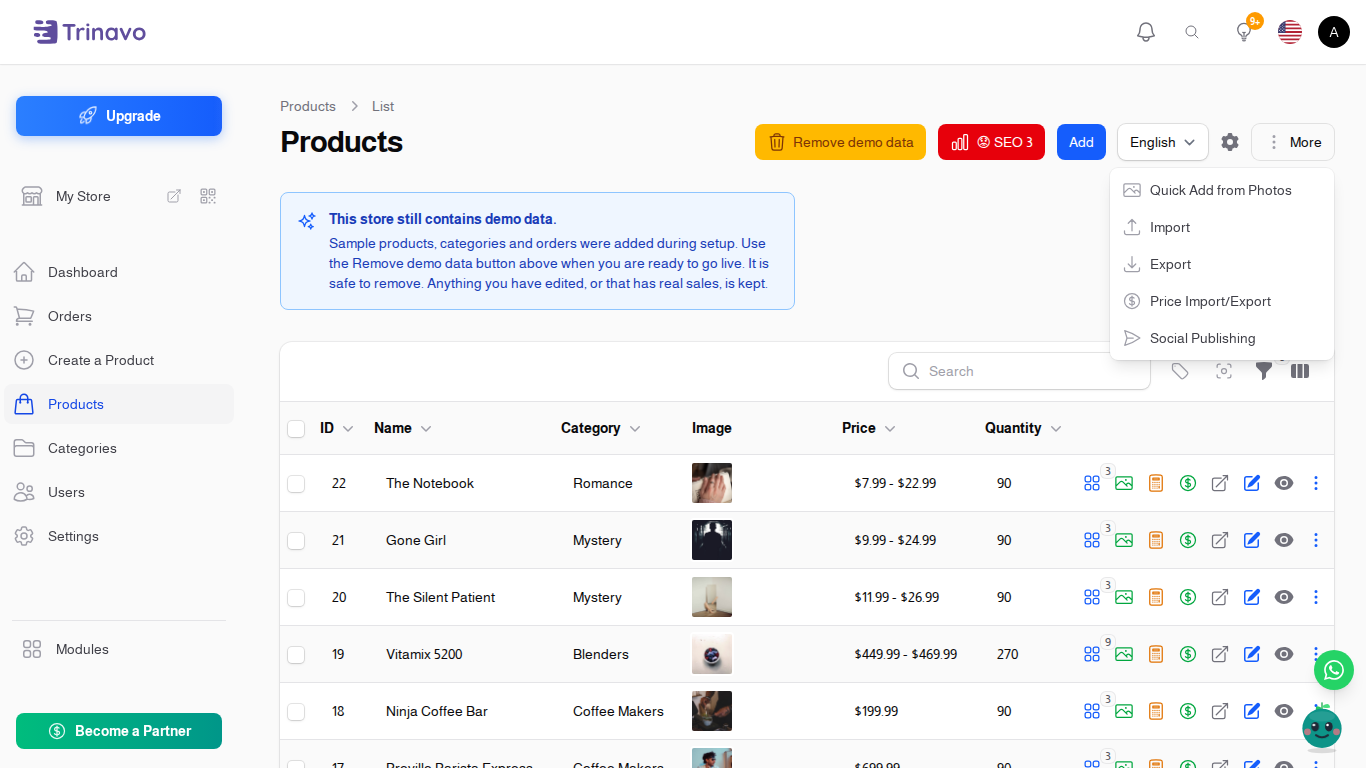
Choosing how your posts read
Navigate to: Settings > Social Publishing
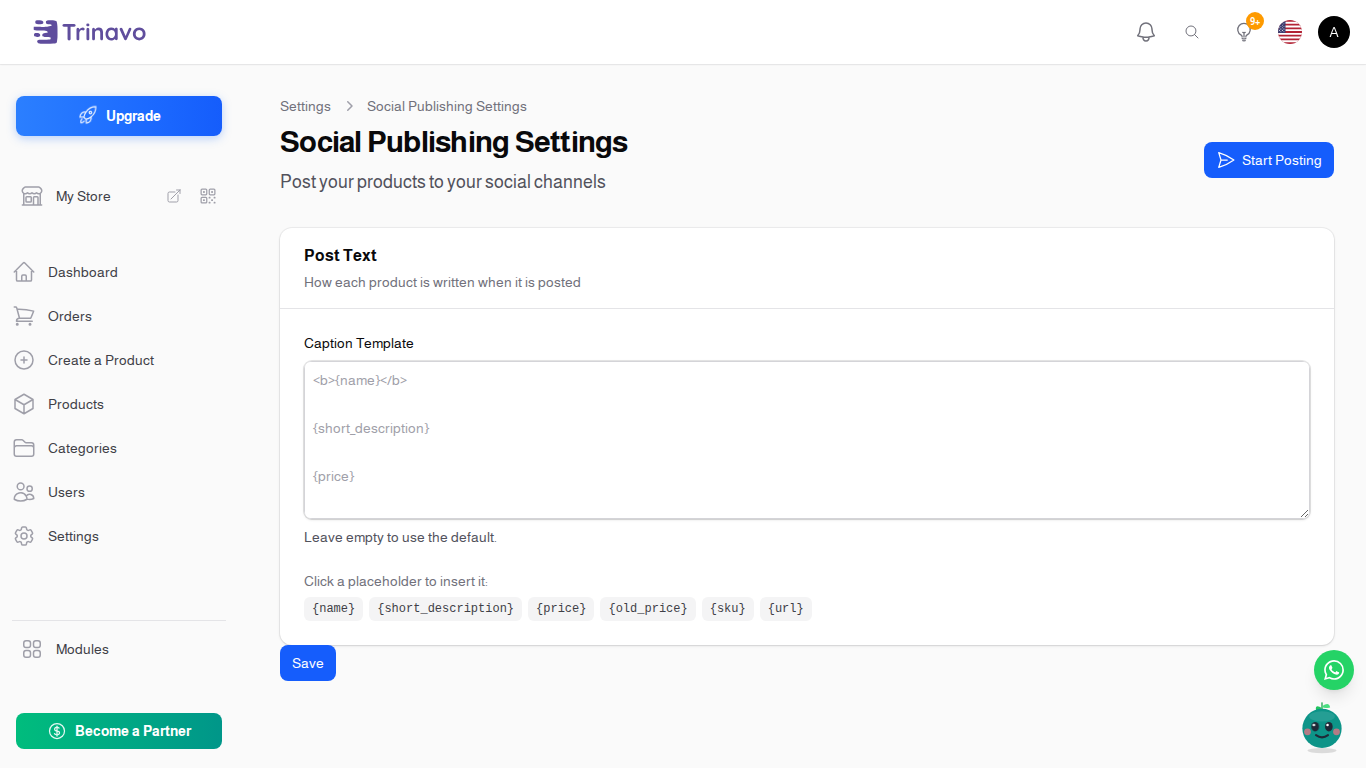
The Caption Template decides how every product is written. Leave it empty and posts use the default: the name in bold, the short description, the price, and the link.
To write your own, click any placeholder underneath to insert it:
{name}- the product name{short_description}- the short description{price}- the price, in your store's currency{old_price}- the price before the discount, if there is one{sku}- the product code{url}- the link to the product in your store
Everything else you type is sent as-is, so you can add your own line, an emoji, or your delivery promise. The template is used for every channel; a channel set to a different Post Language writes the same template with that language's names and prices.
Note: Telegram allows about 1000 characters under a photo. Longer posts are shortened, so keep the important part first.
Following what happened
Navigate to: Marketing & Content > Social Posts
This is the record of every post: which product, which channel, whether it was sent, when, and what went wrong if it did not.
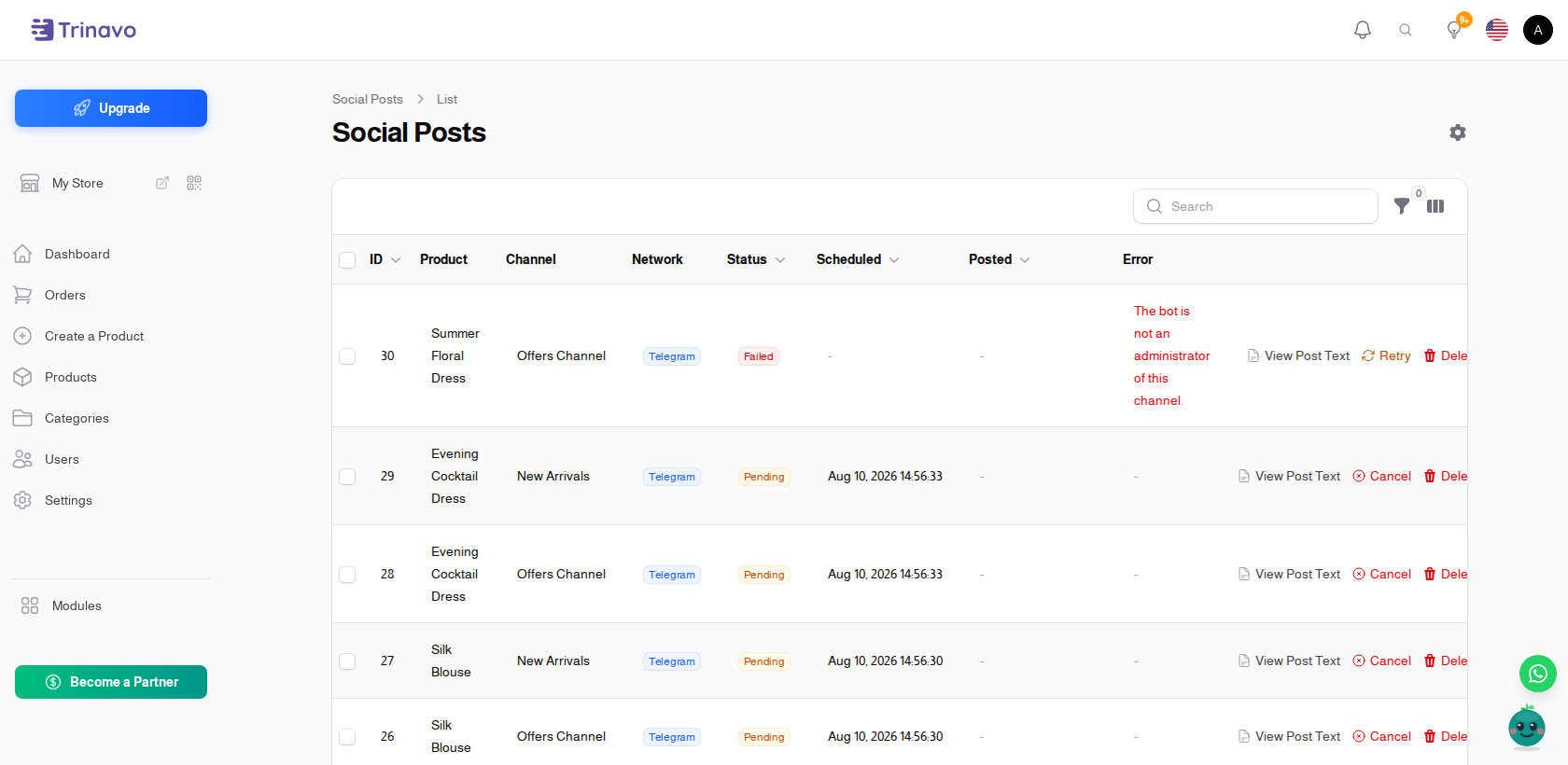
Each row offers:
- View Post Text - exactly what was sent.
- Retry - send a failed post again, after you have fixed the cause.
- Cancel - stop a post that has not gone out yet.
Filter by status or channel, or switch on Failed only to see just the problems.
Tip: cancelled a batch by mistake? Nothing is lost. The products go back to Not posted and you can publish them again.
Troubleshooting
My posts fail with "the bot is not an administrator"
The bot has to be an administrator of the channel, with permission to post messages. Open the channel's administrator list in Telegram, add the bot, then press Retry on the failed posts.
My posts fail with "chat not found"
The Channel ID is wrong. For a public channel it must be @yourchannel, exactly as it appears in Telegram. For a private channel, forward a message from the channel to your bot and use the numeric ID it replies with. Press Verify after correcting it.
The Publish button is missing
Either you have no enabled channel yet - add one from Social Channels - or your store is not on a paid plan. Social Publishing is a premium feature: you can still see your channels and your history, but not publish. The screen shows an upgrade prompt, and you can start a free trial from there.
Nothing has gone out yet
Posts are deliberately spaced a few seconds apart, so a large batch takes minutes. Check the Scheduled column in the delivery log to see when each one is due.
A product shows 1/2
It reached one of your two enabled channels. Open the delivery log and filter by that product to see which channel is missing and why, or simply press Post Again and untick the channel that already has it.
The screen says every product has been posted
That is the Not posted filter doing its job. Click All to see everything, or Posted to review what has already gone out.